slam_simulation
SLAM Simulation
- Humble
- Jazzy
- Noetic
With SLAM in the Gazebo simulator, you can select or create various environments and robot models in a virtual world. Other than the preparation of the simulation environment instead of bringing up the robot, SLAM Simulation is pretty similar to the operation of SLAM on the actual TurtleBot3.
The following instructions require prerequisites from the previous section, so please review the Simulation section first.
Launch Simulation World
Three Gazebo environments are prepared, but for creating a map with SLAM, it is recommended to use either TurtleBot3 World or TurtleBot3 House.
Use one of the following commands to load the Gazebo environment.
In this tutorial, TurtleBot3 World will be used.
Specify your TurtleBot3 model (burger, waffle, waffle_pi) using the TURTLEBOT3_MODEL parameter.
$ export TURTLEBOT3_MODEL=burger
$ ros2 launch turtlebot3_gazebo turtlebot3_world.launch.py
 Read more about How to load TurtleBot3 House
Specify your TurtleBot3 model (
Read more about How to load TurtleBot3 House
Specify your TurtleBot3 model (burger, waffle, waffle_pi) using the TURTLEBOT3_MODEL parameter.
Read more about How to load TurtleBot3 House
Specify your TurtleBot3 model (burger, waffle, waffle_pi) using the TURTLEBOT3_MODEL parameter.$ export TURTLEBOT3_MODEL=burger
$ ros2 launch turtlebot3_gazebo turtlebot3_house.launch.py
Run SLAM Node
Open a new terminal on the Remote PC with Ctrl + Alt + T and run the SLAM node. Cartographer SLAM method is used by default.
Specify your TurtleBot3 model (burger, waffle, waffle_pi) using the TURTLEBOT3_MODEL parameter.
$ export TURTLEBOT3_MODEL=burger
$ ros2 launch turtlebot3_cartographer cartographer.launch.py use_sim_time:=True
Run Teleoperation Node
Open a new terminal on the Remote PC with Ctrl + Alt + T and run the teleoperation node from the Remote PC.
Specify your TurtleBot3 model (burger, waffle, waffle_pi) using the TURTLEBOT3_MODEL parameter.
$ export TURTLEBOT3_MODEL=burger
$ ros2 run turtlebot3_teleop teleop_keyboard

 Control Your TurtleBot3!
 ---------------------------
 Moving around:
        w
   a    s    d
        x

 w/x : increase/decrease linear velocity
 a/d : increase/decrease angular velocity
 space key, s : force stop

 CTRL-C to quit
Save Map
When the map is has been created, open a new terminal on the Remote PC with Ctrl + Alt + T and save the map.
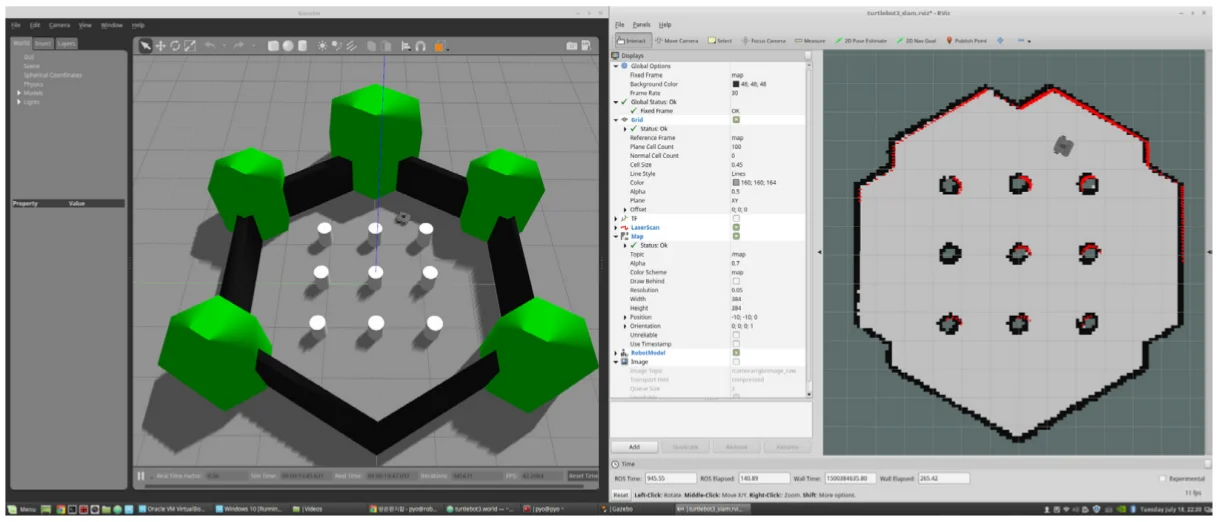
$ ros2 run nav2_map_server map_saver_cli -f ~/map

The saved map.pgm file
With SLAM in the Gazebo simulator, you can select or create various environments and robot models in a virtual world. Other than the preparation of the simulation environment instead of bringing up the robot, SLAM Simulation is pretty similar to the operation of SLAM on the actual TurtleBot3.
The following instructions require prerequisites from the previous section, so please review the Simulation section first.
Launch Simulation World
Three Gazebo environments are prepared, but for creating a map with SLAM, it is recommended to use either TurtleBot3 World or TurtleBot3 House.
Use one of the following commands to load the Gazebo environment.
In this tutorial, TurtleBot3 World will be used.
Specify your TurtleBot3 model (burger, waffle, waffle_pi) using the TURTLEBOT3_MODEL parameter.
$ export TURTLEBOT3_MODEL=burger
$ ros2 launch turtlebot3_gazebo turtlebot3_world.launch.py
Read more about How to load TurtleBot3 House
Specify your TurtleBot3 model (burger, waffle, waffle_pi) using the TURTLEBOT3_MODEL parameter.
Read more about How to load TurtleBot3 House
Specify your TurtleBot3 model (burger, waffle, waffle_pi) using the TURTLEBOT3_MODEL parameter.$ export TURTLEBOT3_MODEL=burger
$ ros2 launch turtlebot3_gazebo turtlebot3_house.launch.py
Run SLAM Node
Open a new terminal on the Remote PC with Ctrl + Alt + T and run the SLAM node. Cartographer SLAM method is used by default.
Specify your TurtleBot3 model (burger, waffle, waffle_pi) using the TURTLEBOT3_MODEL parameter.
$ export TURTLEBOT3_MODEL=burger
$ ros2 launch turtlebot3_cartographer cartographer.launch.py use_sim_time:=True
Run Teleoperation Node
Open a new terminal on the Remote PC with Ctrl + Alt + T and run the teleoperation node from the Remote PC.
Specify your TurtleBot3 model (burger, waffle, waffle_pi) using the TURTLEBOT3_MODEL parameter.
$ export TURTLEBOT3_MODEL=burger
$ ros2 run turtlebot3_teleop teleop_keyboard

 Control Your TurtleBot3!
 ---------------------------
 Moving around:
        w
   a    s    d
        x

 w/x : increase/decrease linear velocity
 a/d : increase/decrease angular velocity
 space key, s : force stop

 CTRL-C to quit
Save Map
When the map is has been created, open a new terminal on the Remote PC with Ctrl + Alt + T and save the map.
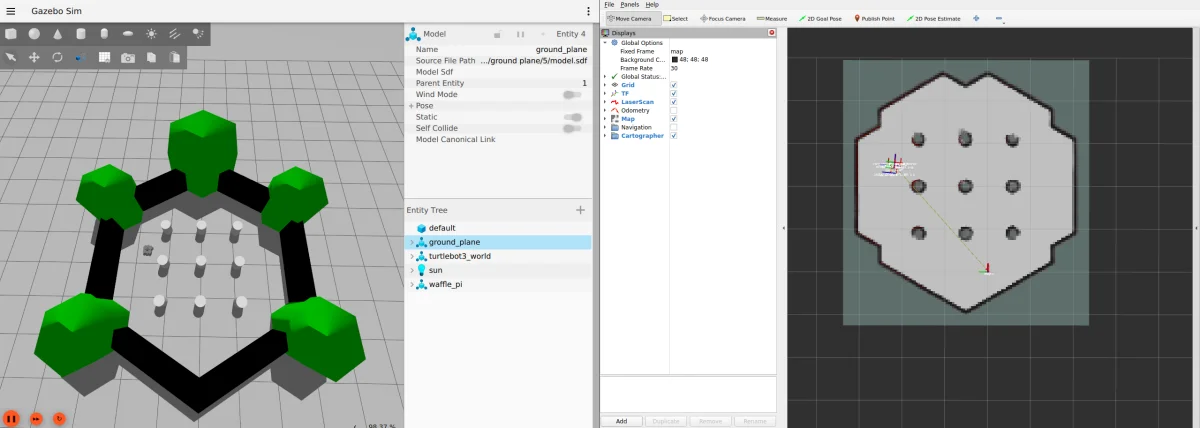
$ ros2 run nav2_map_server map_saver_cli -f ~/map
The saved map.pgm file
With SLAM in the Gazebo simulator, you can select or create various environments and robot models in a virtual world. Other than the preparation of the simulation environment instead of bringing up the robot, SLAM Simulation is pretty similar to the operation of SLAM on the actual TurtleBot3.
The following instructions require prerequisites from the previous section, so please review the Simulation section first.
Launch Simulation World
Three Gazebo environments are prepared, but for creating a map with SLAM, it is recommended to use either TurtleBot3 World or TurtleBot3 House.
Use one of the following commands to load the Gazebo environment.
In this tutorial, TurtleBot3 World will be used.
Specify your TurtleBot3 model (burger, waffle, waffle_pi) using the TURTLEBOT3_MODEL parameter.
[Remote PC]
$ export TURTLEBOT3_MODEL=burger
$ roslaunch turtlebot3_gazebo turtlebot3_world.launch
Read more about How to load TurtleBot3 House
Read more about How to load TurtleBot3 House$ export TURTLEBOT3_MODEL=burger
$ roslaunch turtlebot3_gazebo turtlebot3_house.launch
Run SLAM Node
Open a new terminal on the Remote PC with Ctrl + Alt + T and run the SLAM node. The Gmapping SLAM method is used by default.
Specify your TurtleBot3 model (burger, waffle, waffle_pi) using the TURTLEBOT3_MODEL parameter.
[Remote PC]
$ export TURTLEBOT3_MODEL=burger
$ roslaunch turtlebot3_slam turtlebot3_slam.launch slam_methods:=gmapping
Run Teleoperation Node
Open a new terminal on the Remote PC with Ctrl + Alt + T and run the teleoperation node from the Remote PC.
Specify your TurtleBot3 model (burger, waffle, waffle_pi) using the TURTLEBOT3_MODEL parameter.
[Remote PC]
$ export TURTLEBOT3_MODEL=burger
$ roslaunch turtlebot3_teleop turtlebot3_teleop_key.launch

 Control Your TurtleBot3!
 ---------------------------
 Moving around:
        w
   a    s    d
        x

 w/x : increase/decrease linear velocity
 a/d : increase/decrease angular velocity
 space key, s : force stop

 CTRL-C to quit
Save Map
When the map has been created, open a new terminal from Remote PC with Ctrl + Alt + T and save the map.
[Remote PC]
$ rosrun map_server map_saver -f ~/map
The saved map.pgm file