bringup
- Humble
- Jazzy
- Noetic
Bringup
Bringup TurtleBot3
- Open a new terminal on the remote PC with
Ctrl+Alt+Tand connect to the Raspberry Pi via SSH using its IP address.
Enter yourpasswordof Ubuntu OS inRaspberry pi.
[Remote PC]
$ ssh ubuntu@{IP_ADDRESS_OF_RASPBERRY_PI}
- Bring up basic packages to start essential TurtleBot3 applications. You will need to specify your specific TurtleBot3 model.
[TurtleBot3 SBC]
$ export TURTLEBOT3_MODEL=burger
$ ros2 launch turtlebot3_bringup robot.launch.py
- When the TURTLEBOT3_MODEL is set to
burger, the terminal output will look like the output below:
[TurtleBot3 SBC]
$ export TURTLEBOT3_MODEL=burger
$ ros2 launch turtlebot3_bringup robot.launch.py
[INFO] [launch]: All log files can be found below /home/ubuntu/.ros/log/2019-08-19-01-24-19-009803-ubuntu-15310
[INFO] [launch]: Default logging verbosity is set to INFO
urdf_file_name : turtlebot3_burger.urdf
[INFO] [robot_state_publisher-1]: process started with pid [15320]
[INFO] [hlds_laser_publisher-2]: process started with pid [15321]
[INFO] [turtlebot3_ros-3]: process started with pid [15322]
[robot_state_publisher-1] Initialize urdf model from file: /home/ubuntu/turtlebot_ws/install/turtlebot3_description/share/turtlebot3_description/urdf/turtlebot3_burger.urdf
[robot_state_publisher-1] Parsing robot urdf xml string.
[robot_state_publisher-1] Link base_link had 5 children
[robot_state_publisher-1] Link caster_back_link had 0 children
[robot_state_publisher-1] Link imu_link had 0 children
[robot_state_publisher-1] Link base_scan had 0 children
[robot_state_publisher-1] Link wheel_left_link had 0 children
[robot_state_publisher-1] Link wheel_right_link had 0 children
[robot_state_publisher-1] got segment base_footprint
[robot_state_publisher-1] got segment base_link
[robot_state_publisher-1] got segment base_scan
[robot_state_publisher-1] got segment caster_back_link
[robot_state_publisher-1] got segment imu_link
[robot_state_publisher-1] got segment wheel_left_link
[robot_state_publisher-1] got segment wheel_right_link
[turtlebot3_ros-3] [INFO] [turtlebot3_node]: Init TurtleBot3 Node Main
[turtlebot3_ros-3] [INFO] [turtlebot3_node]: Init DynamixelSDKWrapper
[turtlebot3_ros-3] [INFO] [DynamixelSDKWrapper]: Succeeded to open the port(/dev/ttyACM0)!
[turtlebot3_ros-3] [INFO] [DynamixelSDKWrapper]: Succeeded to change the baudrate!
[robot_state_publisher-1] Adding fixed segment from base_footprint to base_link
[robot_state_publisher-1] Adding fixed segment from base_link to caster_back_link
[robot_state_publisher-1] Adding fixed segment from base_link to imu_link
[robot_state_publisher-1] Adding fixed segment from base_link to base_scan
[robot_state_publisher-1] Adding moving segment from base_link to wheel_left_link
[robot_state_publisher-1] Adding moving segment from base_link to wheel_right_link
[turtlebot3_ros-3] [INFO] [turtlebot3_node]: Start Calibration of Gyro
[turtlebot3_ros-3] [INFO] [turtlebot3_node]: Calibration End
[turtlebot3_ros-3] [INFO] [turtlebot3_node]: Add Motors
[turtlebot3_ros-3] [INFO] [turtlebot3_node]: Add Wheels
[turtlebot3_ros-3] [INFO] [turtlebot3_node]: Add Sensors
[turtlebot3_ros-3] [INFO] [turtlebot3_node]: Succeeded to create battery state publisher
[turtlebot3_ros-3] [INFO] [turtlebot3_node]: Succeeded to create imu publisher
[turtlebot3_ros-3] [INFO] [turtlebot3_node]: Succeeded to create sensor state publisher
[turtlebot3_ros-3] [INFO] [turtlebot3_node]: Succeeded to create joint state publisher
[turtlebot3_ros-3] [INFO] [turtlebot3_node]: Add Devices
[turtlebot3_ros-3] [INFO] [turtlebot3_node]: Succeeded to create motor power server
[turtlebot3_ros-3] [INFO] [turtlebot3_node]: Succeeded to create reset server
[turtlebot3_ros-3] [INFO] [turtlebot3_node]: Succeeded to create sound server
[turtlebot3_ros-3] [INFO] [turtlebot3_node]: Run!
[turtlebot3_ros-3] [INFO] [diff_drive_controller]: Init Odometry
[turtlebot3_ros-3] [INFO] [diff_drive_controller]: Run!
- Topics and services can be listed with the commands below.
- The
Remote PCcan subscribe topics published by theTurtlebot3 SBCby connecting both to the same network environment.- Check that the
Remote PCandTurtleBot3 SBChave the same ROS_DOMAIN_ID. They must have the same ROS_DOMAIN_ID.
[Remote PC],[TurtleBot3 SBC]
export ROS_DOMAIN_ID=30- Check that the
Remote PCandTurtleBot3 SBChave the same RMW(ROS Middleware) implementation.
[Remote PC],[TurtleBot3 SBC]
export RMW_IMPLEMENTATION=rmw_fastrtps_cpp- Check that your wifi router supports
multi cast. If it does, configure your router to permitmulti cast.
- Check that the
- The List of topics and services may vary depending on your installed ROS package version.
- Topic list
$ ros2 topic list
/battery_state
/cmd_vel
/imu
/joint_states
/magnetic_field
/odom
/parameter_events
/robot_description
/rosout
/scan
/sensor_state
/tf
/tf_static
- Service list
$ ros2 service list
/diff_drive_controller/describe_parameters
/diff_drive_controller/get_parameter_types
/diff_drive_controller/get_parameters
/diff_drive_controller/list_parameters
/diff_drive_controller/set_parameters
/diff_drive_controller/set_parameters_atomically
/hlds_laser_publisher/describe_parameters
/hlds_laser_publisher/get_parameter_types
/hlds_laser_publisher/get_parameters
/hlds_laser_publisher/list_parameters
/hlds_laser_publisher/set_parameters
/hlds_laser_publisher/set_parameters_atomically
/launch_ros/describe_parameters
/launch_ros/get_parameter_types
/launch_ros/get_parameters
/launch_ros/list_parameters
/launch_ros/set_parameters
/launch_ros/set_parameters_atomically
/motor_power
/reset
/sound
/turtlebot3_node/describe_parameters
/turtlebot3_node/get_parameter_types
/turtlebot3_node/get_parameters
/turtlebot3_node/list_parameters
/turtlebot3_node/set_parameters
/turtlebot3_node/set_parameters_atomically
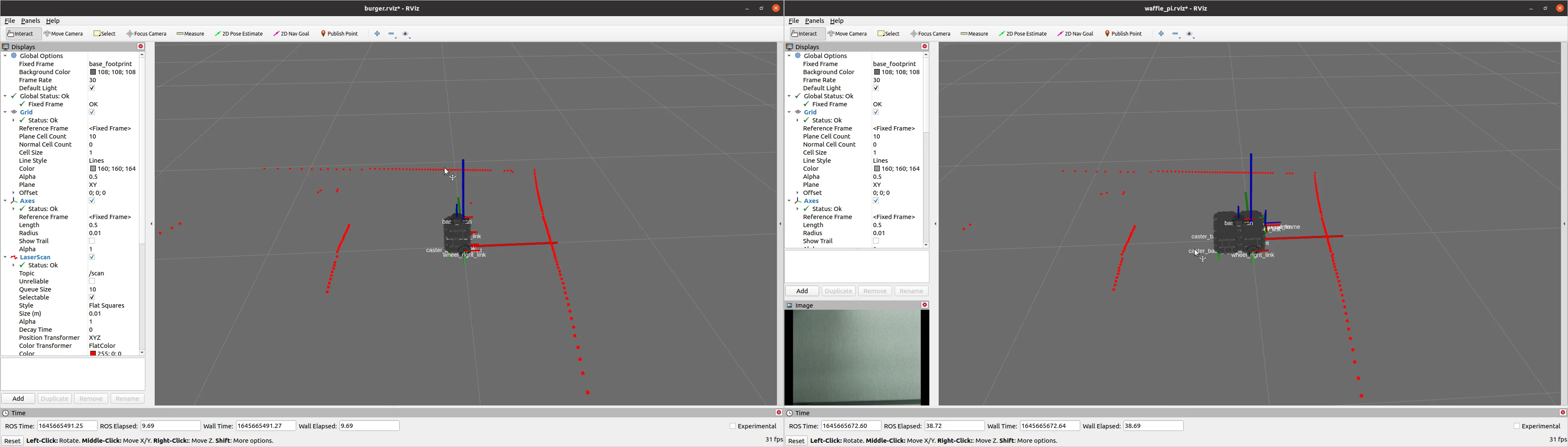
 Read more about launching RViz
Read more about launching RVizLoad TurtleBot3 on Rviz
-
Make bring up the TurtleBot3
-
Open a new terminal and enter the below command to launch RViz.
$ ros2 launch turtlebot3_bringup rviz2.launch.py
Bringup
Bringup TurtleBot3
danger
From the Jazzy version, the cmd_vel topic uses the TwistStamped type.
If you want to use the Twist type, set the enable_stamped_cmd_vel parameter in the bringup package to false.
- Open a new terminal on the remote PC with
Ctrl+Alt+Tand connect to the Raspberry Pi via SSH using its IP address.
Enter yourpasswordof Ubuntu OS inRaspberry pi.
[Remote PC]
$ ssh ubuntu@{IP_ADDRESS_OF_RASPBERRY_PI}
- Bring up basic packages to start essential TurtleBot3 applications. You will need to specify your specific TurtleBot3 model.
[TurtleBot3 SBC]
$ export TURTLEBOT3_MODEL=burger
$ ros2 launch turtlebot3_bringup robot.launch.py
- When the TURTLEBOT3_MODEL is set to
burger, the terminal output will look like the output below:
[TurtleBot3 SBC]
$ export TURTLEBOT3_MODEL=burger
$ ros2 launch turtlebot3_bringup robot.launch.py
[INFO] [launch]: All log files can be found below /home/ubuntu/.ros/log/2019-08-19-01-24-19-009803-ubuntu-15310
[INFO] [launch]: Default logging verbosity is set to INFO
urdf_file_name : turtlebot3_burger.urdf
[INFO] [robot_state_publisher-1]: process started with pid [15320]
[INFO] [hlds_laser_publisher-2]: process started with pid [15321]
[INFO] [turtlebot3_ros-3]: process started with pid [15322]
[robot_state_publisher-1] Initialize urdf model from file: /home/ubuntu/turtlebot_ws/install/turtlebot3_description/share/turtlebot3_description/urdf/turtlebot3_burger.urdf
[robot_state_publisher-1] Parsing robot urdf xml string.
[robot_state_publisher-1] Link base_link had 5 children
[robot_state_publisher-1] Link caster_back_link had 0 children
[robot_state_publisher-1] Link imu_link had 0 children
[robot_state_publisher-1] Link base_scan had 0 children
[robot_state_publisher-1] Link wheel_left_link had 0 children
[robot_state_publisher-1] Link wheel_right_link had 0 children
[robot_state_publisher-1] got segment base_footprint
[robot_state_publisher-1] got segment base_link
[robot_state_publisher-1] got segment base_scan
[robot_state_publisher-1] got segment caster_back_link
[robot_state_publisher-1] got segment imu_link
[robot_state_publisher-1] got segment wheel_left_link
[robot_state_publisher-1] got segment wheel_right_link
[turtlebot3_ros-3] [INFO] [turtlebot3_node]: Init TurtleBot3 Node Main
[turtlebot3_ros-3] [INFO] [turtlebot3_node]: Init DynamixelSDKWrapper
[turtlebot3_ros-3] [INFO] [DynamixelSDKWrapper]: Succeeded to open the port(/dev/ttyACM0)!
[turtlebot3_ros-3] [INFO] [DynamixelSDKWrapper]: Succeeded to change the baudrate!
[robot_state_publisher-1] Adding fixed segment from base_footprint to base_link
[robot_state_publisher-1] Adding fixed segment from base_link to caster_back_link
[robot_state_publisher-1] Adding fixed segment from base_link to imu_link
[robot_state_publisher-1] Adding fixed segment from base_link to base_scan
[robot_state_publisher-1] Adding moving segment from base_link to wheel_left_link
[robot_state_publisher-1] Adding moving segment from base_link to wheel_right_link
[turtlebot3_ros-3] [INFO] [turtlebot3_node]: Start Calibration of Gyro
[turtlebot3_ros-3] [INFO] [turtlebot3_node]: Calibration End
[turtlebot3_ros-3] [INFO] [turtlebot3_node]: Add Motors
[turtlebot3_ros-3] [INFO] [turtlebot3_node]: Add Wheels
[turtlebot3_ros-3] [INFO] [turtlebot3_node]: Add Sensors
[turtlebot3_ros-3] [INFO] [turtlebot3_node]: Succeeded to create battery state publisher
[turtlebot3_ros-3] [INFO] [turtlebot3_node]: Succeeded to create imu publisher
[turtlebot3_ros-3] [INFO] [turtlebot3_node]: Succeeded to create sensor state publisher
[turtlebot3_ros-3] [INFO] [turtlebot3_node]: Succeeded to create joint state publisher
[turtlebot3_ros-3] [INFO] [turtlebot3_node]: Add Devices
[turtlebot3_ros-3] [INFO] [turtlebot3_node]: Succeeded to create motor power server
[turtlebot3_ros-3] [INFO] [turtlebot3_node]: Succeeded to create reset server
[turtlebot3_ros-3] [INFO] [turtlebot3_node]: Succeeded to create sound server
[turtlebot3_ros-3] [INFO] [turtlebot3_node]: Run!
[turtlebot3_ros-3] [INFO] [diff_drive_controller]: Init Odometry
[turtlebot3_ros-3] [INFO] [diff_drive_controller]: Run!
- Topics and services can be listed with the commands below.
- The
Remote PCcan subscribe topics published by theTurtlebot3 SBCby connecting both to the same network environment.- Check that the
Remote PCandTurtleBot3 SBChave the same ROS_DOMAIN_ID. They must have the same ROS_DOMAIN_ID.
[Remote PC],[TurtleBot3 SBC]
export ROS_DOMAIN_ID=30- Check that the
Remote PCandTurtleBot3 SBChave the same RMW(ROS Middleware) implementation.
[Remote PC],[TurtleBot3 SBC]
export RMW_IMPLEMENTATION=rmw_fastrtps_cpp- Check that your wifi router supports
multi cast. If it does, configure your router to permitmulti cast.
- Check that the
- The List of topics and services may vary depending on your installed ROS package version.
- Topic list
$ ros2 topic list
/battery_state
/cmd_vel
/imu
/joint_states
/magnetic_field
/odom
/parameter_events
/robot_description
/rosout
/scan
/sensor_state
/tf
/tf_static
- Service list
$ ros2 service list
/diff_drive_controller/describe_parameters
/diff_drive_controller/get_parameter_types
/diff_drive_controller/get_parameters
/diff_drive_controller/list_parameters
/diff_drive_controller/set_parameters
/diff_drive_controller/set_parameters_atomically
/hlds_laser_publisher/describe_parameters
/hlds_laser_publisher/get_parameter_types
/hlds_laser_publisher/get_parameters
/hlds_laser_publisher/list_parameters
/hlds_laser_publisher/set_parameters
/hlds_laser_publisher/set_parameters_atomically
/launch_ros/describe_parameters
/launch_ros/get_parameter_types
/launch_ros/get_parameters
/launch_ros/list_parameters
/launch_ros/set_parameters
/launch_ros/set_parameters_atomically
/motor_power
/reset
/sound
/turtlebot3_node/describe_parameters
/turtlebot3_node/get_parameter_types
/turtlebot3_node/get_parameters
/turtlebot3_node/list_parameters
/turtlebot3_node/set_parameters
/turtlebot3_node/set_parameters_atomically
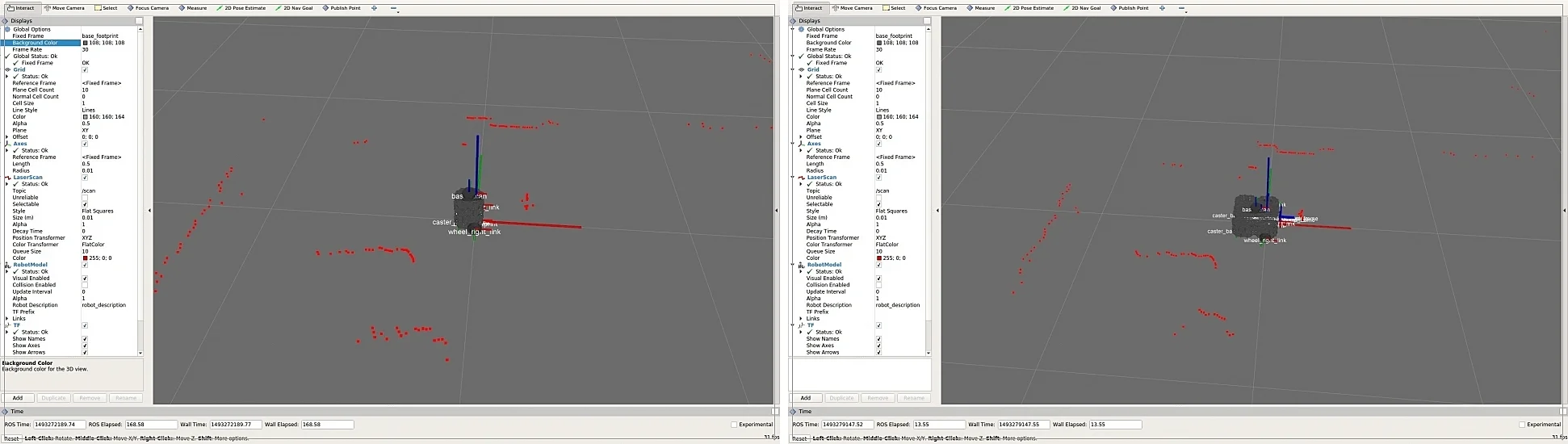
Read more about launching RViz
Read more about launching RVizLoad TurtleBot3 on Rviz
-
Make bring up the TurtleBot3
-
Open a new terminal and enter the below command to launch RViz.
$ ros2 launch turtlebot3_bringup rviz2.launch.py
Bringup
Run roscore
Run roscore on the remote PC.
[Remote PC]
$ roscore
Bringup TurtleBot3
- Open a new terminal on the remote PC with
Ctrl+Alt+Tand connect to Raspberry Pi using SSH.
The default password is turtlebot.
[Remote PC]
$ ssh ubuntu@{IP_ADDRESS_OF_RASPBERRY_PI}
- Bring up basic packages to start the required TurtleBot3 applications.
[Turtlebot3 SBC]
$ export TURTLEBOT3_MODEL=${TB3_MODEL}
$ roslaunch turtlebot3_bringup turtlebot3_robot.launch
- If the TurtleBot3 model is
burger, the terminal will print the messages below.
[Turtlebot3 SBC]
  SUMMARY
  ========

  PARAMETERS
  * /rosdistro: noetic
  * /rosversion: 1.15.8
  * /turtlebot3_core/baud: 115200
  * /turtlebot3_core/port: /dev/ttyACM0
  * /turtlebot3_core/tf_prefix:
  * /turtlebot3_lds/frame_id: base_scan
  * /turtlebot3_lds/port: /dev/ttyUSB0

  NODES
  /
      turtlebot3_core (rosserial_python/serial_node.py)
      turtlebot3_diagnostics (turtlebot3_bringup/turtlebot3_diagnostics)
      turtlebot3_lds (hls_lfcd_lds_driver/hlds_laser_publisher)

  ROS_MASTER_URI=http://192.168.1.2:11311

  process[turtlebot3_core-1]: started with pid [14198]
  process[turtlebot3_lds-2]: started with pid [14199]
  process[turtlebot3_diagnostics-3]: started with pid [14200]
  [INFO] [1531306690.947198]: ROS Serial Python Node
  [INFO] [1531306691.000143]: Connecting to /dev/ttyACM0 at 115200 baud
  [INFO] [1531306693.522019]: Note: publish buffer size is 1024 bytes
  [INFO] [1531306693.525615]: Setup publisher on sensor_state [turtlebot3_msgs/SensorState]
  [INFO] [1531306693.544159]: Setup publisher on version_info [turtlebot3_msgs/VersionInfo]
  [INFO] [1531306693.620722]: Setup publisher on imu [sensor_msgs/Imu]
  [INFO] [1531306693.642319]: Setup publisher on cmd_vel_rc100 [geometry_msgs/Twist]
  [INFO] [1531306693.687786]: Setup publisher on odom [nav_msgs/Odometry]
  [INFO] [1531306693.706260]: Setup publisher on joint_states [sensor_msgs/JointState]
  [INFO] [1531306693.722754]: Setup publisher on battery_state [sensor_msgs/BatteryState]
  [INFO] [1531306693.759059]: Setup publisher on magnetic_field [sensor_msgs/MagneticField]
  [INFO] [1531306695.979057]: Setup publisher on /tf [tf/tfMessage]
  [INFO] [1531306696.007135]: Note: subscribe buffer size is 1024 bytes
  [INFO] [1531306696.009083]: Setup subscriber on cmd_vel [geometry_msgs/Twist]
  [INFO] [1531306696.040047]: Setup subscriber on sound [turtlebot3_msgs/Sound]
  [INFO] [1531306696.069571]: Setup subscriber on motor_power [std_msgs/Bool]
  [INFO] [1531306696.096364]: Setup subscriber on reset [std_msgs/Empty]
  [INFO] [1531306696.390979]: Setup TF on Odometry [odom]
  [INFO] [1531306696.394314]: Setup TF on IMU [imu_link]
  [INFO] [1531306696.397498]: Setup TF on MagneticField [mag_link]
  [INFO] [1531306696.400537]: Setup TF on JointState [base_link]
  [INFO] [1531306696.407813]: --------------------------
  [INFO] [1531306696.411412]: Connected to OpenCR board!
  [INFO] [1531306696.415140]: This core(v1.2.1) is compatible with TB3 Burger
  [INFO] [1531306696.418398]: --------------------------
  [INFO] [1531306696.421749]: Start Calibration of Gyro
  [INFO] [1531306698.953226]: Calibration End
Read more about launching RViz
Read more about launching RVizLoad TurtleBot3 on Rviz
- Open a new terminal on the
Remote PCand launch the robot state publisher.
[Remote PC]
$ roslaunch turtlebot3_bringup turtlebot3_remote.launch
- Open a new terminal and enter the command below to run RViz.
- If you used
aptto install the TurtleBot3 packages, enter the command below.
[Remote PC]
$ rosrun rviz rviz -d rospack find turtlebot3_description/rviz/model.rviz
- If you used `git clone` for to install the TurtleBot3 packages, enter the command below. You will need to specify the model of your TurtleBot3
**[Remote PC]**
```bash
$ rosrun rviz rviz -d `rospack find turtlebot3_description`/rviz/{burger, waffle_pi}.rviz