basic_operation
- Humble
- Jazzy
- Noetic
Basic Operation
Teleoperation
The TurtleBot3 can be teleoperated by remote control. Make sure that the necessary ROS packages are supported for your SBC and ROS version.
WARNING: Make sure to run Bringup on the TurtleBot3 SBC before teleoperation. Additionally, be careful when testing the robot on the table as the robot may drive over the edge.
Keyboard
- Open a terminal on the Remote PC.
- Run the teleoperation node. Replace the
${TB3_MODEL}withburgerorwaffleorwaffle_pi, if the TURTLEBOT3_MODEL parameter is not predefined.
[Remote PC]
$ export TURTLEBOT3_MODEL=${TB3_MODEL}
$ ros2 run turtlebot3_teleop teleop_keyboard
- If the node is successfully launched, the following instructions will appear on the terminal window.
[Remote PC]
Control Your Turtlebot3
Moving around
        w
    a   s   d
        x
w/x : increase/decrease linear velocity (Burger : ~ 0.22, Waffle and Waffle Pi : ~ 0.26)
a/d : increase/decrease angular velocity (Burger : ~ 2.84, Waffle and Waffle Pi : ~ 1.82)
space key, s : force stop
CTRL-C to quit
RC-100
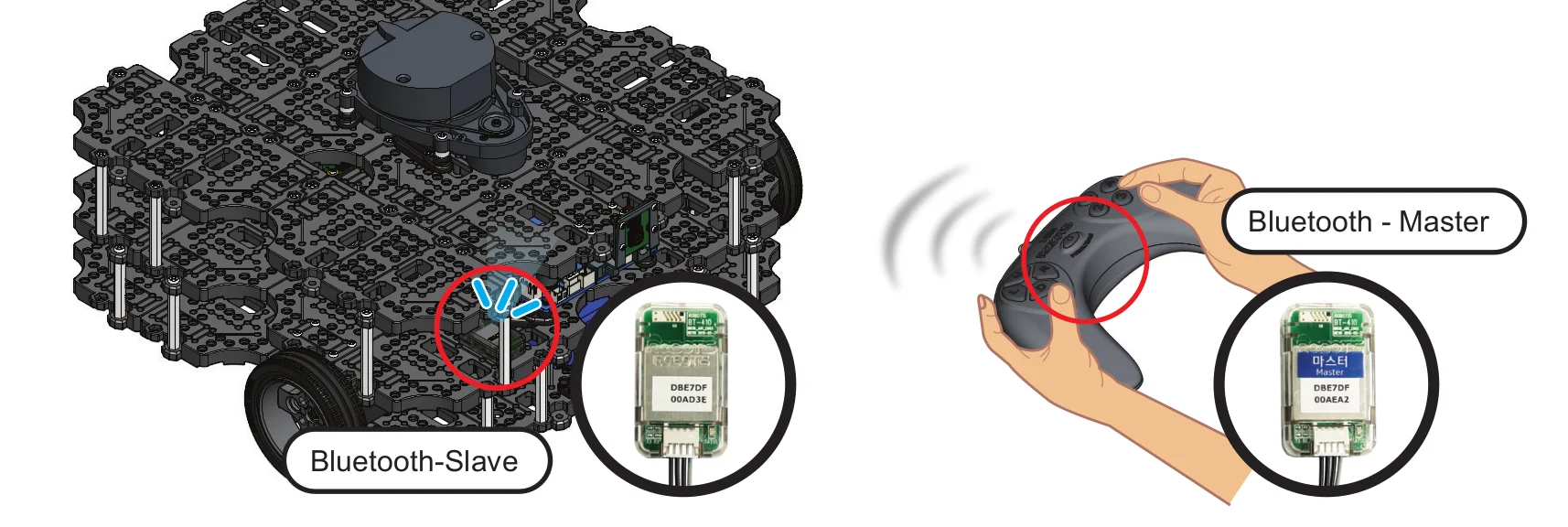
The settings for the [ROBOTIS RC-100B][rc100] are included in the OpenCR firmware for TurtleBot3. It can be used with the [BT410][bt410] Bluetooth module .TurtleBot3 Waffle Pi includes this controller and Bluetooth modules. When using the RC-100B, it is not necessary to execute a specific node because turtlebot_core node creates a /cmd_vel topic in the firmware directly connected to OpeCR.
-
Connect BT-410 to any of the OpenCR UART ports.
-
Control the TurtleBot3 with RC-100.
- Up / Down : Increase or decrease linear velocity
- Left / Right : Increase or decrease angular velocity
PS3 Joystick
-
Connect the PS3 Joystick to the Remote PC via Bluetooth or a USB cable.
-
Install the
ds4drvpackage using pip.
[Remote PC]
$ sudo pip install ds4drv
- Launch the joystick node.
[Remote PC]
$ sudo ds4drv
$ ros2 run joy joy_node
- Open a new terminal and launch the teleoperation node.
[Remote PC]
$ ros2 run teleop_twist_joy teleop_node
XBOX 360 Joystick
-
Connect the XBOX 360 Joystick to the remote PC with the Wireless Adapter or USB cable.
-
Open a terminal on the Remote PC.
-
Launch the joystick node.
[Remote PC]
$ ros2 run joy joy_node
- Open a new terminal and launch the teleoperation node.
[Remote PC]
$ ros2 run teleop_twist_joy teleop_node
Topic Monitor
 Read more about Topic Monitor
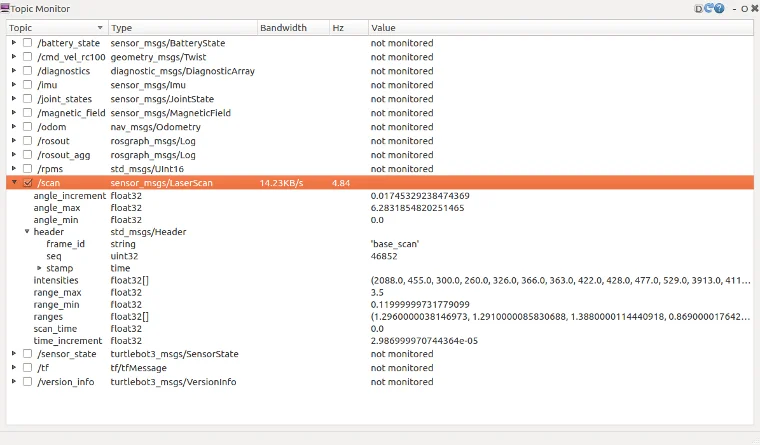
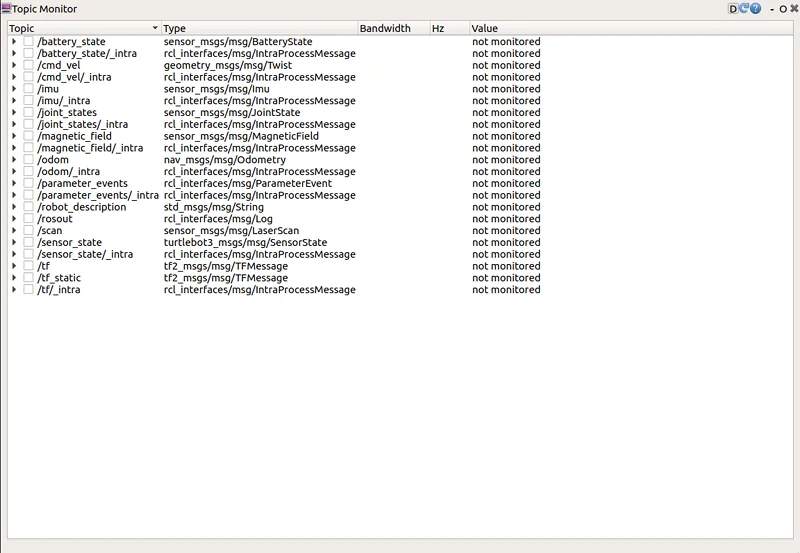
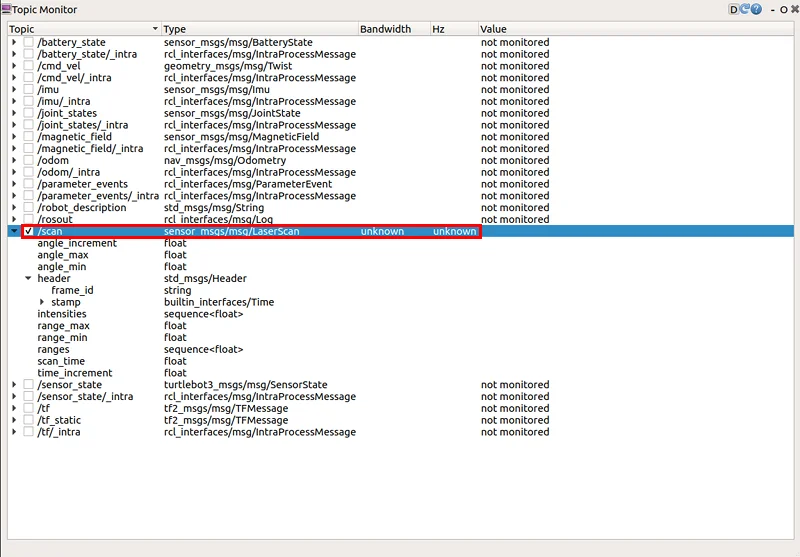
Read more about Topic MonitorIn order to monitor the TurtleBot3 topics use rqt, a Qt-based framework for GUI development for ROS. It is a tool that allows for the display all topics of the TurtleBot3.
- Run rqt from the PC with the command below. If the topic monitor window is not displayed, select the
plugin->Topics->Topic Monitor.
[Remote PC]
$ rqt
-
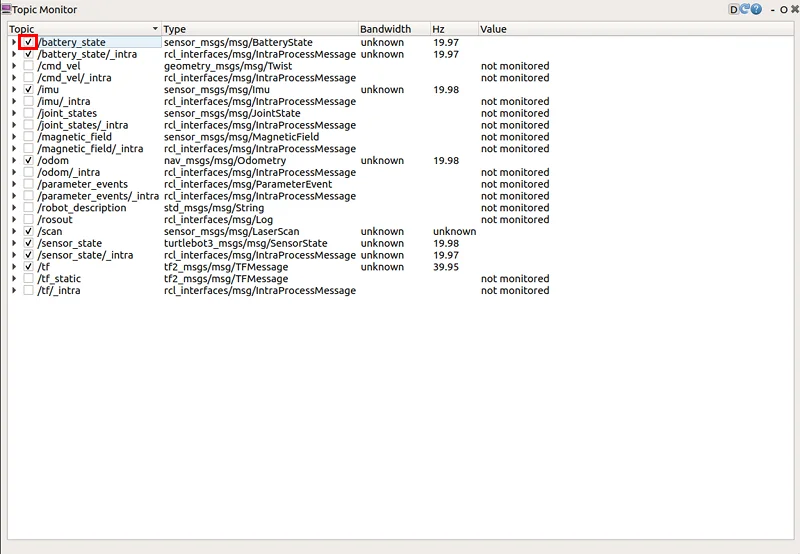
When the topic monitor is loaded, the topic values are not monitored by default. Click the checkbox next to each topic to monitor the topic.
-
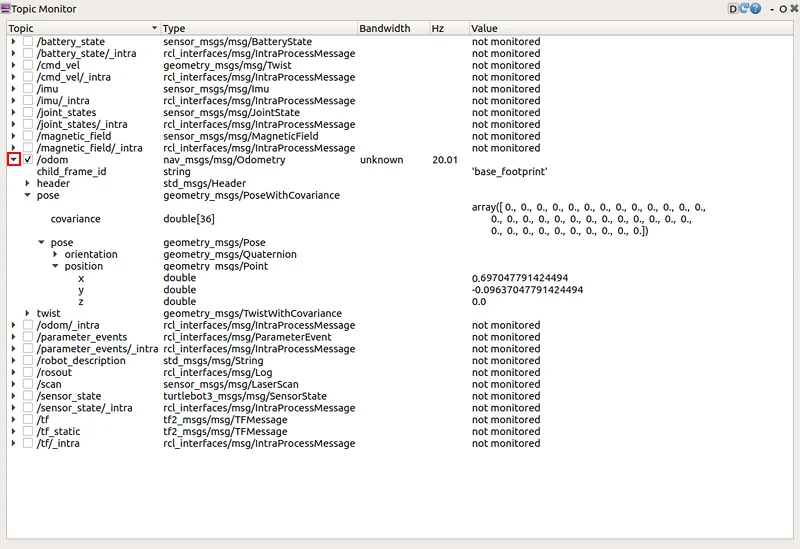
To see more detailed topic messages, click the
▶icon next to the checkbox.
-
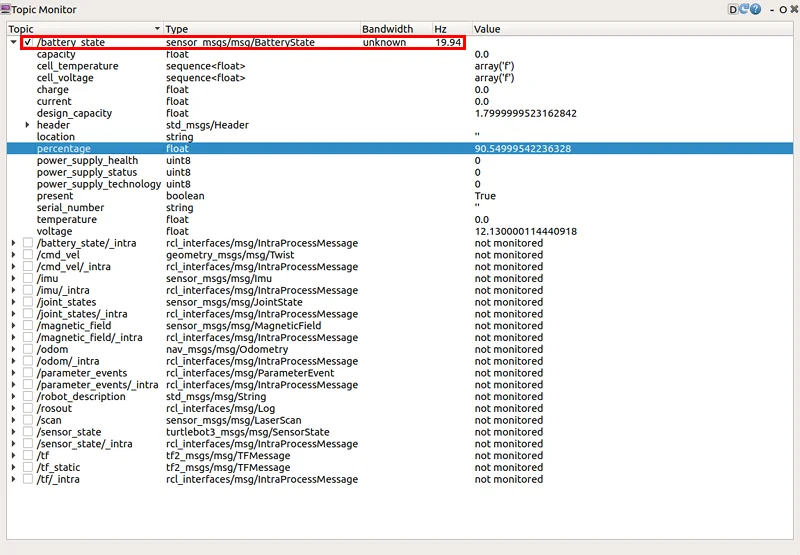
/battery_stateindicates a message relating to the battery condition, such as the current battery voltage and remaining capacity.
-
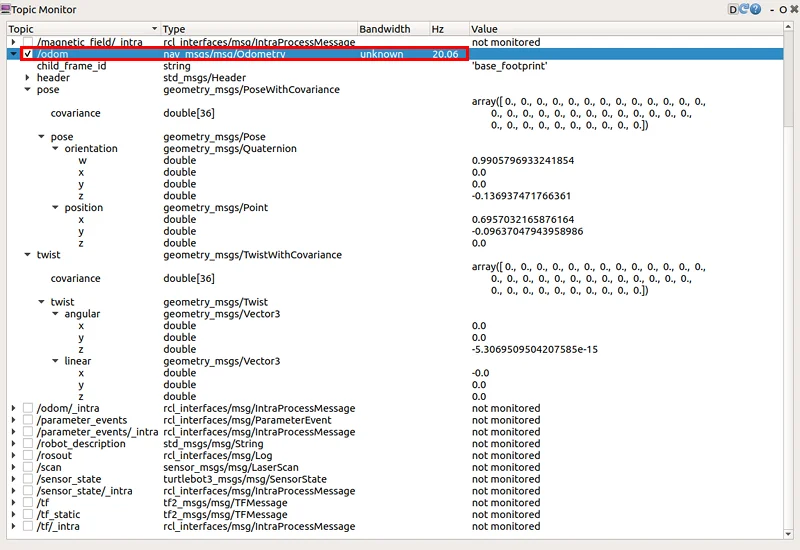
/odomindicates a message containing the odometry of the TurtleBot3. This topic has orientation and position encoder data.
-
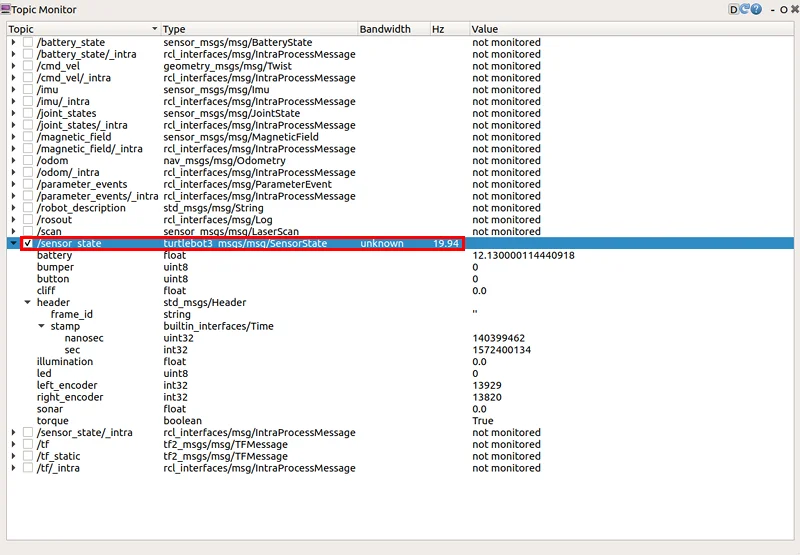
/sensor_stateindicates a message containing encoder values, battery and torque status.
-
/scanindicates a message containing LDS data, such as angle_max and min, and range_max and min.
Basic Operation
Teleoperation
The TurtleBot3 can be teleoperated by remote control. Make sure that the necessary ROS packages are supported for your SBC and ROS version.
WARNING: Make sure to run Bringup on the TurtleBot3 SBC before teleoperation. Additionally, be careful when testing the robot on the table as the robot may drive over the edge.
Keyboard
- Open a terminal on the Remote PC.
- Run the teleoperation node. Replace the
${TB3_MODEL}withburgerorwaffleorwaffle_pi, if the TURTLEBOT3_MODEL parameter is not predefined.
[Remote PC]
$ export TURTLEBOT3_MODEL=${TB3_MODEL}
$ ros2 run turtlebot3_teleop teleop_keyboard
- If the node is successfully launched, the following instructions will appear on the terminal window.
[Remote PC]
Control Your Turtlebot3
Moving around
        w
    a   s   d
        x
w/x : increase/decrease linear velocity (Burger : ~ 0.22, Waffle and Waffle Pi : ~ 0.26)
a/d : increase/decrease angular velocity (Burger : ~ 2.84, Waffle and Waffle Pi : ~ 1.82)
space key, s : force stop
CTRL-C to quit
RC-100
The settings for the [ROBOTIS RC-100B][rc100] are included in the OpenCR firmware for TurtleBot3. It can be used with the [BT410][bt410] Bluetooth module .TurtleBot3 Waffle Pi includes this controller and Bluetooth modules. When using the RC-100B, it is not necessary to execute a specific node because turtlebot_core node creates a /cmd_vel topic in the firmware directly connected to OpeCR.
-
Connect BT-410 to any of the OpenCR UART ports.
-
Control the TurtleBot3 with RC-100.
- Up / Down : Increase or decrease linear velocity
- Left / Right : Increase or decrease angular velocity
Topic Monitor
Read more about Topic Monitor
Read more about Topic MonitorIn order to monitor the TurtleBot3 topics use rqt, a Qt-based framework for GUI development for ROS. It is a tool that allows for the display all topics of the TurtleBot3.
- Run rqt from the PC with the command below. If the topic monitor window is not displayed, select the
plugin->Topics->Topic Monitor.
[Remote PC]
$ rqt
-
When the topic monitor is loaded, the topic values are not monitored by default. Click the checkbox next to each topic to monitor the topic.
-
To see more detailed topic messages, click the
▶icon next to the checkbox.
-
/battery_stateindicates a message relating to the battery condition, such as the current battery voltage and remaining capacity.
-
/odomindicates a message containing the odometry of the TurtleBot3. This topic has orientation and position encoder data.
-
/sensor_stateindicates a message containing encoder values, battery and torque status.
-
/scanindicates a message containing LDS data, such as angle_max and min, and range_max and min.
Basic Operation
Teleoperation
WARNING: Make sure to Bringup the TurtleBot3 SBC before teleoperation, and be careful when testing the robot on a table as the robot may fall off the edge.
The TurtleBot3 can be teleoperated by remote control. Make sure that the necessary ROS packages are available for your SBC and ROS version.
Keyboard
- Launch the
turtlebot3_teleop_keynode from the Remote PC for teleoperation. Replace the${TB3_MODEL}parameter with your specific model name (burgerorwaffleorwaffle_pi).
[Remote PC]
$ export TURTLEBOT3_MODEL=${TB3_MODEL}
$ roslaunch turtlebot3_teleop turtlebot3_teleop_key.launch
- If the node has successfully launched, the following instructions will appear in the terminal window.
[Remote PC]
Control Your Turtlebot3
Moving around
        w
    a   s   d
        x
w/x : increase/decrease linear velocity
a/d : increase/decrease angular velocity
space key, s : force stop
CTRL-C to quit
Read more about How to predefine the TURTLEBOT3_MODEL
Read more about How to predefine the TURTLEBOT3_MODELThe export TURTLEBOT3_MODEL=${TB3_MODEL} command can be omitted if the TURTLEBOT3_MODEL parameter is predefined in your system's .bashrc file. The .bashrc file is automatically loaded when a terminal window is created.
- Example defining TurtlBot3 Burger as the default in the
.bashrcfile.
$ echo 'export TURTLEBOT3_MODEL=burger' >> ~/.bashrc
$ source ~/.bashrc
- Example defining TurtlBot3 waffle_pi as the default in the
.bashrcfile.
$ echo 'export TURTLEBOT3_MODEL=waffle_pi' >> ~/.bashrc
$ source ~/.bashrc
RC100
Settings for the [ROBOTIS RC-100B][rc100] controller are included in the OpenCR firmware for TurtleBot3 Burger, Waffle and Waffle Pi. This controller can be used with the [BT410][bt410] Bluetooth module. The TurtleBot3 Waffle Pi includes the RC-100 controller and Bluetooth modules. When using the RC-100, it is not necessary to execute a specific node because turtlebot_core node creates the required /cmd_vel.
-
Connect BT-410 to the OpenCR UART1 port (as described here).
-
Control the TurtleBot3 with the RC-100.
- Up / Down : Increase or decrease linear velocity
- Left / Right : Increase or decrease angular velocity
PS3 Joystick
-
Connect the PS3 Joystick to the remote PC via Bluetooth or a USB cable.
-
Install the required packages for teleoperation using a PS3 joystick.
[Remote PC]
$ sudo apt install ros-noetic-joy ros-noetic-joystick-drivers ros-noetic-teleop-twist-joy
- Launch the teleoperation node.
[Remote PC]
$ roslaunch teleop_twist_joy teleop.launch
XBOX 360 Joystick
-
Connect the XBOX 360 Joystick to the remote PC with a Wireless Adapter or USB cable.
-
Install the required packages for teleoperation using the XBOX 360 joystick.
[Remote PC]
$ sudo apt install xboxdrv ros-noetic-joy ros-noetic-joystick-drivers ros-noetic-teleop-twist-joy
- Launch the teleoperation packages for the XBOX 360 joystick.
[Remote PC]
$ sudo xboxdrv --silent
$ roslaunch teleop_twist_joy teleop.launch
Wii Remote
-
Connect the Wii remote to the remote PC via Bluetooth.
-
Install the required packages for teleoperation using the Wii remote.
[Remote PC]
$ sudo apt install ros-noetic-wiimote libbluetooth-dev libcwiid-dev
$ cd ~/catkin_ws/src
$ git clone https://github.com/ros-drivers/joystick_drivers.git
$ cd ~/catkin_ws && catkin_make
- Run the teleoperation packages for the Wii remote.
[Remote PC]
$ rosrun wiimote wiimote_node
$ rosrun wiimote teleop_wiimote
Topic Monitor
Read more about Topic Monitor
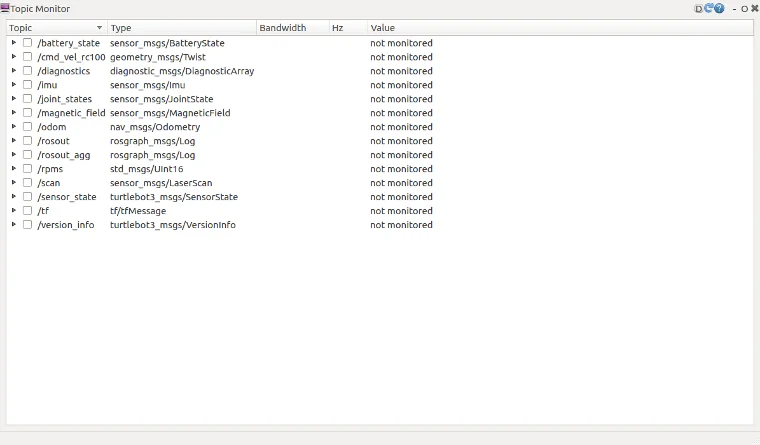
Read more about Topic MonitorIn order to check the topics of our TurtleBot3, we will use rqt.rqt is a Qt-based framework for GUI development in ROS. rqt allows users to easily see topic status by displaying all topics in a single topic list, along with additional information like topic types, bandwidth, and value in the GUI.
- Run rqt from PC with the command below. If the topic monitor window is not displayed, select the
plugin->Topics->Topic Monitor.
$ rqt
-
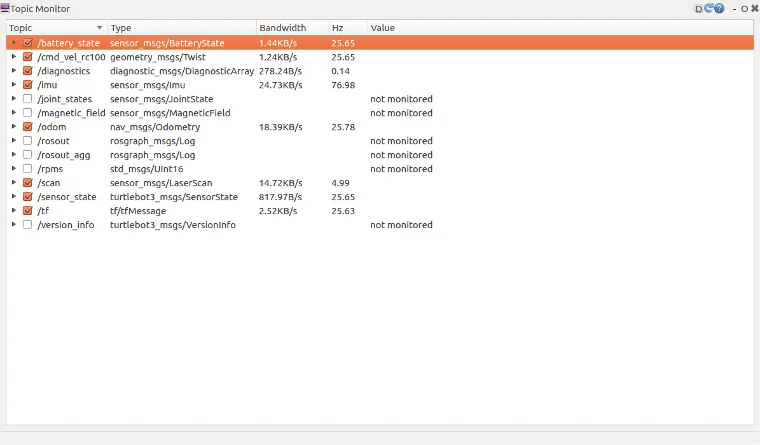
When the topic monitor is opened, the topic values are not monitored by default. Click the checkbox next to each topic to monitor the topic.
-
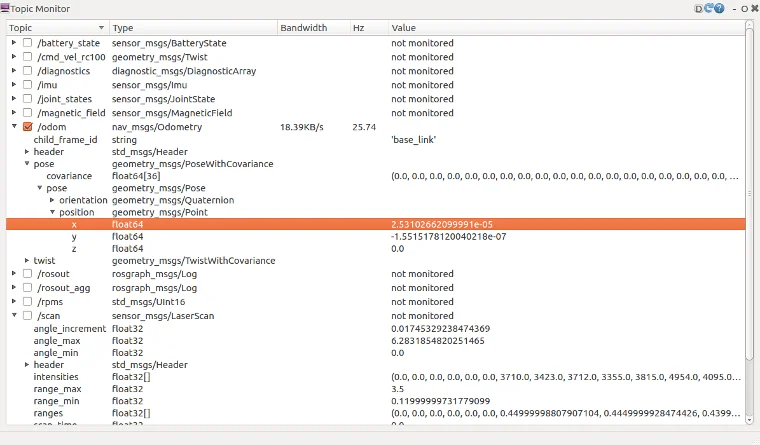
To see more detailed topic messages, click the
▶icon next to the checkbox.
-
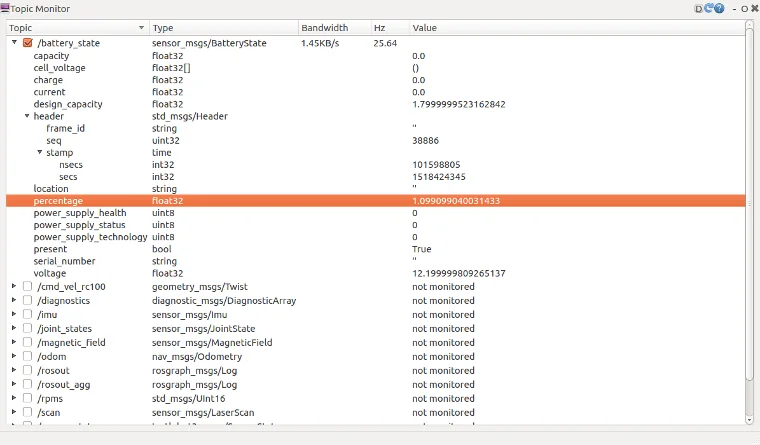
/battery_stateindicates a message relating to battery condition, such as the current battery voltage and remaining capacity.
-
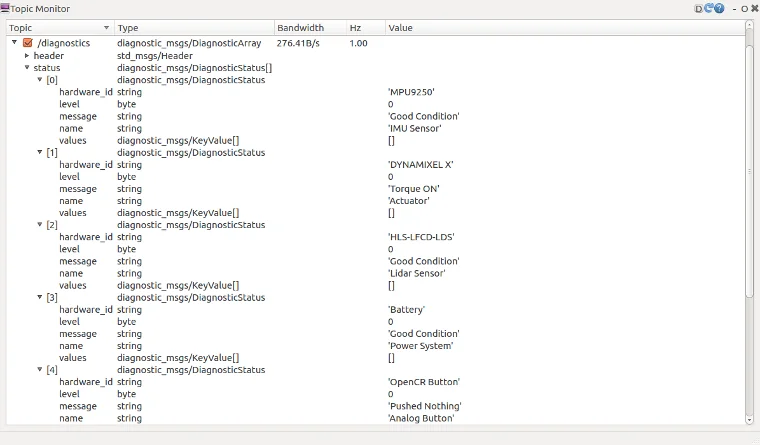
/diagnosticsindicates a message reporting the status of the components connected to the TurtleBot3, such as a MPU9250, DYNAMIXEL-X, HLS-LFCD-LDS, battery or an OpenCR.
-
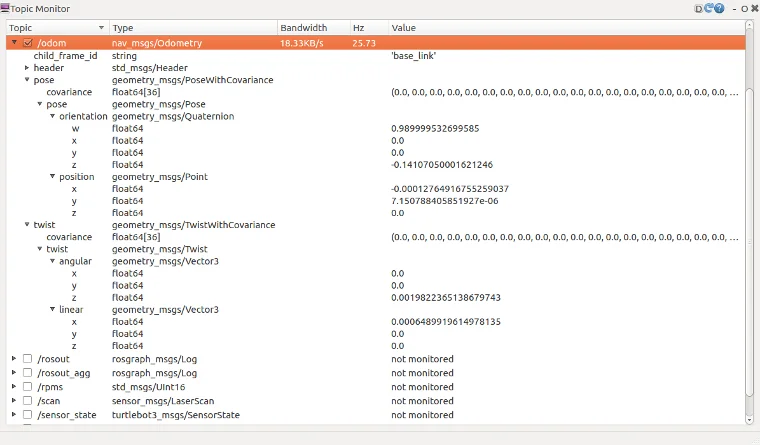
/odomindicates a message containing the odometry of the TurtleBot3. This topic contains orientation and position encoder data.
-
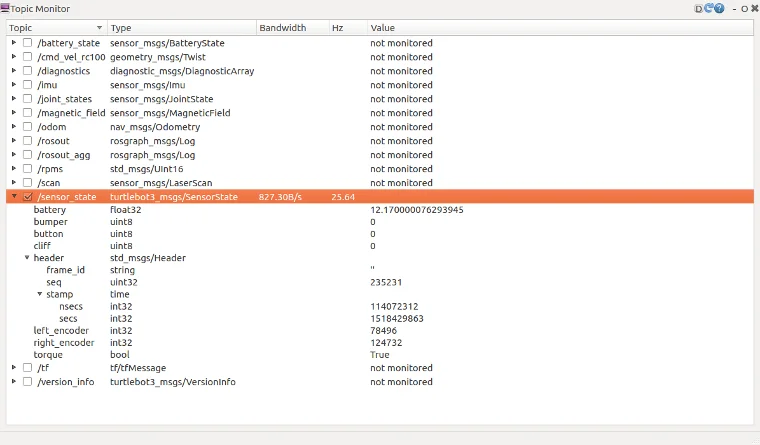
/sensor_stateindicates a message containing encoder values, battery and torque.
-
/scanindicates a message with LDS data.