OS Update
OMY uses Mender for over-the-air (OTA) OS updates. This page describes how to update the OS image with the mender-update command.
Updating the OS erases all data except the /data partition. Any files outside /data (including on-board configuration and user data) will be lost. Back up anything important before you begin.
Prerequisites
- OMY powered on with internet access so it can download the OS image. You can verify connectivity with:
ping -c 3 robotis.com
- Access to the OMY terminal over SSH. See SSH connection for details.
Update procedure
1. Connect to OMY
Connect to OMY over SSH. Replace SNPR44B9999 with your robot's serial number. See SSH connection for details.
ssh root@omy-SNPR44B9999.local
2. Install the new OS image
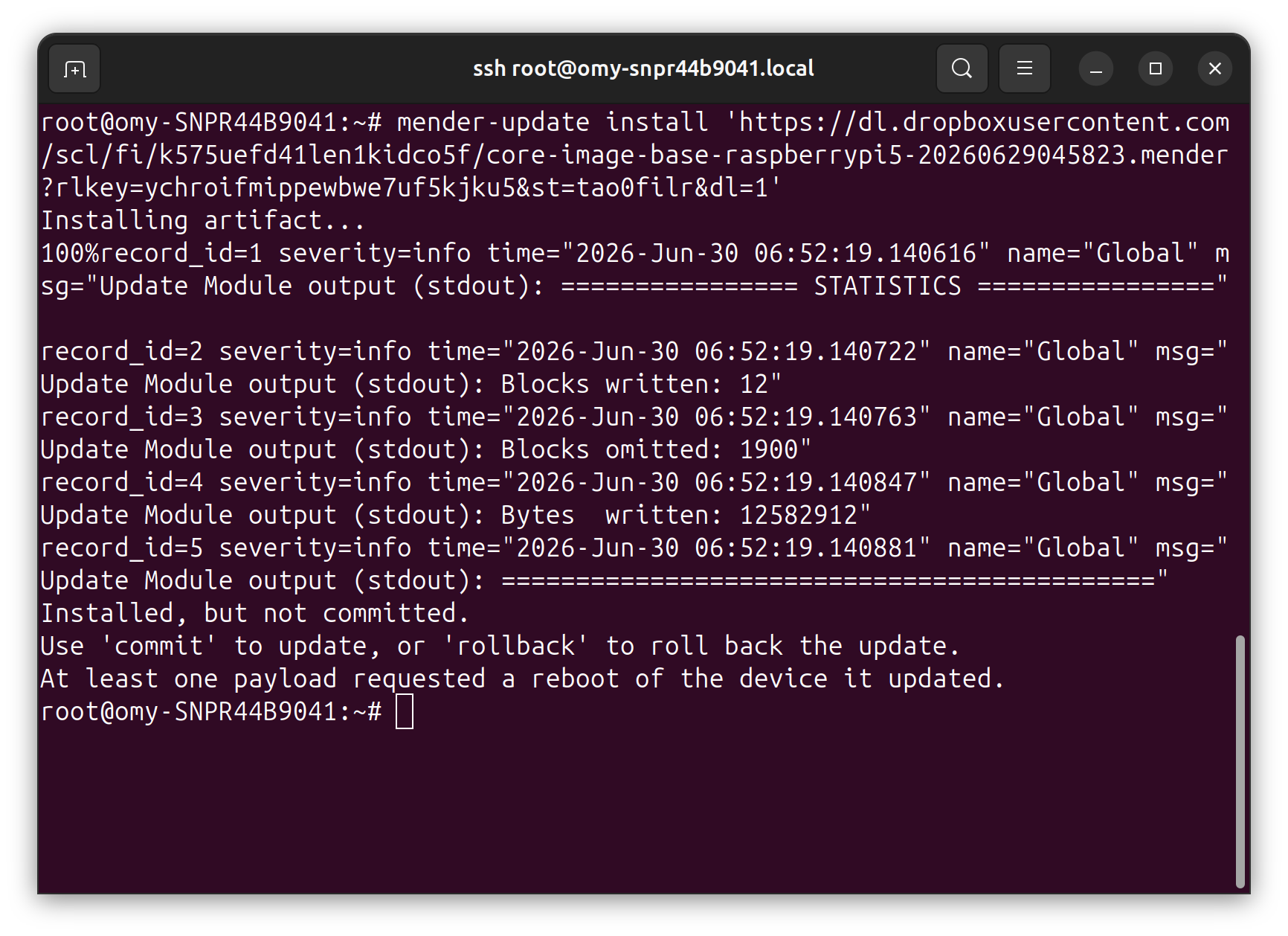
Run mender-update install with the URL of the latest .mender artifact to download and install the new image.
mender-update install 'https://dl.dropboxusercontent.com/scl/fi/k575uefd41len1kidco5f/core-image-base-raspberrypi5-20260629045823.mender?rlkey=ychroifmippewbwe7uf5kjku5&st=tao0filr&dl=1'
3. Reboot
Reboot OMY to boot into the newly installed image.
reboot
4. Verify and commit the update
Rebooting closes the SSH session, so connect to OMY again once it has finished booting.
Because the OS image changed, the host key is different and SSH may refuse to connect with a REMOTE HOST IDENTIFICATION HAS CHANGED! warning. Remove the old host key, then reconnect.
ssh-keygen -R omy-SNPR44B9999.local
ssh root@omy-SNPR44B9999.local
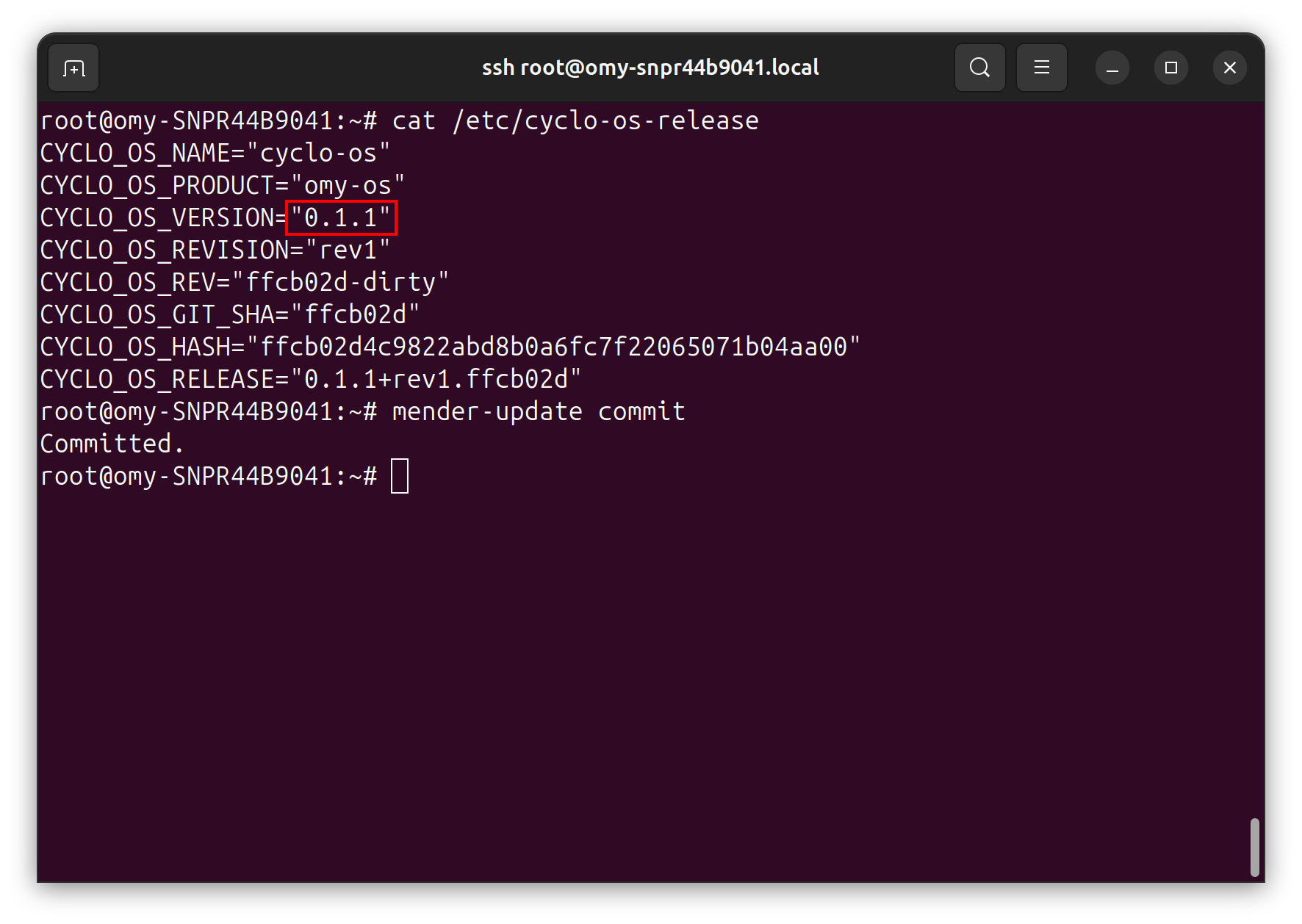
Then verify the OS version.
cat /etc/cyclo-os-release
If the new version booted correctly, commit the update to make it permanent.
mender-update commit
If you do not commit the update, Mender automatically rolls back to the previous image on the next reboot.
Troubleshooting
If OMY does not boot after the update, Mender rolls back to the previous image on the next reboot. If the problem persists or you run into any other issues, reach out on our Discord server.