Robot Control
Use this page for standalone OMY bringup, MoveIt 2, the OpenMANIPULATOR GUI, and keyboard teleop.
At least one Zenoh daemon must be running in the communication network. If no Zenoh daemon is running, ROS 2 nodes cannot discover or communicate with each other.
For the recommended setup, run zenohd in a terminal inside the robot-side OpenMANIPULATOR Docker container.
The commands in this page are written for OMY_F3M. When running with OMY_3M, replace omy_f3m with omy_3m where the corresponding launch file exists.
Launch Bringup
The OMY controller uses ros2_control and MoveIt 2 for modular robot control, trajectory planning, and state feedback.
Open a new OpenMANIPULATOR Docker container and launch the OMY packages:
ros2 launch open_manipulator_bringup omy_f3m.launch.py
MoveIt 2
MoveIt 2 provides motion planning, manipulation, inverse kinematics, control, 3D perception, and collision checking.
Launch MoveIt 2:
ros2 launch open_manipulator_moveit_config omy_f3m_moveit.launch.py
Move interactive markers to position the robotic arm, then click Plan & Execute.
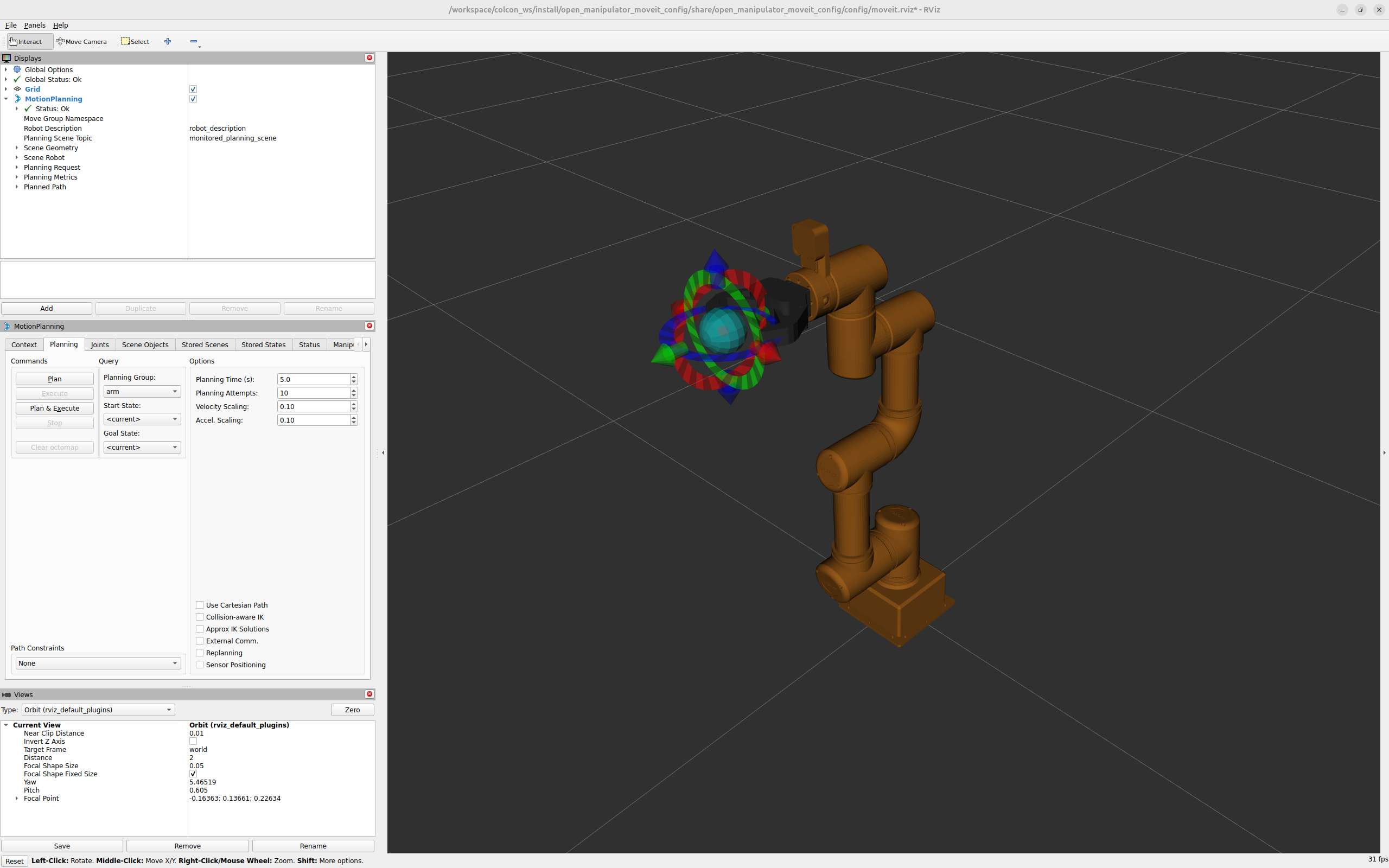
Basic MoveIt 2 usage:
- Move the robot to a desired pose using the Interactive Marker in RViz.
- Use Plan to simulate the motion.
- Click Execute to move the robot.
- Set Planning Group to
armand use Goal State options such asinitorhome. - Set Planning Group to
gripperand use Goal State options such ascloseoropen.
OpenMANIPULATOR GUI
After running bringup and MoveIt 2, launch the GUI:
ros2 launch open_manipulator_gui omy_f3m_gui.launch.py
Basic Controls
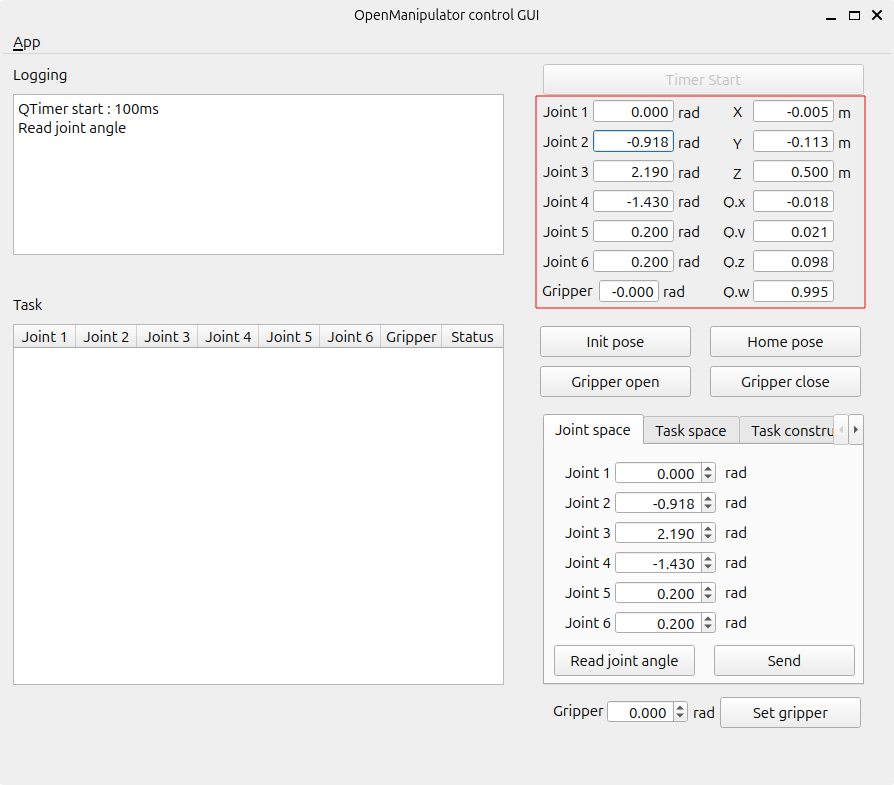
Start Timer: Activates the system.Robot Status: Displays the current manipulator state.Init Pose: Moves the manipulator to a vertical position.Home Pose: Moves the manipulator to a compact, safe position.Gripper Open/Close: Opens or closes the gripper.
Task Execution
Joint Space Tab: Adjust individual joint angles.Task Space Tab: Control the end-effector position.Task Constructor Tab: Read, save, play, stop, or reset saved task poses.
GUI Steps
-
Click
Timer Start.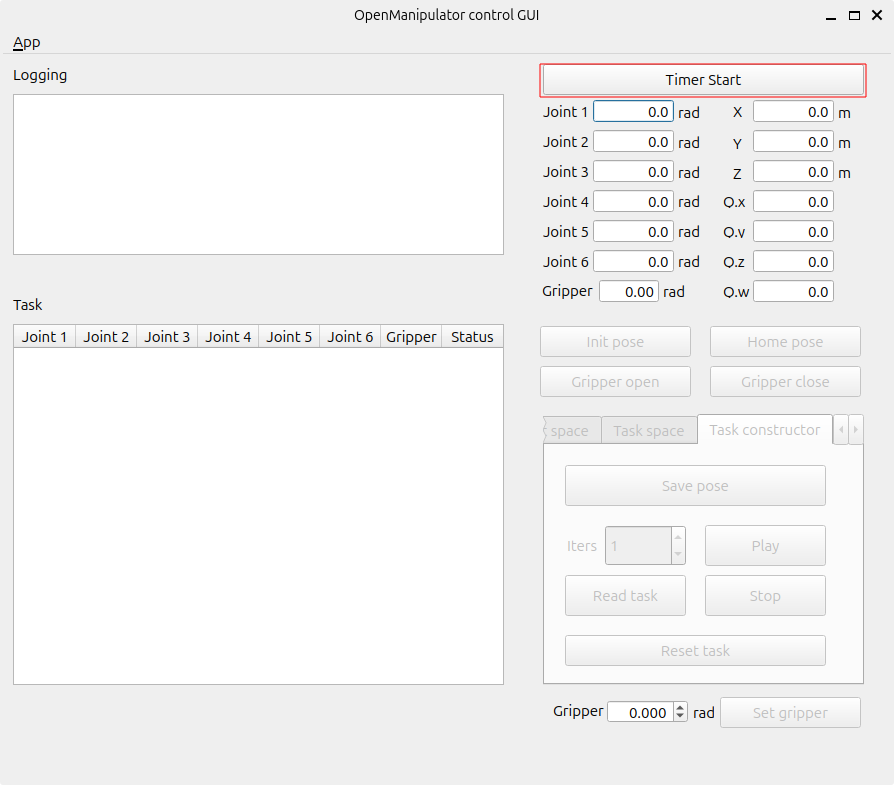
-
Check the status of OMY.
-
To manipulate OMY in joint space, enter the joint angles and total trajectory time. Then click
Send.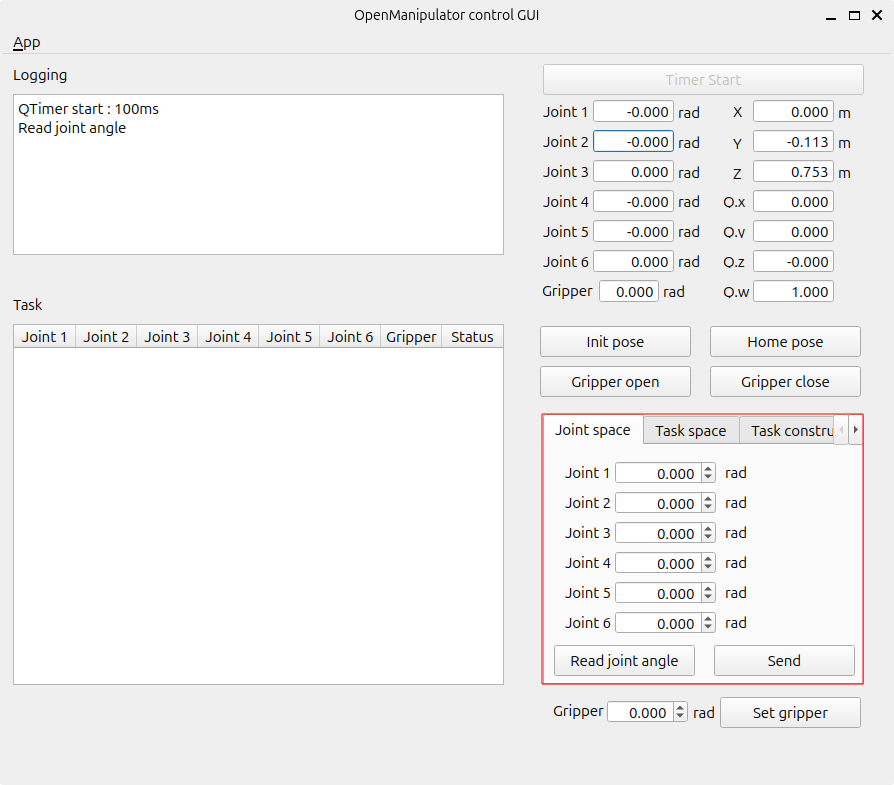
-
To manipulate OMY in task space, enter the end-effector pose. Then click
Send.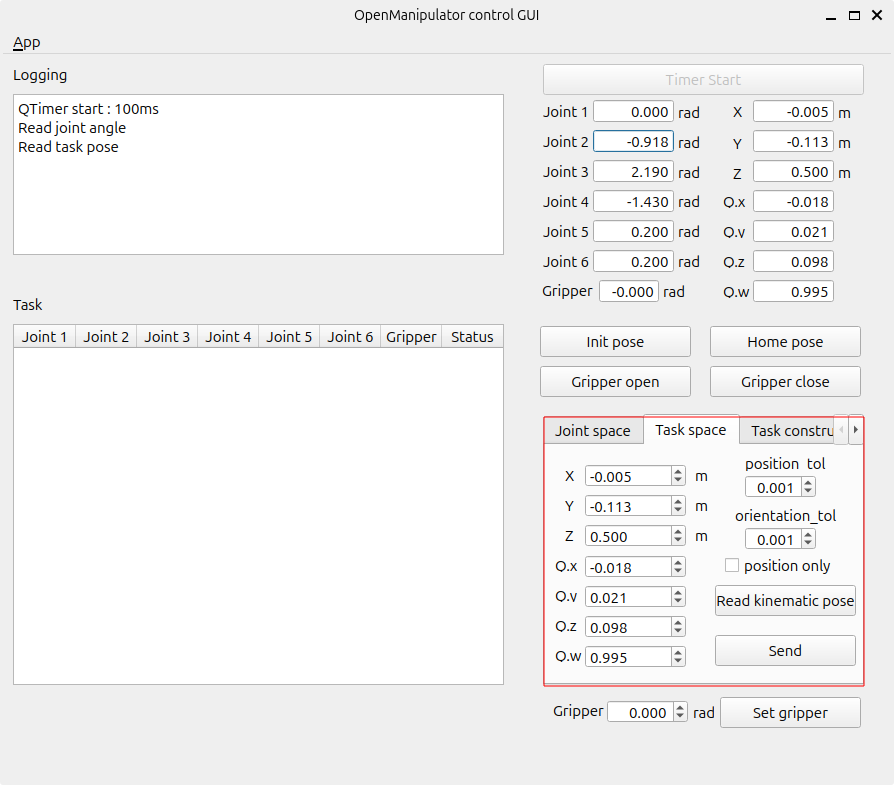
-
Create a task constructor with OMY.
- Click
Read taskto prepare saved tasks. - Adjust the manipulator posture and click
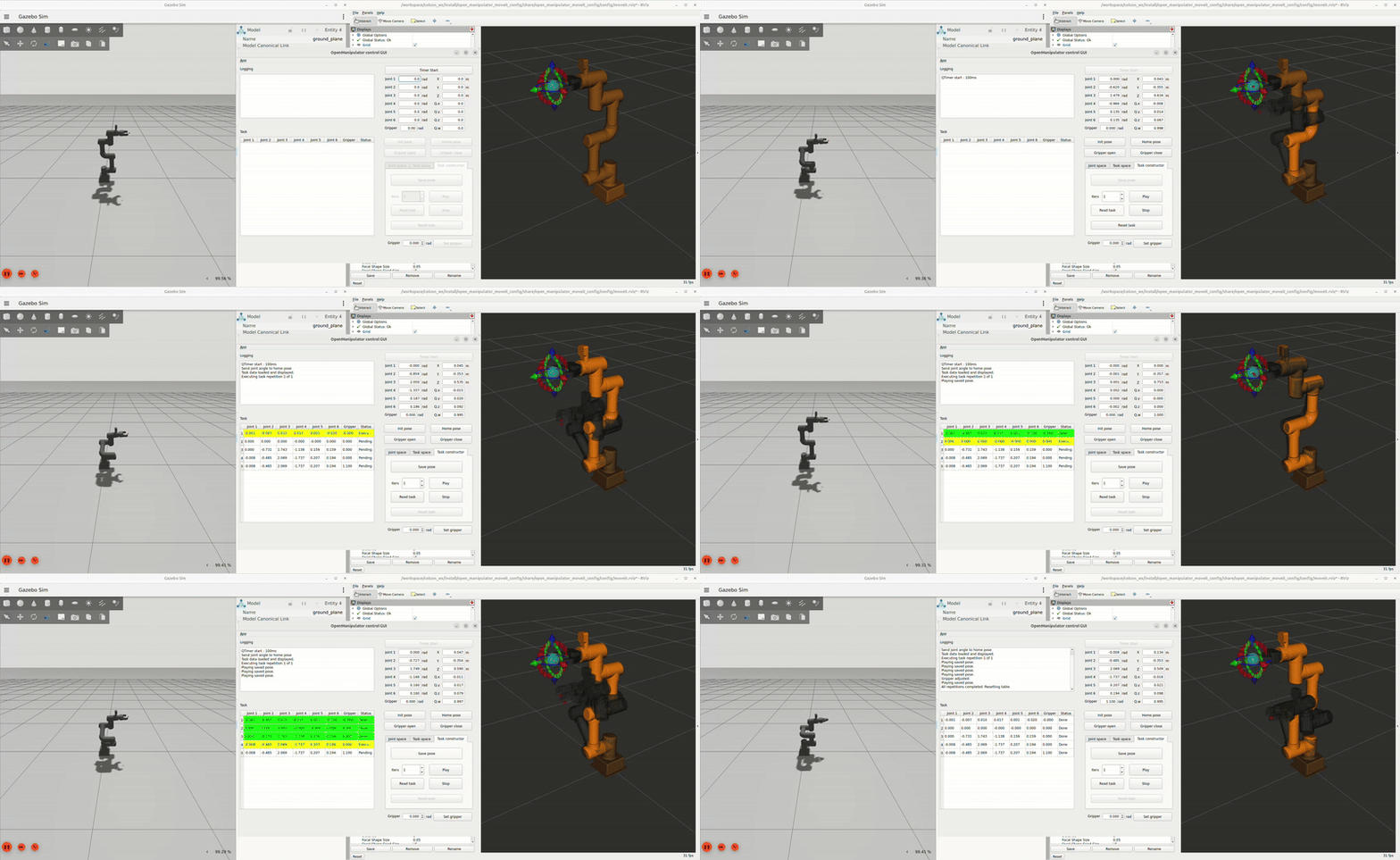
Save pose. - Save multiple postures to prepare the task sequence.
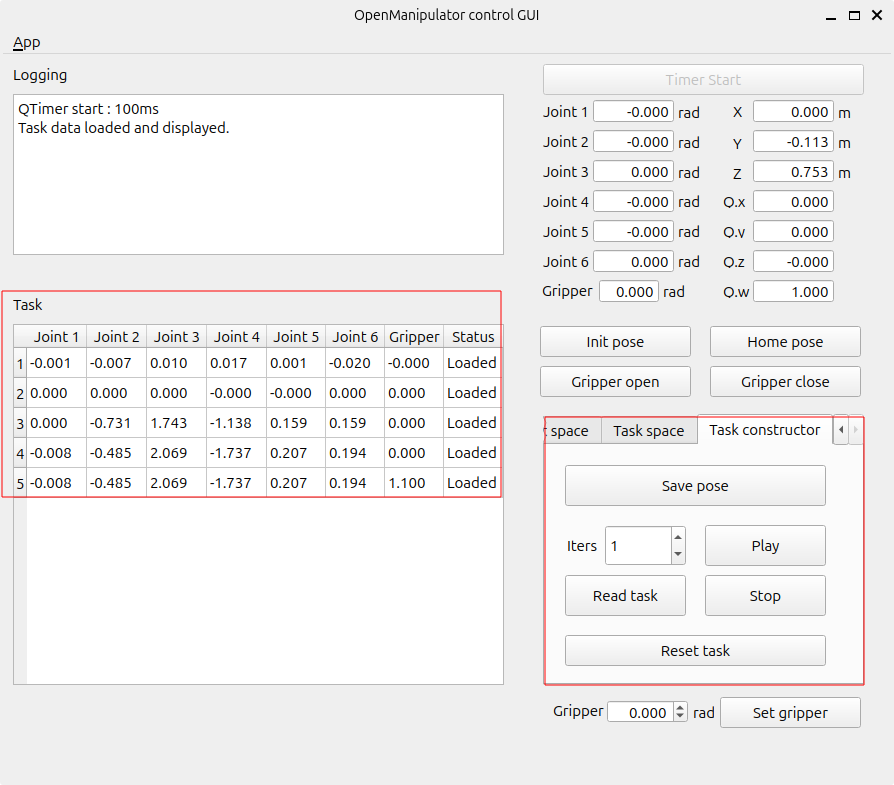
- Press
Playto execute the saved tasks sequentially. Completed tasks are marked as Done.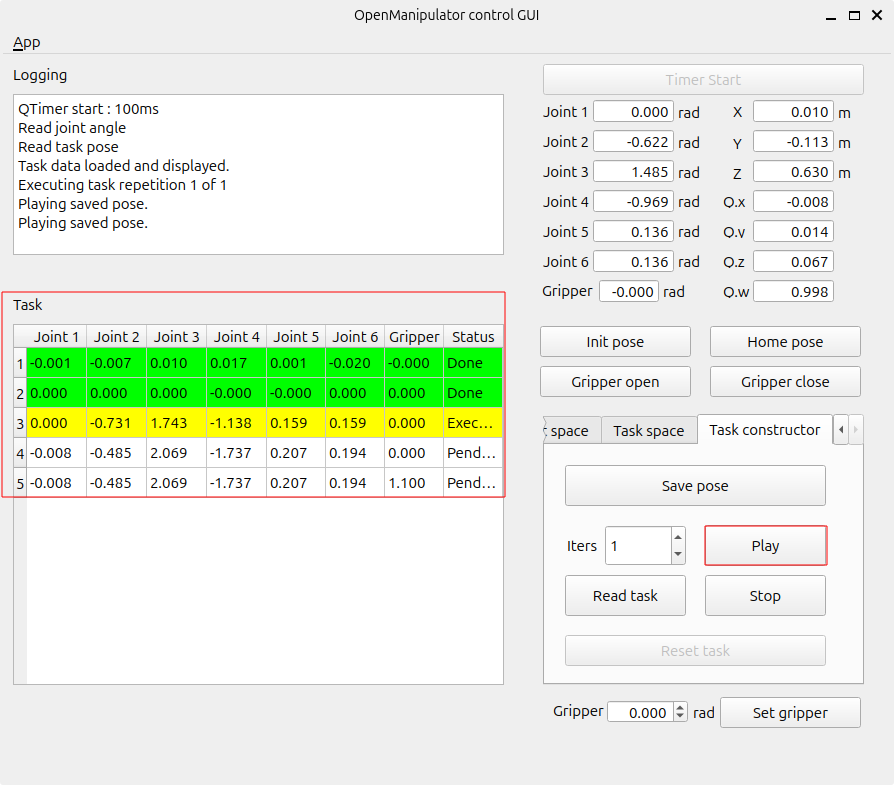
OMY GUI Demo
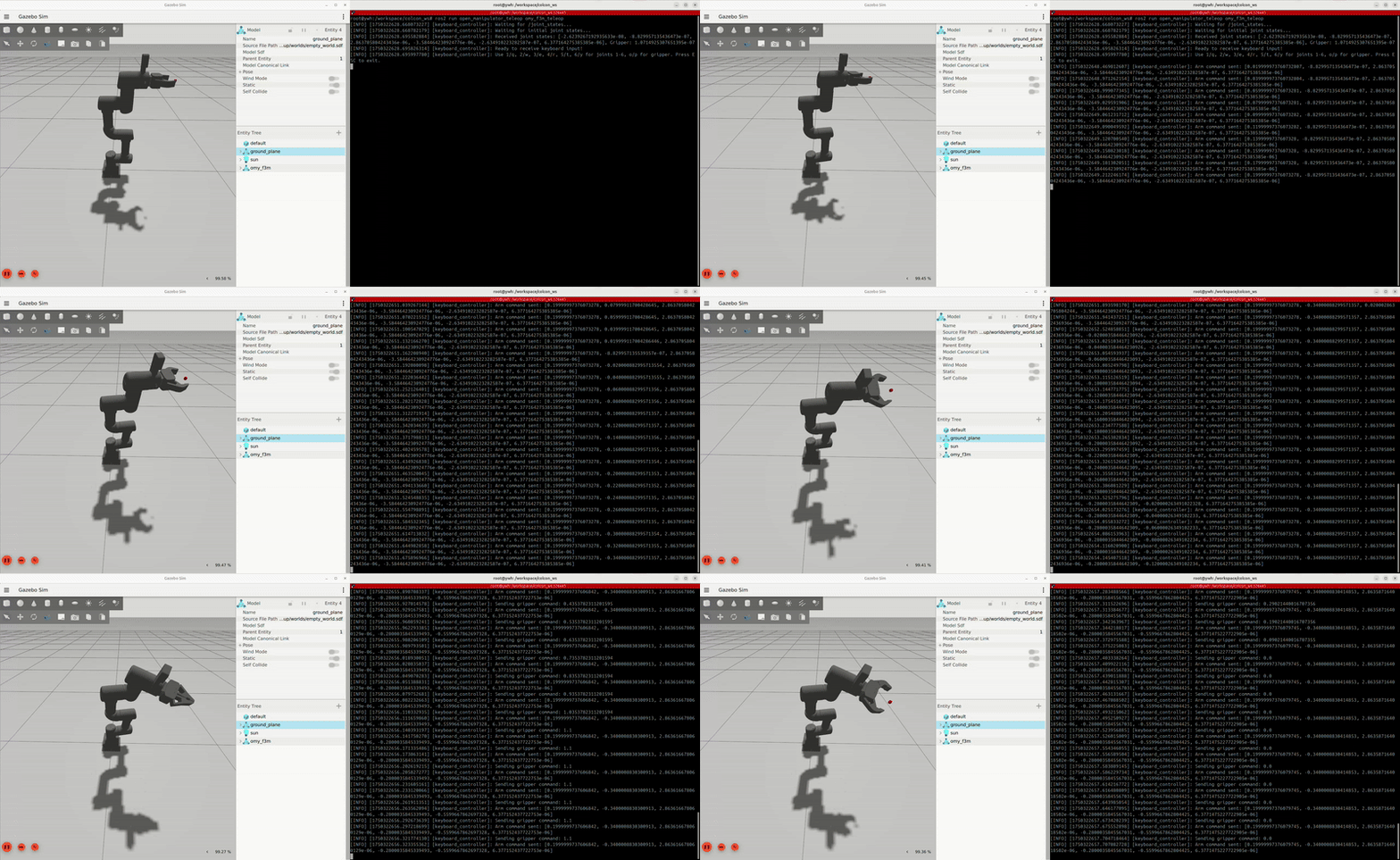
Keyboard Teleop
After launching the real robot or Gazebo bringup, run keyboard teleop in a new OpenMANIPULATOR Docker container:
ros2 run open_manipulator_teleop omy_f3m_teleop
Joint controls:
1/q: Joint 12/w: Joint 23/e: Joint 34/r: Joint 45/t: Joint 56/y: Joint 6
Gripper controls:
o: Open gripperp: Close gripper
Keyboard Teleop Demo