Manage Containers
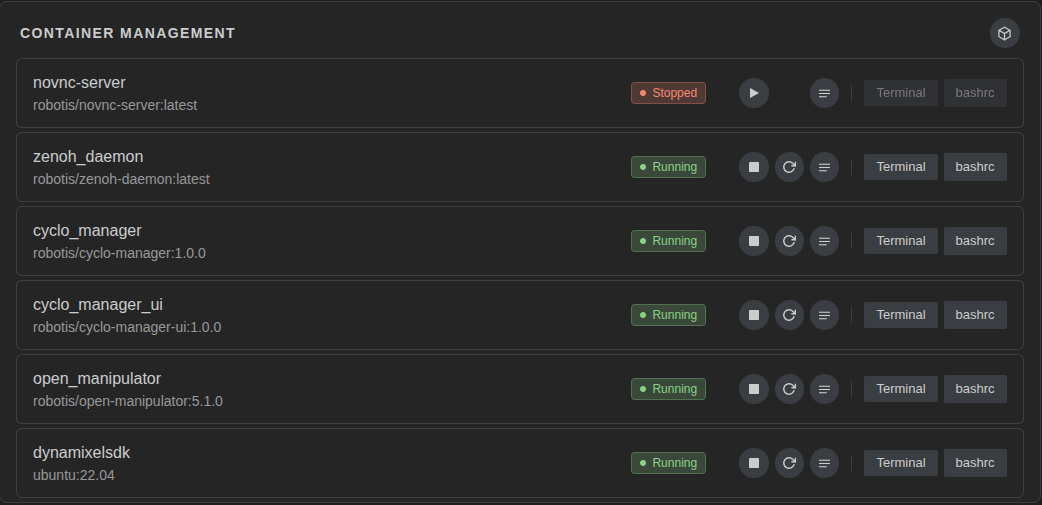
Use container management to check and control Docker containers running on OMY. You can start, stop, restart, inspect, and configure containers without connecting to the robot with separate Docker commands.
Features
- View the list of containers on the robot.
- Check whether each container is running.
- Start, restart, and stop containers.
- View container logs.
- Edit
.bashrc. - Review and clean up Docker images.
Clean Up Docker Images
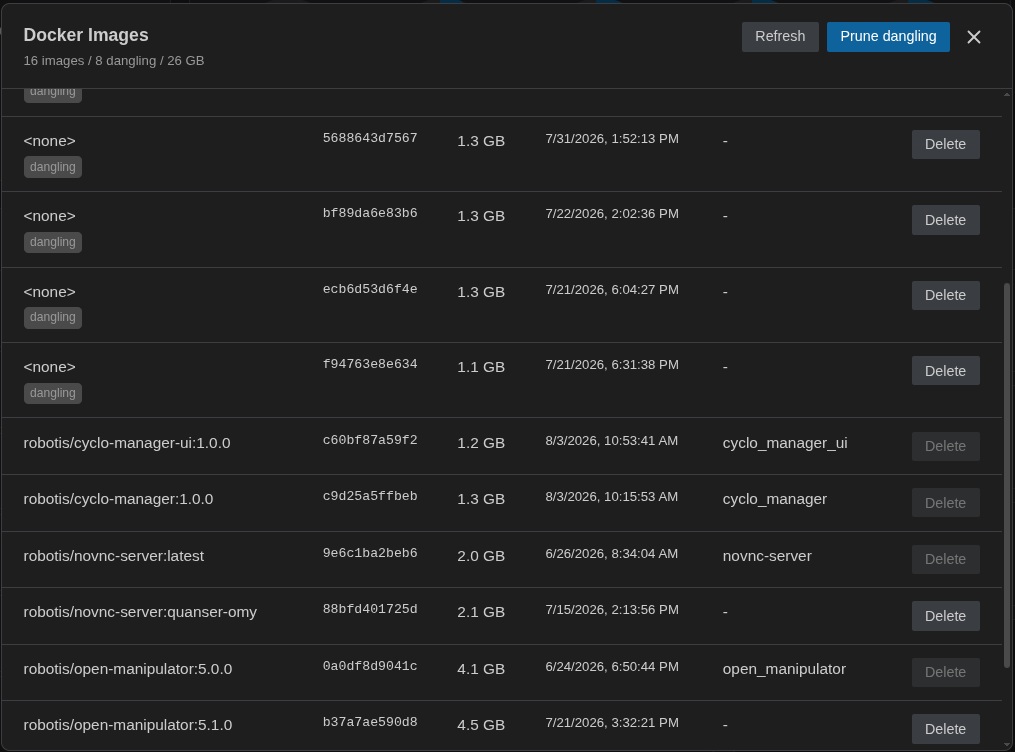
Open Docker image management from the Container Management card when you need to check image usage or free disk space. The image list shows image tags, size, creation time, and whether each image is currently used by a container.
You can delete unused images one by one, or prune dangling images that are no longer referenced by a tag. Images that are still used by a container cannot be deleted from this screen.
Change ROS_DOMAIN_ID
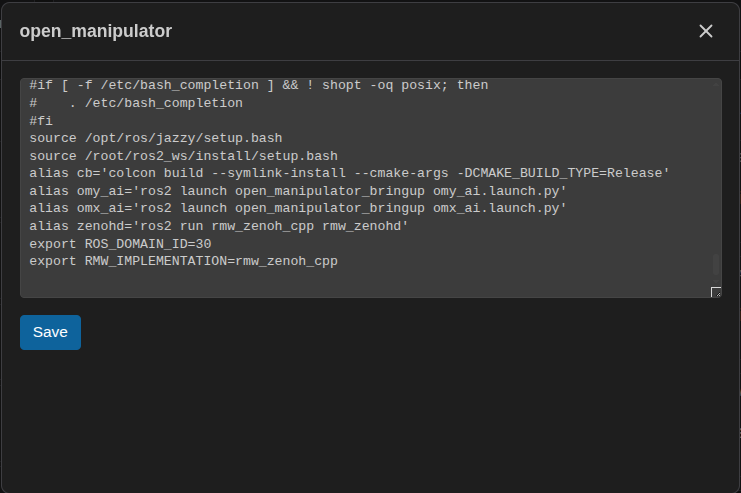
Click the .bashrc button.
Set ROS_DOMAIN_ID to the same value on every container that must communicate over ROS 2 (for example export ROS_DOMAIN_ID=30).
If you change the ROS_DOMAIN_ID for Cyclo Manager, you must restart the Cyclo Manager container.
Cyclo Manager is already running, so the new value takes effect only after a restart.
Environment variables in the container are managed in the .bashrc file.
Open a Container Terminal
On the Terminal page, select the container where you want to run the command.
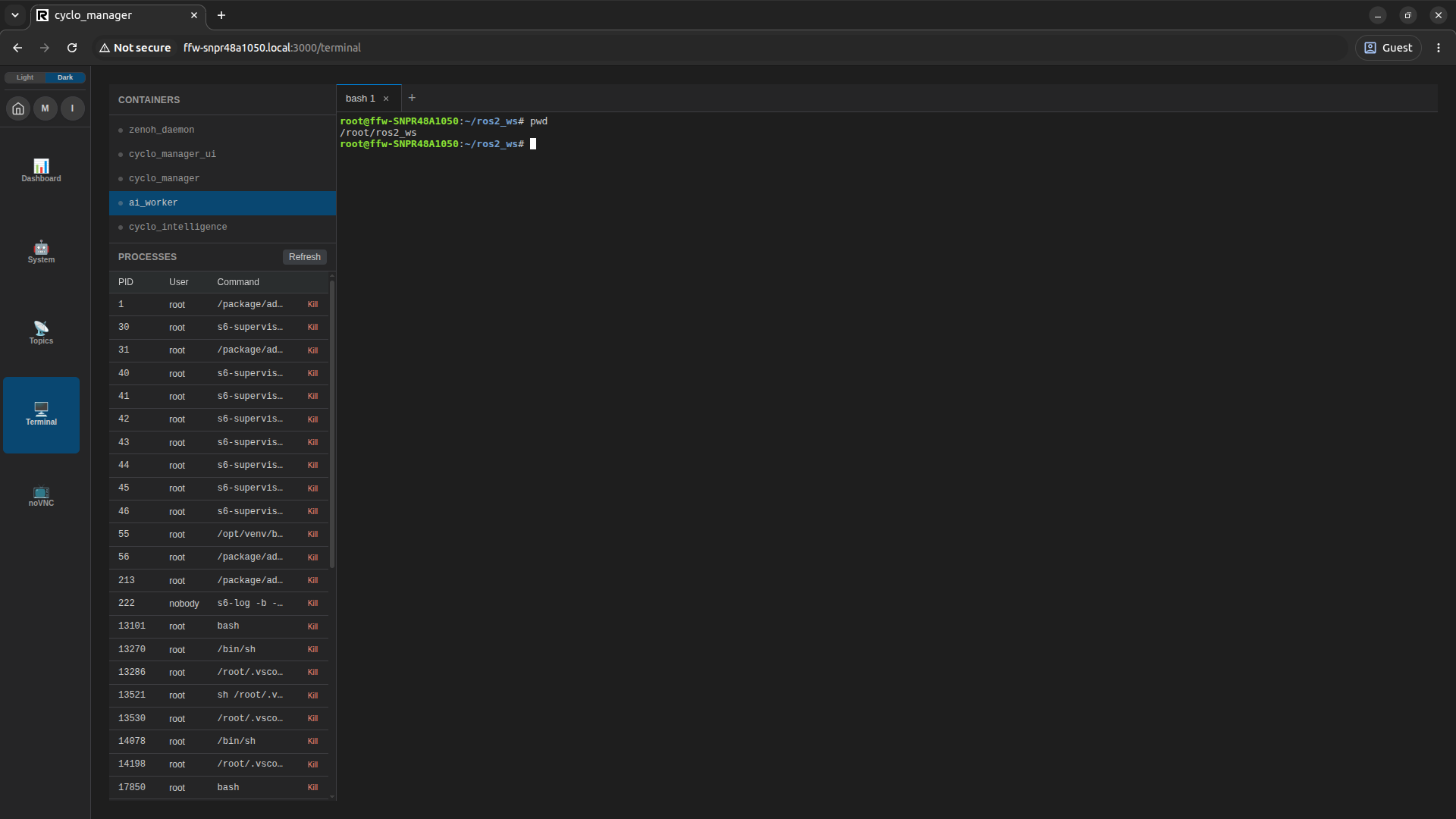
Use a bash terminal to run commands and manage processes inside the container without using SSH to access the container.