Bringup the Robot
OMX uses Zenoh for ROS 2 communication in the Cyclo Manager environment. Start the Zenoh daemon before bringing up the robot stack. For more information about Zenoh, see Zenoh Communication.
Use the System page in Cyclo Manager to start and stop the OMX robot stack. From this page, you can bring up the Zenoh daemon, OMX robot services, and related processes while checking logs and ROS 2 status from the browser.
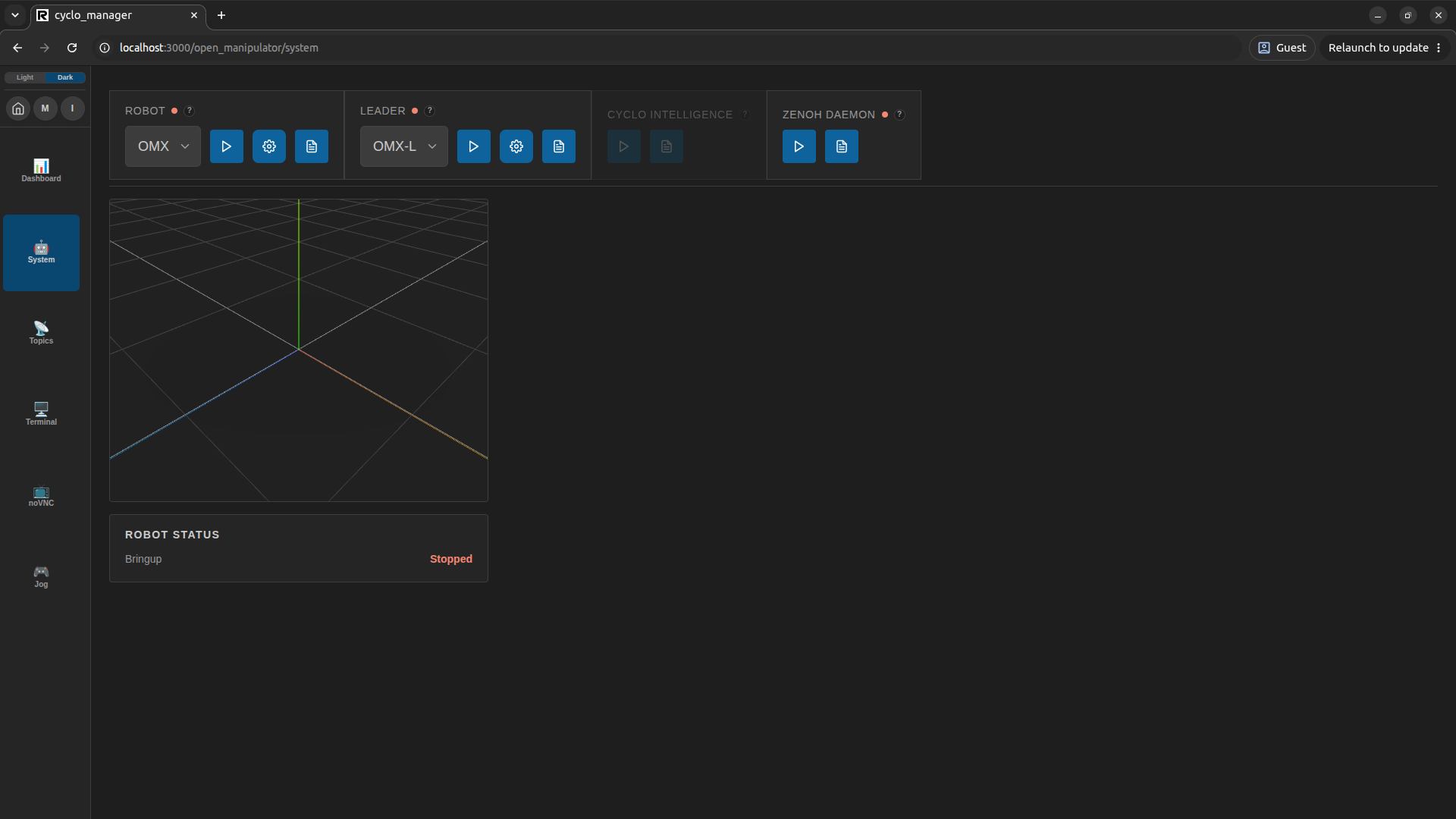
Bringup the Zenoh Daemon
Start the Zenoh daemon before bringing up the robot stack for ROS 2 communication.
The Zenoh Daemon control box controls the zenoh-daemon Docker container.
When you start this container, the Zenoh daemon process starts automatically inside it.
Click the arrow icon in the Zenoh Daemon control box to start the Zenoh daemon. Click the log icon if you need to inspect daemon logs.

- Red light indicates the Zenoh daemon is not running. Green light indicates the Zenoh daemon is running.
- The Zenoh daemon runs in the zenoh-daemon container, which is created only for the Zenoh daemon.
- If the Zenoh daemon is running, it keeps running even after you power the robot off and on, unless you stop the zenoh-daemon container.
Bringup OMX
Select the OMX profile to bring up and click the Robot Bringup button. The launch parameters are set to default values. You can change them by clicking the Parameter Setup button.

The control box provides:
- Robot Type Selection: Selects the OMX profile.
- Bringup / Stop Button: Starts or stops the selected bringup service.
- Parameter Setup: Opens launch arguments before start.
- Logs: Opens live service logs.
- Status Light: Shows whether the service is running.
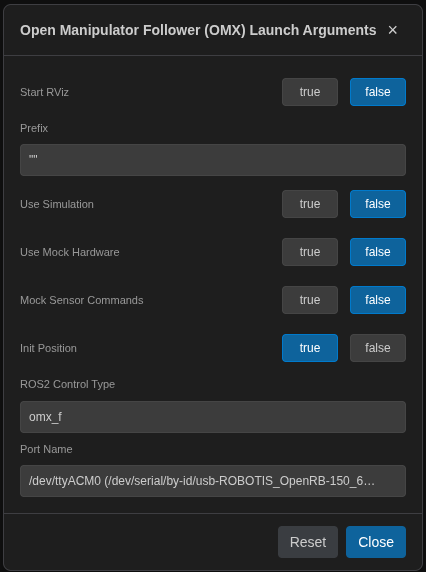
Click the parameter setup button and set the port name. Detected serial ports are shown in the Port Name dropdown. Select the port for the connected OMX robot.
To identify the correct port, connect only one device at a time. Connect the follower first and check which port appears in the dropdown, then disconnect it and connect the leader to check the leader port. Use the detected follower port for Robot Bringup and the detected leader port for Leader Bringup.
Cyclo Manager and the OMX container must use the same ROS_DOMAIN_ID for 3D model display, joint states, and ROS 2 topic status.
See Change ROS_DOMAIN_ID.
After the robot stack starts, the 3D model and robot status panels update automatically.
If the model or joint states do not update, check ROS_DOMAIN_ID, the robot bringup logs, and the relevant ROS 2 topics.
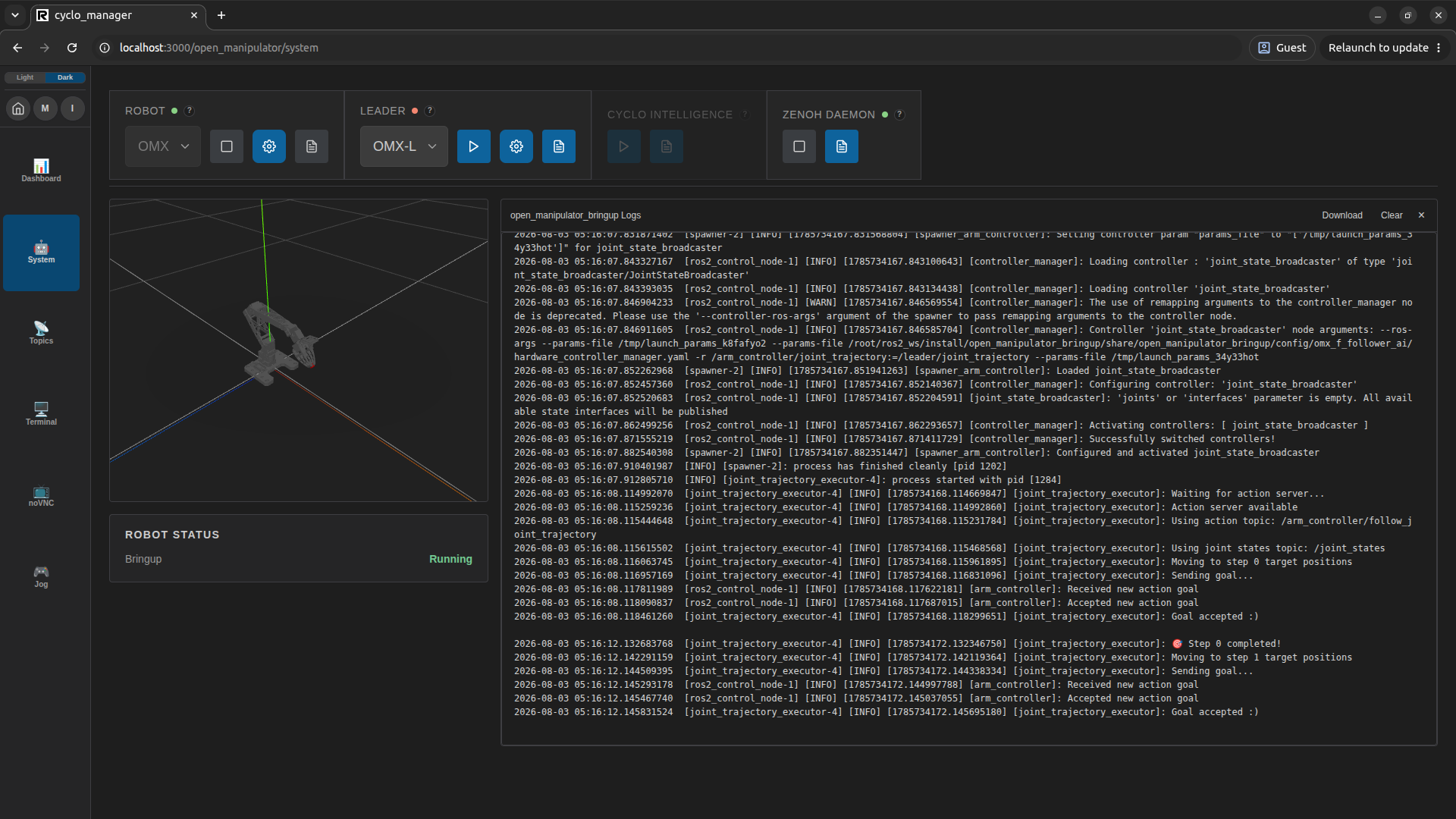
After bringing up the follower, click the Leader Bringup button to bring up the leader and start teleoperating the OMX.
Configure Launch Arguments
Click the gear icon to configure launch arguments before starting a service. Cyclo Manager stores the selected values in the browser and sends them to the container agent when you start the bringup service.
Common arguments include:
- Start RViz: Starts RViz inside the robot stack when enabled.
- Use Simulation: Uses simulation mode instead of real hardware.
- Use Mock Hardware: Starts ros2_control with mock hardware.
- Port Name: Selects the device path used by the hardware interface.
- Init Position: Moves the robot to the configured initial position during bringup.
- Init Position File: Selects the YAML file used for the initial position.
Use default values unless you have a specific setup reason to change them.