Operation Guide
This guide explains how to operate the ROBOTIS Hand.
Prerequisites
Before running the ROBOTIS Hand, make sure:
- The ROBOTIS Hand is properly set up and powered on
- The ROBOTIS Hand is connected to
/dev/ttyUSB0
Running the ROBOTIS Hand
The ROBOTIS Hand controller has been constructed to utilize the ros2_control framework for enhanced flexibility, modularity, and usability. This updated controller allows for seamless integration with ROS 2-based systems, offering advanced features such as trajectory planning, real-time control, and state feedback.
After accessing the ROBOTIS Hand Docker container, start the Zenoh daemon. For convenience, the following alias is provided to simplify the command:
zenohd
For more information on Zenoh, see Zenoh Communication.
In a separate terminal, access the same Docker container and launch the ROBOTIS Hand bringup script:
- HX5-D20
# For the left hand
ros2 launch robotis_hand_bringup hx5_d20_left.launch.py

# For the right hand
ros2 launch robotis_hand_bringup hx5_d20_right.launch.py
Check Hand Orientation: You must use the launch file that matches your specific hardware (hx5_d20_left or hx5_d20_right). If the software configuration does not match the physical hand, the system will not work.
Once the command is executed, the system will perform the following steps:
- Initial Positioning: The ROBOTIS Hand moves to its initial position
- Topic Subscription: The node begins subscribing to the input topic
The ROBOTIS Hand controller will now subscribe to the input topic described in the Software Specifications.
(Optional) For visualization, add the option start_rviz:=true at the end of the command:
- HX5-D20
# For the left hand
ros2 launch robotis_hand_bringup hx5_d20_left.launch.py start_rviz:=true

# For the right hand
ros2 launch robotis_hand_bringup hx5_d20_right.launch.py start_rviz:=true
Example Hand Motion
This section provides a simple example for running predefined hand motions. It continuously alternates between smooth and quick cycles of finger pinch and grasp motions.
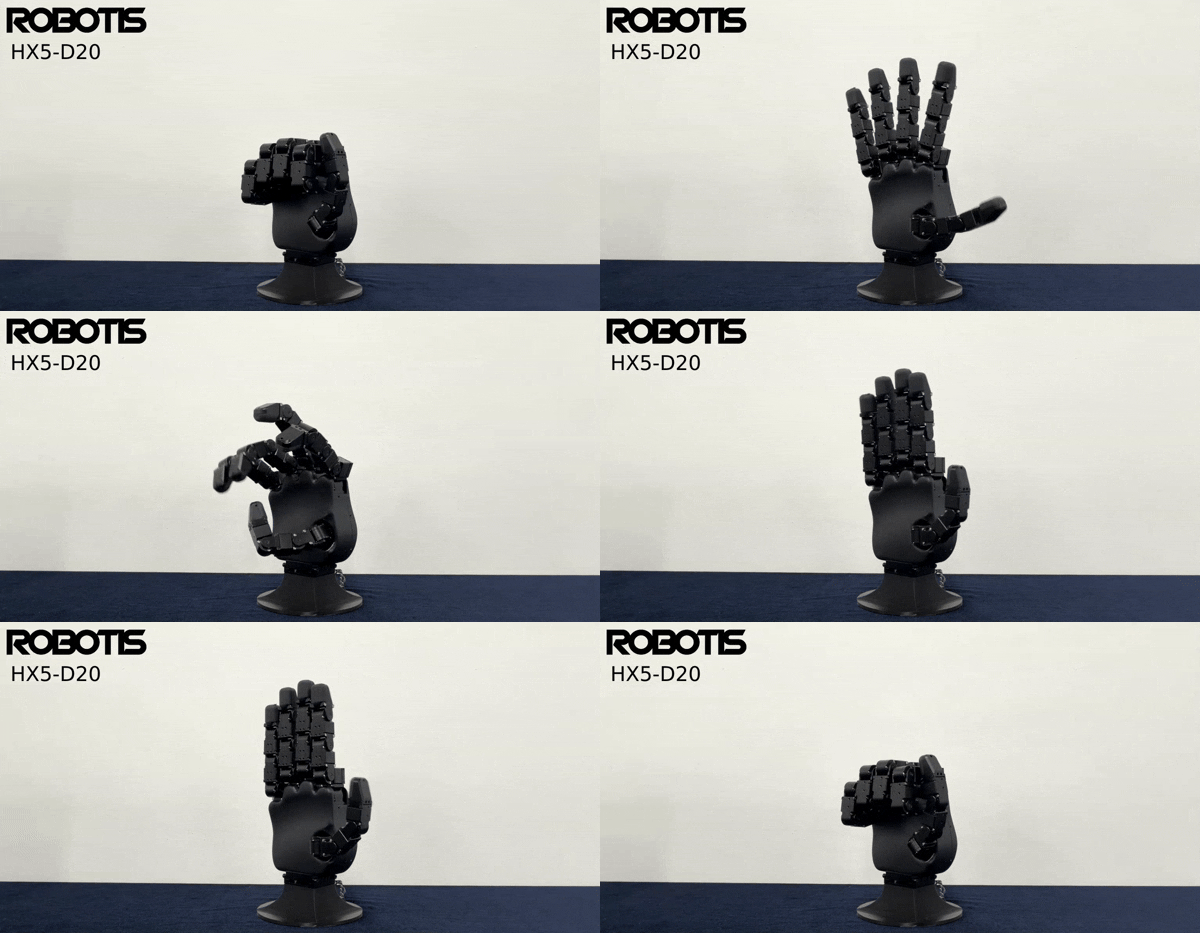
Example hand motion demo.
Run the Example Motion
After launching the real robot or Gazebo bringup, enter the following command in the new Docker container:
- HX5-D20
# For the left hand
ros2 run robotis_hand_playground hx5_d20_example_motion.py --hand-side left

# For the right hand
ros2 run robotis_hand_playground hx5_d20_example_motion.py --hand-side right
The example node sends predefined motion sequences as trajectory_msgs/JointTrajectory messages.
When the script starts, it first publishes one dummy trajectory. This helps prevent the first command from being ignored by the controller.
Keyboard Teleop
Control the ROBOTIS Hand using your keyboard.
Run the Keyboard Teleop
After launching the real robot or Gazebo bringup, enter the following command in the new Docker container:
In Gazebo, a finger may not move if its joint_state is outside the joint limits defined in the URDF.
- HX5-D20
# For the left hand
ros2 run robotis_hand_teleop hx5_d20_left_teleop.py --hand-side left

# For the right hand
ros2 run robotis_hand_teleop hx5_d20_right_teleop.py --hand-side right
Finger Control
v/c- Thumb close / openq/a- Index close / openw/s- Middle close / opene/d- Ring close / openr/f- Little close / open
Shift Joint Control
1- Index (Joint 5)2- Middle (Joint 9)3- Ring (Joint 13)4- Little (Joint 17)5- Thumb (Joint 1)6- Thumb (Joint 2)TAB- Toggle movement direction
Hand Control
z- Open all fingersx- Close all fingersb- Print current target positions
Keyboard Teleop Demo
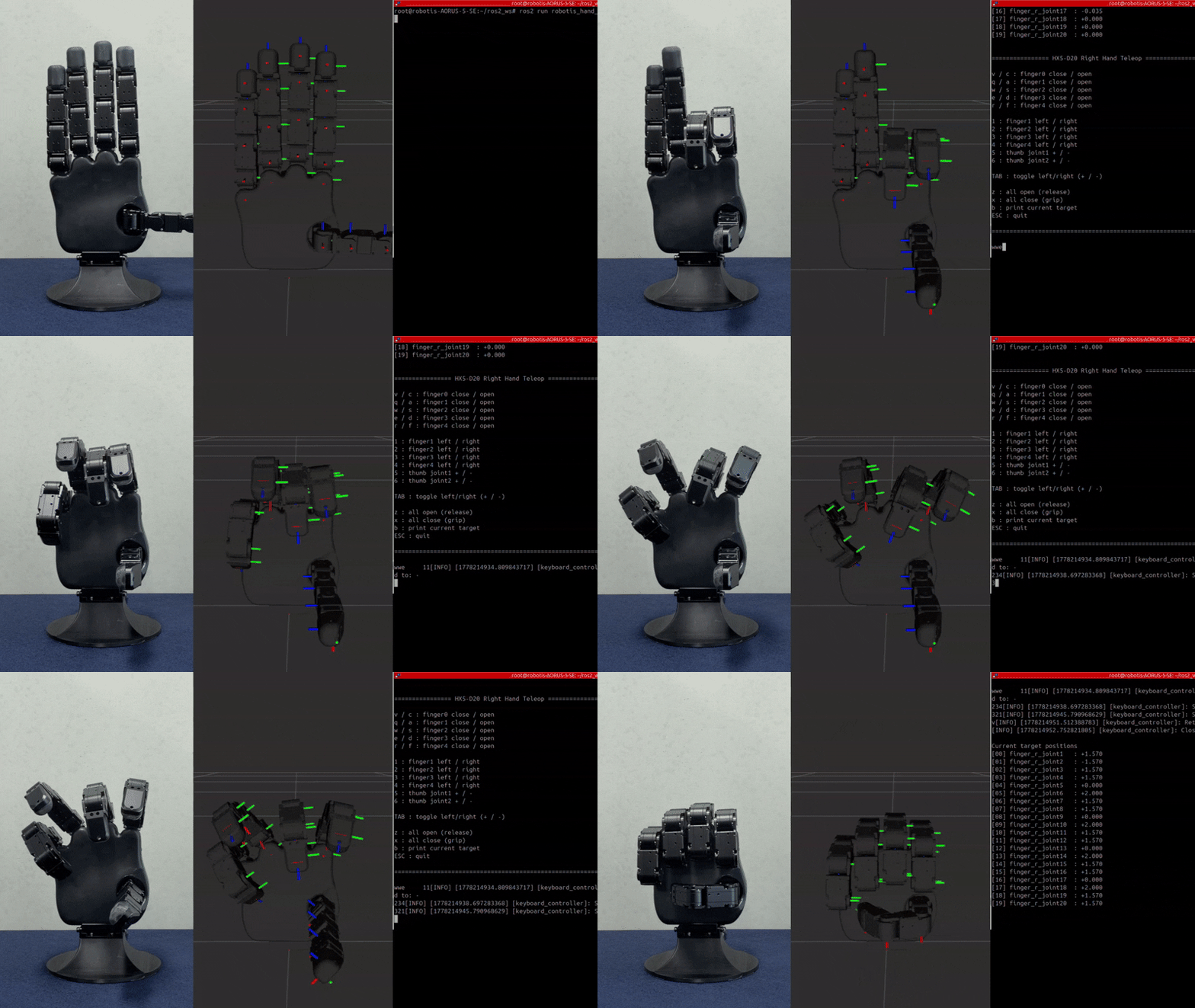
Keyboard control of individual fingers.