GPT-6 Astra on the AI Worker
1. Overview
This technical story explains how we connected GPT-6 Astra to AI Worker so the robot could carry out natural-language instructions using camera images and robot state. It walks through the system, shows how to run it, and shares what we learned from pick-and-place tasks.
By the end, you will understand how to:
- Connect model decisions to robot actions. Follow the loop from the Codex App Server through the harness to ROS 2 commands, and see how execution results and new observations guide the next action (Section 2).
- Run a task in simulation or on a real robot. Set up Codex, launch Gazebo or a real SG2, start an episode, and follow it in the live viewer (Section 3).
- Work with the robot tools. Understand the available actions, coordinate conventions, units, and observation checks used by the harness (Section 4).
- Assess the approach's strengths and limitations. Review examples of feedback-based recovery, the tradeoffs of smaller movements, and limitations involving depth, collisions, repeatability, and response time (Sections 5–6).
The demos illustrate these ideas through shelf-to-basket picking and ball placement. The robot adjusts its lift to reach objects, pulls a basket closer with its free hand, or moves its base to carry an object to the basket. These examples show how different action sequences can achieve the same goal.
The harness uses the Codex App Server, allowing newly supported models to be evaluated with the same robot tools and execution environment.
2. System Architecture
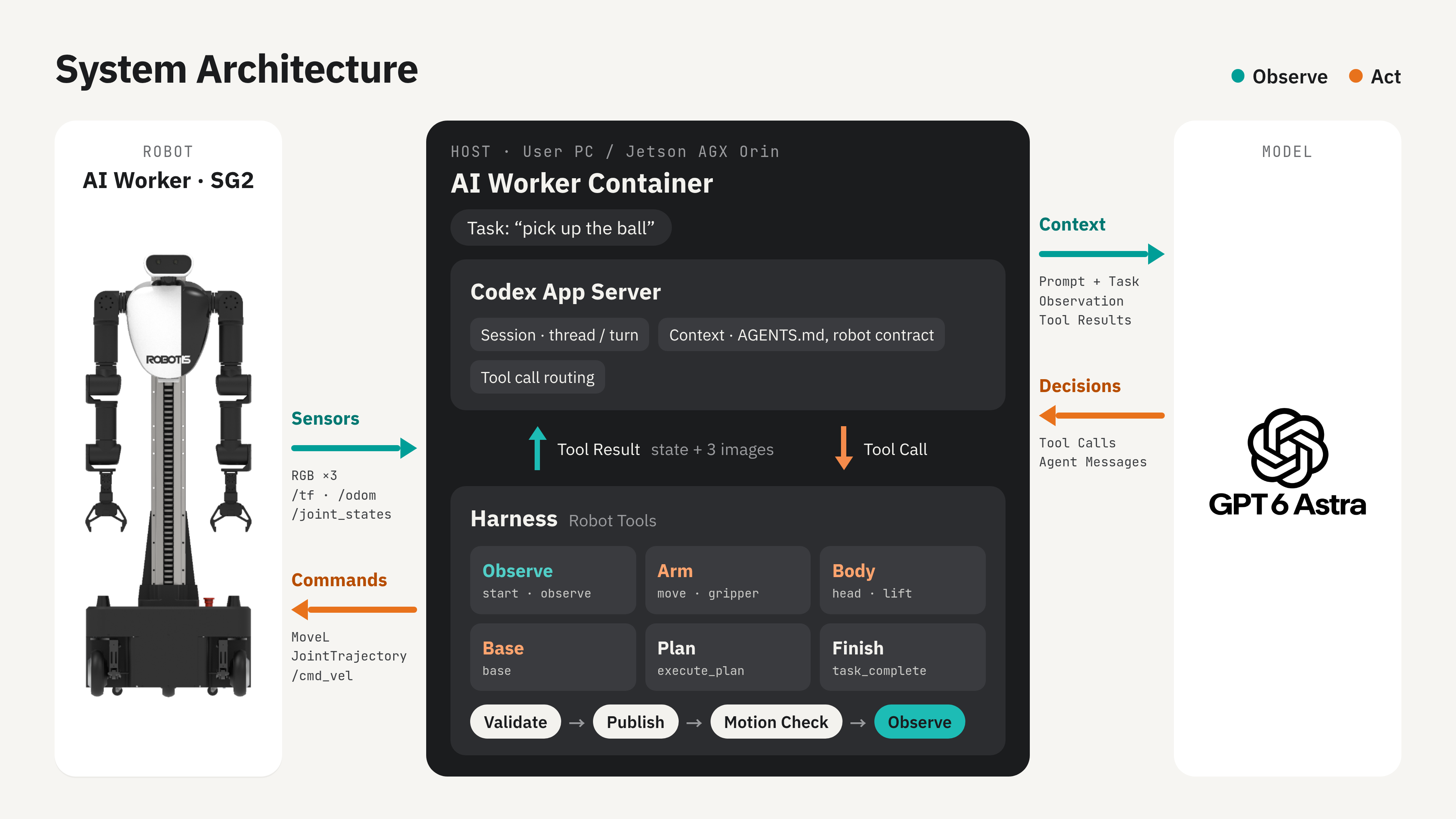
Codex system architecture
Each task runs in one Codex App Server session. The model selects a robot tool and its inputs; the App Server routes the call to the harness.
The harness validates the tool inputs and execution conditions, then creates a ROS 2 message for the target component and publishes it to the corresponding topic. Arm commands specify a target position and orientation, along with a motion duration. Gripper, head, and lift commands specify target joint values and a motion duration. Base commands specify linear and angular velocities.
After publishing a command, the harness checks the robot's actual state to determine whether it has reached the target and assess the motion result. It then collects camera images and robot state and returns them to the model along with the execution result. The model uses this feedback to decide its next action. This cycle continues until the task ends.
The following table lists the control topics and message types used by the harness.
| Component | Topic | Message type | Command contents |
|---|---|---|---|
| Left arm | /l_goal_move | robotis_interfaces/msg/MoveL | Target position and orientation, motion duration |
| Right arm | /r_goal_move | robotis_interfaces/msg/MoveL | Target position and orientation, motion duration |
| Left gripper | /leader/joint_trajectory_command_broadcaster_left/raw_joint_trajectory | trajectory_msgs/msg/JointTrajectory | Target gripper joint values, motion duration |
| Right gripper | /leader/joint_trajectory_command_broadcaster_right/raw_joint_trajectory | trajectory_msgs/msg/JointTrajectory | Target gripper joint values, motion duration |
| Head | /leader/joystick_controller_left/joint_trajectory | trajectory_msgs/msg/JointTrajectory | Target head joint values, motion duration |
| Lift | /leader/joystick_controller_right/joint_trajectory | trajectory_msgs/msg/JointTrajectory | Target lift joint values, motion duration |
| Base | /cmd_vel | geometry_msgs/msg/Twist | Linear and angular velocities |
3. Getting Started
Follow the common setup, then choose Gazebo or Real SG2. The live viewer is optional.
- Set up: Clone the code, start the container, install Codex, and sign in (3.1).
- Run: Start Gazebo (3.2) or the real robot (3.3), then start Cyclo and an episode.
- Watch (optional): Open the live viewer (3.4).
Keep four terminals open for a run:
| Terminal | Gazebo | Real SG2 |
|---|---|---|
| 1 | Zenoh | Zenoh |
| 2 | Gazebo | Robot bringup |
| 3 | Cyclo motion controller | Cyclo motion controller |
| 4 | Episode: run_codex_gazebo.py | Episode: run_codex.py |
Run the clone and container-management commands on the host. Run subsequent robot commands inside the container unless otherwise noted. Use ./container.sh enter from ai_worker/docker for each additional terminal.
3.1 Common Setup
Before You Start
Gazebo
If you will run Gazebo on a PC with an NVIDIA GPU, read the tip at the start of 3.2 before ./container.sh start.
Real SG2
Before starting the container, complete the Real SG2 preparation checklist. It covers power, USB connections, network access, cameras, and workspace safety.
Step 1 - Clone the Code and Start the Container (Host)
git clone -b feature-codex https://github.com/ROBOTIS-GIT/ai_worker.git
cd ai_worker/docker
./container.sh start
./container.sh enter
Step 2 - Install Codex
The installation does not persist when the container is recreated. If codex --version already returns a version number, skip this step.
mkdir -p /root/.codex_robot && chmod 700 /root/.codex_robot
curl -fsSL https://chatgpt.com/codex/install.sh -o /tmp/codex-install.sh
CODEX_HOME=/root/.codex_robot CODEX_INSTALL_DIR=/usr/local/bin sh /tmp/codex-install.sh
codex --version
At the end the installer asks Start Codex now? [y/N]. Answer N.
/root/.codex_robot and /usr/local/bin/codex must match codex.home and codex.bin in both config files. Don't set codex.home to /root/.codex, the default location for interactive Codex: the harness writes and deletes config.toml in that folder on every run.
The installer installs the latest Codex. This version of the harness was tested with Codex 0.163.0.
Step 3 - Sign In to Codex
Choose one of the two sign-in methods below. Always prefix login commands with CODEX_HOME=/root/.codex_robot so the harness can find your credentials. Without this prefix, Codex saves them to /root/.codex. The harness uses the saved sign-in and does not pass an API key to Codex directly.
-
Option A: OpenAI API Key (usage-based billing)
read -rsp 'OpenAI API key: ' CODEX_LOGIN_KEY; printf '\n'Input your OpenAI API key, then run:
printf '%s' "$CODEX_LOGIN_KEY" | CODEX_HOME=/root/.codex_robot codex login --with-api-keyunset CODEX_LOGIN_KEYPaste only the read command first, enter your API key, and press Enter. Then paste the remaining commands. If you paste everything at once, the subsequent lines will be read as the API key. Your key will not be displayed as you type.
-
Option B: Sign in to ChatGPT account via device code (uses your ChatGPT plan's quota)
CODEX_HOME=/root/.codex_robot codex login --device-authThe terminal displays a URL and a one-time code. Open the URL in a browser on any device, sign in to ChatGPT, and enter the code. Sign-in completes automatically in the terminal. No browser is required inside the container.
Check the result with either method:
CODEX_HOME=/root/.codex_robot codex login status
Running plain codex with CODEX_HOME=/root/.codex_robot creates /root/.codex_robot/config.toml and leaves a background codex app-server --managed-daemon process running. The harness writes its own config.toml for each run and refuses to start if the file already exists (config.toml exists; another run may be active).
If you already did, make sure no episode is running, stop the codex app-server --managed-daemon processes (pgrep -af 'codex app-server'), and delete /root/.codex_robot/config.toml.
Step 4 - Start Zenoh (Terminal 1)
Both setups below use Terminal 1 for Zenoh. Keep it running.
zenohd
Optional: change the model or execution settings
The harness defaults to gpt-6-astra (reasoning effort low). To use a different model or reasoning effort, edit the model: block in both config files:
/root/ros2_ws/src/ai_worker/ffw_codex/config_gazebo.yaml(Gazebo)/root/ros2_ws/src/ai_worker/ffw_codex/config.yaml(real SG2)
These files also contain other settings, including episode limits, per-move step limits, tolerances, and base motion limits. You can change these settings in the same way.
3.2 Run in Gazebo
Pick and Place in Gazebo
docker/docker-compose.yml in this branch doesn't give the container a GPU, so Gazebo renders on the CPU and runs slowly. On a PC with an NVIDIA GPU and the NVIDIA Container Toolkit, add the following to the ai_worker service before ./container.sh start in 3.1 Step 1:
    environment:
     - NVIDIA_DRIVER_CAPABILITIES=all
     - __NV_PRIME_RENDER_OFFLOAD=1
     - __GLX_VENDOR_LIBRARY_NAME=nvidia
    gpus: all
Add the three entries to the existing environment: list, and gpus: all at the same level as privileged: true. If the container is already running, ./container.sh stop and start recreate it, so you have to redo Codex installation and sign-in (3.1 Step 2–3).
Terminal 2: Gazebo
ros2 launch ffw_bringup ffw_sg2_follower_ai_gazebo.launch.py \
  world:=/root/ros2_ws/src/ai_worker/ffw_bringup/worlds/table \
  use_cam:=true
use_cam:=trueis required. It defaults tofalse, and without the cameras the harness times out while waiting for observations.- Give
world:=without the.sdfextension. You can use other worlds inffw_bringup/worlds/as well, but the example task in Terminal 4 assumestable. To reset the scene between runs, restart the Gazebo launch in Terminal 2. - RViz opens too but isn't used. Run
pkill rviz2to save resources.
Optional: explore other Gazebo worlds
| World file | Scene contents | Main tasks | Example instruction |
|---|---|---|---|
table.sdf | Table, blue cube, black cube | Basic grasping, single-arm motion checks | "pick up the blue block" |
tabletop_sorting.sdf | Table, red and blue bins, five cubes, yellow cylinder | Sorting by color, pick-and-place, stacking | "put the red cubes in the red bin" |
shelf_lift.sdf | Two-tier shelf | Moving forward, lowering the lift, and tilting the head down to access the lower shelf | "take the green cube from the lower shelf and put it on the orange square" |
articulated_cabinet.sdf | Cabinet with a drawer, box with a lid, three cubes | Opening and closing drawers and lids | "open the drawer and take out the blue cube" |
kitchen_counter.sdf | Kitchen counter with a plate, bowl, two cans, apple, cereal box, sponge, and cutting board | Pick-and-place using everyday object names | "put the apple in the bowl" |
pick_and_deliver.sdf | Two rooms connected by a doorway, starting table with three cubes, green and blue tables, obstacles, colored wall panels | Picking up and delivering objects across rooms | "bring the blue cube to the blue bin" |
Gazebo tabletop_sorting
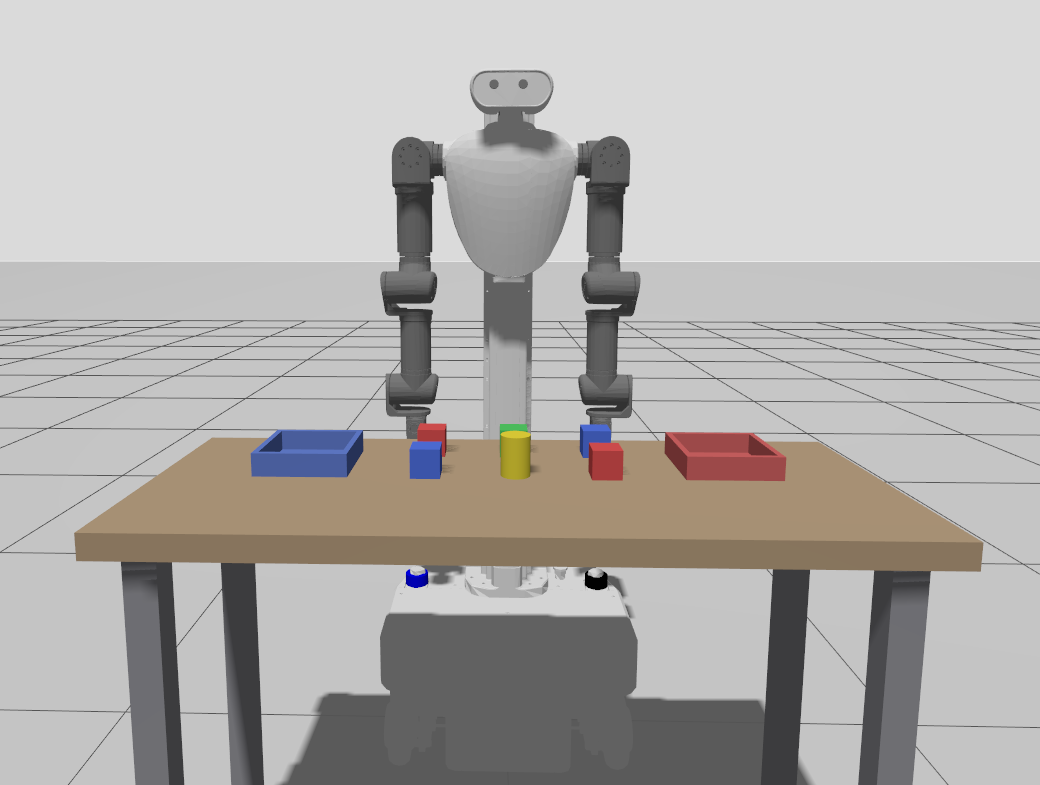
Gazebo tabletop_sorting.sdf
Terminal 3: Cyclo
ros2 launch cyclo_motion_controller_ros ai_worker_controller.launch.py controller_type:=movel
The arms and grippers are controlled through Cyclo. Commands for the head and lift are sent directly to their respective trajectory topics. While Cyclo is running, do not publish commands directly to the arm controllers' topics.
Terminal 4: Episode
cd /root/ros2_ws/src/ai_worker/ffw_codex
python3 run_codex_gazebo.py --task "pick up the blue block" --run-id gz_01
Use a new --run-id for each run; an existing run folder is not reused.
In Gazebo, head and lift commands wait until the joint stops moving, since the simulated lift can be much slower than commanded. The model is idle and uses no tokens meanwhile.
3.3 Run on a Real SG2
Pick and Place on a Real SG2
Before You Start
Complete this checklist before starting the container in 3.1 Step 1.
- Power on the robot and connect the follower board and cameras via USB before running
./container.sh start, which installs and reloads the udev rules. Verify that/dev/followerexists. - Connect the robot's onboard Jetson AGX Orin to the internet via an Ethernet cable and keep it connected throughout the episode. Codex communicates with the model over the network, so a lost connection interrupts the episode.
- RealSense serial numbers vary by robot. Use
rs-enumerate-devicesto check them, then setcamera1_serialandcamera2_serialinffw_bringup/config/common/rs_serial.yamlto match your robot. - The ZED head camera must be connected.
head_camera_typedefaults tozed. - Clear the robot's workspace and keep the emergency stop button within reach. The robot moves during bringup (
init_position) and during the episode. Commands already sent by the episode cannot be canceled by the harness.
Terminal 2: Bringup
ros2 launch ffw_bringup ffw_sg2_follower_ai.launch.py
The bringup waits 10 seconds after the initial pose is set before it starts the swerve drive controller, to give the hardware more time to settle. Wait for the hardware to initialize, then check from another terminal:
timeout 7 ros2 control list_controllers          # arm, head, lift controllers active
timeout 7 ros2 topic echo --once /joint_states   # includes gripper, head, lift joints
ros2 topic list | grep -E "zed|camera_left|camera_right"
If /joint_states lists only the wheel joints, the follower hardware hasn't come up. Check /dev/follower, the power, and the bringup log.
Terminal 3: Cyclo
ros2 launch cyclo_motion_controller_ros ai_worker_controller.launch.py controller_type:=movel
Terminal 4: Episode
cd /root/ros2_ws/src/ai_worker/ffw_codex
python3 run_codex.py --task "task description" --run-id real_01
Use a new --run-id for each run; an existing run folder is not reused.
- Write the task to match the actual scene.
- For the first run, lower
episode.max_actionsandepisode.max_secondsinconfig.yaml. - For delicate work, reduce
limits.max_step_minconfig.yaml(currently 0.1 m per move) to limit how far the hand can move in a single step. - Pressing Ctrl+C prevents new actions and waits for the current tool call to finish. It does not stop the robot. In an emergency, use the emergency stop button.
- When the episode ends, the robot remains in its last pose. Manually return the robot and objects to their initial positions before the next run.
3.4 Watch a Run Live
Tidy up the table
ffw_codex/run_viewer.html displays live camera feeds from the robot and tracks the episode as it runs. It shows the rationale, command, and result for each tool call, along with the observation used by the model. It works with both Gazebo and the physical robot.
1. Start the video bridge
The live cameras come from web_video_server on port 7085, which cyclo_intelligence starts with its orchestrator bringup. Start cyclo_intelligence on the same machine as the bringup.
Host
git clone https://github.com/ROBOTIS-GIT/cyclo_intelligence.git
cd cyclo_intelligence/docker
./container.sh start
./container.sh enter
Container
cyclo_intelligence
2. Open the viewer through Live Server
In VS Code, open the ai_worker folder (over Remote-SSH for the robot), right-click ffw_codex/run_viewer.html and choose Open with Live Server. The page must be opened through Live Server (for example http://localhost:5500/ffw_codex/run_viewer.html). Following a run doesn't work from a file opened by double-click. Over SSH, forward ports 5500 and 7085 to your PC.
3. Connect the cameras
Open Live cameras, keep the bridge URL http://localhost:7085, choose the topic preset (Robot or Gazebo), and click Connect / Reconnect. The presets match the cameras: topics in config.yaml and config_gazebo.yaml. If you change those topics, change the fields in the viewer too.
4. Follow the run
Enter the --run-id of the episode (e.g. gz_01) under Run folder and click Follow run.
The page checks ffw_codex/runs/<run_id>/ for updates approximately every 1.2 seconds and stops polling when host_result.json appears. Live camera streams remain connected.
- The live cameras and the call records aren't synchronized. The model decided from the saved observation, not from the live image.
4. Robot Tools for the Model (Harness)
4.1 Tool List
| Tool | Role | Main inputs |
|---|---|---|
robot_start | Start the episode and obtain the initial observation | None |
robot_observe | Obtain updated images from all three cameras and the robot state | None |
robot_move | Change the position and orientation of one hand | arm, x, y, z, roll, pitch, yaw |
robot_gripper | Adjust how far one gripper is open or closed | arm, value |
robot_head | Adjust the head's tilt and pan | head_joint1, head_joint2 |
robot_lift | Adjust the upper-body height | position_m |
robot_base | Translate and rotate the mobile base | vx, vy, wz, duration_s |
robot_execute_plan | Execute a short sequence of actions in order | steps |
task_complete | Declare task completion and end the episode | reason explaining why the task is complete |
robot_execute_plan accepts up to 5 steps (plan.max_steps) of robot_move, robot_gripper, robot_head, and robot_lift; robot_base is not allowed. A head, lift, or gripper step must be the last step. Each step runs only after the previous one returns arrived, and the harness does not interpret intermediate images.
The action tools, robot_execute_plan, and task_complete also require the following inputs:
request_id: Theaction_context.request_idfrom the latest response. This links the request to a valid observation.reason: The observed evidence and the purpose of the action. For example: "The object is between the fingers, so close the gripper."
These two inputs are not required for robot_start or robot_observe. Call robot_start once at the beginning of the episode, then use robot_observe to refresh observations.
4.2 Coordinates and Units
robot_move takes an absolute target position and orientation for the selected hand.
- The reference frame is
base_link: x points forward, y points left, and z points up. - Positions are in meters, and angles are in radians.
armmust beleftorright.roll,pitch, andyawspecify the end-effector orientation. They are neither individual wrist joint angles nor rotation offsets added to the current orientation.- Rotations are interpreted as
Rz(yaw) · Ry(pitch) · Rx(roll). Setting all three angles to 0 requests the zero orientation.
For robot_gripper, a value of 0 means fully open, and 1 means the configured maximum closure. robot_head takes the absolute angles of its two joints, while robot_lift takes the absolute displacement of the lift joint. The lift is at its highest position at 0 m; increasingly negative values lower it.
robot_base takes velocities and an execution duration rather than a target position. vx and vy specify forward and leftward velocities (m/s), and wz specifies counterclockwise angular velocity (rad/s). duration_s includes acceleration and deceleration time.
4.3 Observation Validity Checks
Each action request includes the request_id from the latest response. The harness uses it to verify that the model's request is linked to a valid observation.
Immediately before an action, the harness checks the time elapsed since the observation and the current robot state. If the observation has expired, the robot state has changed beyond the allowed tolerances, or the measurements are stale, the harness does not send the command and requires a new observation. It also blocks the next action while the base is still moving.
5. Observations
-
Task execution without depth or predefined scene coordinates
AI Worker is equipped with LiDAR and depth cameras, but the current harness did not use their distance measurements. The model was not given the desk height or the objects' positions or distances in advance. Even so, it performed the tasks by adjusting its approach height and travel distance based on RGB images and robot state. -
Using feedback during a task
Within an episode, the model used the results of previous actions to inform its next decisions. The recoveries shown in the demos, such as lowering the lift or pulling the basket closer, were not scripted in the harness; the model chose them from the returned results and observations. -
Differences across reasoning effort levels
We expected higher reasoning effort (highvs.low) to improve task success rates, but we observed no clear difference across the tasks and runs tested. -
Maximum movement distance and token usage
Reducing the maximum distance allowed per commandlimits.max_step_mincreased token usage and episode time but also improved task success rates in our tests. Smaller movements appear to have helped by providing more opportunities to observe the scene and correct subsequent actions.
6. Limitations and Next Steps
-
Lower success rates for tasks involving height differences
Pick-and-place tasks between tables at different heights had lower success rates than tasks on a single table. Because the harness does not use depth measurements, the model must estimate height differences from RGB images alone. -
Variability in task execution
Even with the same instruction in the same environment, the model varied its action sequence and approach. While this produced different solutions, it limited the repeatability of specific motions. -
Limited collision response during motion
Once a motion command begins executing, the model receives no intermediate observations, so it cannot detect or respond to a collision until the motion ends. This applies to every step ofrobot_execute_plan, and commands already sent cannot be canceled by the harness. -
Waiting for model responses
Each step requires a model response, causing pauses between actions and limiting suitability for tasks that require rapid responses. Smaller step sizes, which improved success rates (Section 5), also increase the number of these pauses.
We plan to evaluate newly supported models on the same robot tasks and compare their performance. We also plan to extend the harness beyond the Codex App Server so that other models, such as Claude, can use the same robot tools.