Teleoperation
Before starting, complete Bringup.
This guide explains how to set up and operate the AI Worker using teleoperation.
Select your Leader (A1, A2, or LG2) for setup and launch instructions. Button controls are shared across all three Leaders.
1. Connect the Leader
(*The term Leader refers to the control device in the AI WORKER system)
- A1
- A2
- LG2
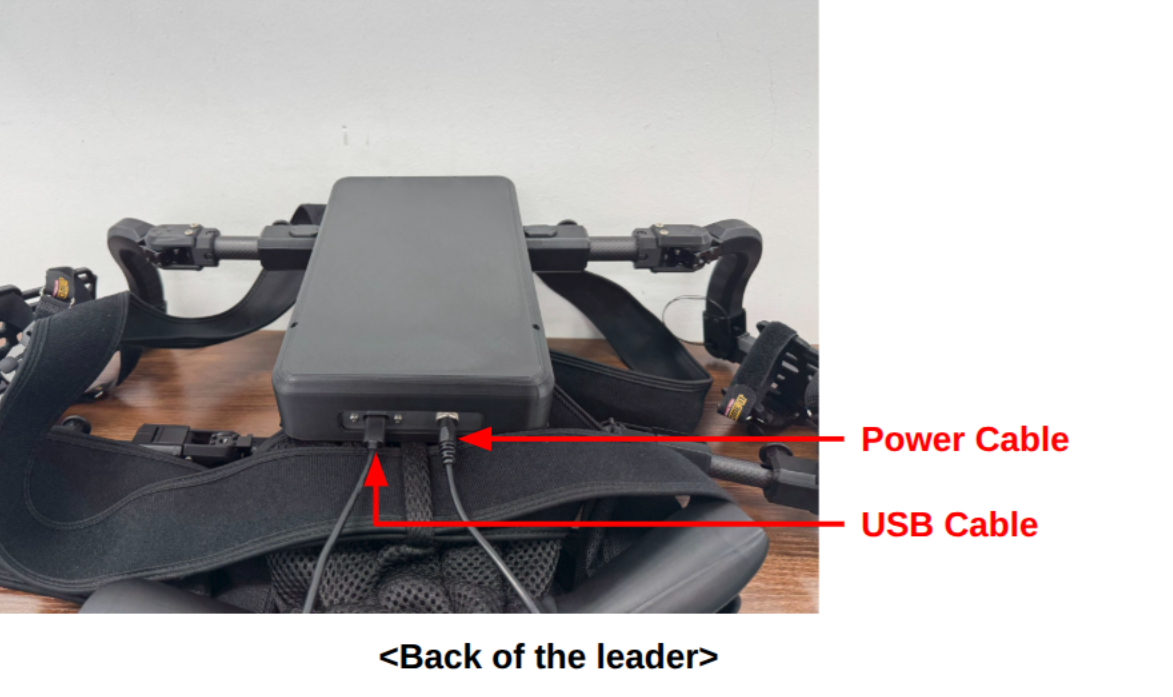
Power Cable: Connect the power adapter to supply power to the leader controller.USB Cable: Connect a USB cable from the leader controller to one of the USB ports on the back of theFollower.
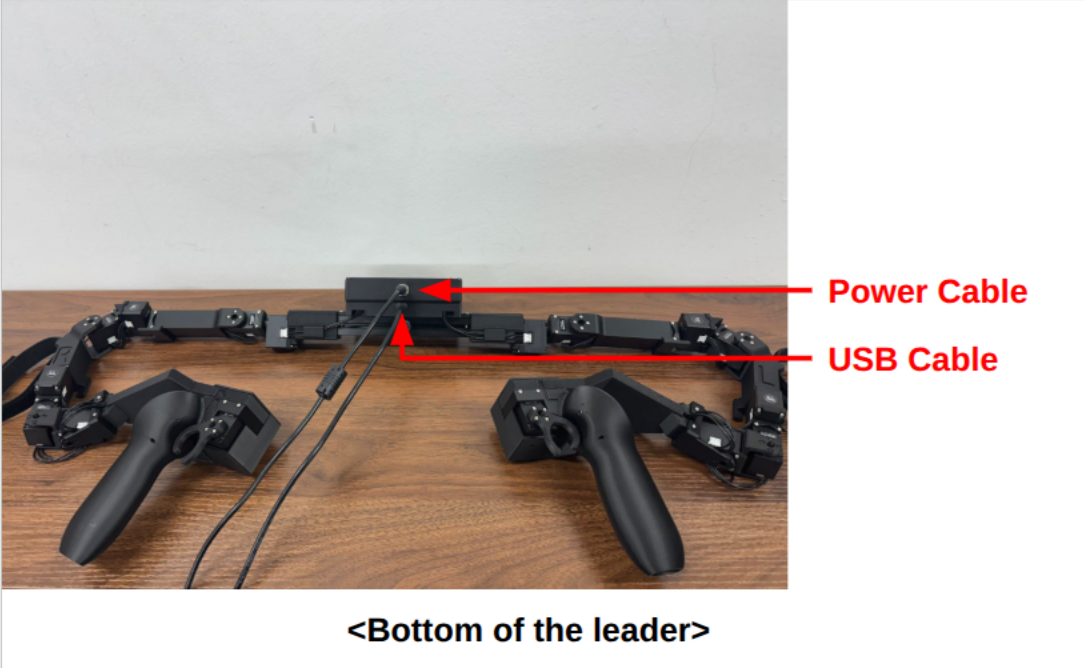
Power Cable: Connect the power adapter to supply power to the leader controller.USB Cable: Connect a USB cable from the leader controller to one of the USB ports on the back of theFollower.

Power Cable: Connect the power adapter to supply power to the U2D2 device.U2D2 ON/OFF: This switch is located inside a small recessed hole. The device is turned on when the inner white-dotted button is pressed.USB Cable: Connect a USB cable from the U2D2 to one of the USB ports on the back of theFollower.
2. Wear the Leader
- A1
- A2
- LG2
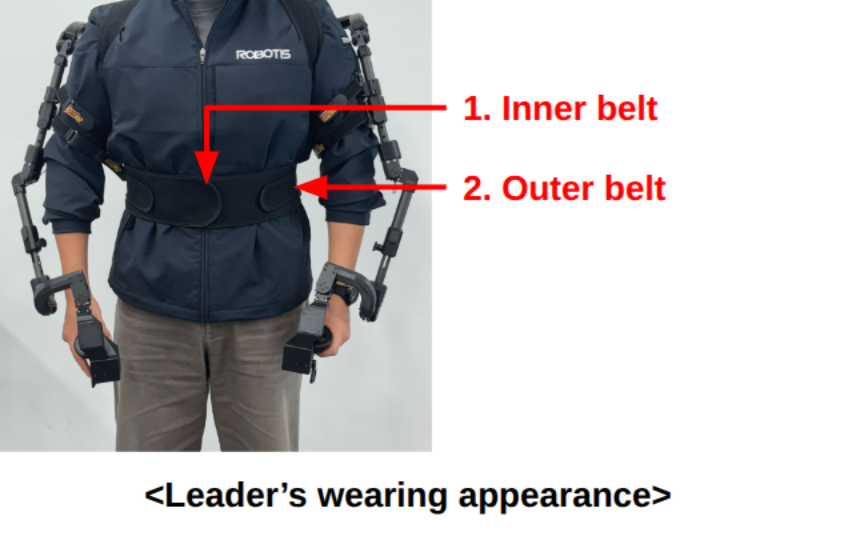
- First, pull the inner belt tightly and fasten it around the waist.
- Then, pull the outer belt and attach it over the inner belt using the Velcro.
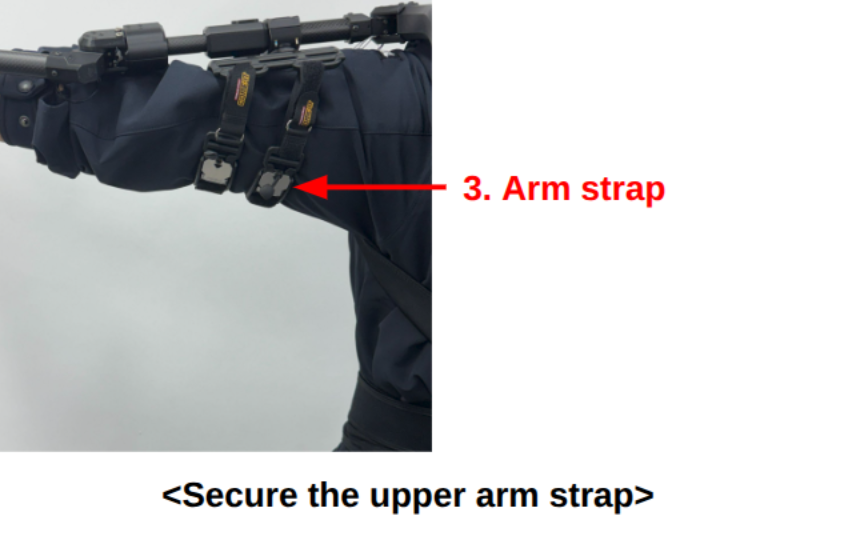
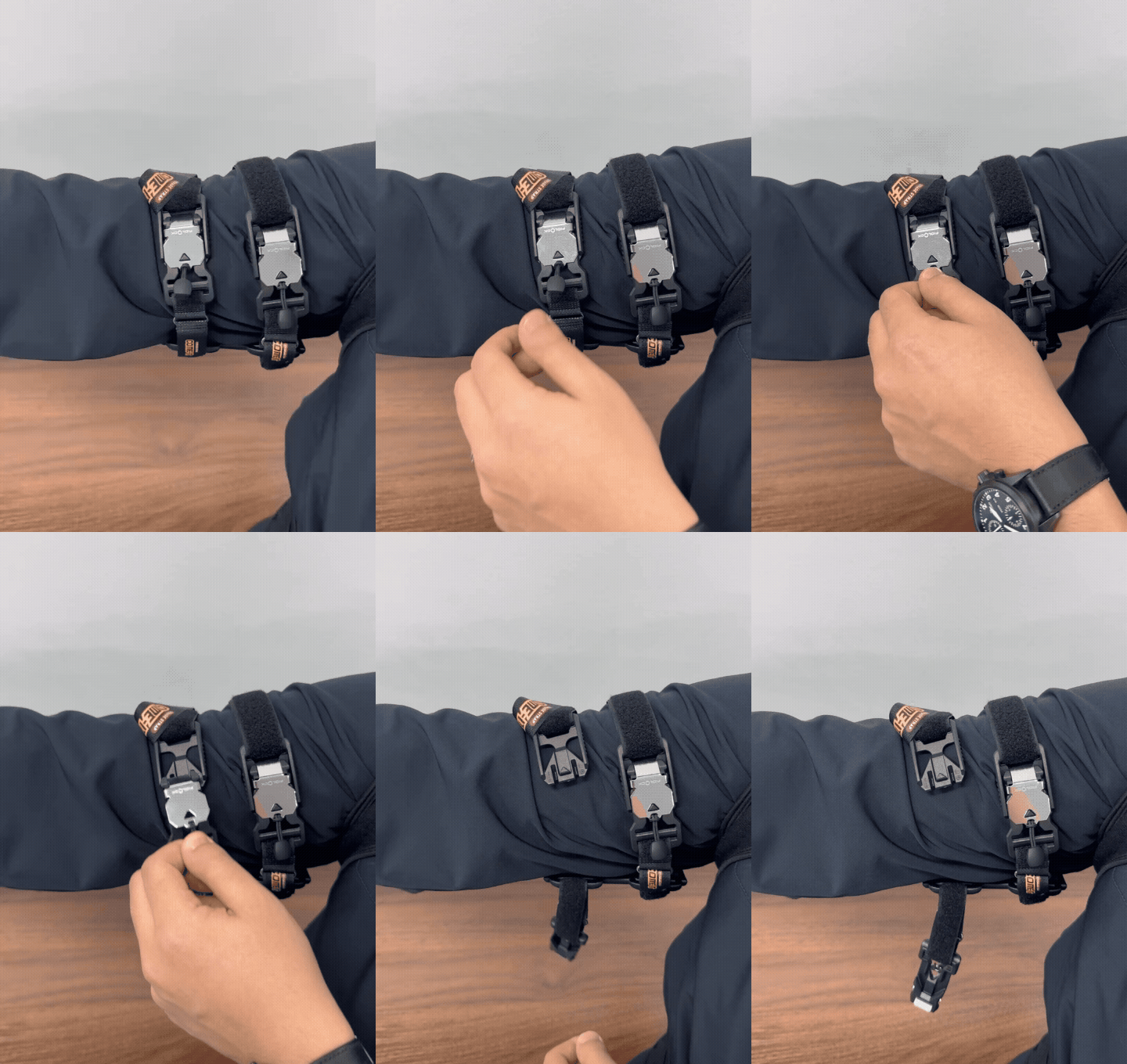
- Wrap the strap around your upper arm and fasten the magnetic closure to secure your arm to the Leader link.
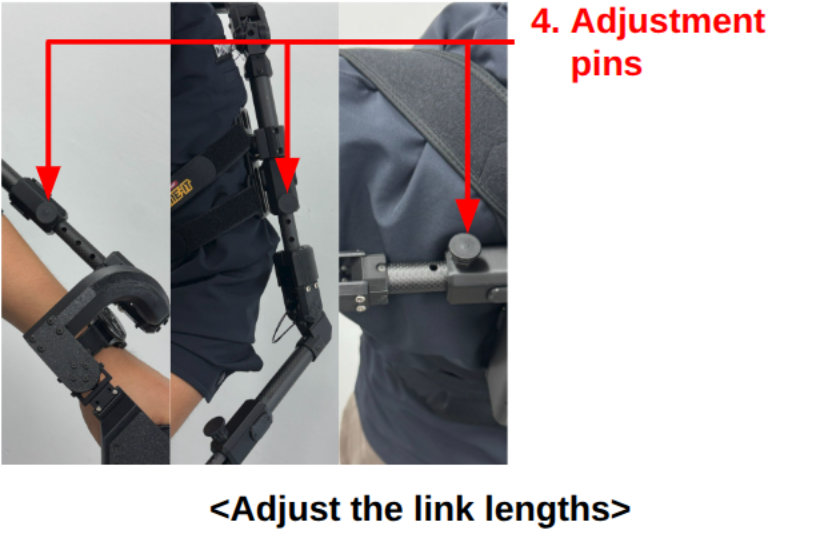
- Adjust the shoulder, upper arm, and forearm links to fit your body. Pull and hold the spring-loaded pin, slide the link to the desired length, then align the pin with a locking hole and release it.
When taking off the Leader, grasp the pull cord on the magnetic closure and lift it upward to release the upper arm strap.
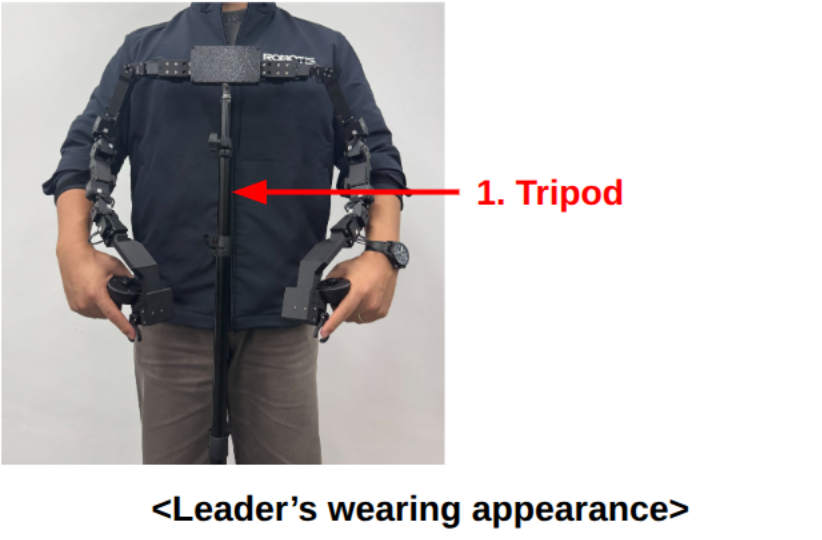
- Adjust the tripod to a comfortable operating height.
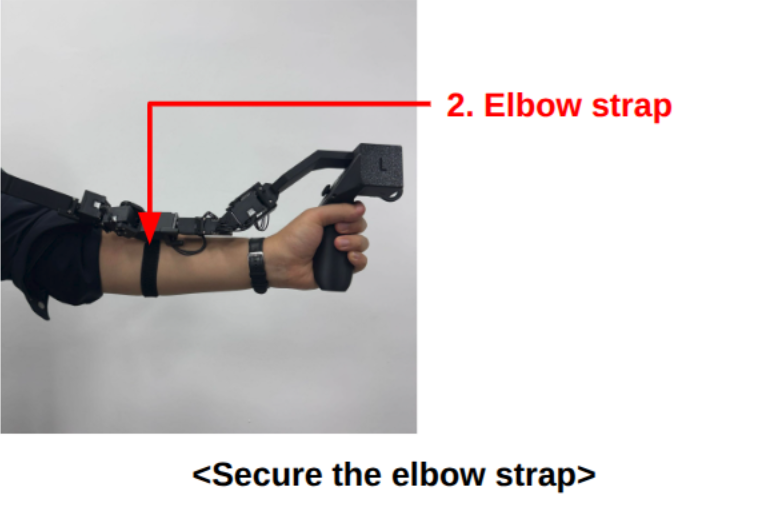
- Put on and fasten the elbow straps to secure your arms to the Leader.
First Leader Version

- Put both arms through the
Leader'sshoulder straps. - Fasten the chest belt buckle and
hip belt buckle. - Adjust the length of the
shoulder straps,chest belt, andhip beltso that theLeaderis securely fixed on your back.
Second Leader Version It can be worn more easily by users with different body types.
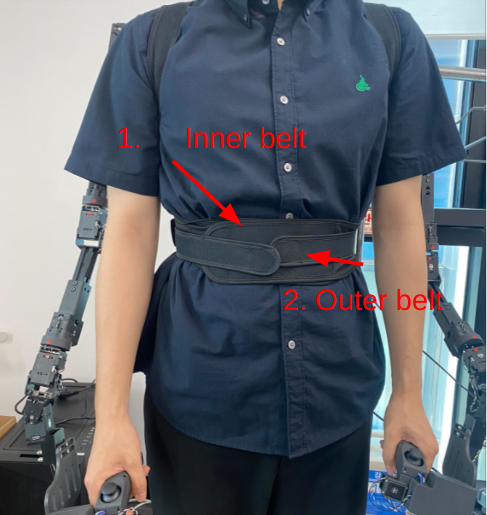
- First, pull the inner belt tightly and fasten it around the waist.
- Then, pull the outer belt and attach it over the inner belt using the Velcro.
Before starting teleoperation, verify that the alignment stickers on every Leader joint line up as shown below. Do not start teleoperation if any stickers are misaligned, as this can cause unexpected or abnormal movement of the Follower.
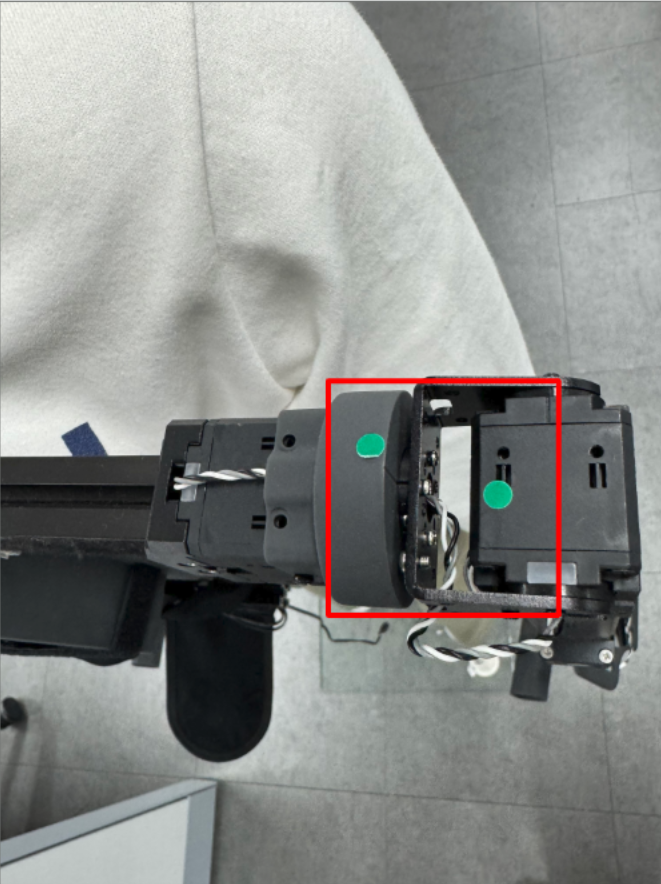
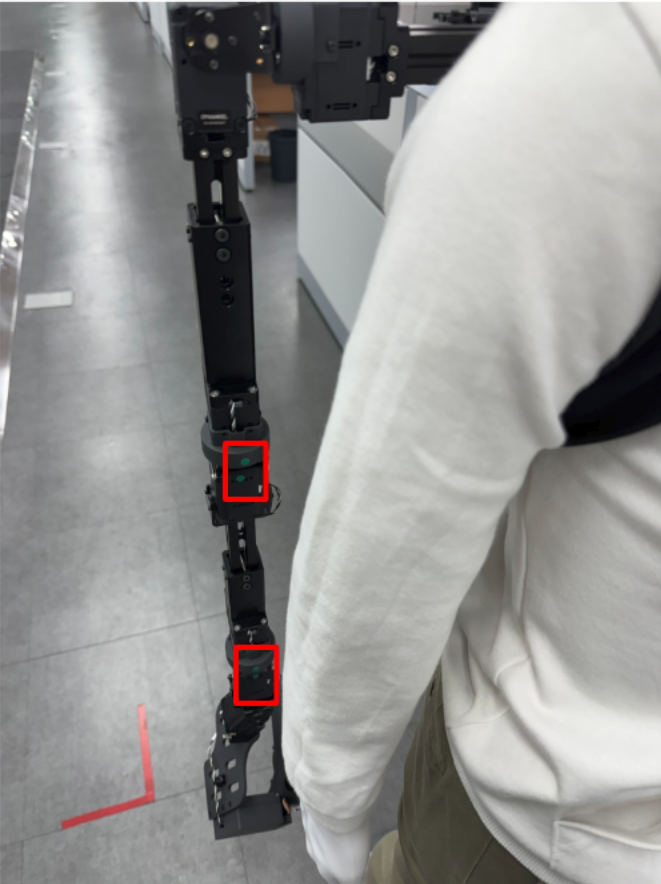
When aligning the first joint, pay particular attention to the motor's orientation: the DYNAMIXEL sticker on the motor must face forward.
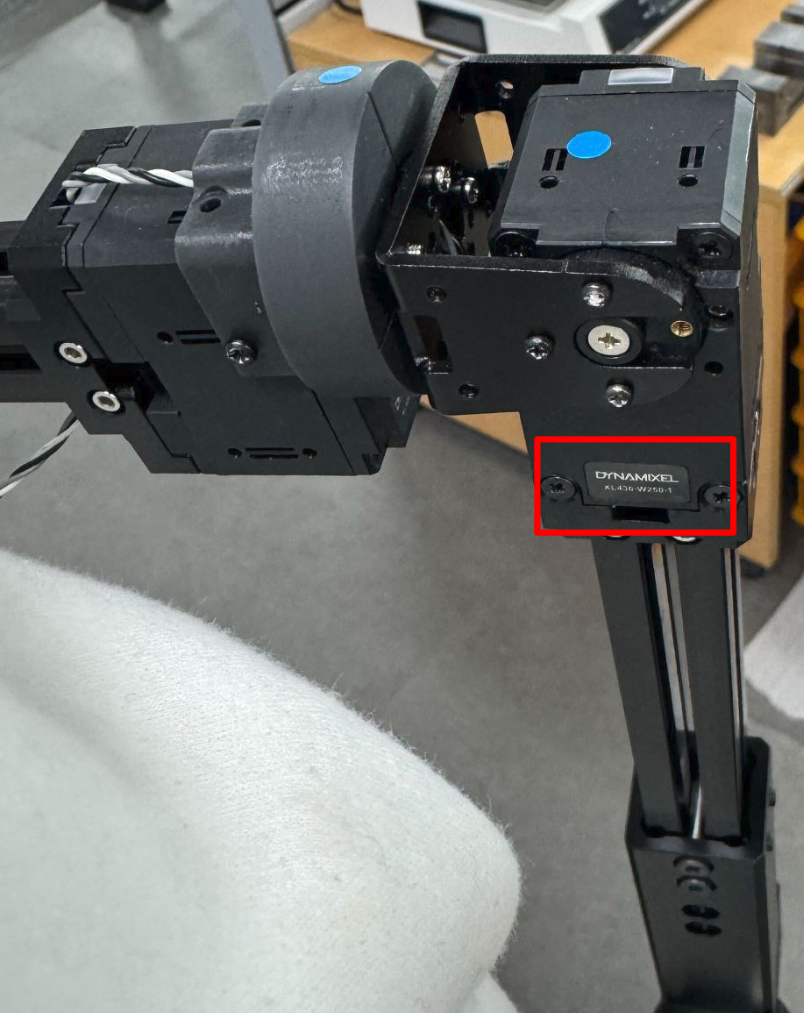
3. Bringup the Leader
Complete Robot Bringup before starting the Leader.
-
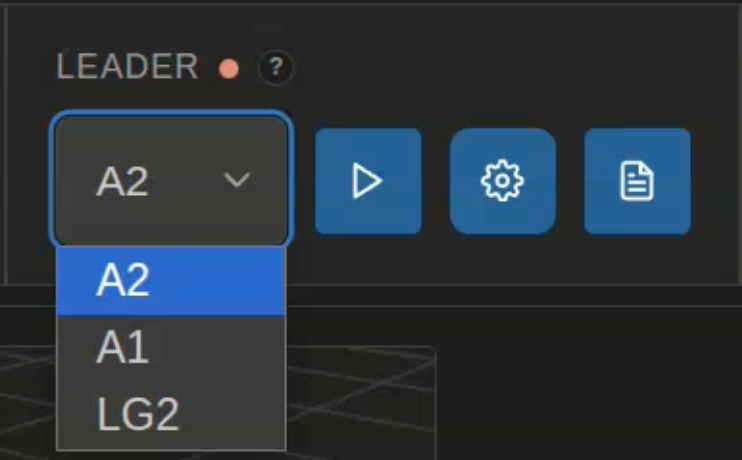
In the Leader control box, select your Leader model: A1, A2, or LG2.
-
Click the Bringup (▶) button to bring up the Leader.
-
Check that the Leader status light turns green. To view its logs, click the paper icon on the right.

Leader bringup does not start arm teleoperation. Continue to the Operation Guide to start operating the robot.
4. Operation Guide
The same controls apply to A1, A2, and LG2. Use Default Controls with the standard Leader launch settings, or Advanced Controls if the Leader was launched with style:=advanced. Selecting a tab does not change the running Leader's settings.
Before starting, stop any other program that is sending motion commands to the Follower.
- Default Controls
- Advanced Controls
Start and Pause Teleoperation
After the Leader has started, push both triggers forward together for 2 seconds, then release them to start or pause teleoperation.
- Start: The Follower's arms begin following the Leader. Keep the Leader steady while the Follower moves toward the Leader's pose.
- Pause: The arms stop following the Leader and hold their positions.
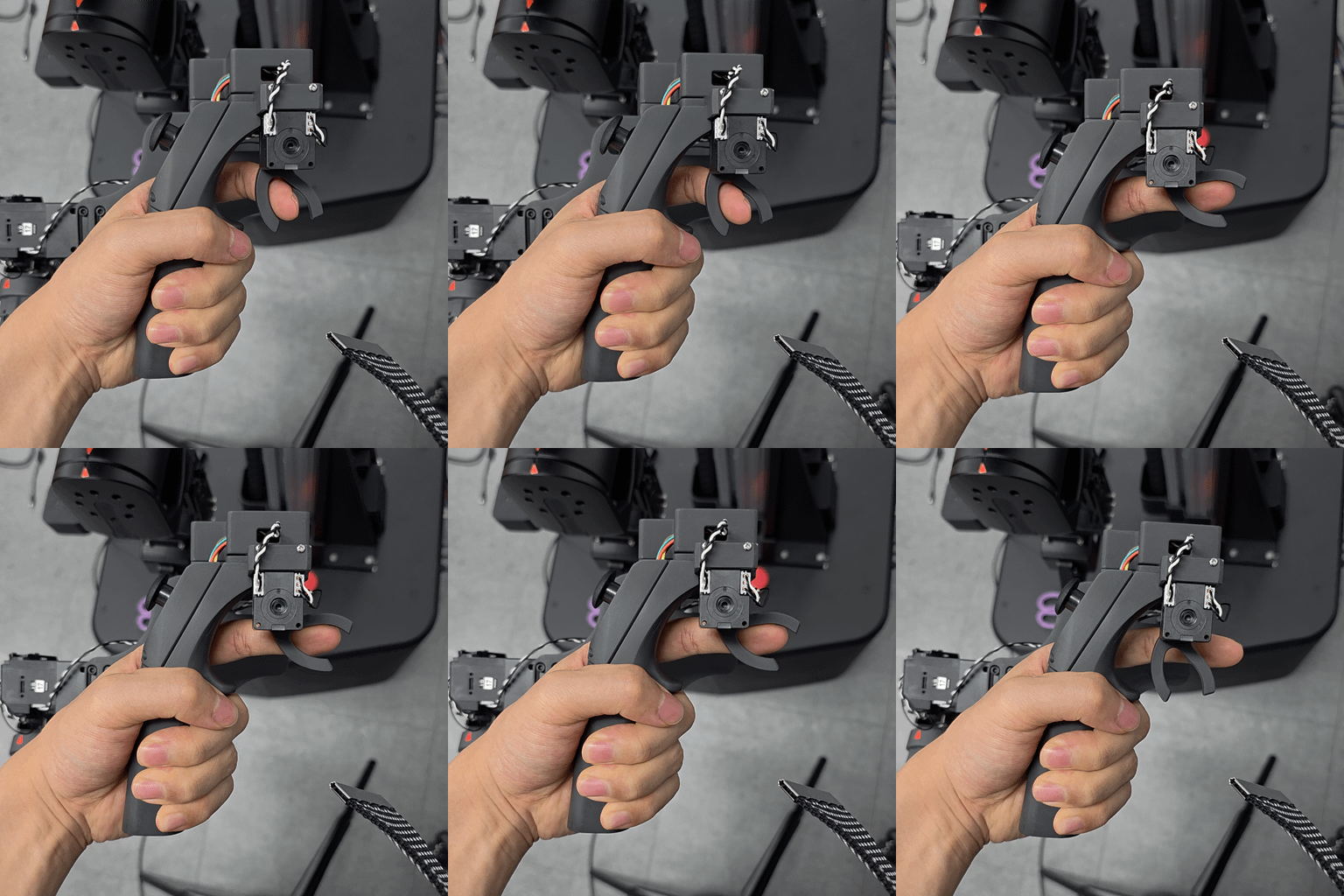
Pausing arm teleoperation does not stop head, lift, or mobile-base movement. Keep the joysticks centered, and use the robot's emergency stop if unexpected motion occurs.
Joystick & Gripper Controls
On models with a mobile base, press both joystick buttons together and release them before 0.5 seconds to switch between Head mode and Base mode.
| Control | Head mode | Base mode |
|---|---|---|
| Triggers | Operate the corresponding grippers | Operate the corresponding grippers |
| Left joystick | Move the head | Move the base forward, backward, or sideways |
| Right joystick: left / right | — | Rotate the base |
| Right joystick: up / down | Move the lift | Move the lift |

The arms continue following the Leader during mobile-base control.
Recording controls (optional)
When using physical_ai_tools or cyclo_intelligence, press one joystick button and release it before 0.5 seconds:
| Operation | Result |
|---|---|
| Right joystick button | Start recording, or save the current recording |
| Left joystick button | Cancel the current recording |
Launch the Leader with style:=advanced to use these controls.
Control Modes
- External control mode (
external): The Leader remains connected but does not publish motion commands from its inputs. The Follower instead follows commands sent to its trajectory command topics by an external program, such as an inference program or your own custom control node. - Teleoperation mode (
teleop): The Leader's inputs are used to generate motion commands for the Follower.
Before switching to Teleoperation mode, stop your external program from publishing motion commands.
Starting and Pausing Arm Teleoperation
- Wait for Follower initialization to finish.
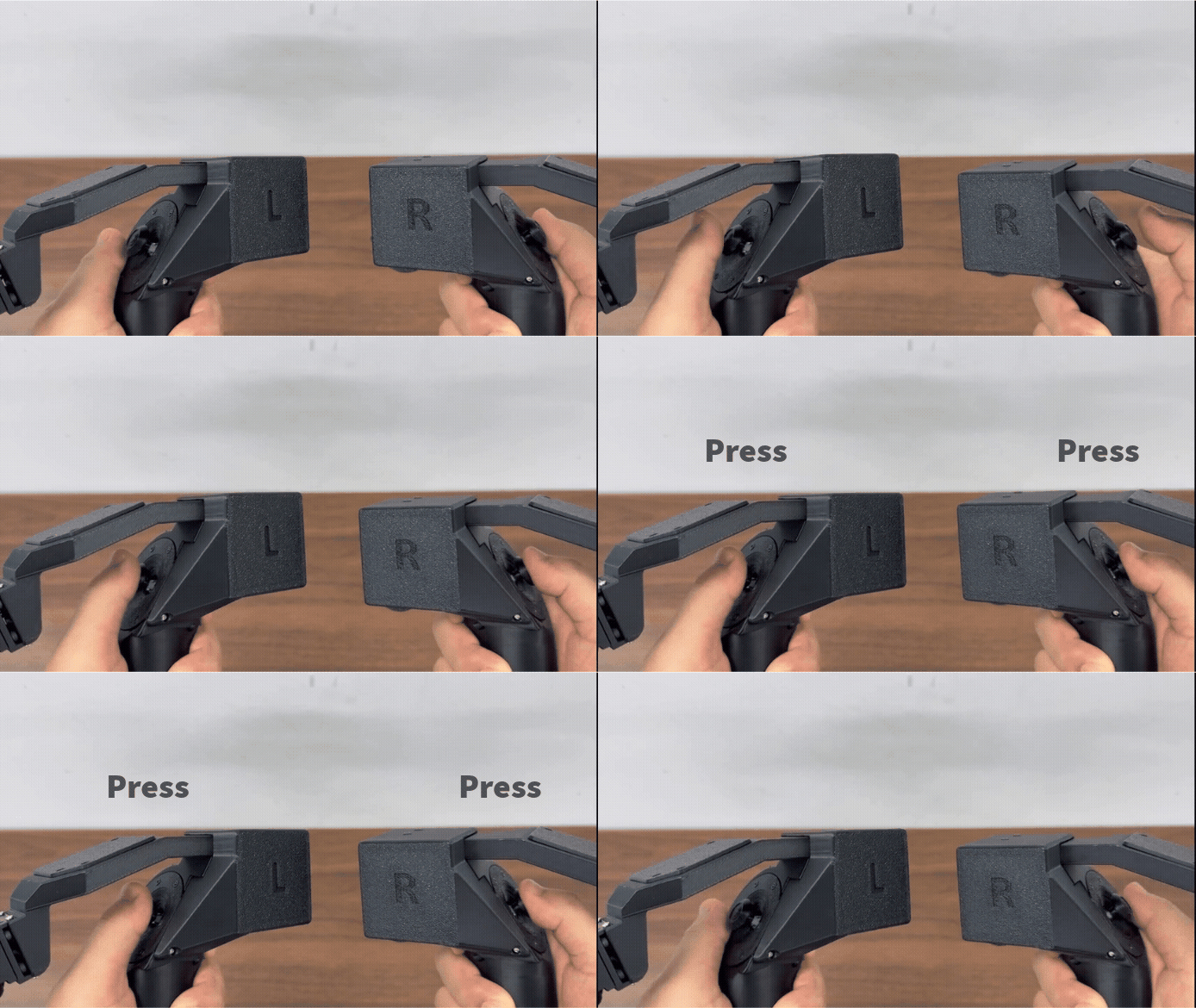
- At a fresh startup, the system is in External control mode. Press and hold both joystick buttons together for 0.5 seconds, then release them, to switch to Teleoperation mode. Wait for
Control source: teleopin the Leader terminal.
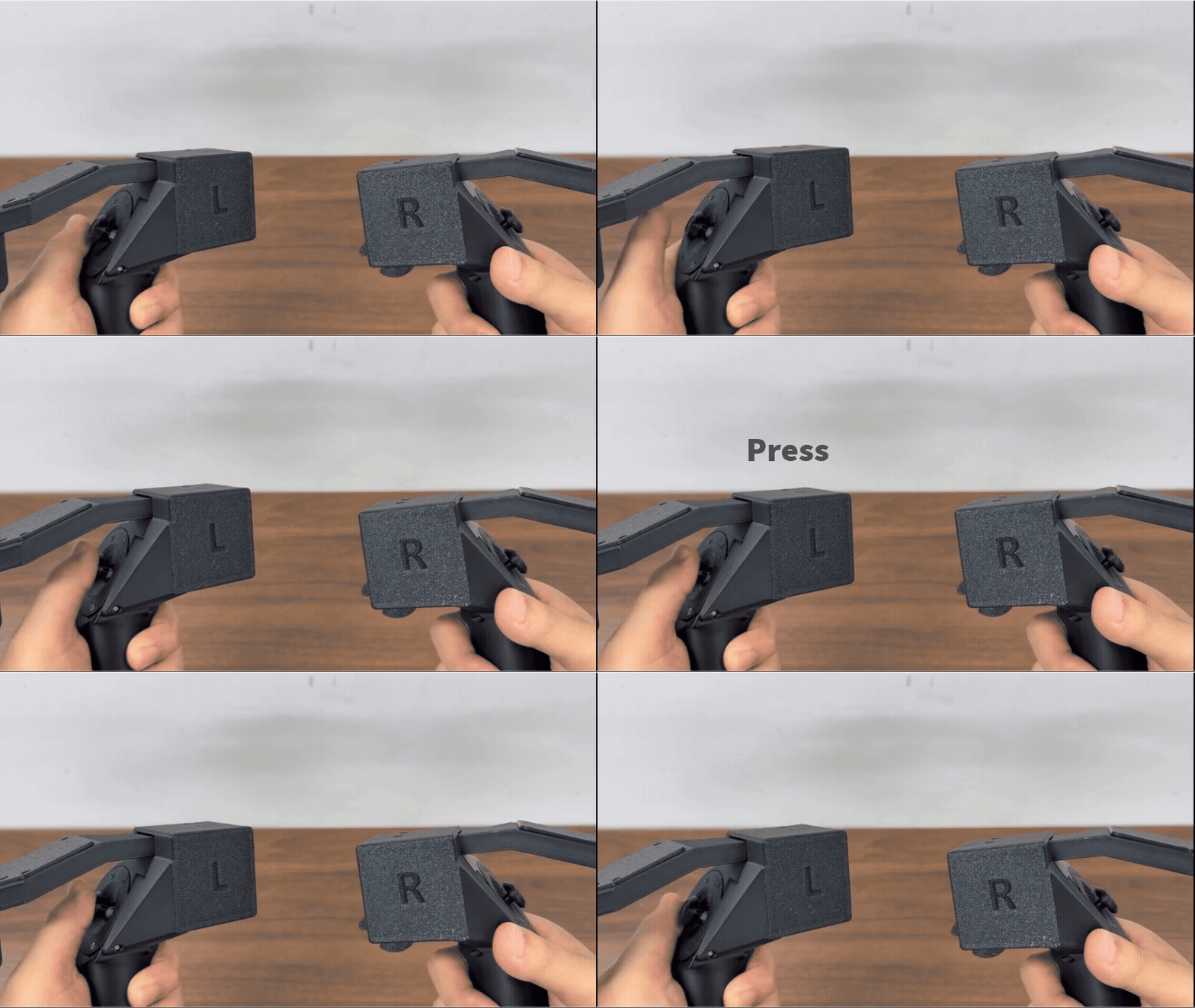
- Start teleoperation one arm at a time, in either order, by pressing and holding that arm's joystick button alone for 0.5 seconds, then releasing it.
- To pause teleoperation, pause the arms one at a time. Press and hold the joystick button for an active arm alone for 0.5 seconds, then release it. Only that arm stops following the Leader and holds its current position; repeat for the other arm if needed.
To resume teleoperation for a paused arm, keep the Leader steady and press and hold that arm's joystick button alone for 0.5 seconds again. When teleoperation is paused for both arms, the Leader terminal reports arms=none.
Teleoperation is paused for both arms immediately after switching to Teleoperation mode. Start teleoperation for each arm separately when you are ready.
In Teleoperation mode, pressing and holding both joystick buttons together for 0.5 seconds stops arm teleoperation and switches to External control mode. To pause arm teleoperation without changing modes, use each arm's joystick button separately.
Use these controls in Teleoperation mode.
Using the Triggers and Joysticks
Opening and Closing the Grippers
While teleoperation is active for an arm, use its trigger to open and close the gripper: the left trigger controls the left gripper, and the right trigger controls the right gripper.
Switching Between Head/Lift and Mobile-Base Control
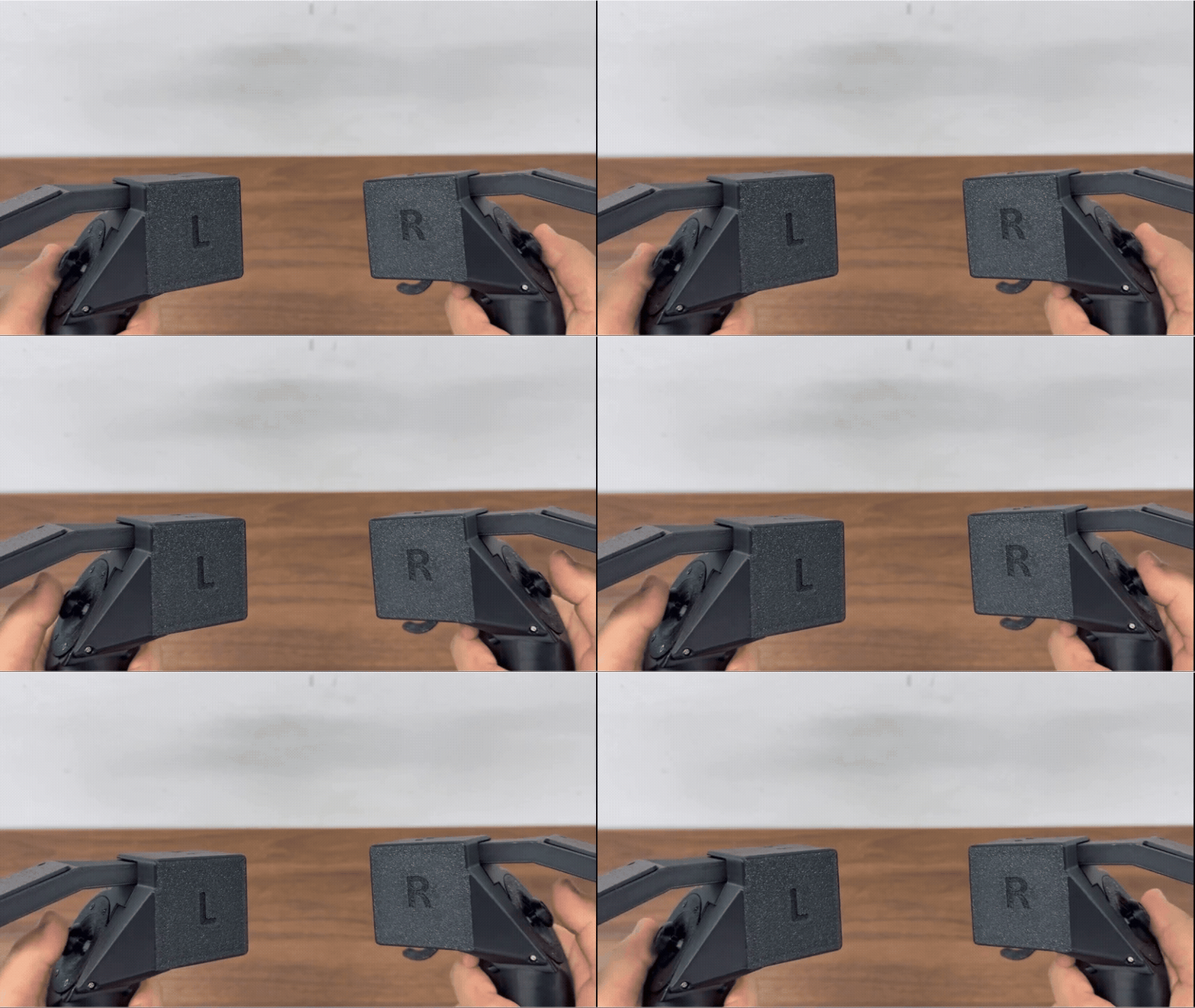
Briefly press both joystick buttons together and release them before 0.5 seconds to switch the joysticks between head/lift control and mobile-base control. Check the selected function in the Leader terminal before moving a joystick.
In head/lift control (head_control), the left joystick controls the head and the right joystick controls the lift.
In mobile-base control (swerve), use the joystick directions shown below. Switching joystick functions does not pause arm teleoperation.
Mobile-base control applies only to Followers with a mobile base, such as SG2 or W2.
Moving an Arm to Its Initial Pose
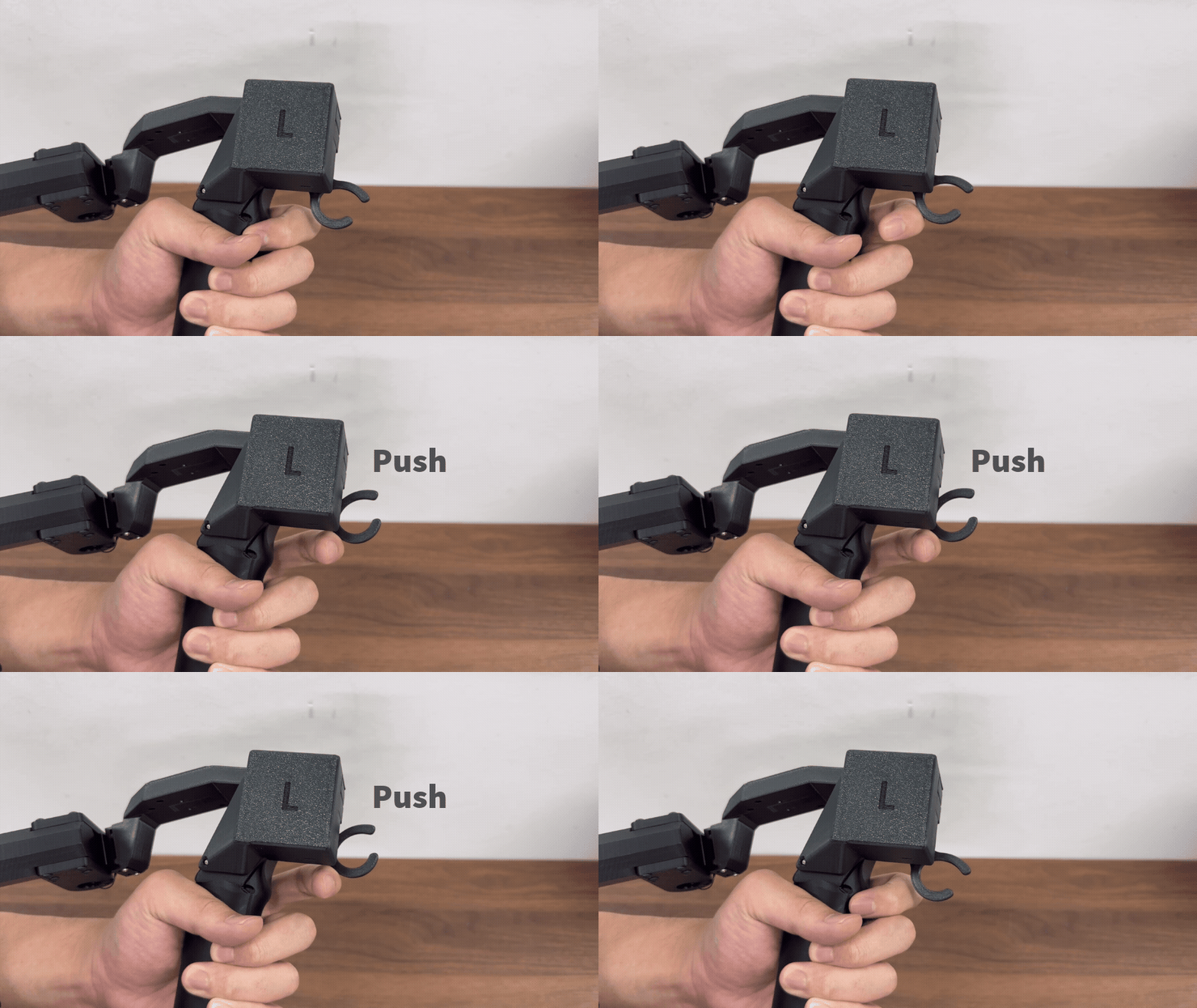
Push a trigger forward and hold it for 2 seconds to move that arm to its initial pose, if one is configured.
With advanced controls, pushing the triggers forward requests a configured pose instead of starting or pausing teleoperation. Check the surrounding space before using it.
Button Controls at a Glance
These timings use the supplied settings. A joystick button is pressed down; a trigger is a separate control. Release the buttons or triggers after each hold.
| Operation | Result |
|---|---|
| Briefly press the right joystick button alone and release it before 0.5 seconds | Start recording, or save the current recording if already recording, when used with physical_ai_tools or cyclo_intelligence |
| Briefly press the left joystick button alone and release it before 0.5 seconds | Cancel the current recording when used with physical_ai_tools or cyclo_intelligence |
| Briefly press both joystick buttons together and release them before 0.5 seconds | Switch the joysticks between head/lift and mobile-base control |
| Press and hold the left joystick button alone for 0.5 seconds | Start, pause, or resume teleoperation for the left arm in Teleoperation mode |
| Press and hold the right joystick button alone for 0.5 seconds | Start, pause, or resume teleoperation for the right arm in Teleoperation mode |
| Press and hold both joystick buttons together for 0.5 seconds | Switch between Teleoperation mode and External control mode. Switching to External control mode also stops arm teleoperation. |
| Push one trigger forward and hold it for 2 seconds | Move that arm to the current arm-following mode's configured initial pose, if available, in Teleoperation mode |
Additional Controls
These features are optional. For basic arm teleoperation, keep the default arm-following mode and skip this section. Run any commands below in another terminal inside the same AI Worker container, leaving the Leader and Follower running.
Changing how the arms follow the Leader
Within Teleoperation mode, the supplied configuration provides two arm-following modes. These determine how the arms follow the Leader and are separate from switching between Teleoperation mode and External control mode:
- Mode 1 — Joint following: The Follower follows the Leader's joint movements. This is the default.
- Mode 2 — Relative end-effector movement: The Follower's end effector follows changes in the Leader's end-effector position and orientation from the starting reference.
- Stay in Teleoperation mode and pause each active arm with its own joystick button.
- To select relative end-effector movement, run:
ros2 service call /set_control_mode robotis_interfaces/srv/SetControlMode "{control_mode: 2}"
- Check the response.
accepted: truemeans the request was accepted. Wait for the Leader terminal to reportCyclo state=holding mode=2 arms=none. - Resume teleoperation for each required arm by holding its joystick button alone for 0.5 seconds.
To return to joint following, pause both arms and repeat with control_mode: 1. Wait for mode=1 before resuming arm teleoperation.
Configuration
The available modes and startup default are defined in your Follower's teleoperation YAML:
- W1
- W2
- BG2
- SG2
ffw_bringup/config/ffw_f1_follower/ffw_f1_teleoperation.yaml
ffw_bringup/config/ffw_f2_follower/ffw_f2_teleoperation.yaml
ffw_bringup/config/ffw_bg2_rev4_follower/ffw_bg2_teleoperation.yaml
ffw_bringup/config/ffw_sg2_rev1_follower/ffw_sg2_teleoperation.yaml
cyclo_teleoperation:
  ros__parameters:
    available_control_modes: [1, 2]
    default_control_mode: 1  # 1: joint following, 2: relative end-effector movement
If you change default_control_mode, use the same value in ffw_bringup/config/ffw_<leader>_leader/ffw_<leader>_leader_ai_hardware_controller.yaml, replacing <leader> with a1, a2, or lg2.
Moving an arm to its initial pose (advanced controls only)
- Launch the Leader with
style:=advancedand switch to Teleoperation mode. - Push that arm's trigger forward and hold it for 2 seconds, then release it.
- Wait for the movement to finish before resuming teleoperation for that arm with its joystick button.
The arm moves to the final pose of the current arm-following mode's configured initialization sequence, not through the entire sequence. If no initial pose is configured for that arm, the request is not executed; check the Leader terminal message.
In the supplied configuration, arm-following mode 2 has an initial pose and mode 1 does not.
Configuration
The target pose is defined under control_modes → "2" → initial_pose in your Follower's teleoperation YAML:
- W1
- W2
- BG2
- SG2
ffw_bringup/config/ffw_f1_follower/ffw_f1_teleoperation.yaml
ffw_bringup/config/ffw_f2_follower/ffw_f2_teleoperation.yaml
ffw_bringup/config/ffw_bg2_rev4_follower/ffw_bg2_teleoperation.yaml
ffw_bringup/config/ffw_sg2_rev1_follower/ffw_sg2_teleoperation.yaml
cyclo_teleoperation:
  ros__parameters:
    control_modes:
      "2":
        initial_pose:
          enabled: false  # Do not automatically move on mode entry
          step_names: [step0, step1]
          steps:
            # step0 is omitted here; keep its existing settings.
            step1:  # The trigger requests this final step
              left:
                positions: [0.0, 0.0, 0.0, -1.57, 0.0, 0.0, 0.0]
                gripper_position: 0.0
              right:
                positions: [0.0, 0.0, 0.0, -1.57, 0.0, 0.0, 0.0]
                gripper_position: 0.0
Edit the final step's positions to change the target joint angles (joints 1–7, in radians). gripper_position sets the gripper joint position separately. The trigger can use this pose even with enabled: false; set enabled: true only if you also want the full initialization sequence to run automatically when entering this arm-following mode.
Moving to a saved pose (preset)
A preset is a saved arm pose. The supplied configuration includes 1: ready and 2: home by default. Check the target pose and workspace before using a preset.
- Stay in Teleoperation mode and wait for any previous pose movement to finish.
- To move only the left arm to the ready pose, run:
ros2 service call /set_preset robotis_interfaces/srv/SetPreset \
  "{target_arm: 'left', left_preset_id: 1, right_preset_id: 1}"
- Check that the request is accepted, then wait for the movement to finish. Teleoperation is paused for the selected arm while it moves to the saved pose. The other arm is unaffected and may still be following the Leader.
- Press and hold the selected arm's joystick button alone for 0.5 seconds to resume teleoperation for that arm.
For the right arm, use target_arm: 'right' and set right_preset_id. To move both arms, use target_arm: 'both' and set both preset IDs. These are arm poses, not hand-grasp presets.
Configuration
Presets are defined under presets in your Follower's teleoperation YAML:
- W1
- W2
- BG2
- SG2
ffw_bringup/config/ffw_f1_follower/ffw_f1_teleoperation.yaml
ffw_bringup/config/ffw_f2_follower/ffw_f2_teleoperation.yaml
ffw_bringup/config/ffw_bg2_rev4_follower/ffw_bg2_teleoperation.yaml
ffw_bringup/config/ffw_sg2_rev1_follower/ffw_sg2_teleoperation.yaml
This excerpt shows preset 1 (ready):
cyclo_teleoperation:
  ros__parameters:
    available_presets: [1, 2]
    presets:
      "1":
        name: ready
        step_names: [step0]
        steps:
          step0:
            left:
              positions: [0.431, 0.304, 0.152, -2.457, -0.267, 0.686, -0.948]
              gripper_position: 0.0
            right:
              positions: [0.431, -0.304, -0.152, -2.457, 0.267, 0.686, 0.948]
              gripper_position: 0.0
Edit positions to change the saved joint angles (joints 1–7, in radians), or gripper_position to change the gripper joint position. To add a preset, copy a complete existing preset block under a new ID and add that ID to available_presets; use the new ID in the service request.
Pausing arm teleoperation is not an emergency stop and does not stop an independently running inference program or other program. Use the robot's emergency-stop procedure if unexpected motion occurs.
Stop Teleoperation
To stop teleoperation:
- Return to a neutral position or pause the system.
- In Cyclo Manager, click the stop button in the Leader control box.
Troubleshooting
For common issues, see Teleoperation Troubleshooting and ROS 2 Topics Are Not Visible.