Software Setup
This guide explains how to connect to the robot PC and prepare a development environment for AI Worker on a separate user PC.
The robot PC inside AI Worker is already pre-configured. Follow this guide when you want to access the robot remotely or set up a development environment on your own machine.
Accessing the Robot PC via SSH
AI Worker supports mDNS, allowing you to connect without manually checking the IP address.
- FFW-BG2
- FFW-SG2
-
Connect the SBC (robot PC) to the same network as your user PC using a LAN cable.
-
On your user PC terminal, run:
ssh robotis@ffw-SNPR48A0000.local
Replace SNPR48A0000 with the serial number printed on the back of the robot body.
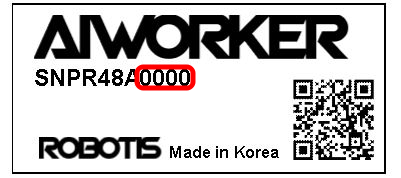 3. When prompted, enter the system password
 root.
If hostname-based access is not available, use one of the following methods:
- Connect both your user PC and the AI Worker LAN port to the same router using Ethernet cables, then try SSH again.
- Connect a monitor to the Orin via HDMI, log in locally, and check the current IP address before connecting through SSH.
- Check the serial number printed on the back of the robot body. In this example, the number to identify is 0000.
-
Connect to the Wi-Fi network named AIWORKER(Number). In this example, the network name is AIWORKER0000.
- The Wi-Fi password is identical to the network name (SSID).
-
On your user PC terminal, run:
ssh robotis@ffw-SNPR48A0000.local
Replace SNPR48A0000 with the serial number printed on the back of the robot body.
- When prompted, enter the system password
root.
Both the Wi-Fi password and the system password are initially configured by ROBOTIS. Change them if required by your security policy.
Development Environment Overview
AI Worker relies on two main repositories:
- ai_worker: Provides support for controlling DYNAMIXEL actuators using
ros2_controland enables teleoperation functionality. - physical_ai_tools: Provides tools for data collection, training, model inference, and visualization.
⚠️ On the AI Worker Orin: Do not run apt upgrade. Upgrading system packages may create conflicts and break robot functionality.
Prerequisites
- Operating System: Ubuntu environment
- The AI WORKER software runs inside a Docker container based on
Ubuntu 24.04 (ROS 2 Jazzy), so the host Ubuntu version on the user PC does not need to match exactly.
- The AI WORKER software runs inside a Docker container based on
- Container Engine: Docker Engine
- Follow the official Docker installation guide
- Complete the post-installation steps
- Required steps:
- Install Docker Engine using the repository method
- Add your user to the
dockergroup - Enable Docker to start on boot
- Verify the installation with
docker run hello-world
- Version Control: Git
- Graphics Support
- NVIDIA Graphics Driver
- (In Docker-based environments, the container is generally isolated from the host system. However, the graphics driver version on the host can have a direct impact on performance and compatibility—especially when using GPU acceleration. We recommend using the following driver version(s) for best results)
- Install
nvidia-driver-570-server-openforCUDA 12.8 - Verify the driver with
nvidia-smi
- NVIDIA Container Toolkit
- Follow the official installation guide
- Required steps:
- Configure the production repository
- Install
nvidia-container-toolkit - Configure Docker runtime using
nvidia-ctk - Restart the Docker daemon
- For more details, see the Docker configuration guide
- NVIDIA Graphics Driver
Configuration
Docker Volume Management
The Docker container uses the following volume mappings for data persistence and hardware access:
volumes:
  # Hardware and System Access
  - /dev:/dev
  - /tmp/.X11-unix:/tmp/.X11-unix:rw
  - /tmp/.docker.xauth:/tmp/.docker.xauth:rw

  # Development and Data Storage
  - ./workspace:/workspace
  - ../:/root/ros2_ws/src/ai_worker/
  - ./lerobot/outputs:/root/ros2_ws/src/physical_ai_tools/lerobot/outputs
  - ./huggingface:/root/.cache/huggingface
Container data is volatile and will be lost when the container is removed. Store important files in mapped volumes such as /workspace, the mapped source directory, model output directories, and the Hugging Face cache.
Container Management
-
Clone the repository:
cd ~/ # or your preferred directorygit clone -b jazzy https://github.com/ROBOTIS-GIT/ai_worker.gitcd ai_worker -
Use the
container.shhelper script to manage the container:./docker/container.sh start./docker/container.sh enter./docker/container.sh stop
Docker Command Guide
The container.sh script provides the following commands:
help: Display the help message.start: Start the AI Worker container.enter: Enter the running container.stop: Stop the AI Worker container.
Example usage:
./docker/container.sh help
./docker/container.sh start
./docker/container.sh enter
./docker/container.sh stop
Software Update Guide
Follow these steps to update the AI Worker or Physical AI Tools packages:
-
Move to the package directory:
cd /path/to/ai_worker_package# orcd /path/to/physical_ai_tools_package -
Switch to the
jazzybranch:git checkout jazzy -
Pull the latest code:
git pull -
Restart the container:
./docker/container.sh stop./docker/container.sh start
Data stored outside mapped volumes may be lost during container restart. Save important files before restarting the container.
Checking Battery State
The FFW-SG2 model has two batteries. The FFW-BG2 model does not use a battery.
To check the battery state, run:
# Check the left battery
ros2 topic echo /ai_worker/battery/left/state --once

# Check the right battery
ros2 topic echo /ai_worker/battery/right/state --once
The output includes the following keys:
-
frame_id: Identifies which battery the message refers to.frame_id: battery_left -
voltage: Shows the current battery voltage.voltage: 28.700000762939453 # Battery voltage 28.7V -
percentage: Shows the remaining battery level as a value from0.0to1.0.percentage: 0.934949517250061 # Battery 93% charged