Hardware Setup Guide
This guide covers the physical setup steps required before operating AI Worker, including unboxing, power-on, port identification, and Remote E-STOP usage.
- The term
Followerrefers to the body of the AI WORKER robot. - Make sure to check which robot model you are using before following the steps below.
Unboxing
For W1 and W2, domestic shipments within Korea use a cardboard box, while international shipments use a wooden crate. Choose your packaging type below, then select a step to follow the unboxing sequence.
Cardboard box · Step 1 of 5
Cut and remove the outer film and tape
Cut the outer film with scissors and remove it. Then cut and remove the packing tape around the cardboard box.
Power On and Check Ports
- W1
- W2
- BG2
- SG2
Powering On the W1 Follower
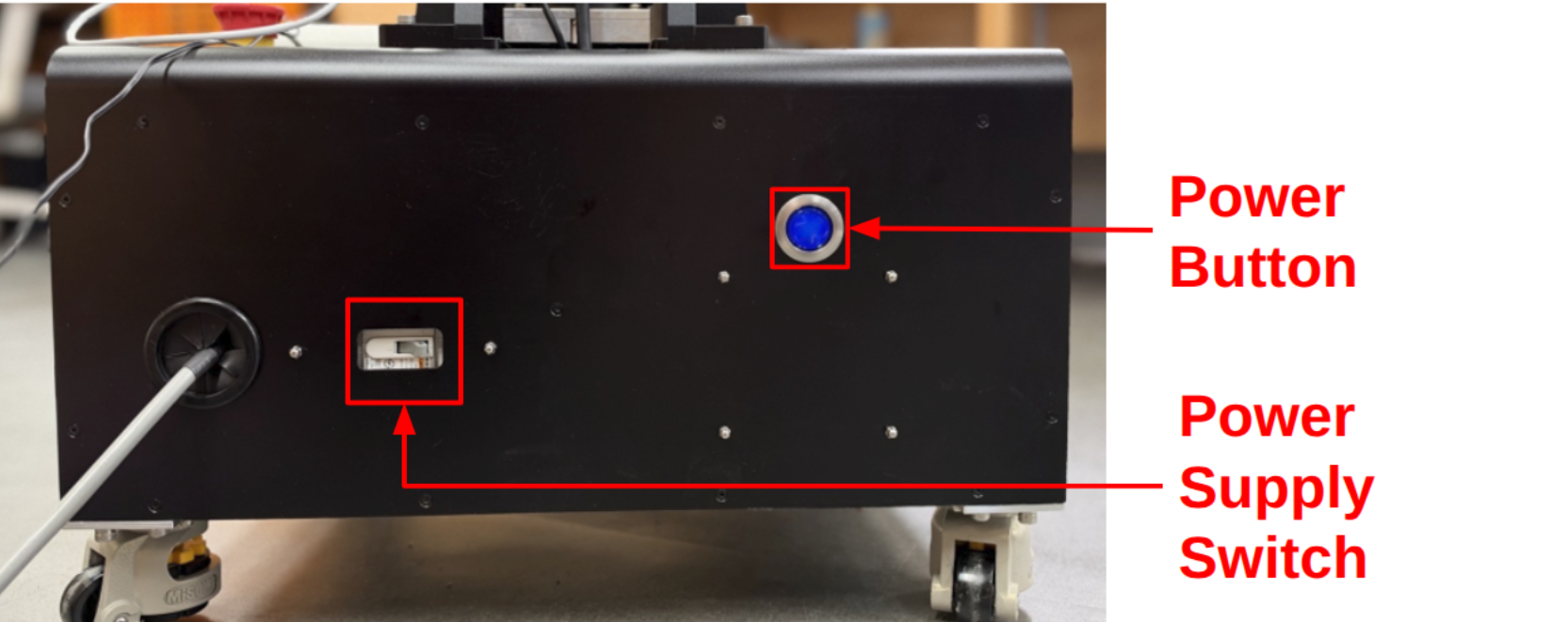
- Toggle the
Power Supply Switchto the right. - Press and hold the
Power Buttonfor 3 seconds. When you hear a beep, the system is powered on. You should see the robot's head light up at this point.
Hardware Ports (W1 Follower)

The back of the Follower body includes several ports for system access and external connections:
LAN Port: Used to access the robot PC via SSH or remote desktop.USB Ports: For connecting peripherals such as a keyboard, mouse, or USB drive.HDMI Port: Allows direct video output for connecting a monitor.
Powering On the W2 Follower
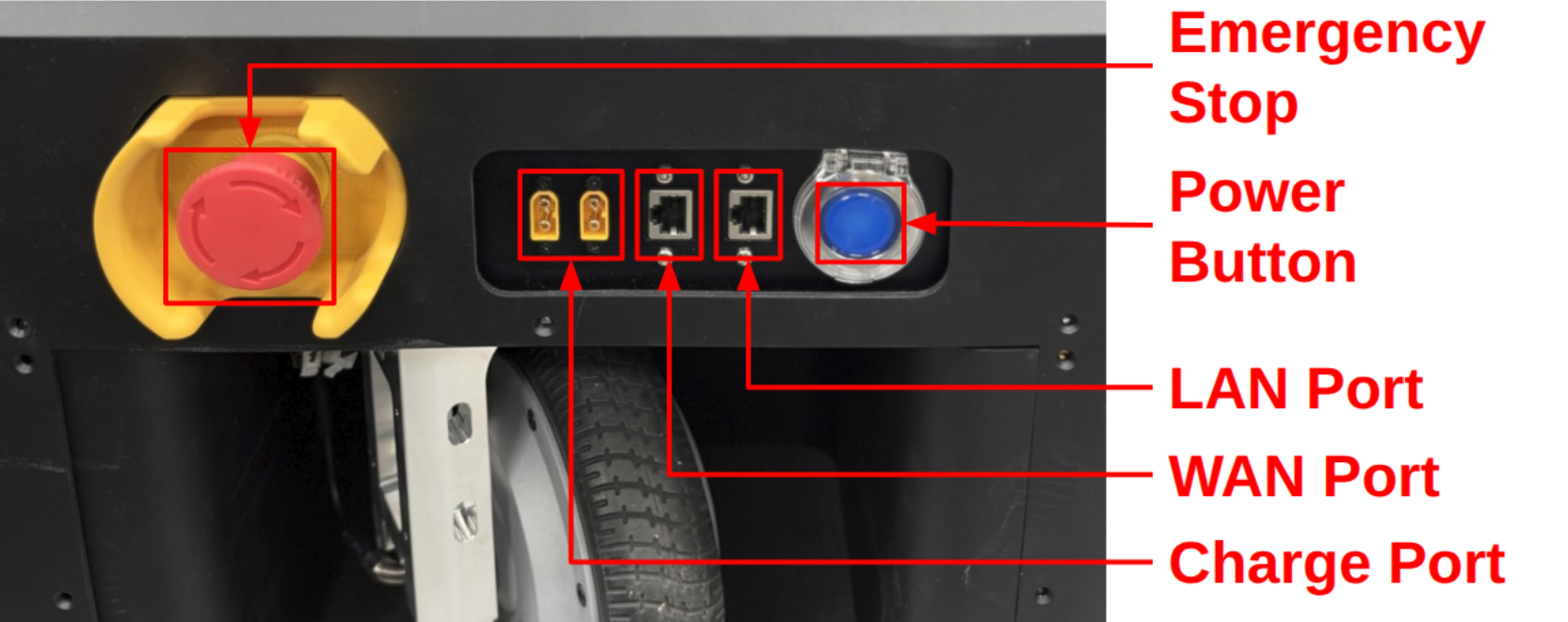
- Press and hold the
Power Buttonfor 3 seconds. When you hear a beep, the system is powered on. You should see the robot's head light up at this point.
Each charging port on the W2 is connected directly to its own battery. Do not connect both charging ports to a single charger. Use a separate charger for each port.
Hardware Ports (W2 Follower)

The back of the Follower body includes several ports for system access and external connections:
WAN Port: Used to connect the robot to an external network or the internet.LAN Port: Used to access the robot PC via SSH or remote desktop.USB Ports: For connecting peripherals such as a keyboard, mouse, or USB drive.HDMI Port: Allows direct video output for connecting a monitor.Charge Port: Used for battery charging.Emergency Stop: Used to immediately stop the robot's motion in an emergency.
Powering On the BG2 Follower

- Toggle the
Power Supply Switchto the right. - Insert the
Key Switchand turn it to the 12 o'clock position. - Press and hold the
Power Buttonfor 3 seconds. When you hear a beep, the system is powered on. You should see the robot's head light up at this point.
Hardware Ports (BG2 Follower)
The back of the Follower body includes several ports for system access and external connections:
LAN Port: Used to access the robot PC via SSH or remote desktop.USB Ports: For connecting peripherals such as a keyboard, mouse, or USB drive.HDMI Port: Allows direct video output for connecting a monitor.
Powering On the SG2 Follower

- Insert the
Key Switchand turn it to the 2 o'clock position. - Press and hold the
Power Buttonfor 3 seconds. When you hear a beep, the system is powered on. You should see the robot's head light up at this point.
Each charging port on the SG2 is connected directly to its own battery. Do not connect both charging ports to a single charger. Use a separate charger for each port.
Hardware Ports (SG2 Follower)
The back of the Follower body includes several ports for system access and external connections:
WAN Port: Used to connect the robot to an external network or the internet.LAN Port: Used to access the robot PC via SSH or remote desktop.USB Ports: For connecting peripherals such as a keyboard, mouse, or USB drive.HDMI Port: Allows direct video output for connecting a monitor.Charge Port: Used for battery charging.
Remote E-STOP Usage

The Remote E-STOP device is the safety stop controller for AI Worker. It is used to perform an emergency stop and to release the initial safety lock.
Press the red mushroom button circled above to activate the E-STOP.
To release it, rotate the button clockwise, then press the A button.
The other buttons have no function.
When AI WORKER is powered on for the first time, it remains in a torque-off state. To enable communication with the DYNAMIXELs, you must press the A button on the Remote E-STOP. When the safety lock is released, you will hear a beep sound.