Bringup the Robot
AI Worker uses Zenoh as RMW since version 2.0.0. Start the Zenoh daemon before bringing up the robot stack. For more information about Zenoh, see Zenoh Communication.
Use the System page in Cyclo Manager to start and stop the AI Worker robot stack. From this page, you can bring up the Zenoh daemon, follower robot, LG2 leader, and related services while checking logs and ROS 2 status from the browser.
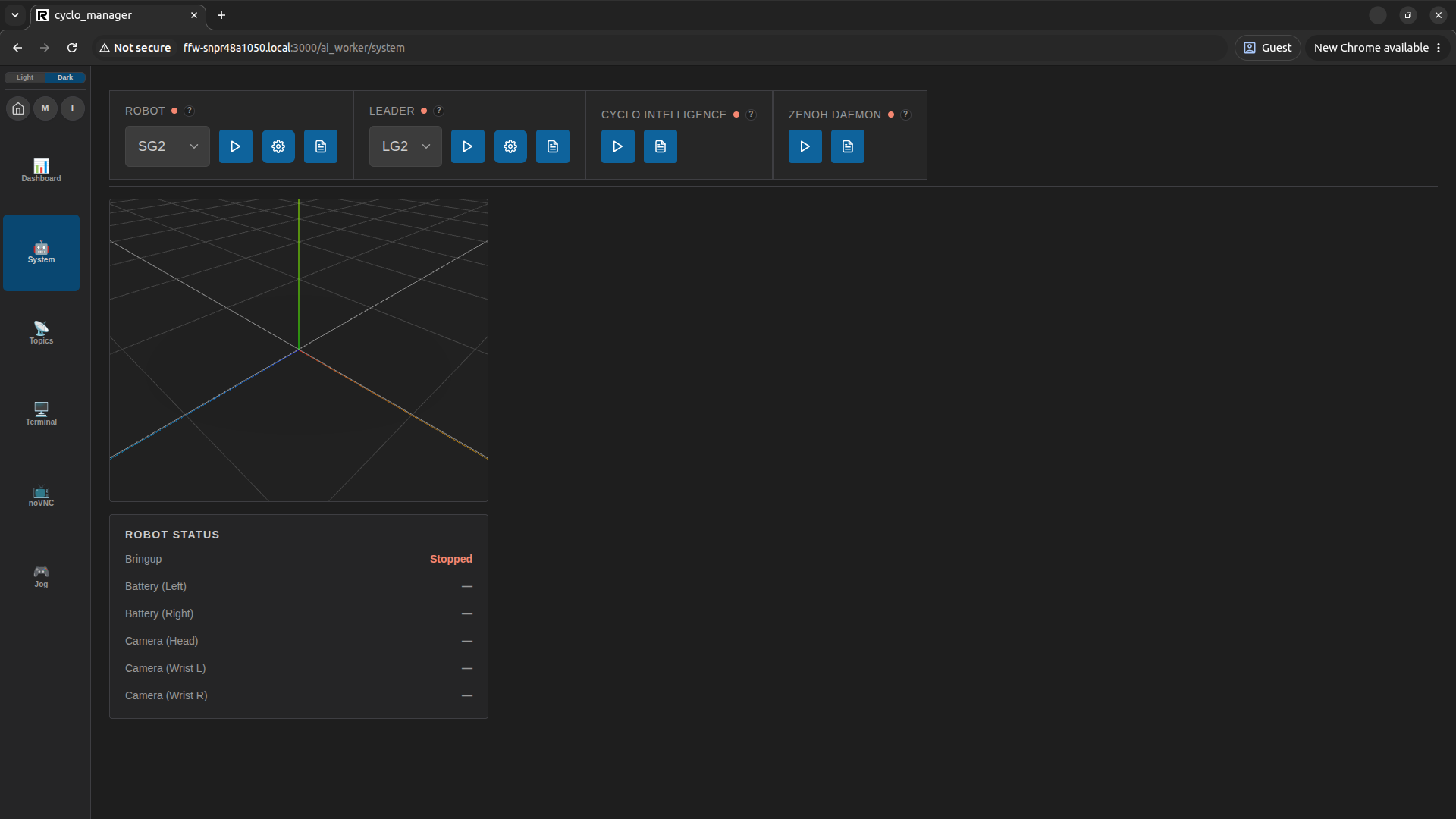
Bringup the Zenoh Daemon
AI Worker uses Zenoh as the default RMW. So you need to start the Zenoh daemon before bringing up the robot stack for ROS 2 communication.
The Zenoh Daemon control box controls the zenoh-daemon Docker container.
When you start this container, the Zenoh daemon process starts automatically inside it.
Click the arrow icon in the Zenoh Daemon control box to start the Zenoh daemon. Click the log icon if you need to inspect daemon logs.

- Red light indicates the Zenoh daemon is not running. Green light indicates the Zenoh daemon is running.
- The Zenoh daemon runs in the zenoh-daemon container, which is created only for the Zenoh daemon.
- If the Zenoh daemon is running, it keeps running even after you power the robot off and on, unless you stop the zenoh-daemon container.
Bringup the Robot (Follower / Leader)
Select the robot model to bring up and click the Robot Bringup(▶️) button.
Parameter is set to the default value. You can change the parameter by clicking the Parameter Setup(⚙️) button.

Available follower types: SG2, BG2, SH5, BH5, Mobile. (Mobile starts only the mobile base stack. Use this when you only need base movement, such as Jog.)
The control box provides:
- Robot Type Selection: Selects the follower model.
- Bringup / Stop Button: Starts or stops the selected bringup service.
- Parameter Setup: Opens launch arguments before start.
- Logs: Opens live service logs.
- Status Light: Shows whether the service is running.
Cyclo Manager and the AI Worker container must use the same ROS_DOMAIN_ID for 3D model display, joint states, and ROS 2 topic status. (How to change ROS_DOMAIN_ID)
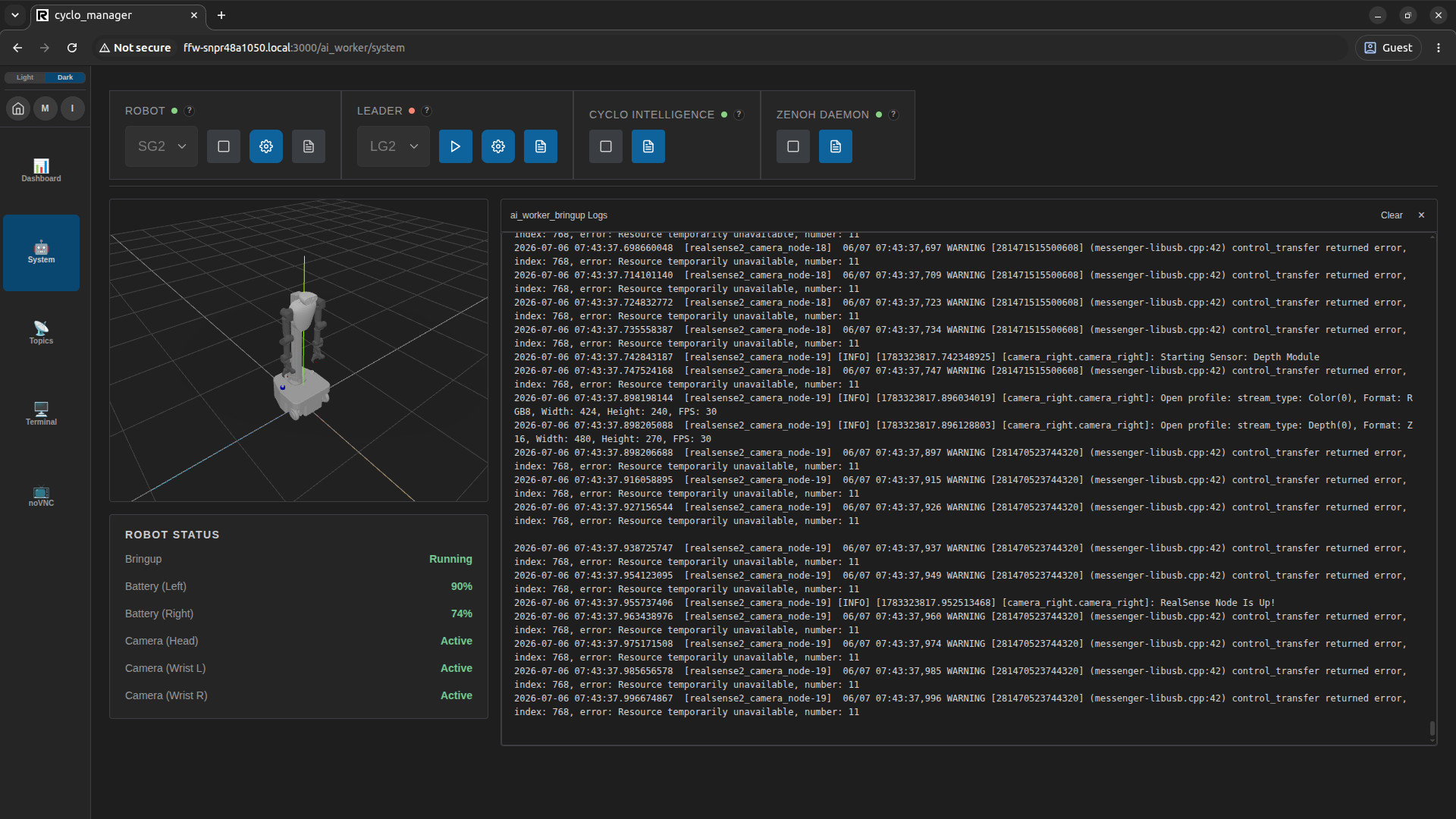
After the robot stack starts, the 3D model and robot status panels update automatically.
If the model or joint states do not update, check ROS_DOMAIN_ID, the robot bringup logs, and the relevant ROS 2 topics.
Robot bringup logs are stored in the AI Worker container at /var/log/ai_worker_bringup/current.
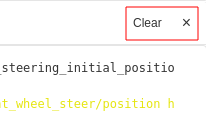
Use the Clear button to delete stored robot bringup logs from the System page.
Configure Launch Arguments
Click the gear icon to configure launch arguments before starting a service. Cyclo Manager stores the selected values in the browser and sends them to the container agent when you start the bringup service.
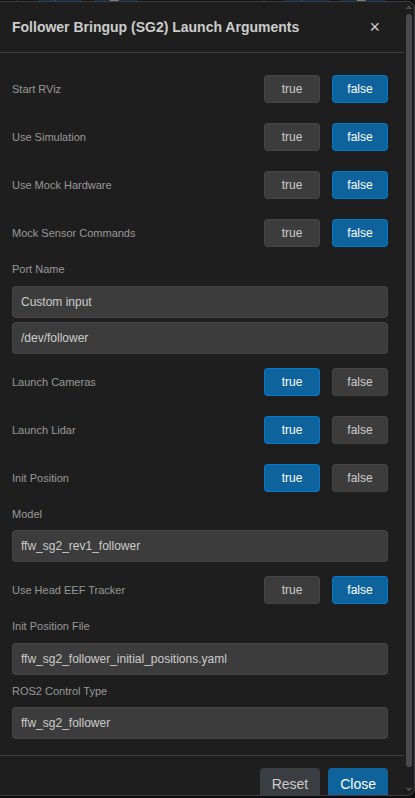
Common arguments include:
- Start RViz: Starts RViz inside the robot stack when enabled.
- Use Simulation: Uses simulation mode instead of real hardware.
- Use Mock Hardware: Starts ros2_control with mock hardware.
- Port Name: Selects the device path used by the follower hardware interface.
- Launch Cameras / Launch Lidar: Starts sensor nodes when supported by the selected robot type.
- Init Position: Moves the robot to the configured initial position during bringup.
- Init Position File: Selects the YAML file used for the initial position.
Use default values unless you have a specific setup reason to change them.
Set Robot Pack Position
To move the robot to the pack position during bringup:
- Click the gear icon in the robot bringup control.
- Set Init Position File to
pack_position.yaml. - Start Robot Bringup.
- Stop the robot after it reaches the pack position.
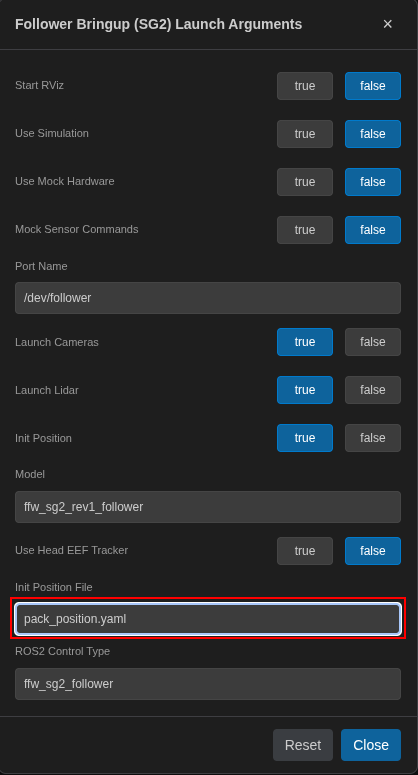
The robot moves to the pose defined in pack_position.yaml during startup.