Set Pack Position
Bring up AI Worker with pack_position.yaml as the initial position file to move the robot to its pack position. The procedure follows the usual robot bringup flow, with a different initial position setting. You can use Cyclo Manager or the command line.
The robot moves during this procedure. Keep the area around it clear and the emergency stop within reach. Stop teleoperation and other sources of motion commands before starting.
Using Cyclo Manager
1. Open the System Page
Power on the robot, connect your PC to the same network, and open the System page in Cyclo Manager. See Network Connection and Open Cyclo Manager for details.
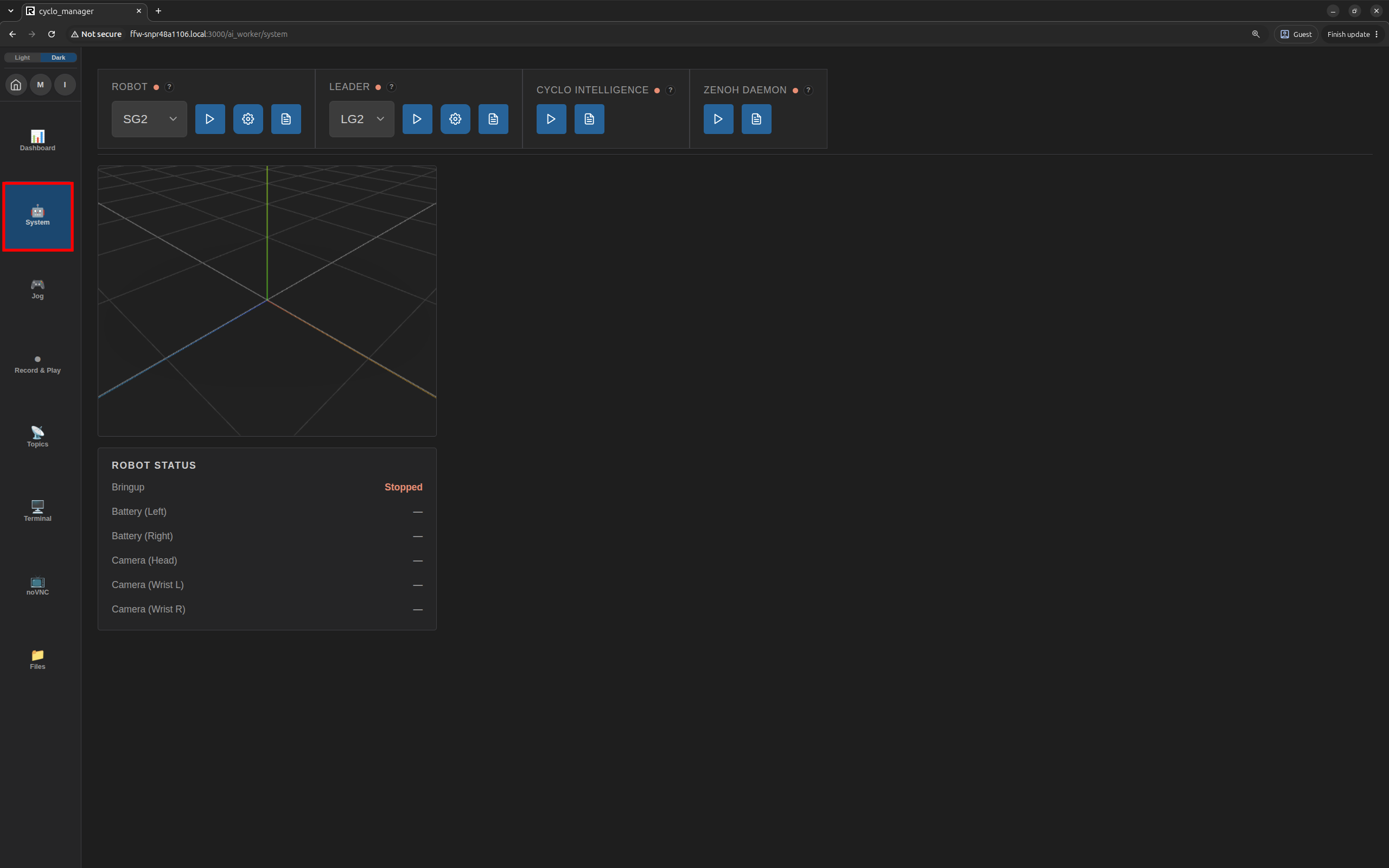
2. Start the Zenoh Daemon
If the Zenoh Daemon is not running, click its start button and check that the status light turns green. If it is already running, leave it running.

3. Configure the Initial Position
- If Robot bringup is already running, stop it before changing the launch arguments.
- Select your robot model in Robot. For W1 and W2, select F1 and F2, respectively.
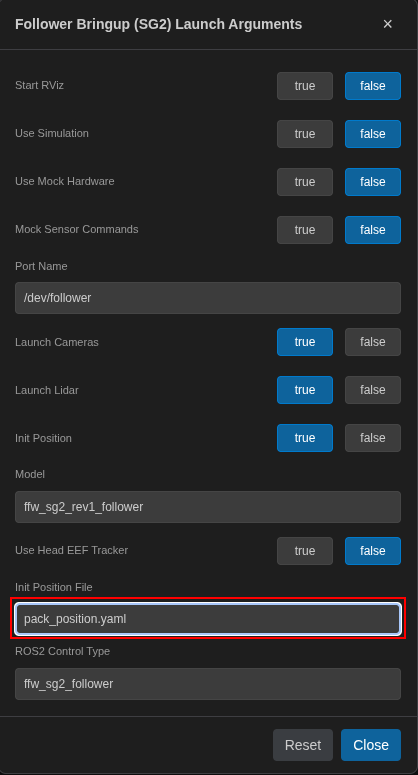
- Click the Robot service's gear button to open the launch arguments.
- Check that Init Position is enabled and select
pack_position.yamlfor Init Position File.
4. Bringup the Robot
Click the Robot start button to bring up the robot with the selected initial position. The status light turns green when the service starts. Use the log button to check the bringup logs if needed.

Wait until the robot reaches the pack position, then click the Robot stop button to stop bringup.
Before the next normal bringup, open the Robot launch arguments again and select the normal initial position file for the model.
Using the Command Line
-
Stop any running Robot bringup, then connect to the Robot PC using SSH and enter the AI Worker container.
-
Make sure the Zenoh daemon is running. If it is not, start it as described in the CLI Bringup guide.
-
Launch the pack position for your model. This example uses SG2; replace
sg2withbg2,w1, orw2for the corresponding model:ros2 launch ffw_bringup ffw_pack.launch.py type:=sg2This launches the selected Follower with initialization enabled and
pack_position.yamlas its initial position file. -
After the robot reaches the pack position, press Ctrl+C in the terminal to stop the launch.