External ROS 2 Communication
This guide explains how to connect an external PC to the AI Worker ROS 2 network using Zenoh.
1. How It Works
By default, the robot's ROS 2 nodes use the local Zenoh router. To communicate from another PC, configure the external ROS 2 environment to connect to the robot's router over the network.
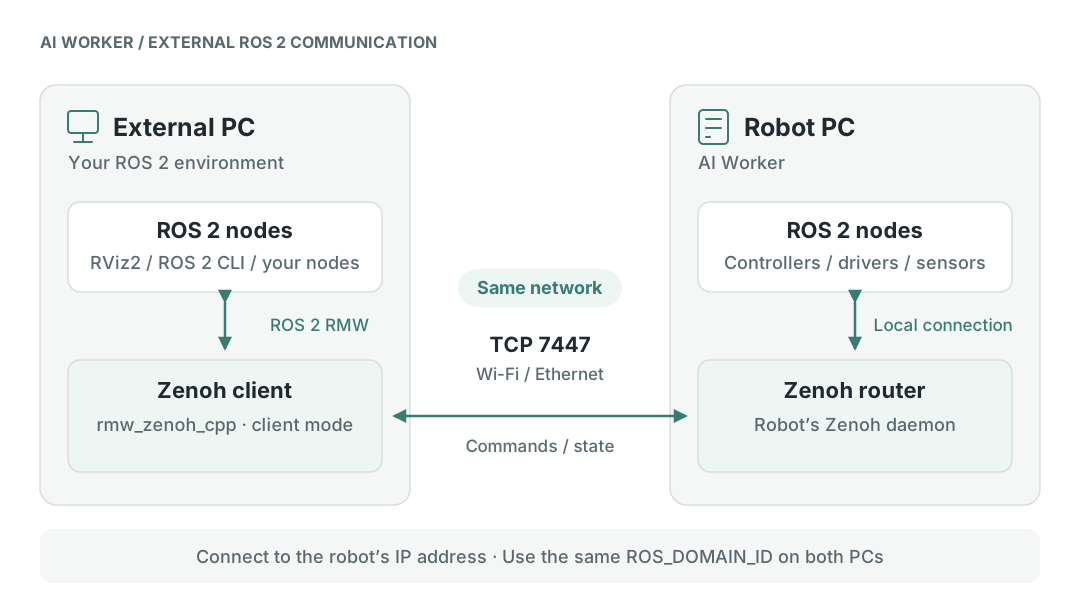
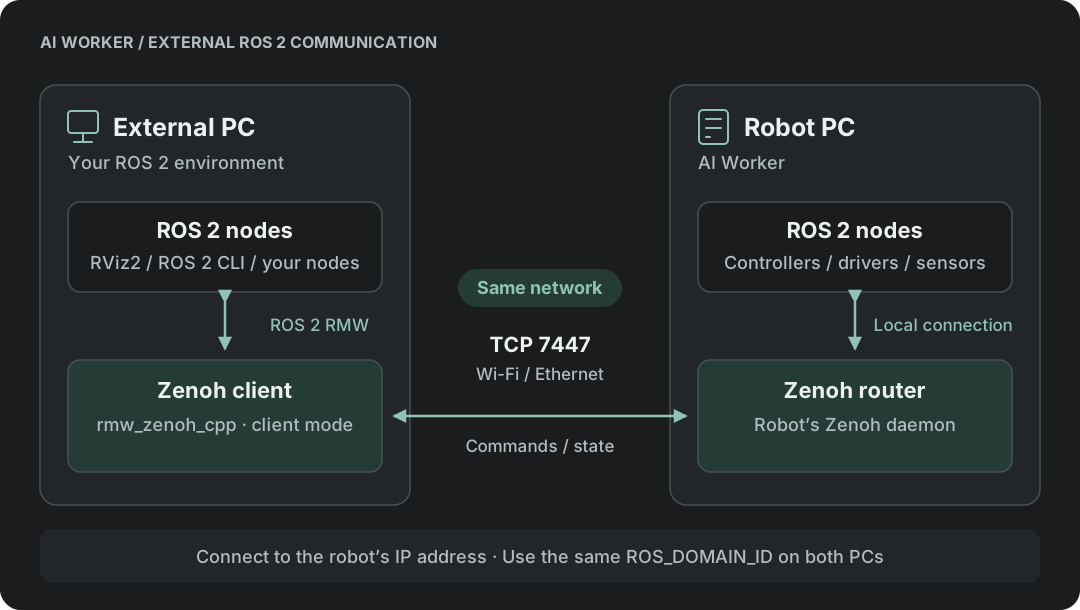
The Zenoh router must be running on the robot, and its endpoint must be reachable from the external PC.
2. Prepare the External PC
- Connect the robot and external PC to the same network.
- Start the robot's Zenoh daemon using the Bringup Guide.
- Prepare a compatible ROS 2 environment on the external PC. AI Worker uses ROS 2 Jazzy. You can use your existing ROS 2 environment or an AI Worker container on the external PC.
In an existing Ubuntu ROS 2 Jazzy environment, install rmw_zenoh_cpp if it is not already installed:
sudo apt update
sudo apt install ros-jazzy-rmw-zenoh-cpp
For other environments or installation methods, see the rmw_zenoh installation guide.
To use AI Worker-specific interfaces, install or build the matching message and interface packages in the external ROS 2 environment as well.
3. Find the Robot IP Address
Use the robot's IP address on the network shared with the external PC. You can find it using either method below.
Option 1: Resolve the hostname
Replace SNPR48A0000 with the serial number printed on the robot, then run this command on the external PC:
ping -c 1 ffw-SNPR48A0000.local
Use the IP address shown in the response.
Option 2: Check the robot PC
Connect to the robot using SSH, then run:
hostname -I
Choose the address on the same network as the external PC.
4. Configure the ROS 2 Environment
In each external PC terminal that will run ROS 2 commands or nodes, source the ROS 2 environment and configure Zenoh. If your workspace contains additional packages, source its setup file after the ROS 2 setup file.
source /opt/ros/jazzy/setup.bash
export RMW_IMPLEMENTATION=rmw_zenoh_cpp
export ROS_DOMAIN_ID=30
export ZENOH_CONFIG_OVERRIDE='transport/shared_memory/enabled=true;mode="client";connect/endpoints=["tcp/192.168.6.2:7447"]'
Replace 192.168.6.2 with the robot IP address found in the previous step. 30 is the default ROS domain used by the AI Worker services; if your robot uses a different domain, use that value instead.
These settings apply to the current terminal. Set them in each terminal where you run ROS 2 commands or nodes.
5. Verify the Connection
Stop any ROS 2 daemon started with an earlier configuration, then check that the robot's nodes and topics are visible:
ros2 daemon stop
ros2 node list
ros2 topic list
ros2 topic echo /joint_states
The last command should show joint state messages while the robot is publishing them. Press Ctrl+C to stop it.
If nodes or messages do not appear, check that:
- The Zenoh daemon is running on the robot.
- The robot and external PC can reach each other on the network, including TCP port
7447. ZENOH_CONFIG_OVERRIDEuses the robot's current IP address.- The external PC uses
rmw_zenoh_cppand the sameROS_DOMAIN_IDas the robot. - The robot is publishing the topic you are checking.