Bringup Guide
This guide explains how to bring up the AI Worker robot. Complete Hardware Setup before continuing.
1. Network Connection
- W1 / BG2
- W2 / SG2
These models do not have a built-in router. Connect the robot's LAN port to an external router, then connect your PC to the same router using Wi-Fi or LAN. An external router is not included with the robot.
These models have a built-in router. Connect your PC to the robot's Wi-Fi network:
- Network name:
AIWORKERfollowed by the last four digits of the robot's serial number. ex.AIWORKER0000. - Default password: The same as the network name. ex.
AIWORKER0000
2. Open Cyclo Manager
Open http://ffw-<serial_number>.local:3000 in a browser on your PC, replacing <serial_number> with the serial number printed on the robot. For example, if the serial number is SNPR48A0000, open http://ffw-SNPR48A0000.local:3000. You can also use the robot's IP address with port 3000.
Use Cyclo Manager to bring up the robot. Cyclo Manager is pre-installed on W1 and W2 models. If it has not been installed, follow Install.
Open the System page in Cyclo Manager to begin bringup.
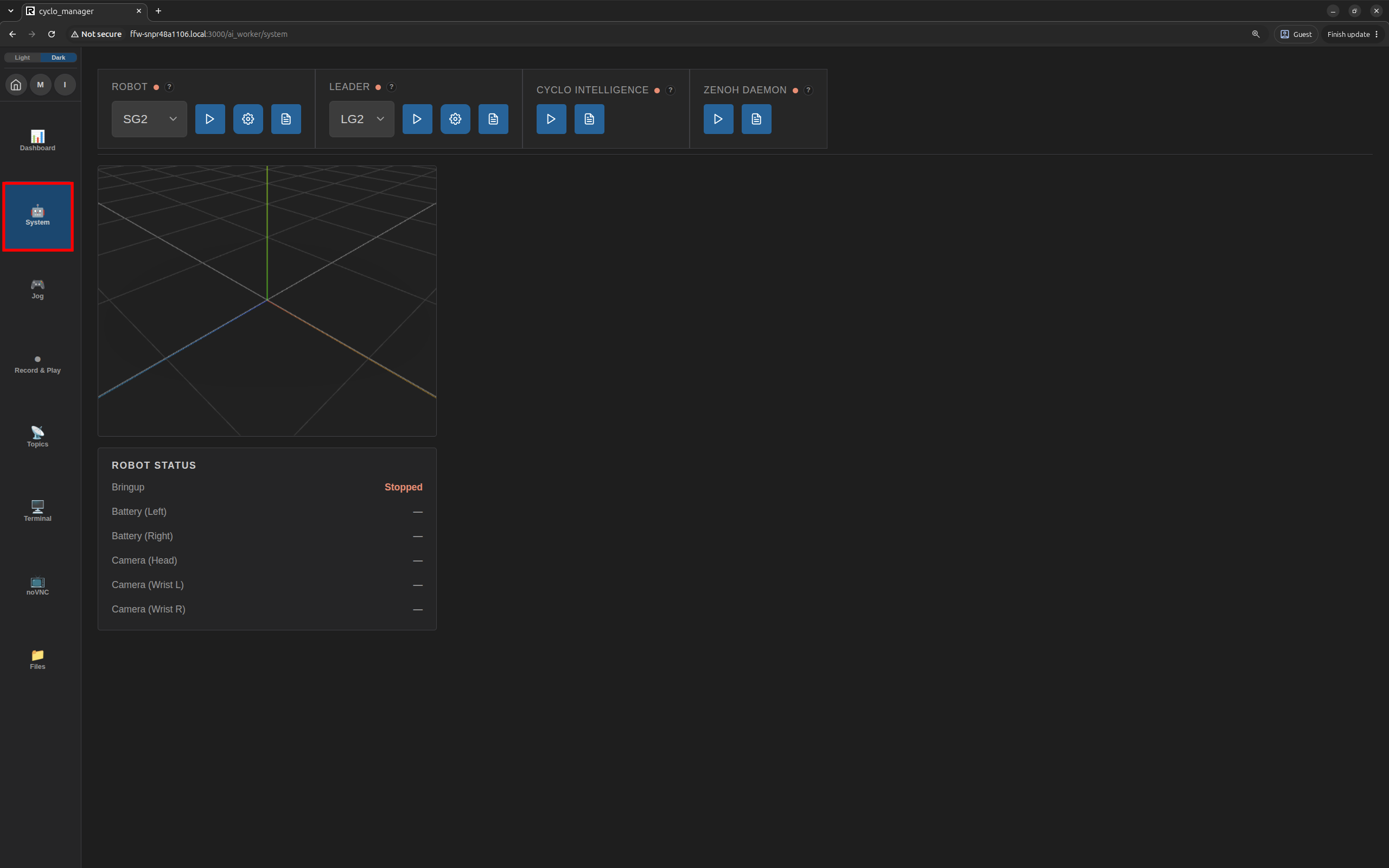
3. Start the Zenoh Daemon
AI Worker uses Zenoh as RMW since version 2.0.0. Start the Zenoh daemon before bringing up the robot stack. For more information about Zenoh, see Zenoh Communication.
Click the arrow icon in the Zenoh Daemon control box to start the Zenoh daemon. Check that the status light turns green. Once started, the Zenoh daemon restarts when the robot powers on.

4. Bringup the Robot
Starting robot bringup will cause the robot to move.
Before starting, make sure the area around the robot is clear and keep the emergency stop within reach.
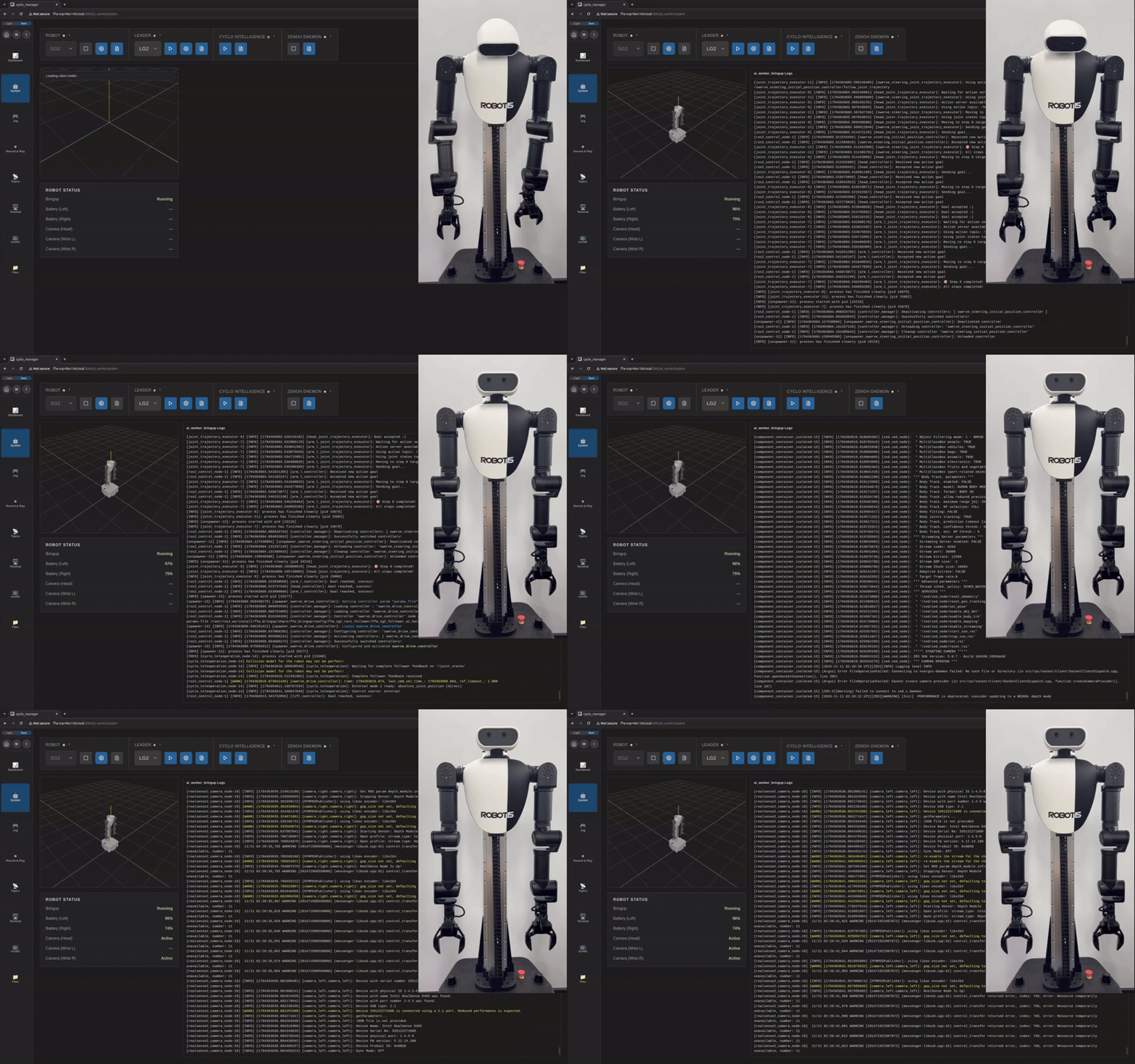
Select the robot model to bring up and click the Robot Bringup(▶️) button. For W1 and W2, select F1 and F2, respectively, in Cyclo Manager. The status light turns green when the robot service starts. Click the paper icon on the far right to view the logs in the side panel.

After the robot stack starts, the 3D model and robot status panels update automatically.
If the model or joint states do not update, check ROS_DOMAIN_ID, the robot bringup logs, and the relevant ROS 2 topics.
5. Check Robot Operation
After bringup, check that the robot responds to movement commands.
Keep the area around the robot clear and the emergency stop within reach. Leave leader teleoperation and other motion-command sources stopped while using Jog.
-
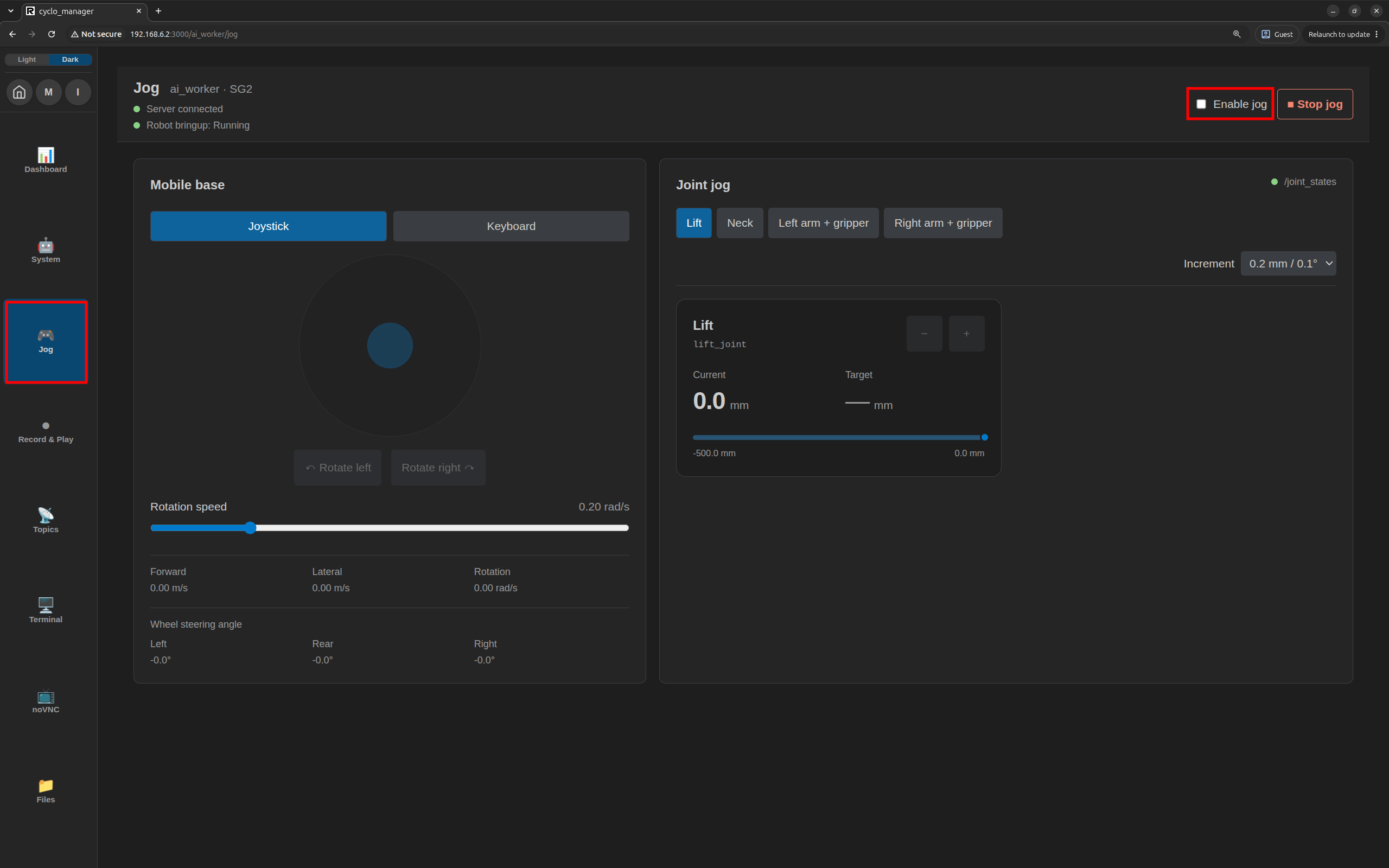
Open Jog in Cyclo Manager and select the
ai_workercontainer if prompted. -
Check that the robot bringup status and joint positions are available, then turn on Enable jog.
-
Use the controls to check the following:
- Joints: Check that each joint moves properly.
- Mobile base: For models with a mobile base, check that it moves and rotates properly.
For more about the controls, see Jog.
6. Check Cameras
Check that the robot's cameras provide live images in Cyclo Intelligence.
-
Return to the System page in Cyclo Manager. Click the start arrow in Cyclo Intelligence and wait for the status light to turn green.

-
Click the I button in Cyclo Manager to open Cyclo Intelligence. You can also open
http://ffw-<serial_number>.local:7080in a browser on your PC. For example, usehttp://ffw-SNPR48A0000.local:7080or the robot's IP address with port7080.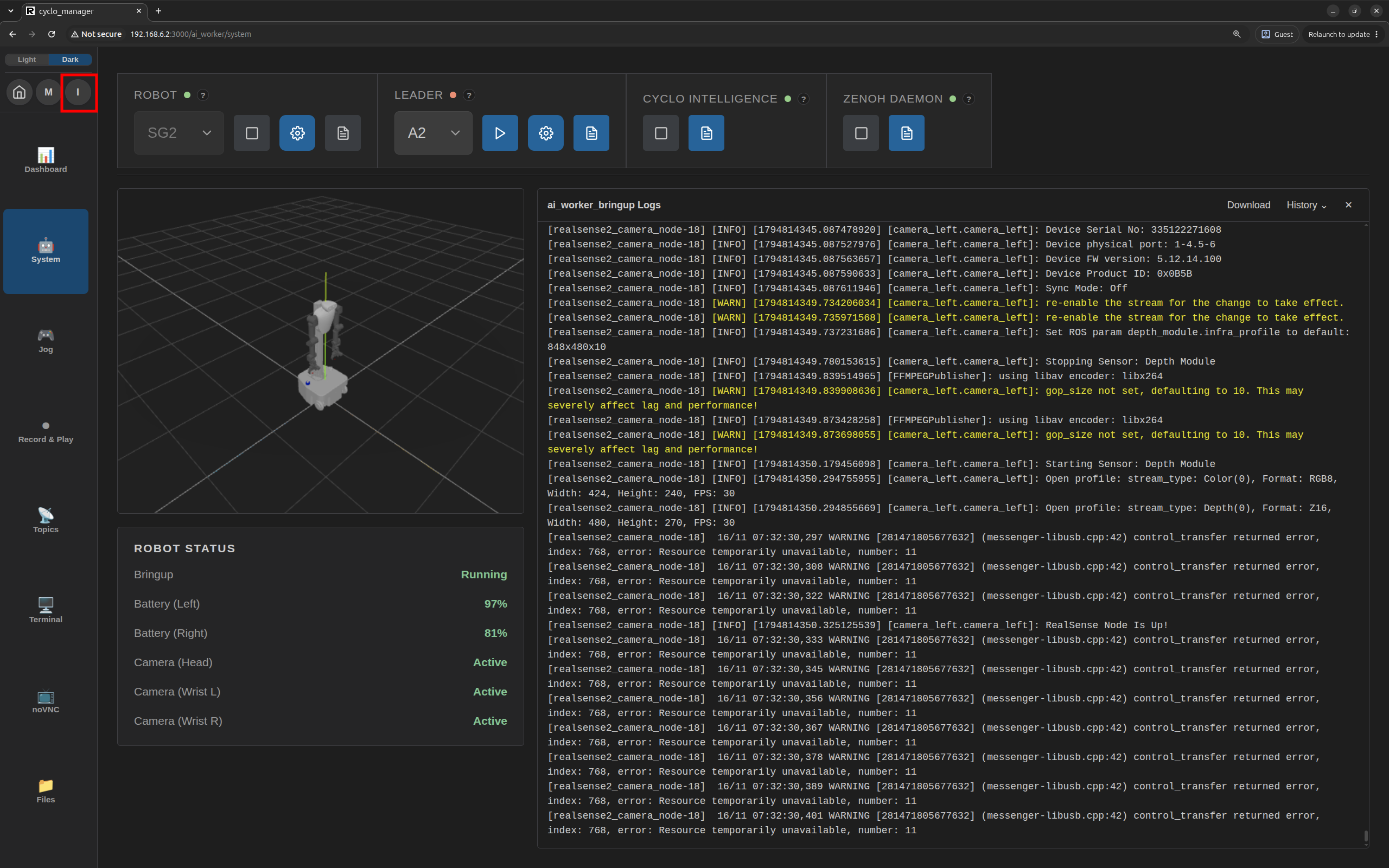
-
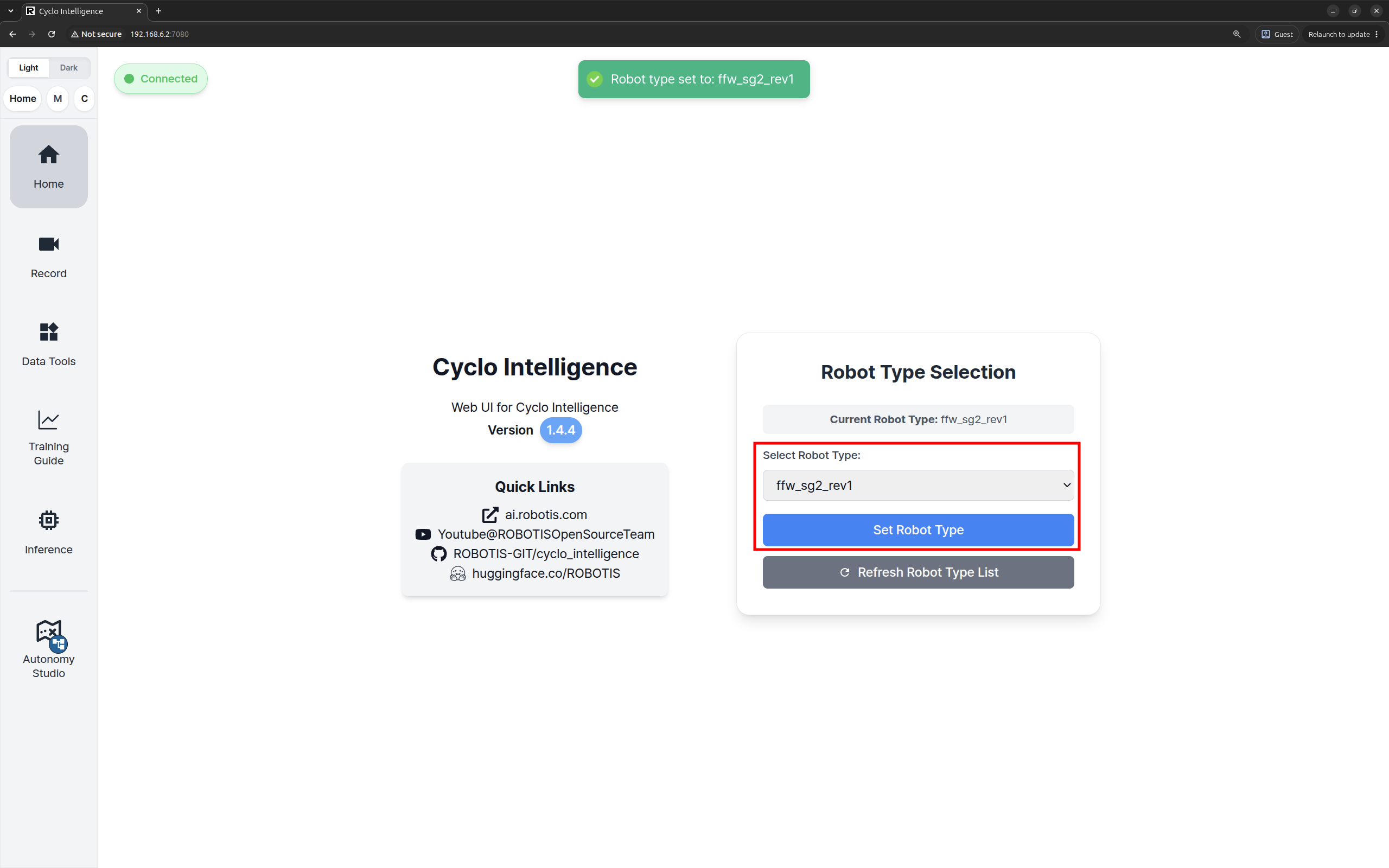
On the Home page, select the robot type and click Set Robot Type.
-
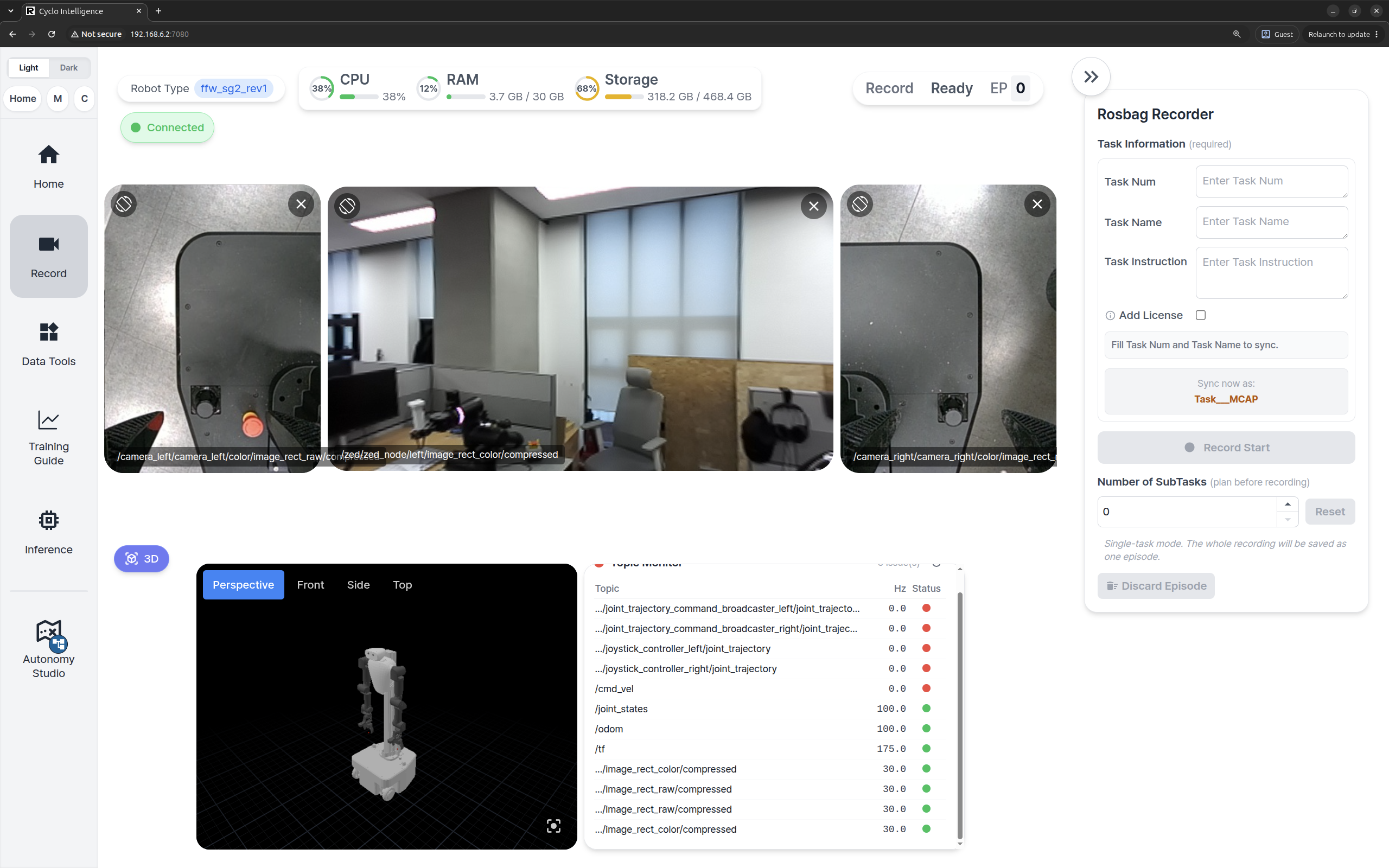
Open Record and check Camera Views. Confirm that each configured camera displays a live image and that the image updates as the scene changes.
To connect directly to the robot and run it from the command line, see CLI Bringup & Teleoperation.