Software Architecture
This guide maps the AI Worker software environment: the robot PC, SSD storage, source repositories, Docker containers, startup services, and ROS 2 communication and control.
System Overview
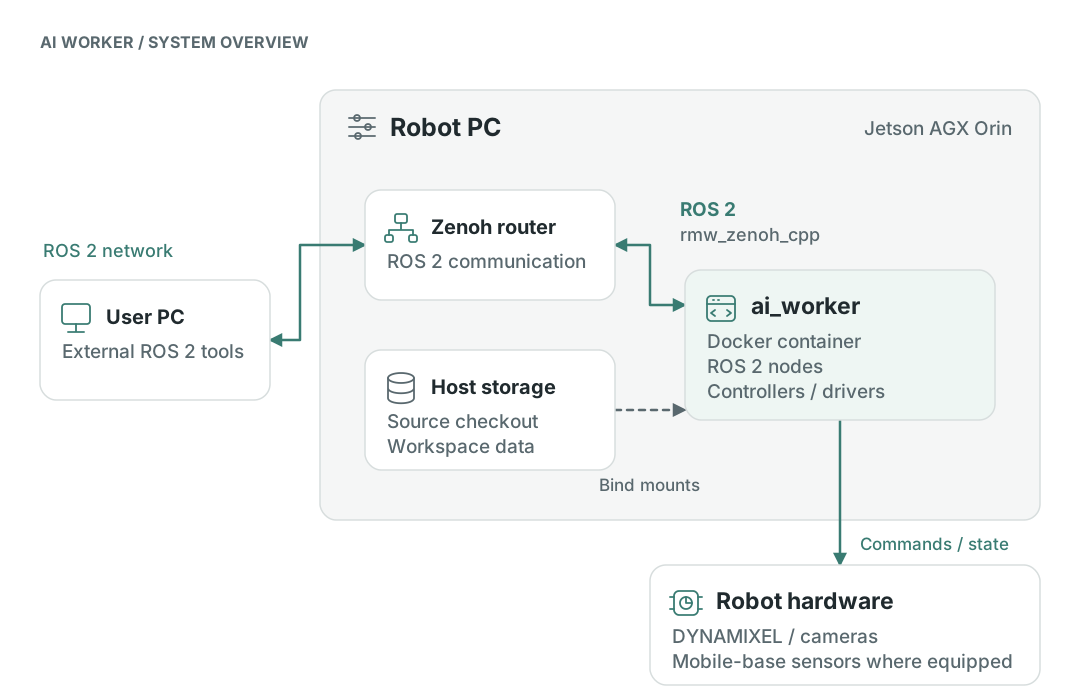
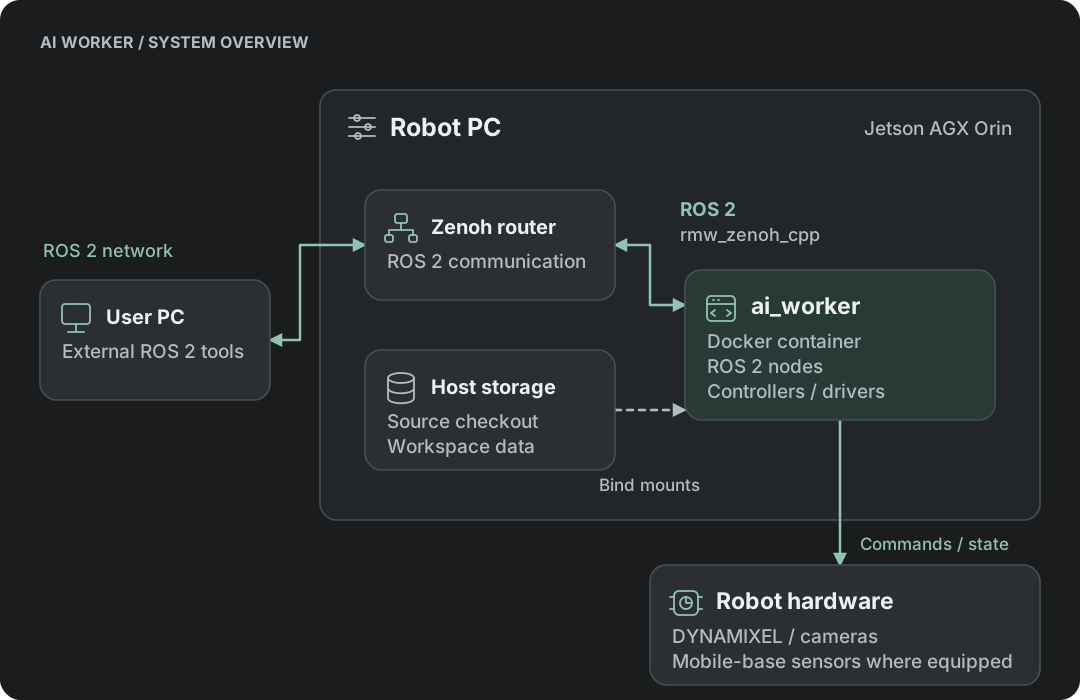
AI Worker runs its ROS 2 software in the ai_worker Docker container on the robot PC. The container uses host-mounted source and workspace directories, runs the robot drivers and controllers, and exchanges commands and state through ROS 2 with Zenoh RMW. An external PC can join that ROS 2 network for operation and visualization.
Host Environment
The host OS runs on the Jetson. The container OS and ROS workspace belong to each Docker image. Keep these environments separate when checking versions or installing development dependencies.
- SG2 / BG2
- W1 / W2
| Host component | SG2 / BG2 environment |
|---|---|
| JetPack | 6.2 |
| Jetson Linux | 36.4.3 |
| Host OS | Ubuntu 22.04-based root filesystem |
| Host component | W1 / W2 environment |
|---|---|
| JetPack | 7.2.1 |
| Jetson Linux | 39.2.1 |
| Host OS | Ubuntu 24.04-based root filesystem |
Storage & Directory Layout
SSD and Docker Storage
The robot's SSD is mounted at /mnt/ssd using its UUID in /etc/fstab. Docker's data-root is set to /mnt/ssd/docker in /etc/docker/daemon.json.
These storage relationships serve different purposes:
| Relationship | Reference paths | Purpose |
|---|---|---|
| SSD filesystem mount | SSD device → /mnt/ssd | Makes the SSD filesystem available to the host |
| Docker data directory | /mnt/ssd/docker | Docker-managed image and container storage |
| Host repository bind mounts | /mnt/ssd/ai_worker → ~/ai_worker/mnt/ssd/cyclo_intelligence → ~/cyclo_intelligence | Makes SSD-backed repositories available in the home directory |
Host Directory Map
The following map shows the robot's repository locations and their host bind mounts.
- ai_worker: Robot control and teleoperation software based on
ros2_control. - cyclo_intelligence: Data recording, preparation, training guidance, and model inference.
/mnt/ssd/
├── ai_worker/                     AI Worker repository
└── cyclo_intelligence/            Cyclo Intelligence repository

~/
├── ai_worker/                     Bind mount of the SSD repository
└── cyclo_intelligence/            Bind mount of the SSD repository
Container Volume Map
Paths below are relative to the host checkouts shown above. ~ denotes the account that owns the checkout. Actual checkout paths may differ if the containers were started from another location.
| Host path | Container path | Purpose |
|---|---|---|
~/ai_worker | /root/ros2_ws/src/ai_worker | Robot source code |
~/ai_worker/docker/workspace | /workspace | Robot workspace files |
~/cyclo_intelligence | /root/ros2_ws/src/cyclo_intelligence | Cyclo Intelligence source code |
~/cyclo_intelligence/docker/workspace | /workspace | Cyclo Intelligence workspace files |
~/cyclo_intelligence/docker/huggingface | /root/.cache/huggingface | Hugging Face cache |
/dev | /dev | Access to hardware devices |
/dev/shm | /dev/shm | Shared memory for processes |
/tmp/.X11-unix | /tmp/.X11-unix | Connect GUI apps to the X11 server |
/tmp/.docker.xauth | /tmp/.docker.xauth | Authentication for the X11 server |
The two /workspace paths belong to different host directories. A file in the ai_worker workspace is not automatically in the Cyclo Intelligence workspace.
Files stored only in a container's writable layer are lost when the container is removed. Store important files in host-mounted directories. Host files remain available when the container is recreated as long as those files are retained.
Inspect mounts and data locations
On the robot host:
lsblk -f
findmnt /mnt/ssd
findmnt -T "$HOME/ai_worker"
findmnt -T "$HOME/cyclo_intelligence"
docker info --format '{{.DockerRootDir}}'
docker inspect --format '{{.Name}} {{json .Mounts}}' ai_worker cyclo_intelligence
For the complete device, display, ZED, configuration, and SDK mounts, inspect the reviewed robot Compose file and learning Compose file.
Containers & Services
Container Inventory
| Container | Function |
|---|---|
ai_worker | Robot ROS workspace, hardware drivers, and robot/leader services |
cyclo_manager | Management API and Docker/agent coordination |
cyclo_manager_ui | Management web UI |
zenoh_daemon | Zenoh router; Compose service name is rmw_zenoh |
novnc-server | Optional remote desktop and GUI tools |
cyclo_intelligence | Imitation learning application |
Management and Application Endpoints
| Endpoint | Reference port / path | Used for |
|---|---|---|
| SSH | TCP 22 | Robot-host terminal |
| Cyclo Manager UI / API | TCP 3000 / 8081 | Browser operation and API |
| Cyclo Intelligence UI | TCP 7080 | Imitation learning web UI |
| noVNC | TCP 8090 | Optional GUI tools |
| Zenoh router | TCP 7447 in the external-PC connection example | Cross-host ROS communication |
| Container/host agents | Unix sockets under /var/run/robotis/agent_sockets | Local management; not a separate browser port |
Control Flow
Control Architecture
The following diagram shows the AI Worker ROS 2 control structure. The controller update rate is configured at 100 Hz; mobile-base components apply to mobile models.

Why ros2_control?
ros2_control separates controllers from hardware drivers, manages command/state interfaces, and provides the controller lifecycle used by the robot launch files. The configured controllers and their joint lists come from the selected model profile.
Motion Execution Pipeline
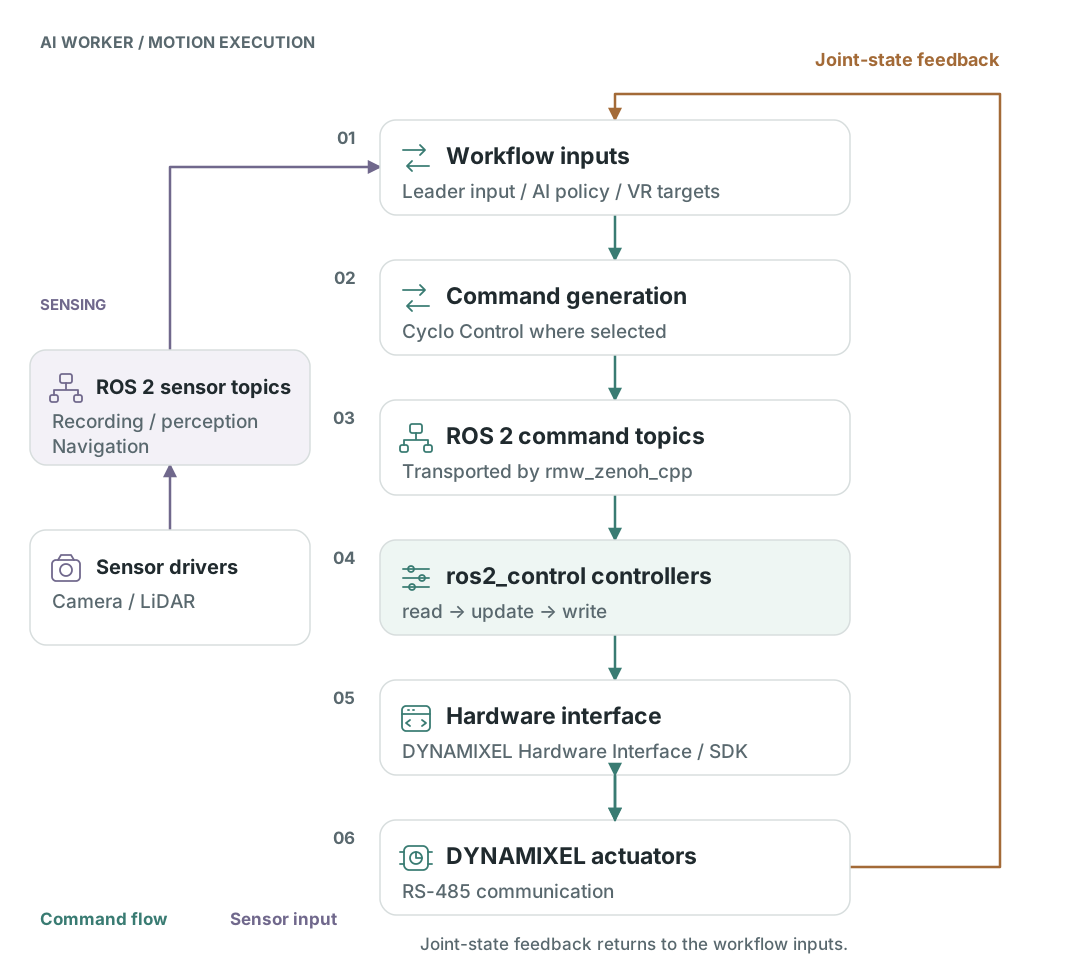
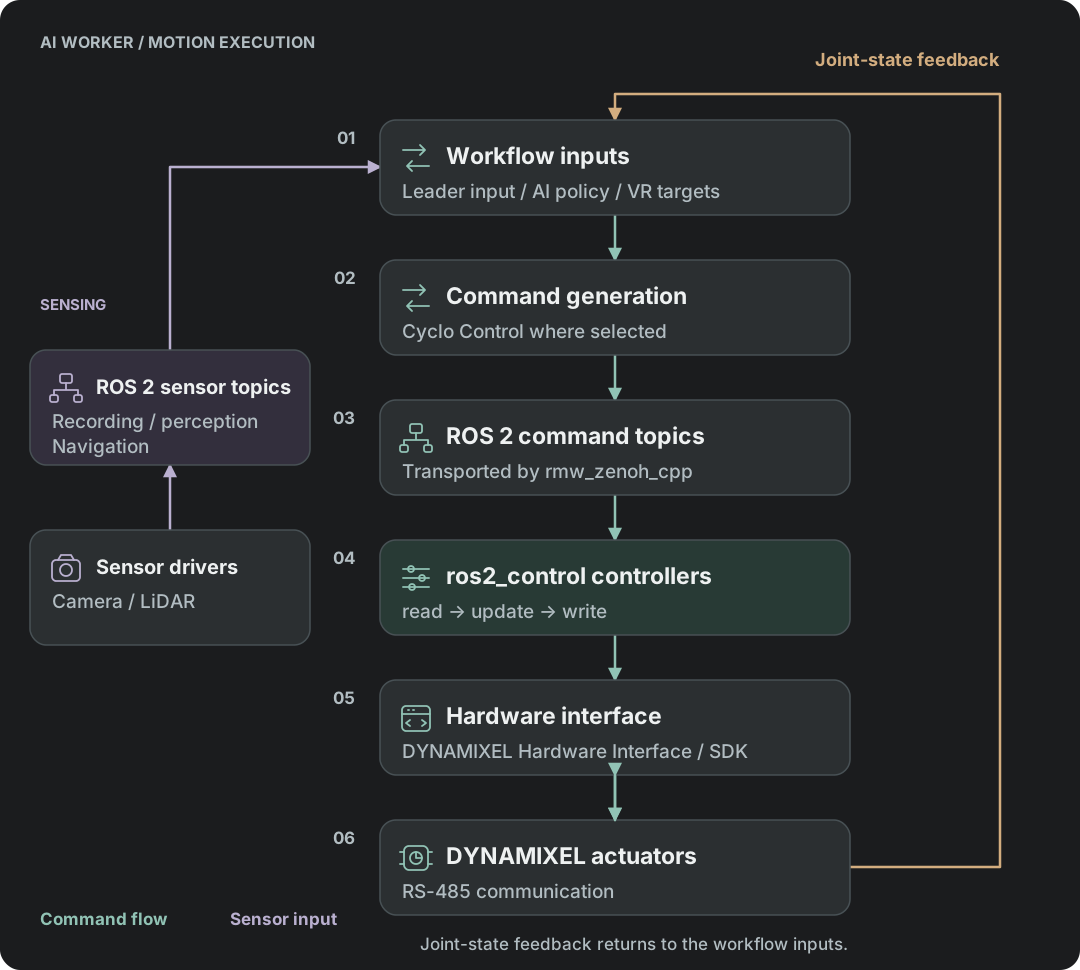
AI Worker controller profiles configure a 100 Hz update rate. That is a configuration target, not a measurement of timing on every robot. The ROS middleware transports messages; the controller loop and hardware interface handle joint execution.
Step-by-Step
- A leader, AI policy, or VR workflow produces commands for the selected robot.
- ROS 2 transports command messages through the configured RMW and Zenoh network.
- The selected controllers consume their command interfaces in the
read → update → writeloop. - The hardware interface and SDK exchange commands and state with the actuators.
- Joint states and sensor topics return to the operation, visualization, and recording workflows.
Controller Configuration & Joint Mapping
The reviewed follower launch remaps the standard trajectory inputs to these topic names. The two arms below include the standard one-joint grippers; optional hands use their matching configuration. Mobile-base control applies to SG2/W2.
| Controller | Role | Reference topic |
|---|---|---|
arm_l_controller | Left arm and standard gripper | /leader/joint_trajectory_command_broadcaster_left/joint_trajectory |
arm_r_controller | Right arm and standard gripper | /leader/joint_trajectory_command_broadcaster_right/joint_trajectory |
head_controller | Head pan/tilt | /leader/joystick_controller_left/joint_trajectory |
lift_controller | Vertical lift | /leader/joystick_controller_right/joint_trajectory |
joint_state_broadcaster | Joint state feedback | /joint_states |
swerve_drive_controller | SG2/W2 mobile base | /cmd_vel in the operation workflow |
Controller YAML Example
Minimal controller-manager and left-arm configuration
This is an illustrative extract with a single /** parameter scope. It omits other controllers and model-specific parameters; use the complete source profile for deployment.
/**:
  controller_manager:
    ros__parameters:
      use_sim_time: False
      update_rate: 100  # Hz

      arm_l_controller:
        type: joint_trajectory_controller/JointTrajectoryController

      arm_r_controller:
        type: joint_trajectory_controller/JointTrajectoryController

      head_controller:
        type: joint_trajectory_controller/JointTrajectoryController

      lift_controller:
        type: joint_trajectory_controller/JointTrajectoryController

      joint_state_broadcaster:
        type: joint_state_broadcaster/JointStateBroadcaster

      swerve_drive_controller:
        type: ffw_swerve_drive_controller/SwerveDriveController

  arm_l_controller:
    ros__parameters:
      joints:
        - arm_l_joint1
        - arm_l_joint2
        - arm_l_joint3
        - arm_l_joint4
        - arm_l_joint5
        - arm_l_joint6
        - arm_l_joint7
        - gripper_l_joint1
      command_interfaces:
        - position
      state_interfaces:
        - position
        - velocity
      allow_nonzero_velocity_at_trajectory_end: true
Debugging & Safety
Debugging & Visualization Tools
| Tool / Topic | Description |
|---|---|
ros2 control list_controllers | List loaded controllers and their status |
/joint_states | Real-time joint position and velocity feedback |
| RViz2 | 3D view of robot model (URDF), TF, and movement |
Safety & Fault Handling
Joint limits, controller constraints, and hardware communication error handling depend on the selected robot configuration and software version. These mechanisms do not replace the robot's emergency stop or the operating precautions in Setup Hardware.
Middleware

rmw_zenoh_cpp and the router provide the configured communication layer.What is rmw_zenoh?
rmw_zenoh is the ROS 2 RMW (ROS Middleware) implementation for Zenoh. The implementation package is rmw_zenoh_cpp, and it maps the ROS 2 middleware API onto Zenoh APIs. Existing ROS 2 publishers, subscribers, services, clients, parameters, and command-line tools can keep using normal ROS 2 interfaces while Zenoh handles discovery and transport.
Zenoh is a pub/sub/query protocol designed to move data efficiently across local processes, robot networks, edge computers, and cloud systems. For AI Worker, this means the robot control software can use normal ROS 2 topics while Zenoh provides a lightweight communication layer that is easier to route across containers and hosts than multicast-heavy DDS discovery.
Main Components
| Component | Role |
|---|---|
rmw_zenoh_cpp | ROS 2 RMW implementation selected by RMW_IMPLEMENTATION=rmw_zenoh_cpp. |
rmw_zenohd | Zenoh router executable packaged with rmw_zenoh_cpp. It provides discovery information and host-to-host routing. |
| Zenoh session | Communication session used internally by ROS 2 contexts. Publishers, subscribers, services, and clients share the session. |
| Zenoh router configuration | Controls how routers listen, connect, and bridge communication between containers, the robot, and remote PCs. |
How Communication Works
- ROS 2 nodes continue to publish and subscribe to normal topics such as
/joint_states,/tf, or controller command topics. rmw_zenoh_cppconverts the ROS 2 middleware calls into Zenoh operations.- A local Zenoh router is normally started so nodes can discover each other.
- On the same host, message data can use direct peer-to-peer paths instead of forcing every sample through the router.
- Across multiple hosts, configure the external PC container as a Zenoh client connected to the robot's Zenoh router endpoint.
External PC Control
An external PC can communicate with the robot's ROS 2 nodes by connecting its Zenoh client to the robot's Zenoh router. For connection settings and verification, see External ROS 2 Communication.