Model Training Guide
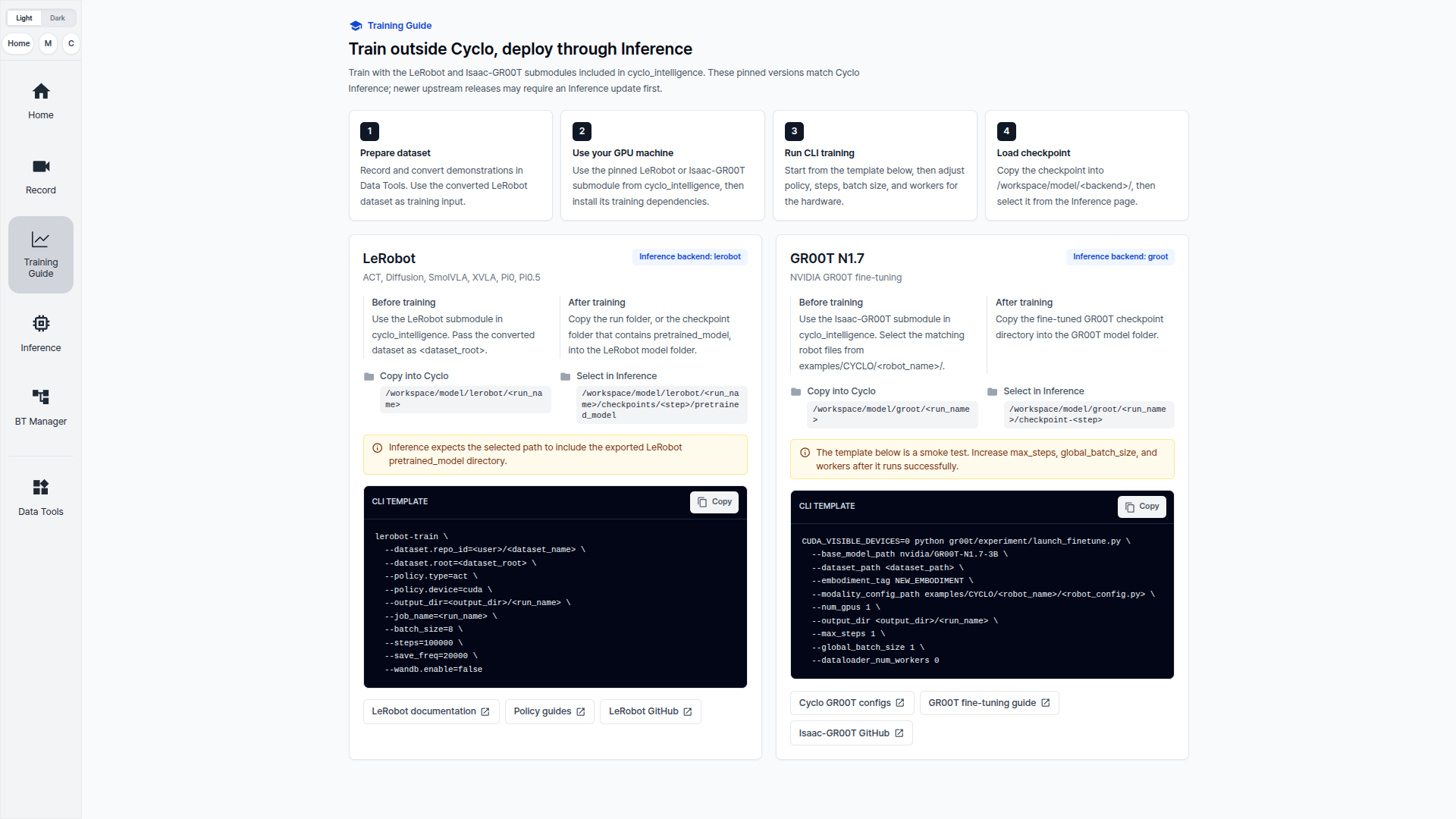
Training is performed outside Cyclo Intelligence. Training environments vary by model, GPU, framework version, and server setup, so Cyclo Intelligence provides this page as a guide instead of a fixed training Docker environment.
Use Data Tools to convert and upload the dataset. Train the model in your own training environment, then bring the trained model back into Cyclo Intelligence with Data Tools and run it from Model Inference.
Supported Models
Train only the policies that have a matching inference backend. Model Inference ships pre-built Docker backends for the models below, so a policy outside this list has no backend to run in.
| Model | Policy type | Training start point |
|---|---|---|
| ACT | act | Trained from scratch on your dataset. |
| Diffusion | diffusion | Trained from scratch on your dataset. |
| SmolVLA | smolvla | Fine-tuned from lerobot/smolvla_base. |
| XVLA | xvla | Fine-tuned from lerobot/xvla-base. |
| Pi0 | pi0 | Fine-tuned from lerobot/pi0_base. |
| Pi0.5 | pi05 | Fine-tuned from lerobot/pi05_base. |
| GR00T N1.7 | groot | Fine-tuned from nvidia/GR00T-N1.7-3B. |
| MolmoAct2 | molmoact2 | Fine-tuned from allenai/MolmoAct2-LIBERO, or from a LeRobot checkpoint. |
| FastWAM | fastwam | World action model. Its visual components start from Wan-AI/Wan2.2-TI2V-5B. |
| VLA-JEPA | vla_jepa | Trained from scratch, or fine-tuned from lerobot/VLA-JEPA-Pretrain. |
ACT and Diffusion are small enough to train on a single consumer GPU. The VLA policies are billions of parameters and expect a data-center GPU, so check the memory requirement of the model you pick before starting a run. The LeRobot documentation carries the per-policy specifics, including the page for each policy and its training options.
Which model should I pick?
Will you tell the robot what to do in words at run time?
Only the VLA policies accept a task instruction.
Unsure? Train ACT on your first dataset.
Set Up LeRobot
All seven policies train with the same lerobot-train entry point. Install LeRobot on the training machine:
git clone https://github.com/huggingface/lerobot.git
cd lerobot
pip install -e '.[training]'
The training extra pulls in Accelerate, which is required for the multi-GPU launches shown below.
Then log in so the dataset uploaded from Data Tools can be pulled, and set the user name used in the commands below:
hf auth login
HF_USER=$(hf auth whoami | head -n 1)
Train
Every command writes checkpoints under --output_dir. Keep --job_name meaningful, since it is what identifies the run later.
Choose what to train
Full fine-tune
Large dataset, plenty of GPU memory, task far from the base model.
Freeze the vision encoder
Middle ground. Keeps general visual features, adapts the rest.
Action head only
Small dataset or limited GPU memory. Fastest, least likely to overfit.
ACT and Diffusion are not here. They have no pretrained backbone and always train from scratch.
ACT and Diffusion
Both train from scratch, so they take --policy.type and no pretrained path. Swap act for diffusion to train the other. There is no pretrained backbone here, so nothing to freeze.
Diffusion requires every camera to share one resolution. On a robot whose cameras differ, such as AI Worker, record with a single camera selected.
lerobot-train \
  --dataset.repo_id=${HF_USER}/my_dataset \
  --policy.type=act \
  --output_dir=outputs/train/act_run \
  --job_name=act_run \
  --policy.device=cuda \
  --wandb.enable=true
SmolVLA
Fine-tunes from the released base checkpoint. Pass it with --policy.type and --policy.pretrained_path, not --policy.path: --policy.path alone loads LeRobot's own config, which fixes the state dimension at 6 (AI Worker needs 16). Training still runs, but the checkpoint it writes does not load cleanly.
Trains the action expert only by default, which is what keeps SmolVLA within a single consumer GPU. The two freeze flags below are those defaults, written out. Set both to false for a full fine-tune.
Fine-tuning from the base checkpoint also needs --rename_map, because the base declares its own camera names: SmolVLA expects camera1, camera2 and camera3.
lerobot-train \
  --policy.type=smolvla \
  --policy.pretrained_path=lerobot/smolvla_base \
  --dataset.repo_id=${HF_USER}/my_dataset \
  --policy.freeze_vision_encoder=true \
  --policy.train_expert_only=true \
  --batch_size=64 \
  --steps=20000 \
  --output_dir=outputs/train/smolvla_run \
  --job_name=smolvla_run \
  --policy.device=cuda \
  --wandb.enable=true
XVLA
Defaults to a full fine-tune, as shown below. Set either freeze flag to true to train less.
XVLA only accepts --policy.path, because of its vision_config. That means the camera keys come from the base checkpoint, so map your own keys onto them with --rename_map. XVLA expects image, image2 and image3.
lerobot-train \
  --dataset.repo_id=${HF_USER}/my_dataset \
  --policy.path=lerobot/xvla-base \
  --policy.freeze_vision_encoder=false \
  --policy.freeze_language_encoder=false \
  --policy.dtype=bfloat16 \
  --policy.action_mode=auto \
  --steps=20000 \
  --output_dir=outputs/train/xvla_run \
  --job_name=xvla_run \
  --policy.device=cuda
Pi0 and Pi0.5
These take the base weights through --policy.pretrained_path. Use pi0 with lerobot/pi0_base, or pi05 with lerobot/pi05_base as shown.
Default to a full fine-tune, as shown below. Set --policy.freeze_vision_encoder=true to freeze just the vision encoder, or --policy.train_expert_only=true to freeze the whole VLM and train only the action expert and projections.
lerobot-train \
  --dataset.repo_id=${HF_USER}/my_dataset \
  --policy.type=pi05 \
  --policy.pretrained_path=lerobot/pi05_base \
  --policy.freeze_vision_encoder=false \
  --policy.train_expert_only=false \
  --policy.dtype=bfloat16 \
  --policy.gradient_checkpointing=true \
  --output_dir=outputs/train/pi05_run \
  --job_name=pi05_run \
  --wandb.enable=true
--policy.gradient_checkpointing=true trades speed for memory. Turn it on when the run does not fit on the GPU.
A full fine-tune does not fit on a 24 GB card such as an RTX 4090. Set --policy.train_expert_only=true there to freeze the VLM. These policies also pull google/paligemma-3b-pt-224, which is a gated model, so request access on Hugging Face first or the download fails.
GR00T N1.7
Trains the projector, diffusion head, and VL LayerNorm by default, with the LLM and vision tower frozen. The tune_* flags below are those defaults. Set --policy.tune_llm=true or --policy.tune_visual=true to widen the run, which needs considerably more memory, or adapt only the last language layers with --policy.tune_top_llm_layers=4.
lerobot-train \
  --dataset.repo_id=${HF_USER}/my_dataset \
  --dataset.image_transforms.enable=true \
  --policy.type=groot \
  --policy.base_model_path=nvidia/GR00T-N1.7-3B \
  --policy.embodiment_tag=new_embodiment \
  --policy.tune_llm=false \
  --policy.tune_visual=false \
  --policy.tune_projector=true \
  --policy.tune_diffusion_model=true \
  --policy.chunk_size=16 \
  --policy.n_action_steps=16 \
  --policy.use_bf16=true \
  --output_dir=outputs/train/groot_run \
  --job_name=groot_run \
  --policy.device=cuda
--policy.embodiment_tag=new_embodiment tells GR00T the robot is not one of its pretrained embodiments.
MolmoAct2
Fine-tunes from the released MolmoAct2 checkpoint, passed with --policy.checkpoint_path. It is the one policy here with a separate learning rate per component, so the vision tower, connector and action expert can be tuned at different speeds.
lerobot-train \
  --dataset.repo_id=${HF_USER}/my_dataset \
  --dataset.video_backend=pyav \
  --dataset.image_transforms.enable=true \
  --policy.type=molmoact2 \
  --policy.checkpoint_path=allenai/MolmoAct2-LIBERO \
  --policy.action_mode=both \
  --policy.chunk_size=10 \
  --policy.n_action_steps=10 \
  --output_dir=outputs/train/molmoact2_run \
  --job_name=molmoact2_run \
  --policy.device=cuda
Tune the parts separately with --policy.optimizer_vit_lr, --policy.optimizer_connector_lr and --policy.optimizer_action_expert_lr.
FastWAM
A world action model: it keeps video modelling during training, but predicts actions directly at inference. Its visual components start from Wan-AI/Wan2.2-TI2V-5B.
lerobot-train \
  --dataset.repo_id=${HF_USER}/my_dataset \
  --policy.type=fastwam \
  --policy.action_dim=7 \
  --policy.proprio_dim=8 \
  --policy.action_horizon=32 \
  --output_dir=outputs/train/fastwam_run \
  --job_name=fastwam_run \
  --policy.device=cuda
Set --policy.action_dim and --policy.proprio_dim to match your robot. FastWAM concatenates the cameras into one image of --policy.image_size, resizing each source frame to fit, so cameras recorded at different resolutions are handled for you.
VLA-JEPA
Trains from scratch with --policy.type, or fine-tunes from the released checkpoint with --policy.path.
lerobot-train \
  --policy.path=lerobot/VLA-JEPA-Pretrain \
  --dataset.repo_id=${HF_USER}/my_dataset \
  --policy.freeze_qwen=true \
  --policy.resize_images_to=[224,224] \
  --output_dir=outputs/train/vla_jepa_run \
  --job_name=vla_jepa_run \
  --policy.device=cuda
--policy.freeze_qwen=true freezes the Qwen/Qwen3-VL-2B-Instruct backbone and trains only the action head. There is no separate learning rate for the backbone, so freezing is all or nothing. Note that freezing it also makes world-model training inactive, since no gradient reaches it.
--policy.resize_images_to sets one resolution for every camera. Use it when the cameras were recorded at different sizes.
To continue an interrupted run, point at the saved config and add --resume=true:
lerobot-train \
  --config_path=outputs/train/<run_name>/checkpoints/last/pretrained_model/train_config.json \
  --resume=true
To train on more than one GPU, lerobot-train is launched through torchrun or accelerate launch. See Multi-GPU Training for the launchers, FSDP and HSDP flags, and batch-size semantics.
Upload the Trained Model
From the training machine, push the checkpoint you want to deploy to Hugging Face. Then in Cyclo Intelligence, open Data Tools → Hugging Face Upload & Download, choose the Model type, and download it into /workspace/model.
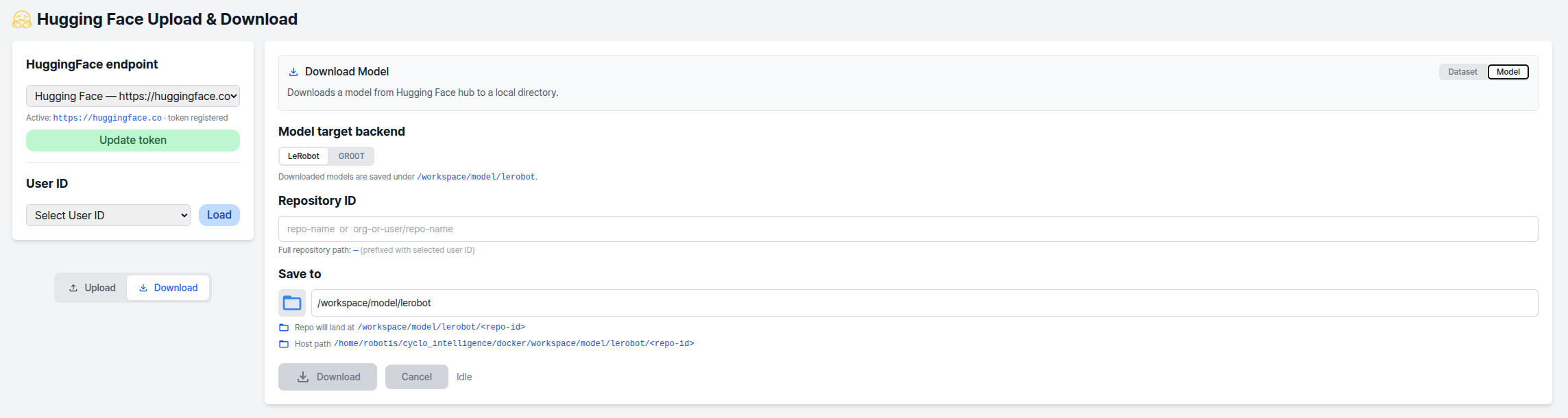
For the LeRobot policies, select the exported pretrained_model directory:
/workspace/model/lerobot/<run_name>/checkpoints/<step>/pretrained_model
For GR00T N1.7, select the checkpoint folder:
/workspace/model/groot/<run_name>/checkpoint-<step>
Cyclo Intelligence aims to expand this training flow to Green VLA, RLDX, PI, and other SOTA models from LeRobot and outside.