Data Tools
Use Data Tools after recording demonstrations. Work through the tools in this order:

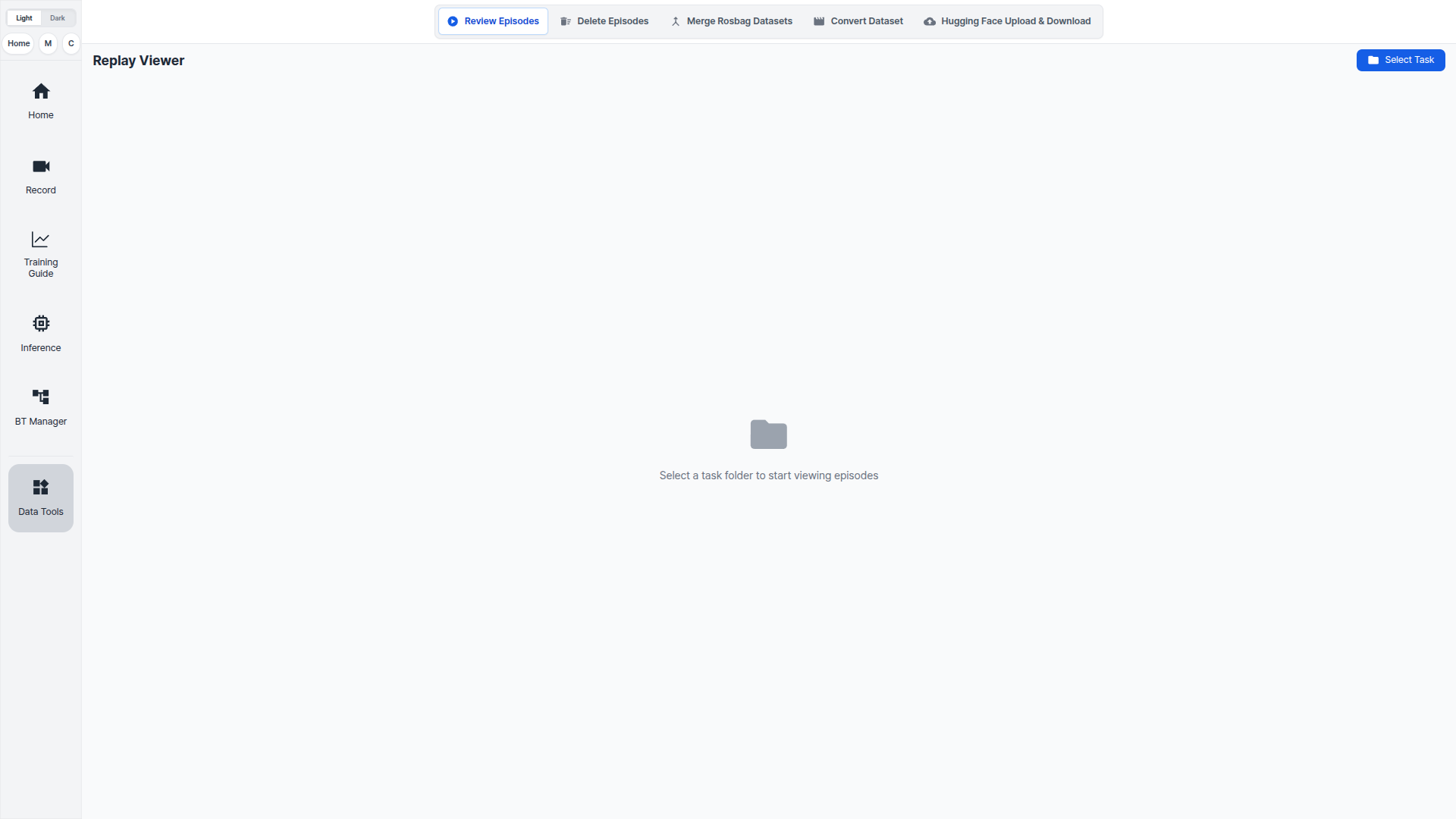
Review Episodes
Use Review Episodes first. Check that the recorded data is usable before moving to the next tools.
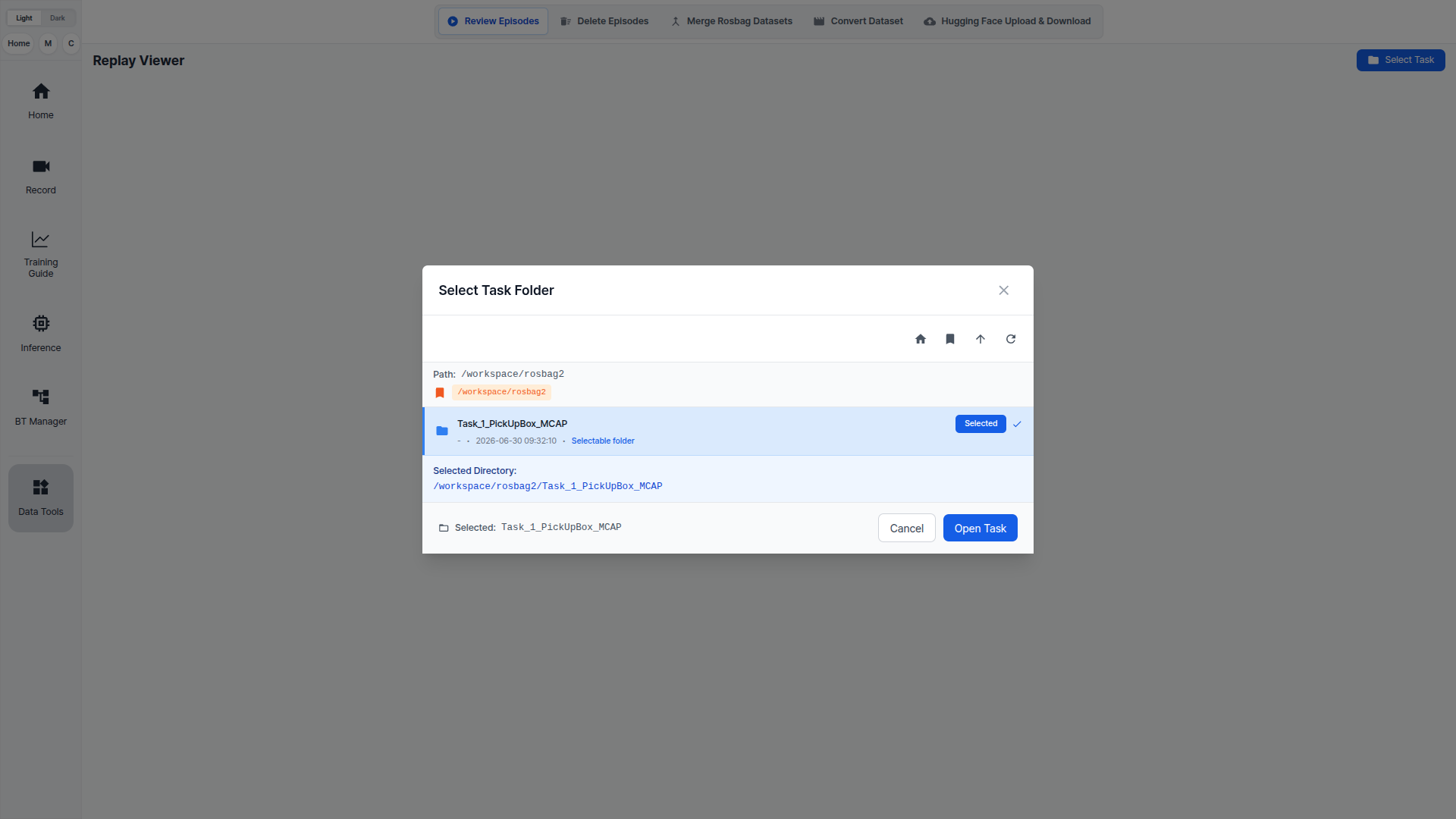
Click Select Task and choose the recorded rosbag2 task folder under /workspace/rosbag2.
Open the task and replay each episode. Check the camera views and 3D viewer. Also review the joint data, task information, and playback timeline.
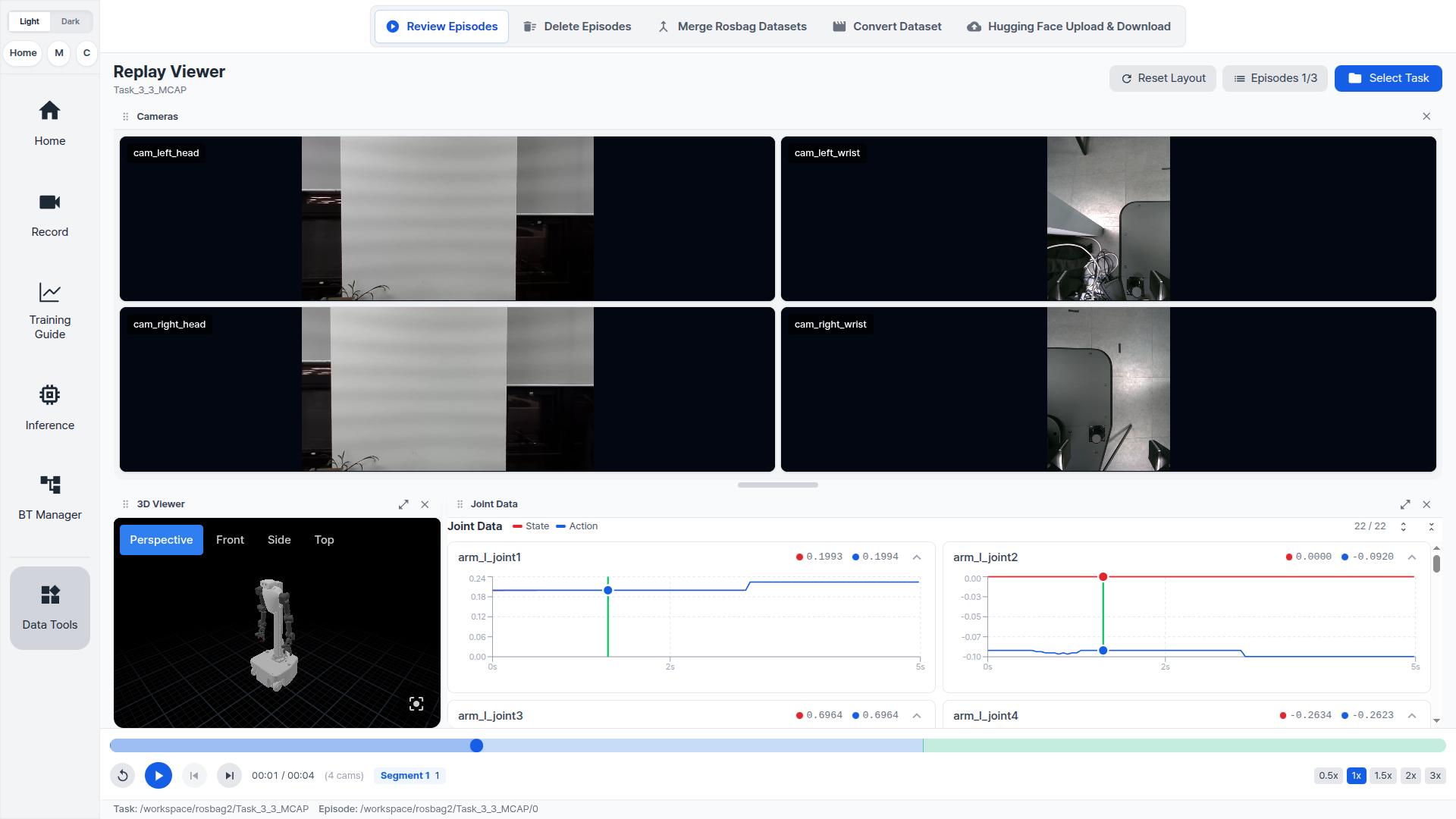
Note the episode index when an episode has failed motion or missing camera data. Do the same for wrong task instructions or any other unusable data. Remove those episodes from Delete Episodes.
Delete Episodes
Use Delete Episodes to remove failed or unwanted episodes from a recorded dataset.
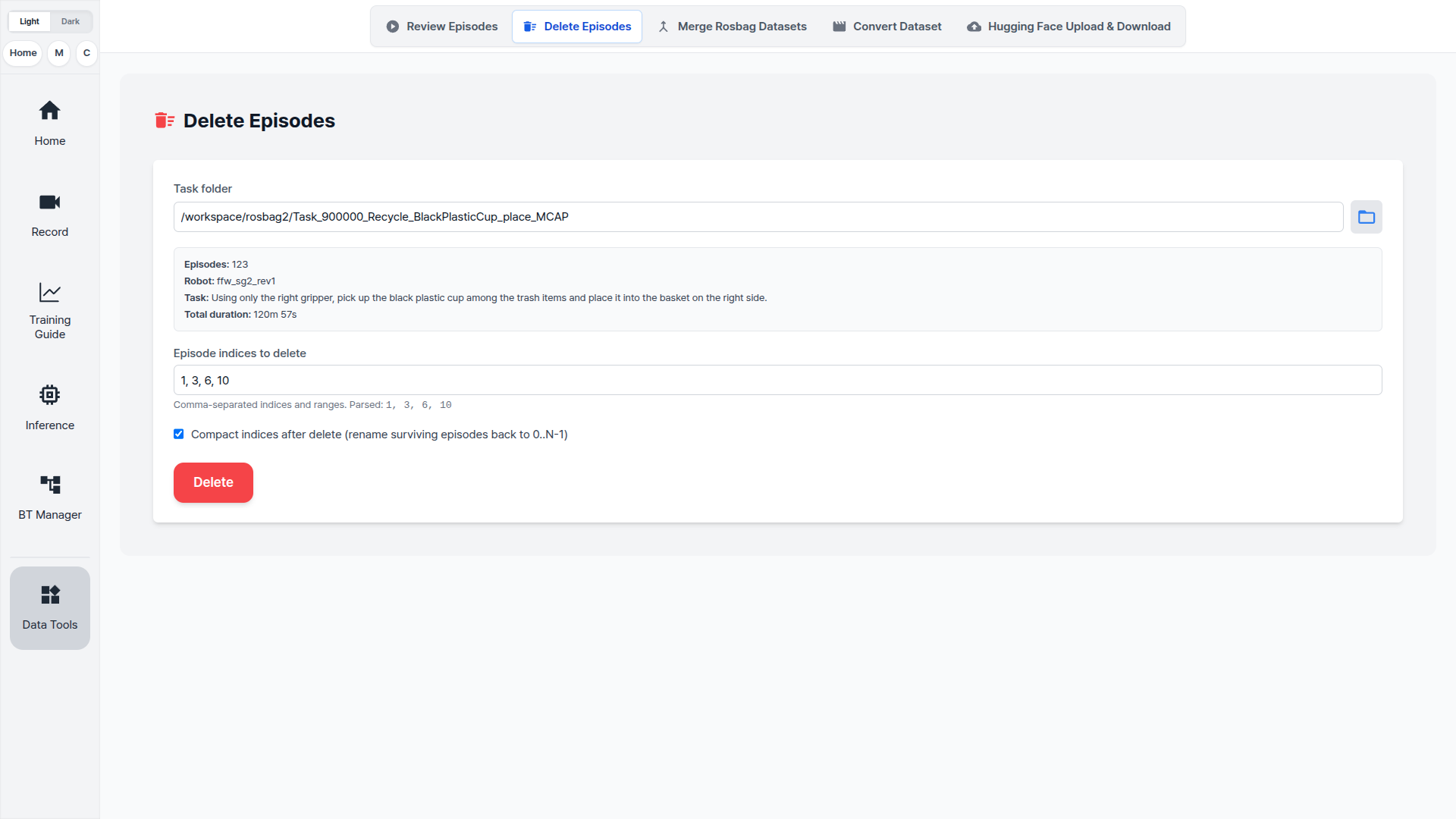
- Select the task folder under
/workspace/rosbag2. - Enter the episode indices to delete.
- Keep
Compact indices after deleteenabled when the remaining episodes should be renamed back to0..N-1. - Click
Delete.
Episode indices can be written one by one. Separate multiple indices with commas:
1, 3, 6, 10
Merge Rosbag Datasets
Use Merge Rosbag Datasets when demonstrations for the same task were recorded across multiple rosbag2 task folders.
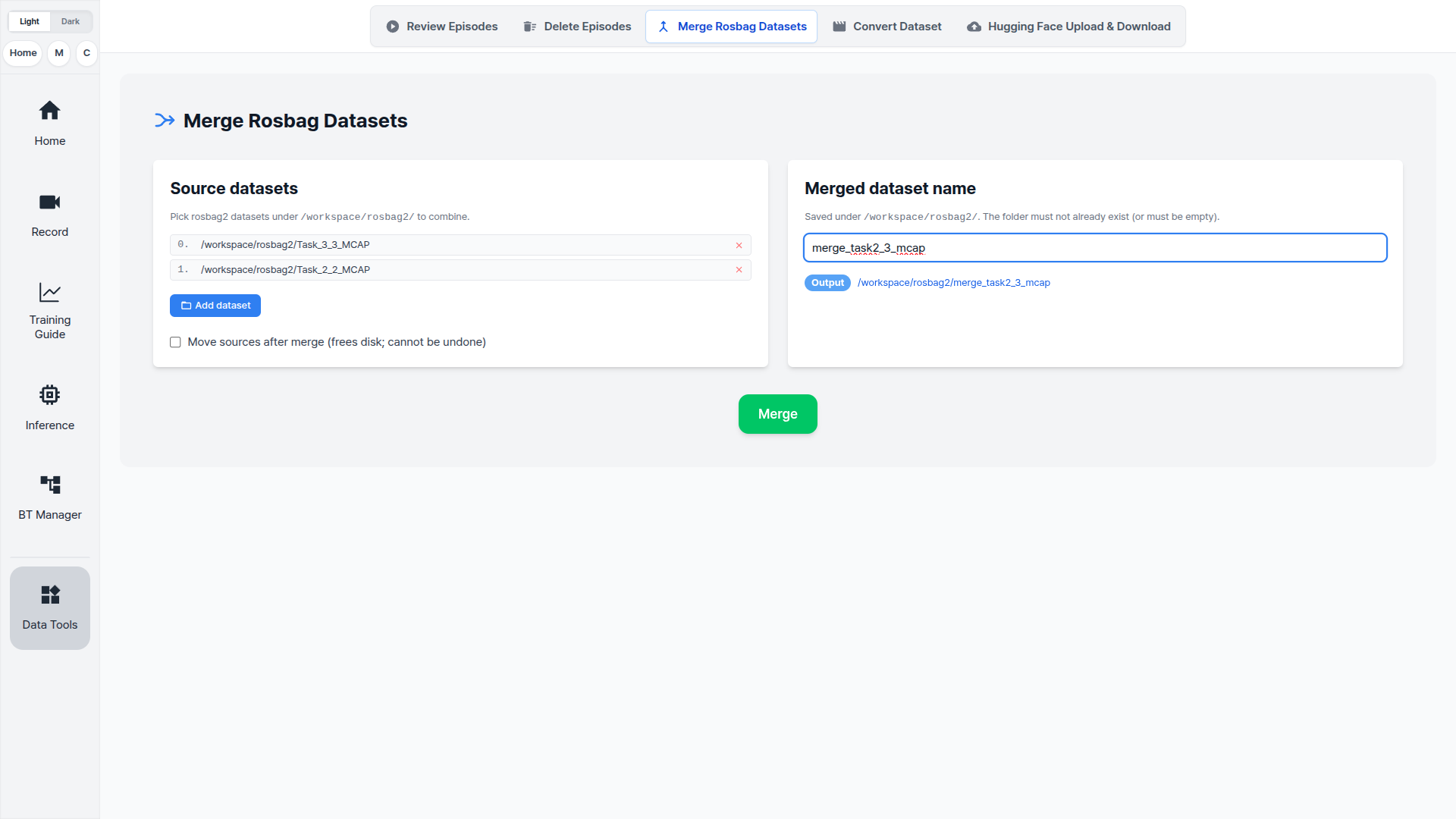
- Add two or more source datasets from
/workspace/rosbag2. - Enter the merged dataset name.
- Check the output path preview.
- Click
Merge.
The merged dataset is saved under /workspace/rosbag2.
Convert Dataset
Use Convert Dataset after the rosbag2 dataset has been reviewed and cleaned. If needed, merge datasets before conversion.
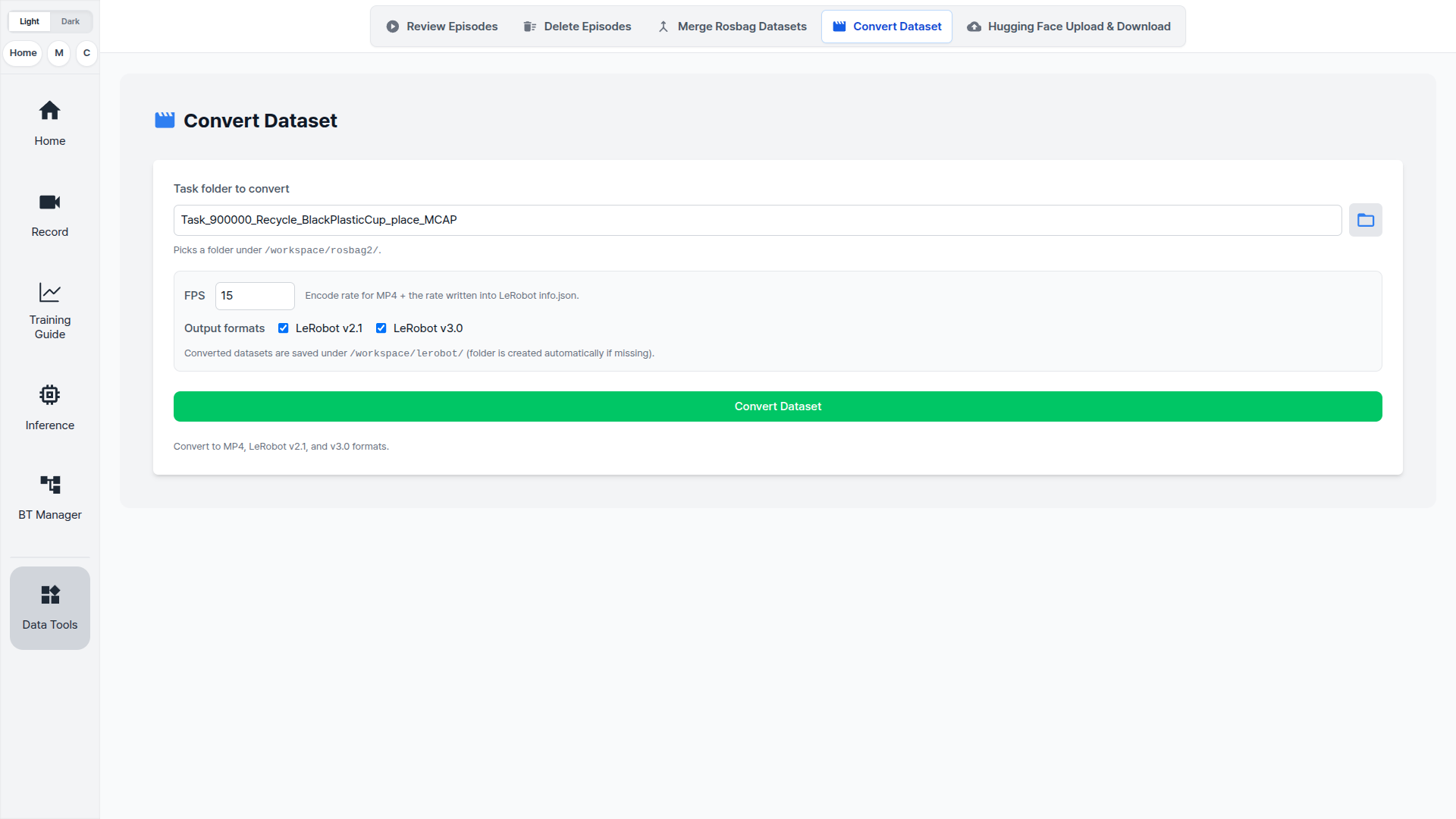
- Select the task folder to convert.
- Set the target
FPS. - Select
LeRobot v2.1orLeRobot v3.0. You can select both. - Click
Convert Dataset.
Converted datasets are saved under /workspace/lerobot.
During conversion, Cyclo Data parses the recorded MCAP topics. It aligns actions and observations to the requested FPS. It also selects the matching MP4 frames using the camera timestamp files. Then it writes the LeRobot dataset output.
Choosing the FPS
Base the target FPS on the rate your cameras actually publish at, not on a preferred number. Conversion downsamples camera streams to the target by keeping every Nth frame, so it can go below the camera rate but cannot invent real frames above it.
| Your camera topics publish at | Use |
|---|---|
| 15 Hz | 15 |
| 30 Hz | 30, or 15 for a smaller dataset |
| Different rates per camera | the rate of the slowest camera |
To read the actual rates, open the Topic Monitor on the Record page. It lists the measured Hz for every topic, including each image topic.
Hugging Face Upload & Download
Use Hugging Face Upload & Download after conversion or after model training.
| Data type | Use it for |
|---|---|
| Dataset | Upload converted datasets from /workspace/lerobot so they can be used on an external training server. |
| Model | Download trained model checkpoints back into /workspace/model before running Model Inference. |
After downloading a trained model, continue to Model Inference.