Autonomy Studio
Autonomy Studio is an integrated robot autonomy workspace that brings proven technologies—autonomous navigation and Behavior Trees—together with modern Vision-Language-Action (VLA) models in a single visual tool. Instead of switching between separate programs, you can design robot movement, structured task logic, and learned AI actions as one complete Task or Mission.
Its purpose is to make sophisticated robot autonomy practical for anyone who needs it. Build and validate a workflow in simulation, then deploy it to a physical AI Worker in the real world. Combine predictable Steps such as navigation, joint movement, waiting, and repetition with VLA-driven actions that respond to visual and language input without implementing the entire autonomy system from scratch.
The underlying task logic is presented as reusable Steps, so you can focus on the actions the robot should perform and how they should be sequenced. The type of workspace you choose depends primarily on whether the robot operates at a fixed location or moves between multiple work areas:
| Workspace | Use it for |
|---|---|
| Action Canvas | Tasks performed mainly at one work location, such as VLA-based whole-body control or manipulation while the mobile base stays in place. Arrange reusable Steps and run them without depending on a saved map. |
| Mission Canvas | Operations that move the robot between multiple work locations and run the required Task at each waypoint. Create or load a map, define a route, and combine waypoint Tasks to keep complex, long-running work organized and repeatable. |
A Task defines what the robot should do at a work location. A Mission coordinates where and when Tasks run as the robot moves between work locations.
Prerequisites
- Complete the AI Worker setup and bring up the robot.
- Start Cyclo Intelligence by following the Cyclo Intelligence Setup guide.
- Confirm that Cyclo Intelligence can communicate with the robot.
- In the Cyclo Intelligence Home page, select
ffw_sg2_rev1and click Set Robot Type.
Autonomy Studio currently supports only the ffw_sg2_rev1 robot type. The application blocks access when no robot type is selected or when a different type is active.
Several operations in this guide move the mobile base or robot joints. Keep the Remote E-STOP within reach, verify the intended route before every run, and keep people and obstacles outside the operating area.
Open Autonomy Studio
-
Open the Cyclo Intelligence web UI.
-
In the application sidebar, click Autonomy Studio.
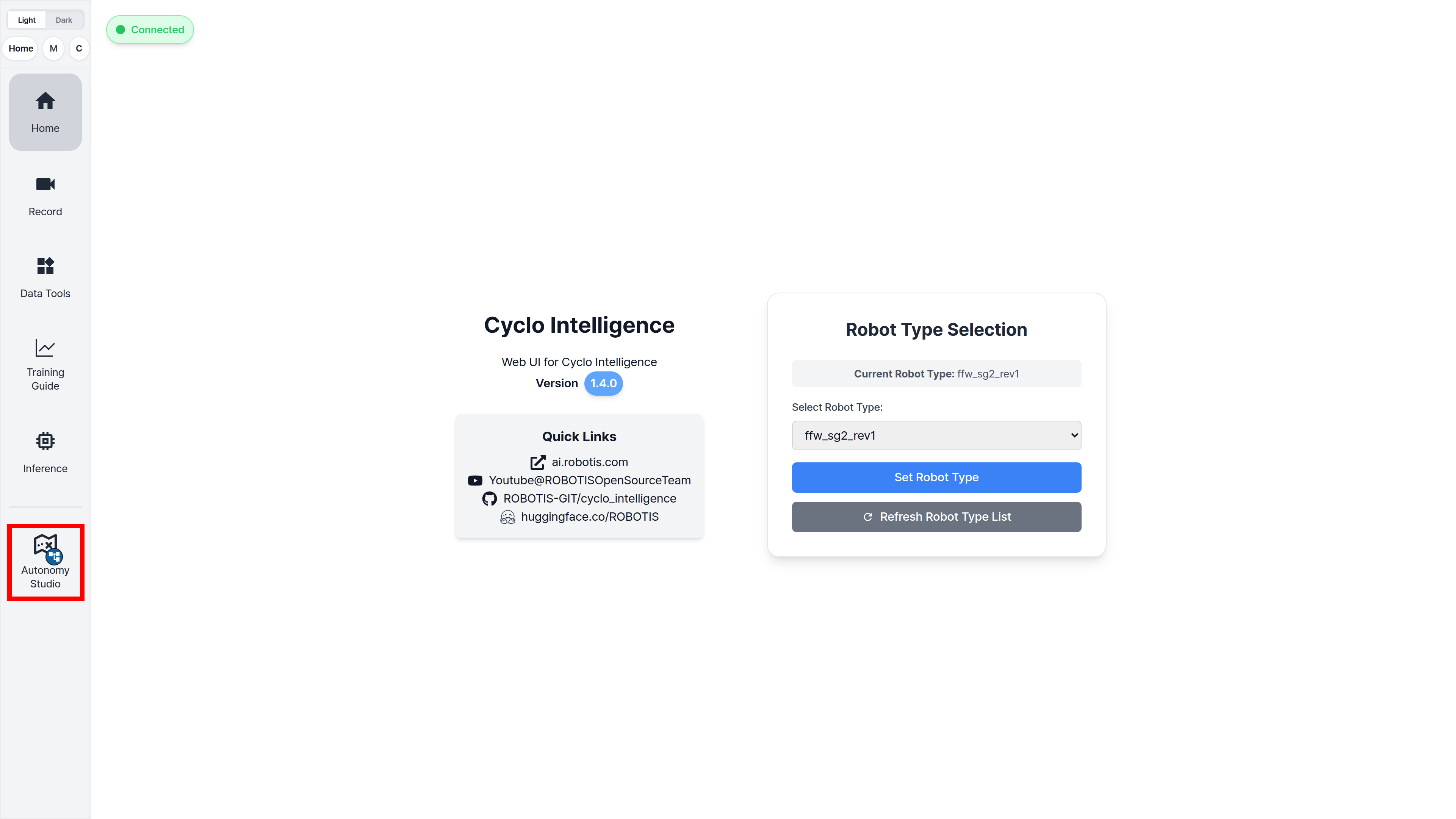
-
Select a workspace:
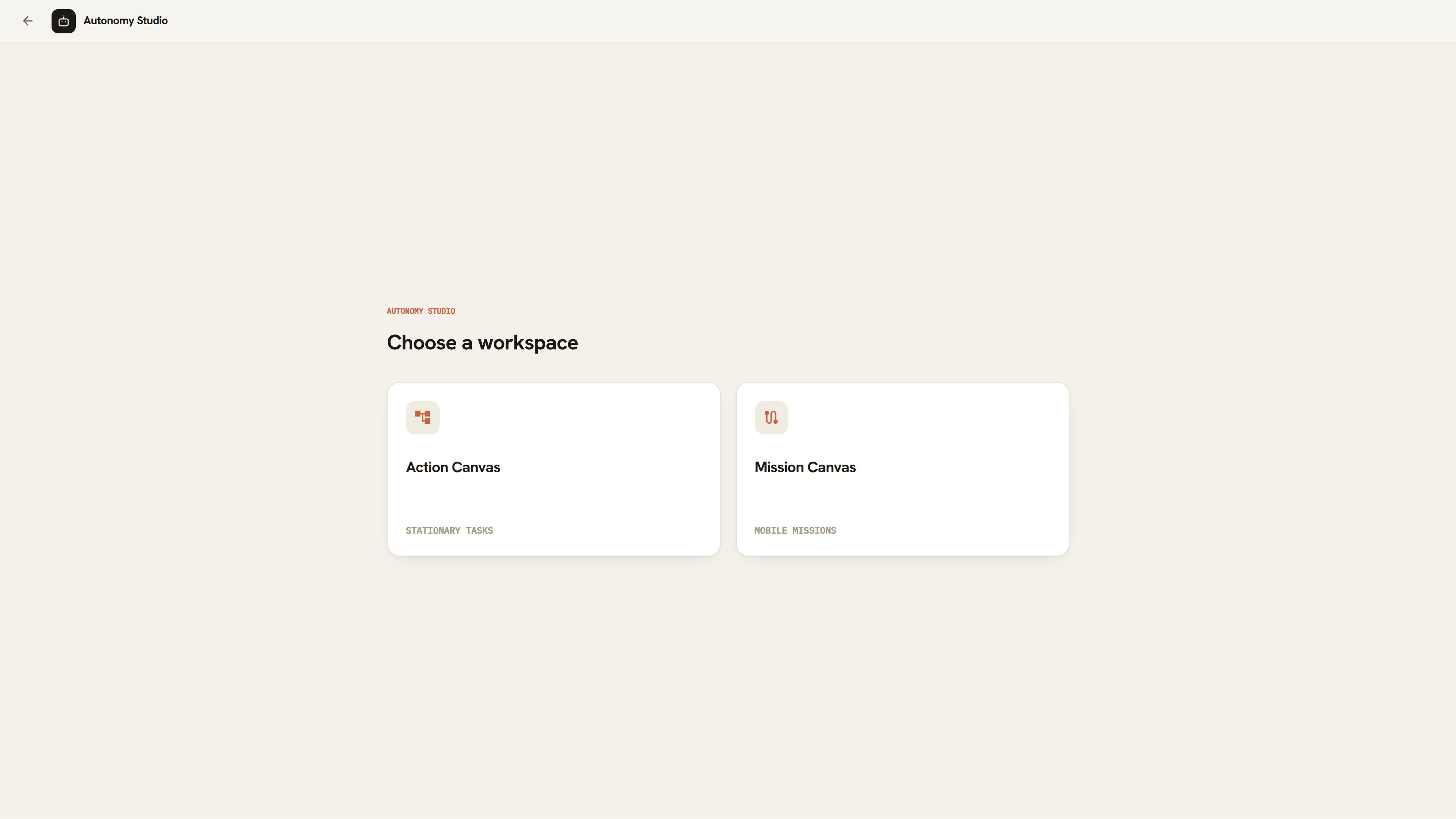
- Select Action Canvas for stationary tasks.
- Select Mission Canvas for mobile missions. Continue to Navigation to prepare maps and robot movement, or Mission to design and run waypoint operations.
Saved Assets
Autonomy Studio works with three related asset types:
| Asset | Contents | Used by |
|---|---|---|
| Map | PGM occupancy image, YAML metadata, and optional area annotations | Map Edit, Navigation, Design, Run |
| Mission | Waypoints, route order, route loop state, and Waypoint Task references | Design, Run |
| Task | Connected Steps and their settings | Action Canvas or an individual waypoint |
Deleting a map also deletes its YAML metadata, area annotations, and every Mission stored under that map. Review the deletion dialog before confirming.