Navigation
For ROS 2 and Zenoh communication, see Software Architecture: Middleware.
This guide shows how to bring up the AI Worker's navigation stack so the robot can move autonomously after basic setup.
1. Bringup the Robot
Complete the Bringup Guide to start the Zenoh daemon and bring up the robot before proceeding.
Place the robot on level ground with sufficient clearance for autonomous driving. For battery-powered models, check that the battery is charged.
2. Set Up the User PC for RViz2
On the User PC, prepare Git, Docker Engine, and the Docker Compose plugin. Use a graphical desktop session so RViz2 can display its window. See the Docker installation guide if Docker is not installed.
Clone the AI Worker repository on the User PC. If you already have a checkout, use the existing directory instead:
cd ~
git clone -b jazzy https://github.com/ROBOTIS-GIT/ai_worker.git
Start and enter the AI Worker Docker container:
cd ~/ai_worker/docker
./container.sh start
./container.sh enter
In the container terminal, follow External ROS 2 Communication to configure Zenoh and connect the User PC to the robot. Apply the same settings in each User PC terminal used for ROS 2.
3. Create and Save a Map
1. Start Mapping
In a new terminal, connect to the Robot PC via SSH, then enter the AI Worker container:
cd ~/ai_worker/docker
./container.sh enter
Start Navigation with SLAM enabled:
ros2 launch ffw_navigation navigation.launch.py use_slam:=true
Keep robot bringup, the Zenoh daemon, and this command running while mapping.
2. Open RViz2
On the User PC, use the AI Worker container terminal with the Zenoh configuration applied in step 2 to open RViz2 with the mapping configuration:
rviz2 -d ~/ros2_ws/src/ai_worker/ffw_navigation/rviz/mapping.rviz
3. Explore the Environment
Drive the robot through the area while monitoring the map in RViz2. Choose one of the following methods:
-
RViz2 goal: Use
2D Goal Poseto send a goal in the explored area. -
Keyboard teleoperation: In another Robot PC terminal, enter the AI Worker container and run:
cd ~/ros2_ws/src/ai_worker/ffw_teleop/ffw_teleoppython3 mobile_teleop.pyUse
W/Sto move forward or backward,A/Dto turn, and Space to stop. PressCtrl+Cto exit.

In the map, white represents free space, black represents obstacles, and gray represents unexplored space.
4. Save the Map
On the Robot PC, open another terminal, enter the AI Worker container, and save the map to the host-mounted workspace:
mkdir -p /workspace/maps
ros2 run nav2_map_server map_saver_cli -f /workspace/maps/my_map
This creates my_map.yaml and my_map.pgm in /workspace/maps. Choose another name if you want to keep an existing map with that name.
After saving the map, stop the SLAM-enabled Navigation launch with Ctrl+C in the terminal where it is running before starting Navigation with the saved map.
4. Navigate with a Saved Map
1. Start Navigation
On the Robot PC, enter the AI Worker container and start Navigation with the saved map:
cd ~/ai_worker/docker
./container.sh enter
ros2 launch ffw_navigation navigation.launch.py map:=/workspace/maps/my_map.yaml
Replace /workspace/maps/my_map.yaml with the path to your map YAML file if you saved it elsewhere.
2. Open RViz2
On the User PC, open a terminal and enter the AI Worker container:
cd ~/ai_worker/docker
./container.sh enter
Apply the same Zenoh settings from step 2 in this terminal, then open RViz2 with the navigation configuration:
rviz2 -d ~/ros2_ws/src/ai_worker/ffw_navigation/rviz/navigation.rviz
3. Set the Initial Pose
In RViz2, select 2D Pose Estimate and set the robot's position and orientation on the map so AMCL can localize it.
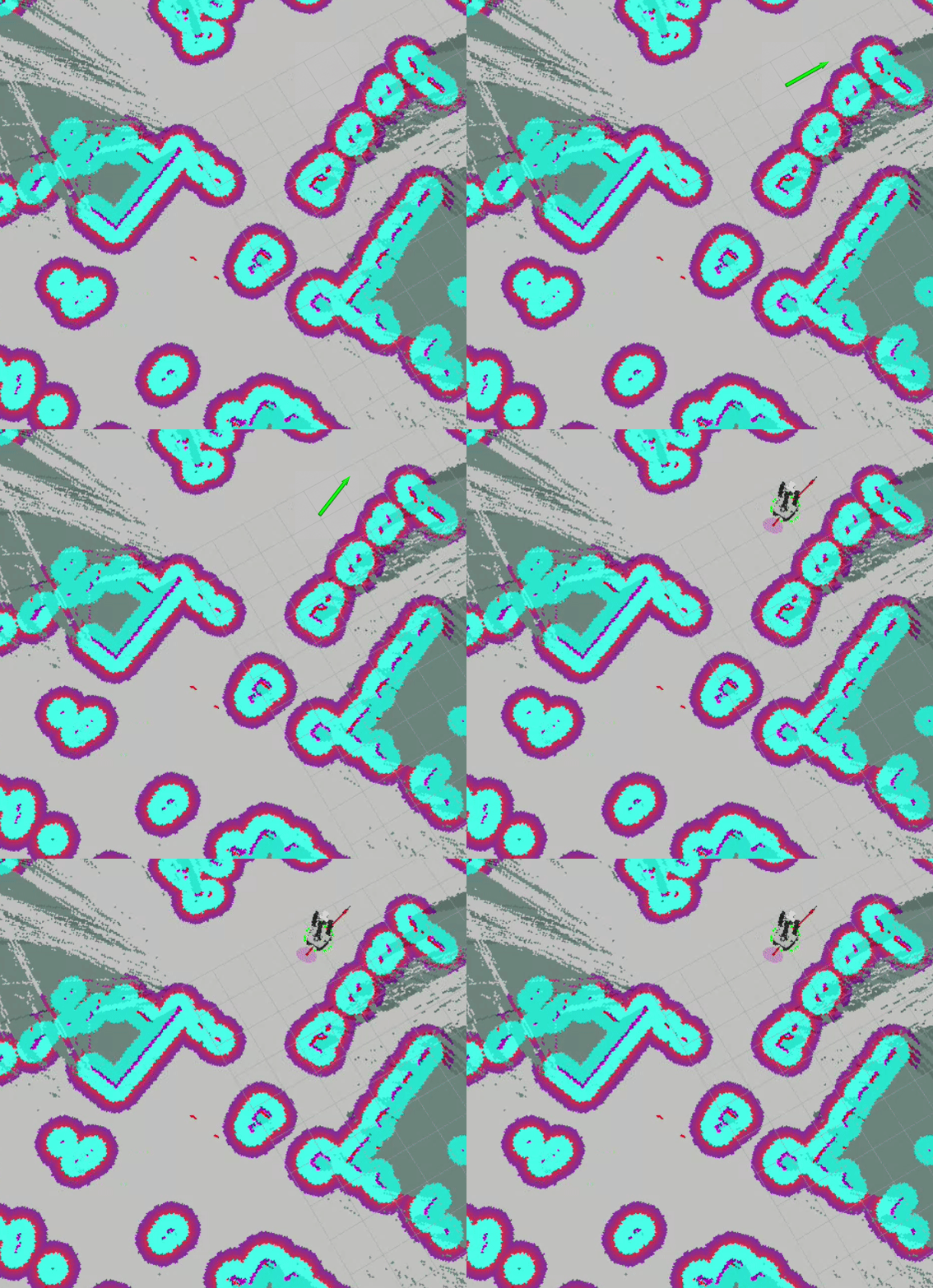
4. Send a Goal
In RViz2, select 2D Goal Pose and set the target position and orientation. The robot plans and follows a path to the goal.


Troubleshooting
For common issues, see Navigation Troubleshooting.
Tuning Guide
- AMCL localization: Adjust parameters in the
amclsection offfw_navigation/config/navigation.yaml. - Nav2 stack (costmaps, BT navigator, controller, planner): Adjust parameters in
ffw_navigation/config/navigation.yaml. - For detailed parameter descriptions across Nav2, see https://docs.nav2.org/index.html.
Safety and Usage Tips
- Keep people and obstacles clear while the robot is localizing or moving.
- If you need to pause, use RViz to clear goals or stop the navigation nodes with
Ctrl+Cin the running terminals. - For simulation-based testing (recommended before field deployment), see the Nav2 section in Gazebo.