Networking
AI Sapiens K1 supports multiple ways to connect to the robot's onboard PC (SBC), depending on your setup and use case.
- USB (RNDIS/ECM)
- Ethernet
- Wi-Fi AP/STA Mode Switching
We recommend connecting over USB (RNDIS/ECM) first to SSH in and configure Wi-Fi, then switching to a wireless SSH connection afterward.
USB (RNDIS/ECM)
The onboard SBC's USB-C port (device mode, circled below) exposes a network interface over USB. Connect a USB-A-to-C (or USB-C-to-C) cable between your PC and this port.
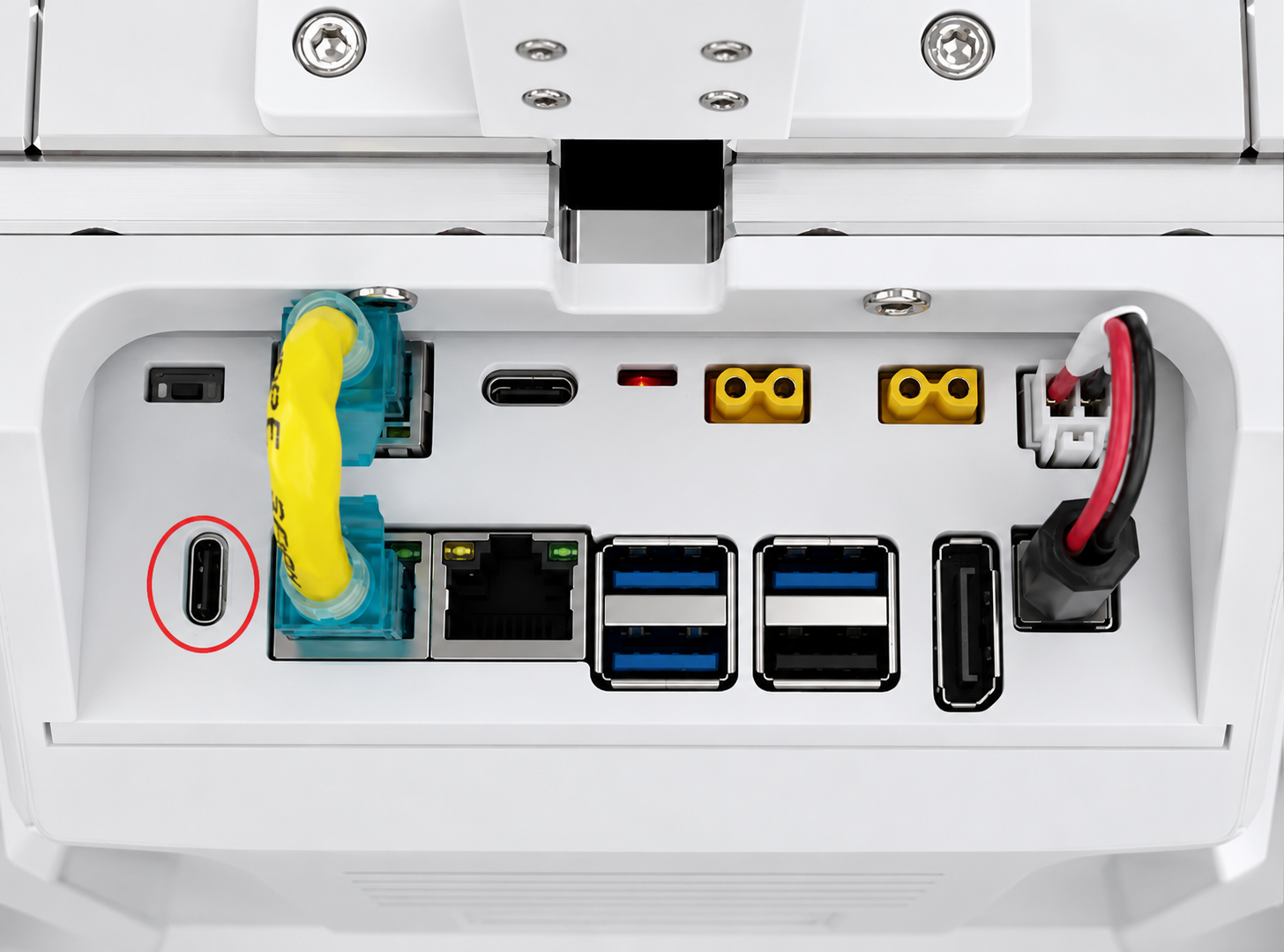
Once connected, your PC receives an IP address on the 192.168.55.0/24 subnet automatically via DHCP, and the robot can be reached at 192.168.55.1.
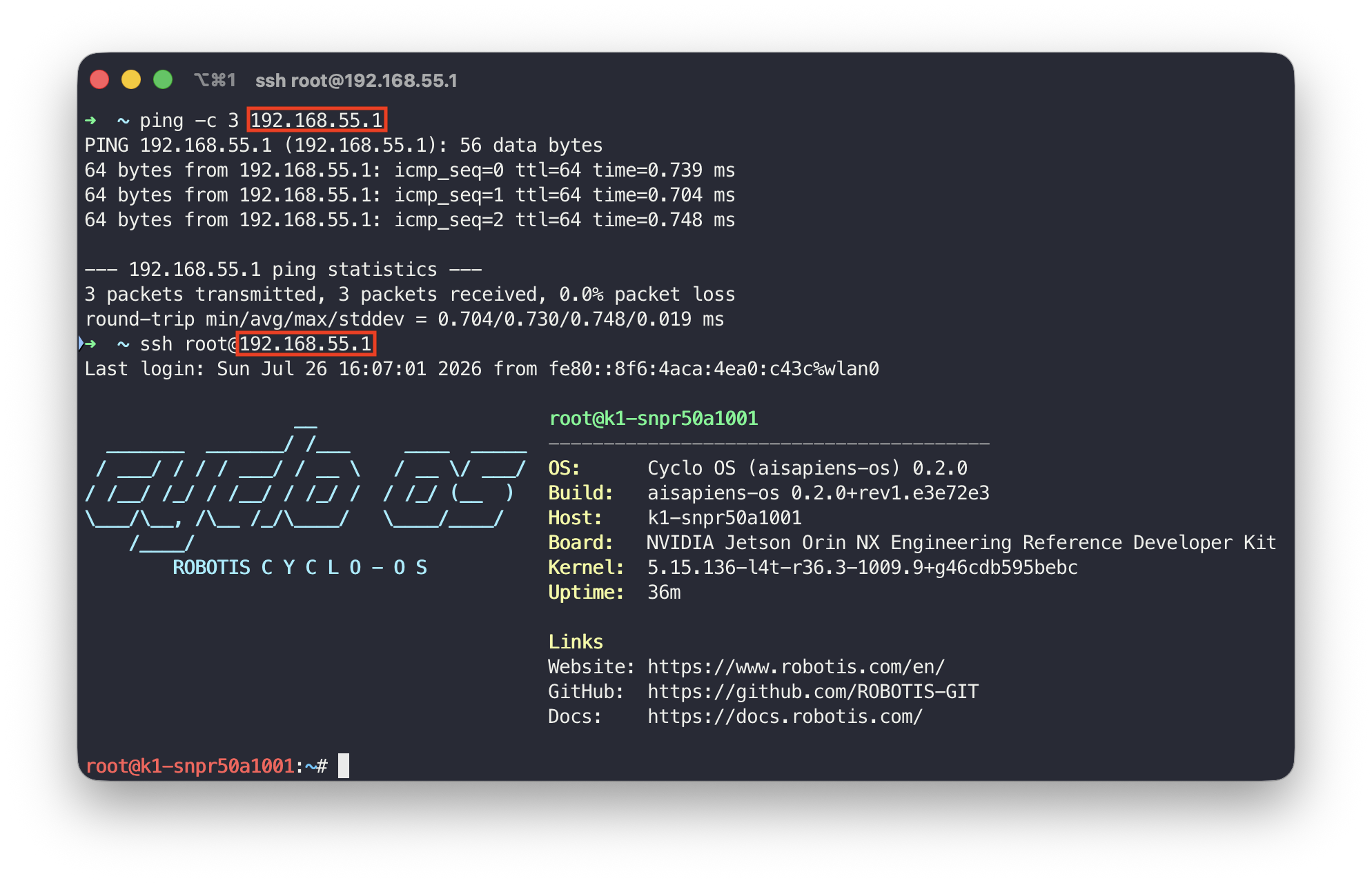
The robot can also be reached via mDNS instead of the fixed IP address — see How to SSH into the Robot.
Ethernet
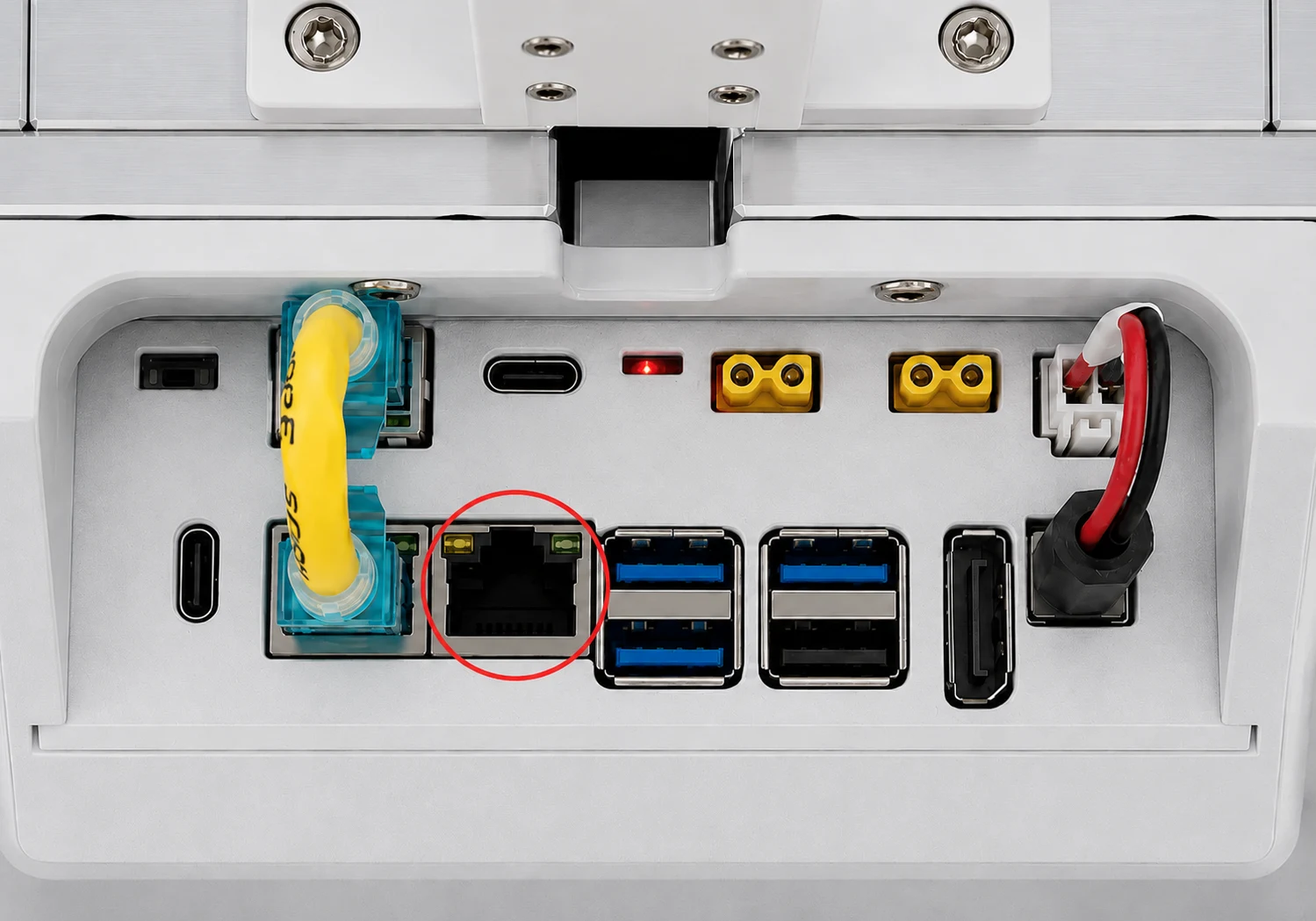
The SBC has two RJ45 ports. The port circled below is a DHCP client, so connect it to the same network as your PC (e.g. via a router or switch) and it will obtain an IP address automatically — see How to SSH into the Robot for reaching it over mDNS.
The other RJ45 port is already connected to the HAT board over a static address (192.168.10.2/24). Do not unplug it — doing so will break that link.
- Via a router
- Direct to Linux
- Direct to macOS
- Connect the robot's Ethernet port to your router or switch. It obtains an IP address automatically via DHCP.
- Connect your PC to the same router or switch.
- Reach it by hostname over mDNS — see How to SSH into the Robot. If mDNS isn't available on your network, check your router's admin page for the list of connected DHCP clients to find the robot's IP address instead.
-
Connect an Ethernet cable directly between the robot and your Linux PC (no router needed). If your PC has no built-in Ethernet port, a USB-to-Ethernet adapter/hub works too.
-
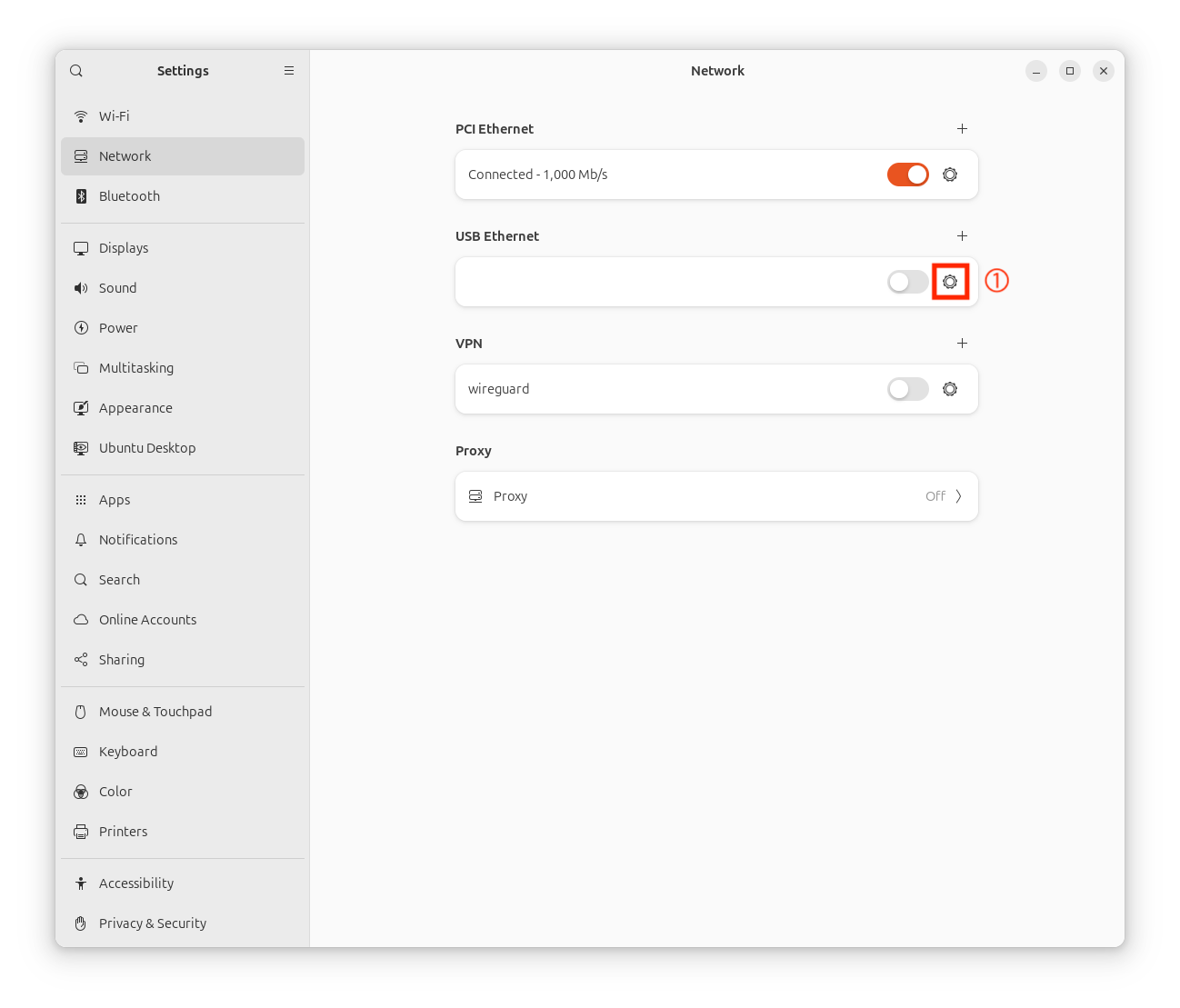
Open Settings → Network, find your Ethernet connection, and click its gear icon.
-
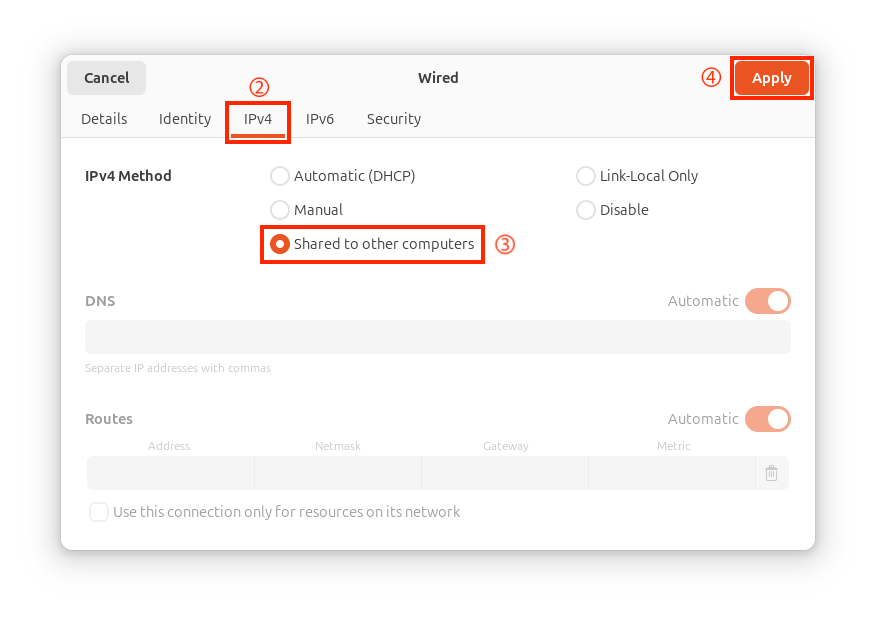
Go to the IPv4 tab and set the IPv4 Method to Shared to other computers, then click Apply.
-
Your PC now runs a DHCP server on that link, so the robot obtains an IP address automatically. Reach it by hostname over mDNS — see How to SSH into the Robot.
-
Connect an Ethernet cable directly between the robot and your Mac (no router needed). Most Macs need a USB-to-Ethernet adapter/hub for this, since they don't have a built-in Ethernet port.
-
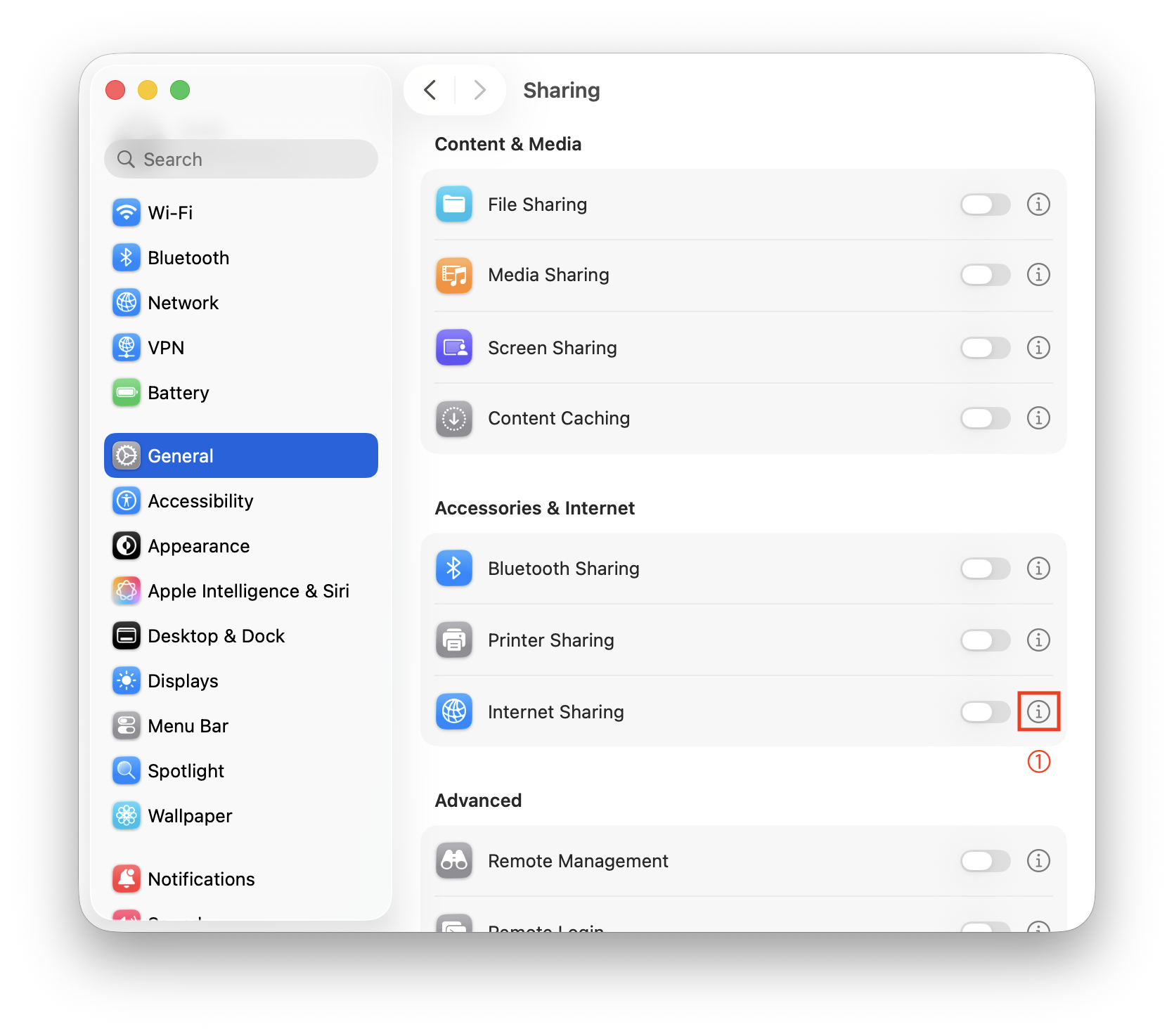
Open System Settings → General → Sharing, and click the ⓘ next to Internet Sharing.
-
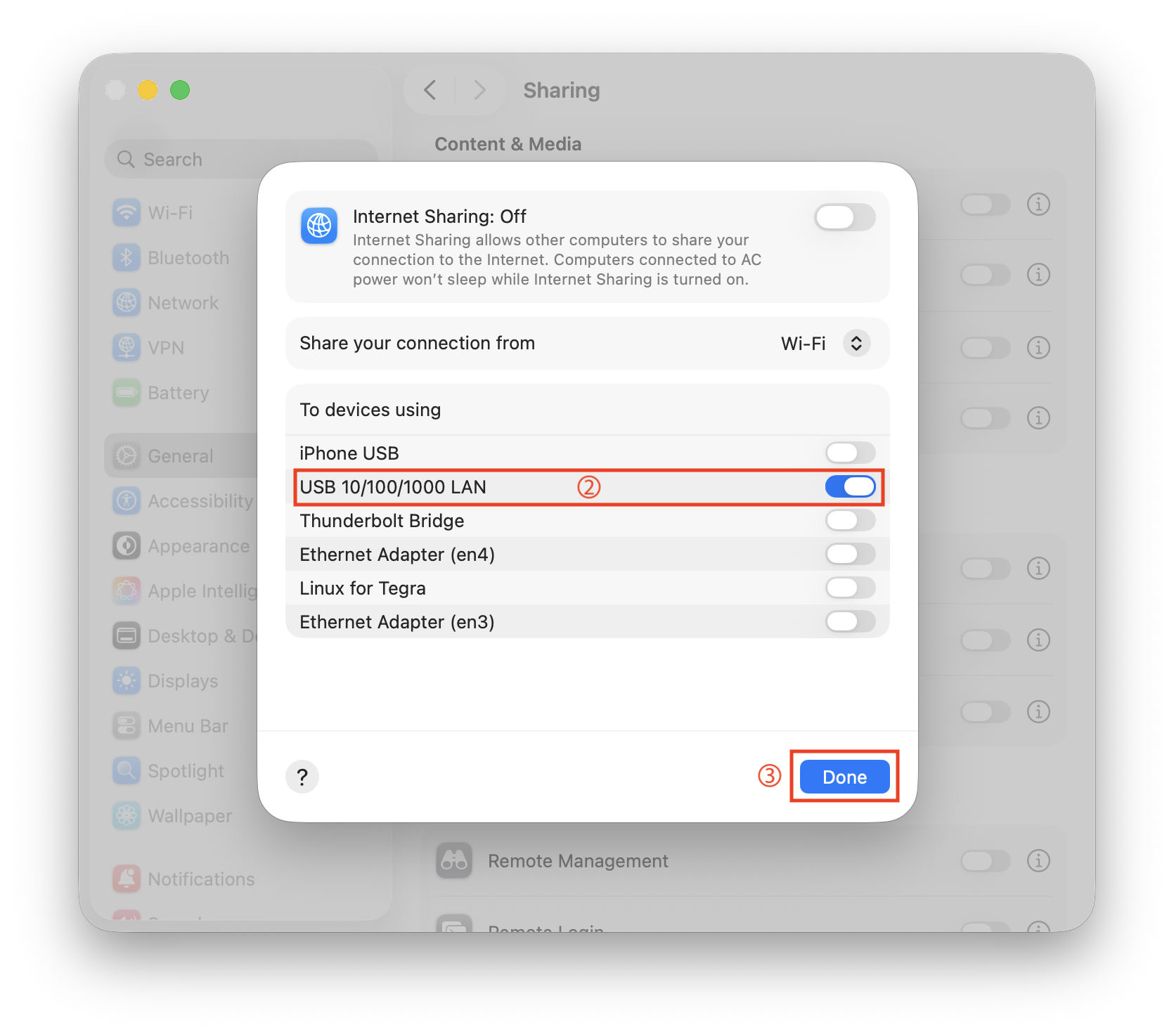
Find your USB-to-Ethernet adapter in the list and turn it on, then click Done.
-
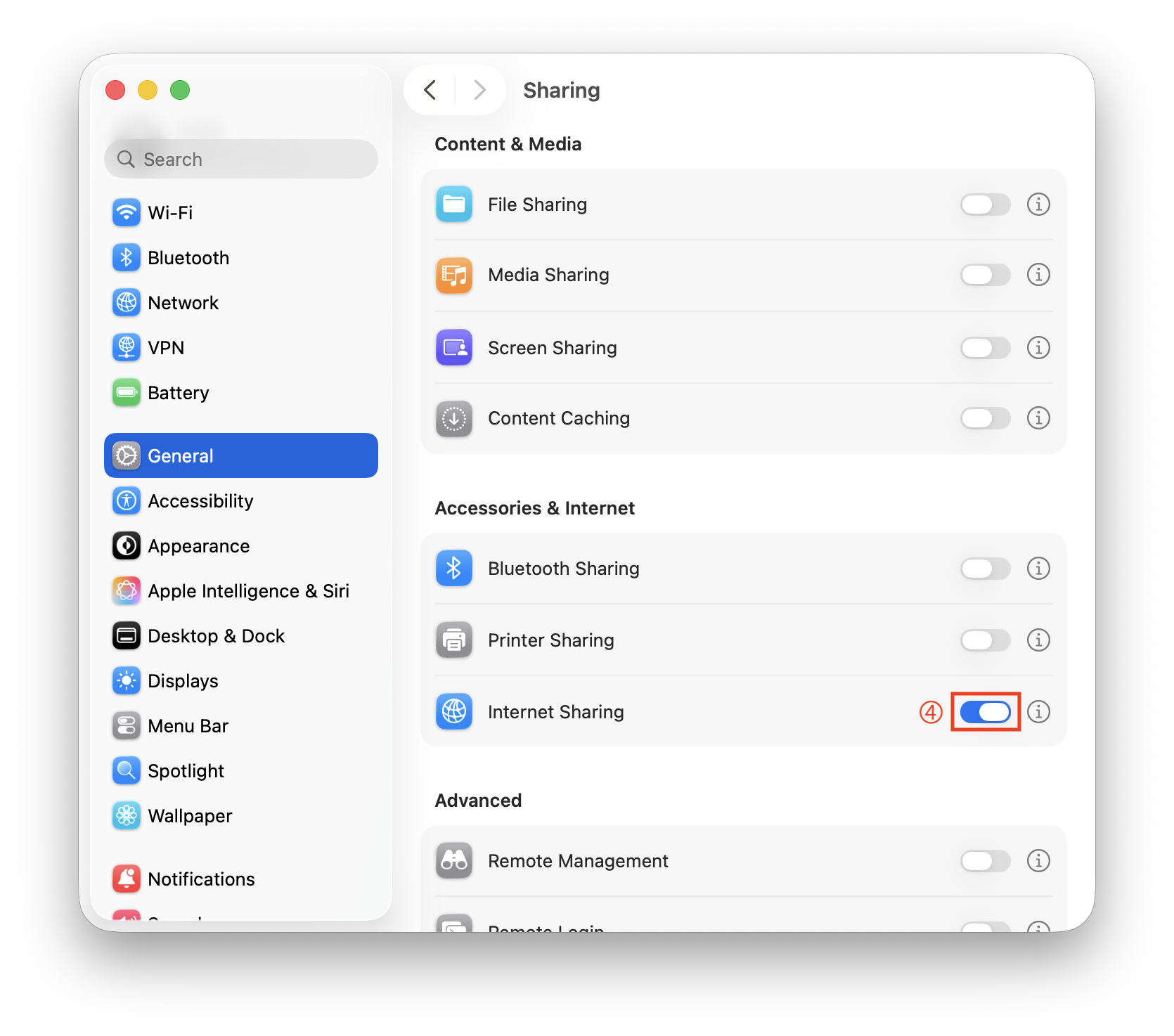
Turn on the Internet Sharing toggle.
-
Your Mac now runs a DHCP server on that link, so the robot obtains an IP address automatically. Reach it by hostname over mDNS — see How to SSH into the Robot.
Wi-Fi AP/STA Mode Switching
The robot's Wi-Fi radio runs in one of two mutually exclusive modes: hotspot (AP), where the robot broadcasts its own network, or station (STA), where it joins an existing Wi-Fi network. Switch modes with cycloctl wifi over an SSH session (see How to SSH into the Robot).
- AP (Hotspot)
- Station (Client)
Start (or update) the hotspot with specific credentials:
cycloctl wifi hotspot --ssid cyclo-hotspot --password my-secret-pass
Start an open (unsecured) hotspot by omitting just --password:
cycloctl wifi hotspot --ssid cyclo-hotspot
Reuse the last saved hotspot credentials:
cycloctl wifi hotspot
Other optional flags: --channel (defaults to 6), --country (defaults to US), --iface (defaults to wlan0).
If the SSID doesn't show up on another computer, turn that computer's Wi-Fi off and back on.
Join a network with specific credentials:
cycloctl wifi connect --ssid office --password my-secret-pass
Join an open network by omitting just --password:
cycloctl wifi connect --ssid office
Reuse the last saved station credentials:
cycloctl wifi connect
Other optional flag: --iface (defaults to wlan0).
Checking status
- AP (Hotspot)
- Station (Client)
cycloctl wifi status
Mode: ap
SSID: cyclo-hotspot
Applied: yes
IP: 192.168.50.1
You can also check the underlying radio state directly:
ip --color address show wlan0
hostapd_cli status
cycloctl wifi status
Mode: station
SSID: office
Applied: yes
IP: 192.168.1.42
You can also check the underlying radio state directly:
ip --color address show wlan0
wpa_cli status
Turning Wi-Fi off
cycloctl wifi stop