Introduction
R+ Task 3.0 is an integrated software tool that combines R+ Task 2.0 and R+ Motion 2.0.
- TASK
In computer science, a task generally means a set of relevant activities to complete the work at hand. In RoboPlus terms, a task code is a source code programmed for a robot to complete a task.
A robot operates according to the task code created by the user, and the RoboPlus Task is a program that helps the user to write task code easily. Task code has different file extensions based on RoboPlus software version. Please see below table.
| Software Version | Task File Extension |
|---|---|
| RoboPlus Task | tsk |
| R+ Task 2.0 | tskx |
| R+ Task 3.0 | tsk3 |
The Task files are not backward compatible, but lower version files can be converted to tsk3 with R+ Task 3.0.
- MOTION
Motion is a necessary set of position and speed data for DYNAMIXEL, which eventually becomes a valid movement for a robot.
In order to make the robot move, the correct Motion project file must exist for the robot. Motion project file has different file extensions based on RoboPlus software version. Please see below table.
| Software Version | Motion File Extension |
|---|---|
| RoboPlus Motion | mtn |
| R+ Motion 2.0 | mtnx |
| R+ Task 3.0 | mtn3 |
The Motion files are not backward compatible, but lower version files can be converted to mtn3 with R+ Task 3.0.
Compatible Controllers
Controller Compatibility Table
Getting Started
Software Download
PC
Smart Device
WARNING: Using R+ Task 3.0 with a table PC is not currently available due to resolution issues. It will be fixed in the near future. Please use R+ Task 3.0 with a smart phone or PC.
Menu Descriptions
-
Home Tab
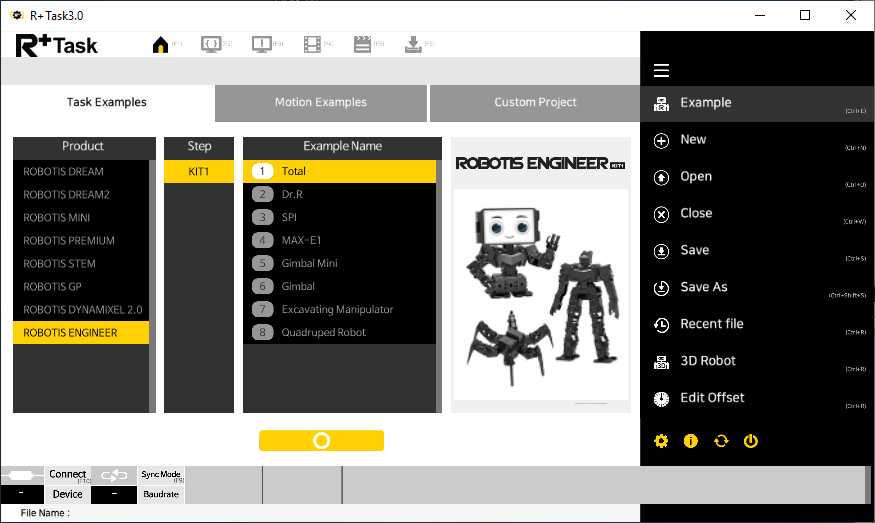
The following image is the initial screen at start up, which includes default examples, file and settings menu.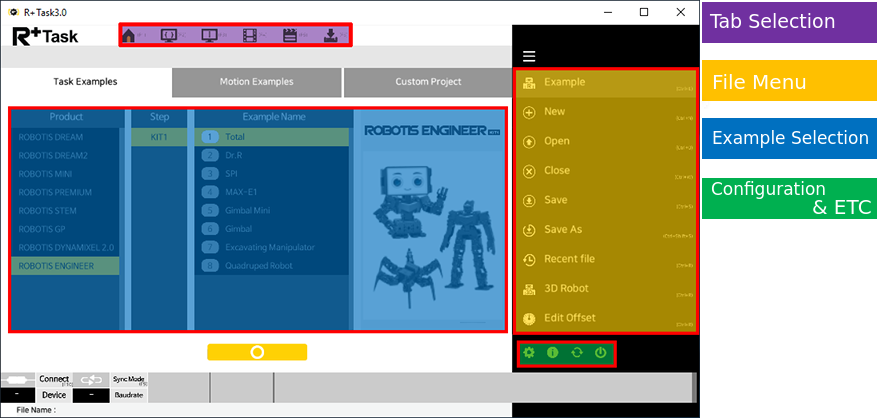
-
Programming Tab
The following image shows the task code programming screen, which provides programming toolbar, source view, outline menu, device and download menu.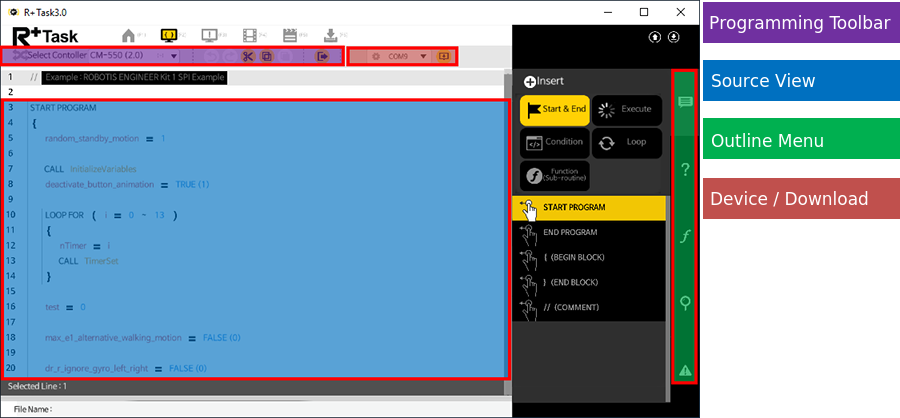
-
Debugging Tab
The following image shows task code debugging screen, which provides the output monitor and virtual remote controller functions.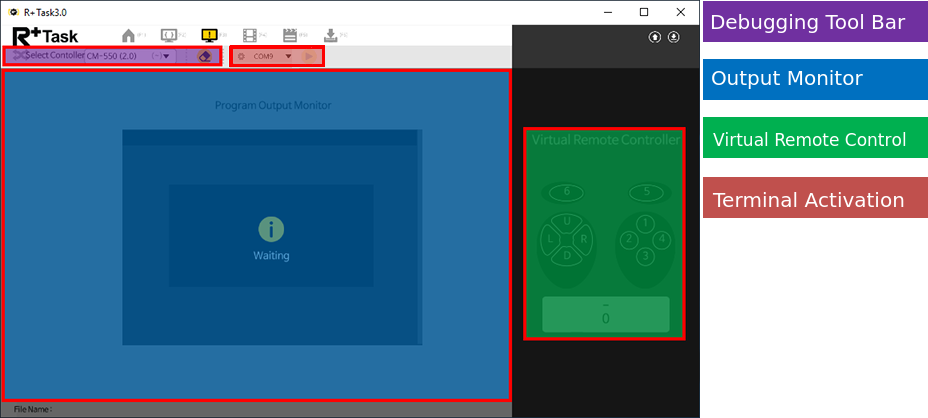
-
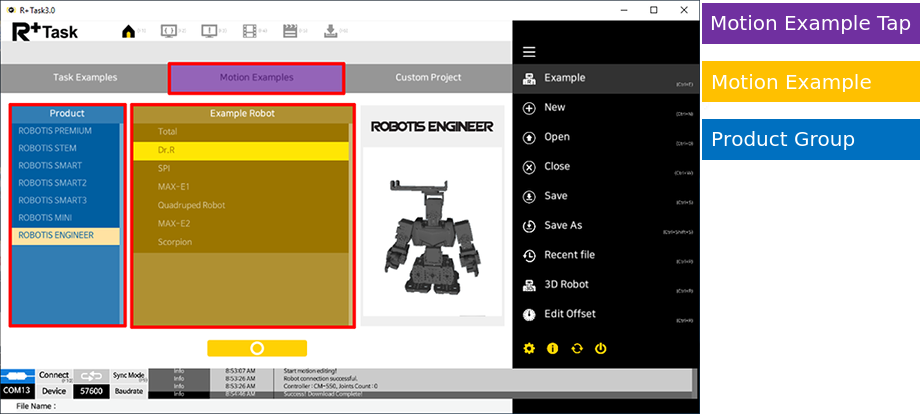
Motion Unit Tab
User can select the example motion or create custom motion in User Robot Project.
-
Motion Tab
User can select motion units play them.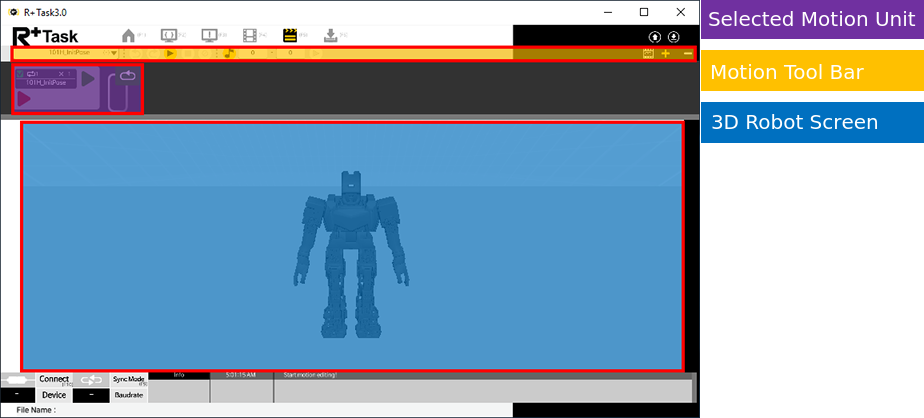
-
Motion Download Tab
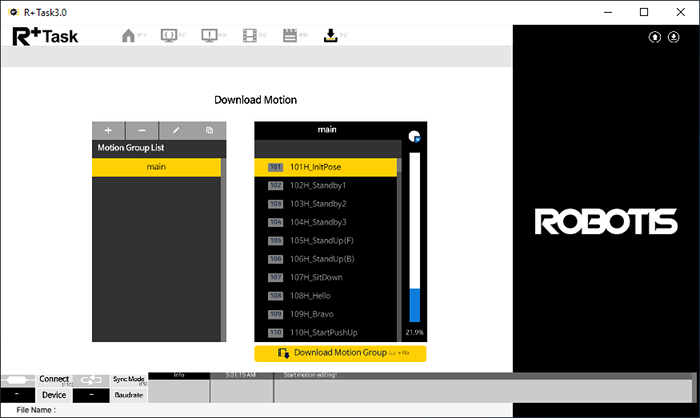
Selected motions can be downloaded to the controllers in this tab.