Programming
Edit
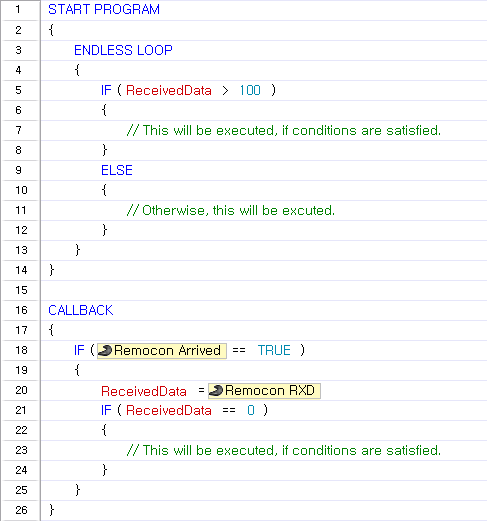
These are the methods used for editing in RoboPlus Task.
Select Multiple Lines
RoboPlus Task provides a function to select and edit (cut, copy, delete, comment,etc) multiple lines of program code. There are multiple ways to select multiple lines.
-
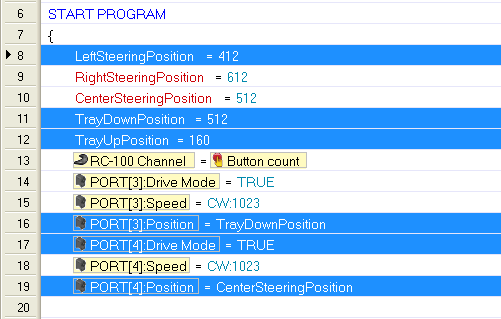
While pressing the Ctrl key, click on the lines with the mouse.
-
Click on the first line, and while pressing the Shift key, click on the last. The lines between the two lines will be selected.
-
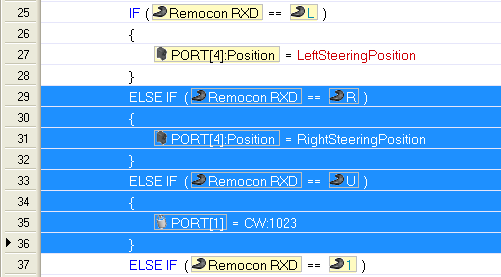
Click and drag on the lines you want to select.
-
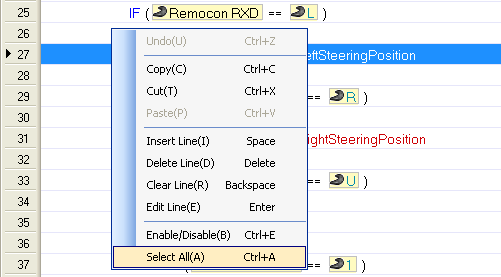
To select all lines, right-click on the code, then click select "Select All". You may also press Ctrl + A.
Insert New Line
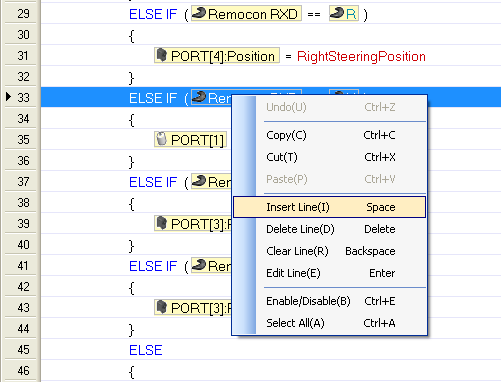
RoboPlus Task provides a function to insert a line between existing lines. There are multiple ways to insert new lines.(New lines will be inserted below the highlighted line.
-
Press the Space bar.
-
Right click, then select "Insert Line"'.
Delete Lines
RoboPlus Task provides a function to delete lines. One or more lines may be deleted at once. There are multiple ways to delete lines.
-
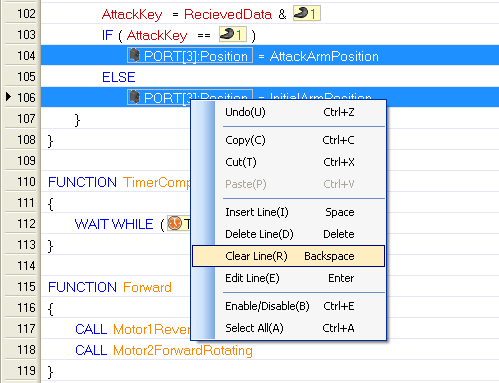
Select the line(s) to delete, right-click, and click "Clear Line". The lines will be cleared, resulting in blank lines. You may also press the Backspace (←) key.
-
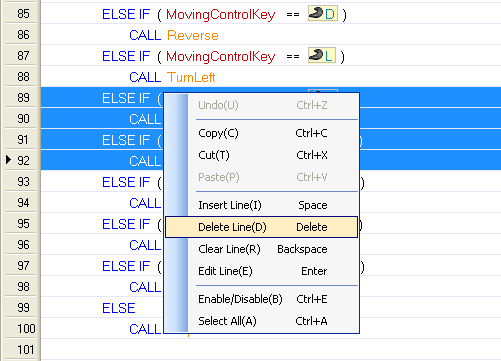
Select the line(s) to delete, right-click, and click "Delete Line". The lines will be deleted, and the lines below the deleted lines will move up. You may also press the Delete key.
Enable/Disable Lines
RoboPlus Task provides a function to enable or disable lines. There are multiple ways to enable/disable lines.
-
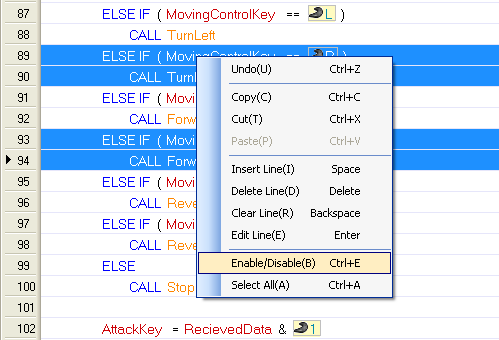
Select the line to enable or disable, right-click, and click "Enable/Disable".
-
Select the line to enable or disable, and press Ctrl + E
-
The function will enable disabled lines and disable enabled lines.
-
This function is commonly used to keep certain commands from being executed in certain situations, such as when testing code.
Copy/Cut/Paste
RoboPlus Task provides a function to cut, copy and paste lines.
Copy
-
Select one or more lines, right-click, and click 'Copy'.
-
The selected line will be copied to a temporary clipboard.
-
When you perform the 'Copy' function, the data in the clipboard will be replaced with the new selection.
-
The shortcut is
Ctrl+C.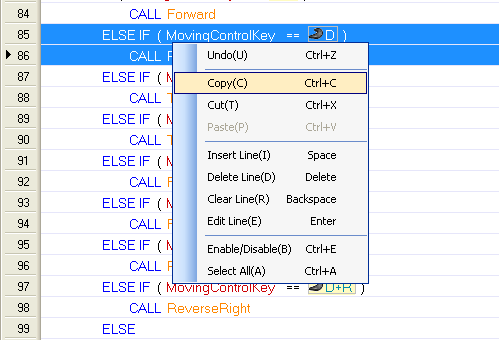
Cut
-
Select one or more lines, right-click, and click "Cut".
-
The selected line will be deleted and stored in a temporary clipboard.
-
When you perform the "Cut" function, the data in the clipboard will be replaced with the new selection.
-
The shortcut is
Ctrl+X.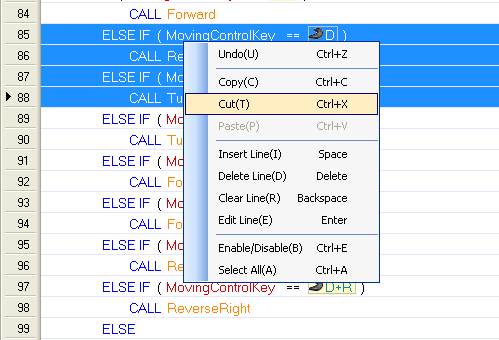
Paste
-
You can use this function only when there is data in the clipboard.
-
Select the line where the data will be pasted, right-click, and click "Paste".
-
The data in the clipboard will remain even after it has been pasted, so you can paste the same data many times.
-
If you perform the "Paste" function on a line with code, the code will be overwritten with data from the clipboard.
-
The shortcut is
Ctrl+V.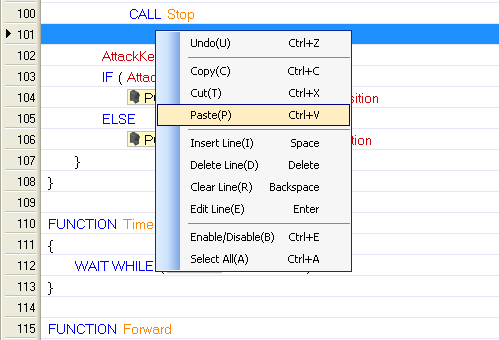
Find Name
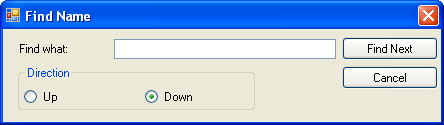
RoboPlus Task provides a function to search for used elements.
- From the "'edit" menu, select the"'Find Name" function. The shortcut is Ctrl+F.
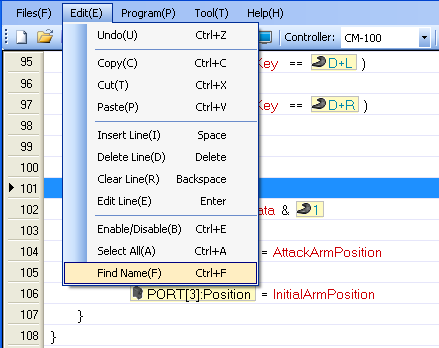
- Enter a keyword and click the "Find Next" button.
Commands
Start Program
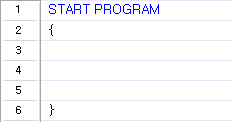
"Start Program" designates the beginning of a program. Regardless of the line number, the program will always start at this point. "Start Program" is like the "main" function in the C language.
Usage
- "Start Program" is executed regardless of its line number.
- A program cannot have more than one "Start Program" command.
- The body of the command must be enclosed by brackets.
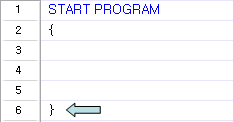
- The program will end when the closing bracket( } ) is reached.
Example
Start a program with the "Start Program" command.
End Program
If this command is called during program execution, the program exits immediately. There are 2 ways to end a programme.
-
When the end of "Start Program" is reached(Natural Exit).
-
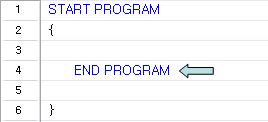
When "End Program" is called(Forced Exit).
Usage
Call the command at the point in the program where you want it to end.
Example
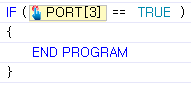
In this sample code, the program will end when the touch connected to Port3 is pressed.
Start/End of Section
A block or a section (identified by "{" and "}") is a group of commands. All commands in a block have the same scope. The concept of a block is the same as in the C language.
Usage
Each block has an opening bracket ({) and a closing bracket (}). RoboPlus Task performs automatic indentation to show whether the brackets have been paired properly. If there are missing brackets, they must be added before the program can run indentation. If they were not arranged properly, you have to revise them by yourself.
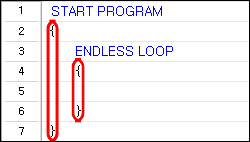
Each block must be "owned" by a command. Blocks cannot be used independently with commands. The followings are the most commonly used commands that are followed by a block.
- Start Program
- If / Else if / Else
- Endless Loop
- Loop For
- Loop While
- Callback Function
- Function
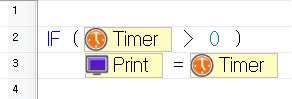
If a command is made by one line, it is possible to skip the block brackets.
Example
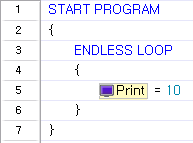
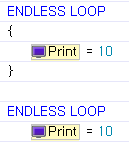
The "Start Program" and "Endless Loop" commands must be followed by blocks, as shown in the example below.
Comments/Notes
This command is used to insert a comment or a note in the program code. Comments are helpful when interpreting or reviewing the code later. They are mostly used to mark easily forgotten parts or to emphasize important information. Comments and notes do not affect the program in any way. Like in C, comments can be made with two slashes(//). Comments blocks ( '/*', '*/' ) are not supported.
Usage
- Insert the commend where you would like to write a comment or note.
- When "//" is added, double click or press Enter to write in the comment or note.
- Pressing ESC while writing will erase what has been written and return the line to its previous state.
- When finished, press Enter.
Example
This code will print "10" on the screen. The comment explains how the command line below will be executed.

Calculate
"Calculate" is a command to perform an arithmetic operation on two numbers.
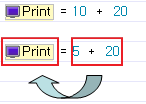
"Calculate" can perform the following operations:
- Basic Operations (supports negative numbers)
- Addition(+): Add two values.
- Subtraction(-): Subtract the second number from the first number.
- Multiplication(*): Multiply two numbers.
- Division(/): Divide the first number by the second number (Remainders are discarded.)
- Bit Operations(Means 2 decimal operation).
- AND(&): Perform a logical AND operation.
- OR(|): Perform a logical OR operation.
Usage
You can choose an operator by double clicking a mouse or by pressing the Enter key.
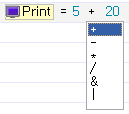
Choose the appropriate 3 parameters (result, operand1, operand2) necessary for the command.

Example
This example shows how to add 10 and 20 and to display the result on the screen.

Load
Load is defined as "to place into an appropriate device". In RoboPlus Task, Load places a value in a device.
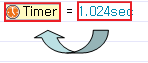
Load is used for the followings:
- To execute a device's function.
- To move a value.
Usage
Choose the appropriate 2 parameters (destination, source) necessary for the command.

Example
To execute a device(Set the timer to 1.024 seconds).

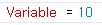
To set a value (Insert 10 into the variable)
Label/Jump
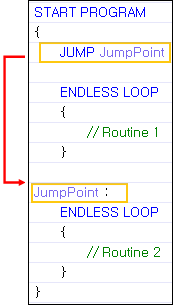
Label and Jump are used to branch a program. Branching is used to change the order commands in a program are executed. Jump branches the program and Label designates where to branch to. It is the same function as Label and Goto in the C language.
Usage
-
Label names must abide by the following rules:
- There cannot be duplicate label names.
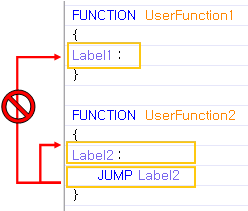
- Label must exist within a program or function body.
- A jump to a label in another function is not possible.
- Spaces and Special characters(!, @, #, $, etc.) are not allowed in label names.
- Labels cannot start with a number.
-
While inputting the label name, Press Esc to cancel.
-
Otherwise, press Enter to save
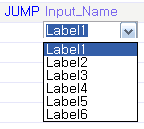
-
While selecting the label to jump to, Press Esc to cancel.
-
Otherwise, click the appropriate label or press Enter while the label is highlighted to save.
-
A jump can only be made to an existing label.
-
The label must be in the same function block as the jump command.
Example
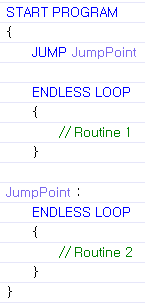
In this sample code, the program jumps to "JumpPoint" as soon as it starts and executes "Routine 2".
If/Else if/Else
These commands will branch the flow of the program depending on whether the condition is true or false.
- If : Execute if the clause is true. This is the equivalent of the "if" statement in C language.
- Else If : Execute if the clause is true and previous clause ("if" or "else if" clause) is false. This is the equivalent of the "else if" statement in C language.
- Else : Execute if none of the conditions are true. This is the equivalent of the "else" statement in C language.
What's a Conditional Clause?
Conditional clause is a feature to perform different actions depending on whether the condition evaluates to true (condition is met) or false (condition is not met). Conditional clause is composed of the following 3 parts: parameter 1, relational operator, and parameter 2 in order.

These are 6 types of relational operators.
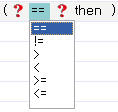
- == : True if the two parameters are equal.
- != : True if the two parameters are not equal.
- >= : True if parameter 1 is greater than or equal to parameter 2.
- > : True if parameter 1 is greater than parameter 2.
- <= : True if parameter 1 is less than or equal to parameter 2.
- < : True if parameter 1 is less than parameter 2.
Conditional clause can be combined into a complex conditional clause using conditional operators. A complex conditional clause is composed of the following 3 parts: conditional clause 1, conditional operator, conditional clause 2.

There are 3 types of conditional operators.
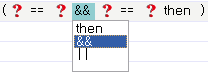
- then : Does not link any clauses.
- AND(&&) : True if both conditional clauses are true.
- OR(||) : True if one of the conditional clauses is true.
There is no limit to how many conditional clauses can be combined into one complex conditional clause. Each conditional clause is evaluated in order, and the final value will be either "true" or "false."
Usage
-
An 'IF' command must always precede an "Else if" or an "Else" command.
-
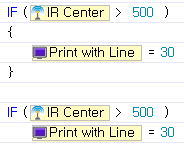
A block, designated by brackets, needs to follow each clause(However, if the block consists of only one line, the block need not be enclosed with brackets).
Example
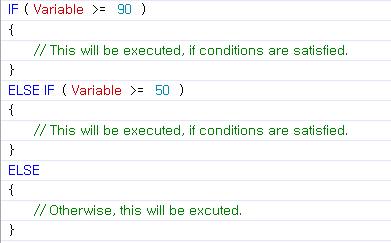
The examples below shows how to program the following conditions.
-
When the variable is greater than or equal to 90.
-
When the variable is greater than or equal to 50 and less than 90.
-
Other cases
Endless Loop
This command is used to repeat the command lines in the block without end.
Usage
A block is always required(However, if the block consists of only one, the block need not be enclosed with brackets).
Use the "Break Loop" command to exit the loop.
Example
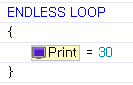
Continuously prints "10" on the Program Output Monitor.
Loop While
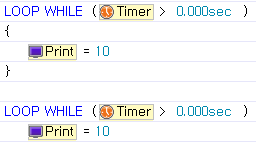
This command is used to repeat the command lines in the block while the clause is true. It is the equivalent of the "while"function in C language..
Usage
A block is always required(However, if the block consists of only one line, the block need not be enclosed with brackets).
Use the Break Loop command to exit the loop.
Example
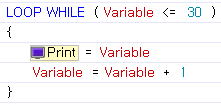
Continuously prints the value of on the Program Output Monitor until the variable reaches 30.
Loop For
This command is used to repeat the command lines in the block for the specified number of times. Given an initial value and a terminal value, the loop will repeat while increasing the variable by 1.
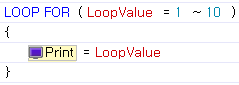
The number of executions can be calculated as:
Number to Executions = Terminal Value - Initial Value + 1
This is the equivalent of the "for" function in C language.
Usage
Choose the appropriate 3 parameters (variable, Start value, End value) necessary for the command.
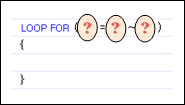
The initial value must be less than the terminal value. If the initial value is greater than the terminal value, the loop will not be executed.
A block is always required. (However, if the block consists of only one line, the block need not be enclosed with brackets.)
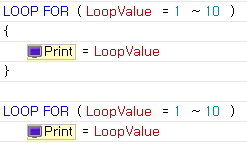
Use the Break Loop command to exit the loop.
Example
This example will repeat the loop as many as the detected sound quantity.
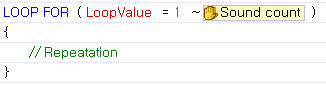
Break Loop
This command is used to exit the loop while it is being executed. It is the equivalent of the "break" function in C language.
Usage
The command must always be used in the block being repeated.
Example
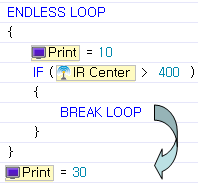
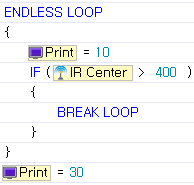
Continuously prints the number "10" on the screen until the value of the center IR sensor becomes bigger than 400, in which case it exits the loop and prints "30" on the screen.
Wait While
This command is used to pause execution when a conditional clause is true. It is the equivalent of the "while" function in C language.
Usage
Set the appropriate conditions without the use of blocks.
Example
The program will wait for the timer.

Exit Function
When this command is executed, it will end the operating function immediately even if not every command line was executed yet, and will return to the function called position. It is the equivalent of the "return" statement in C language.
Usage
Can be used only within a general function or a callback function.
Example
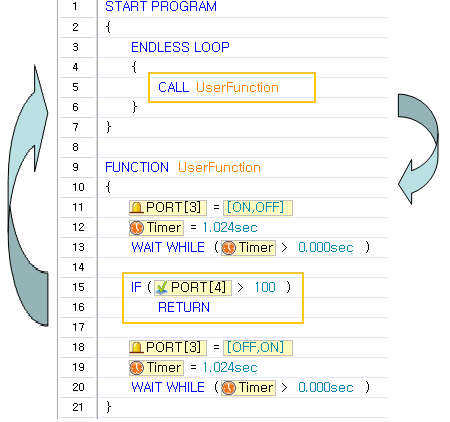
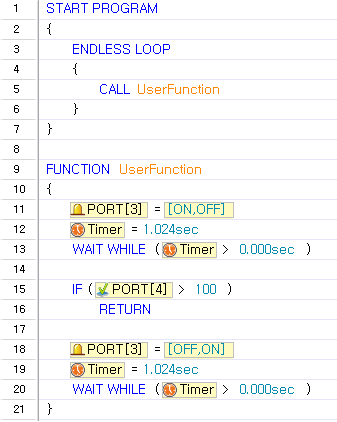
In the following example, UserFunction is called repeatedly. Because of the Return command in UserFunction, the last 3 lines will never be executed.
Make/Call Function
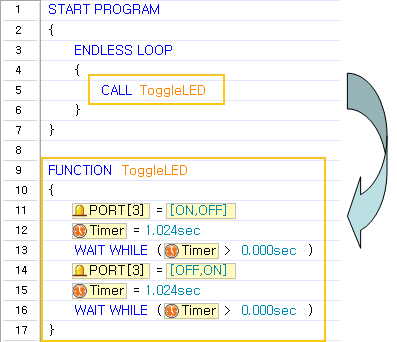
If the same code need to be repeated multiple times, or if the code needs to be distinguished according to its role, you can make the code as a function, and can all the function whenever necessary. This is similar to the concept of a function in C language. The only difference is that there are no return values and input parameters. When used properly, you can easily figure out the flows of the program, and can avoid to write the same command lines again and again. Functions are executed by calling them. After a called function ends, execution will be returned to the point of the calling and started from the next command line.
Usage
- The following rules apply when making a function:
- There cannot be duplicate function names.
- A function must exist outside another function or program body.
- Spaces and special characters(!, @, #, $ etc.) are not allowed in function names.
- Function names cannot start with numbers.
- While inputting function names, press Esc to cancel.
- Otherwise, press Enter to save.
- While selecting the function to call, press ESC to cancel.
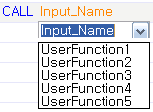
- Otherwise, click the appropriate function or press Enter while the function is highlighted to save.
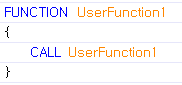
- A function cannot call itself.
Example
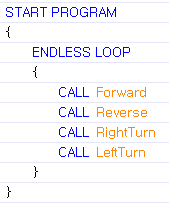
The program will continuously call the functions to move forward, backward, right and left.
Callback Function
Callback function is a function that runs independently of the main program routine and is automatically executed at fixed intervals. Therefore, a callback function cannot include code that requires much time. Use of loops, variables, and function calls are limited.
Usage
- The callback function cannot exist inside another function or program body.
- There can be only one callback function.
- A callback function does not have a name and cannot be called.
Precautions
- Can not use commands such as Endless Loop, Loop While, Loop For, Label, Jump, and Call Function.
- Communication between the controller and external devices is limited to 2 times.
- Size of the command must not exceed 512 bytes
Example
This example shows how periodically receive wireless data and to save it in a variable.