Installation
Software Installation
Install: Windows
- Download the package file.
-
Execute downloaded installation file.
-
Click on
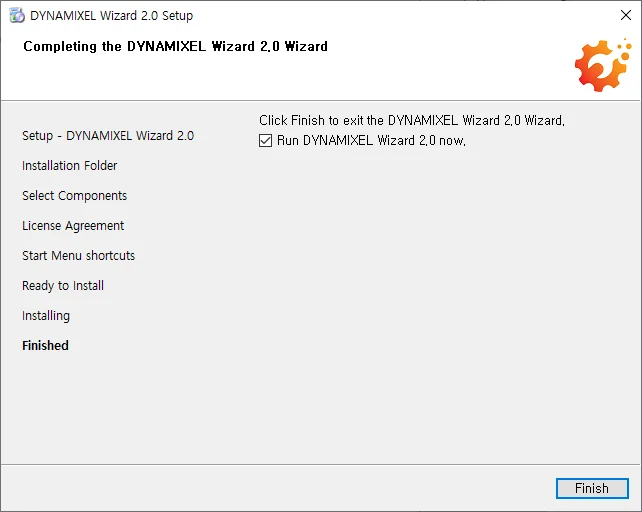
Nextbutton to proceed installation.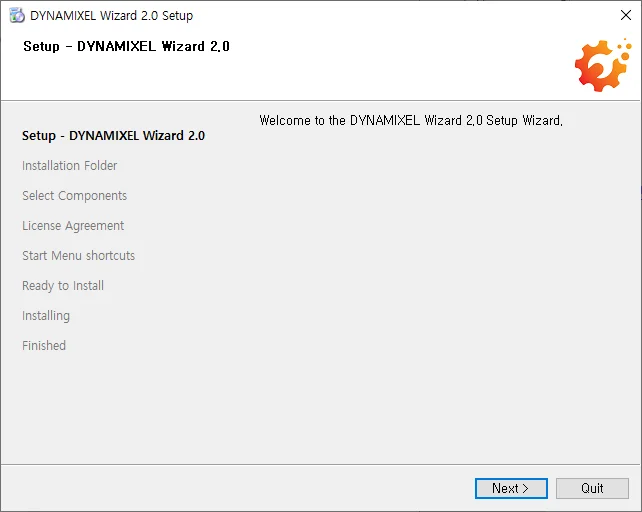
Install: Linux
- Download the package file.
- Enter the following command to change the permission.
$ sudo chmod 775 DynamixelWizard2Setup_x64
- Run the install program.
$ ./DynamixelWizard2Setup_x64
-
Click on
Nextbutton to proceed installation. -
After completing the installation, please add account id to dialout group in order to access the USB port. Replace the <your_account_id> in the command below to your actual user id.
$ sudo usermod -aG dialout <your_account_id>
- Reboot in order the changes to be effective.
$ reboot
Install: Mac
note
NOTE: Modern Mac OS supports app store installation only.
- Download the package file.
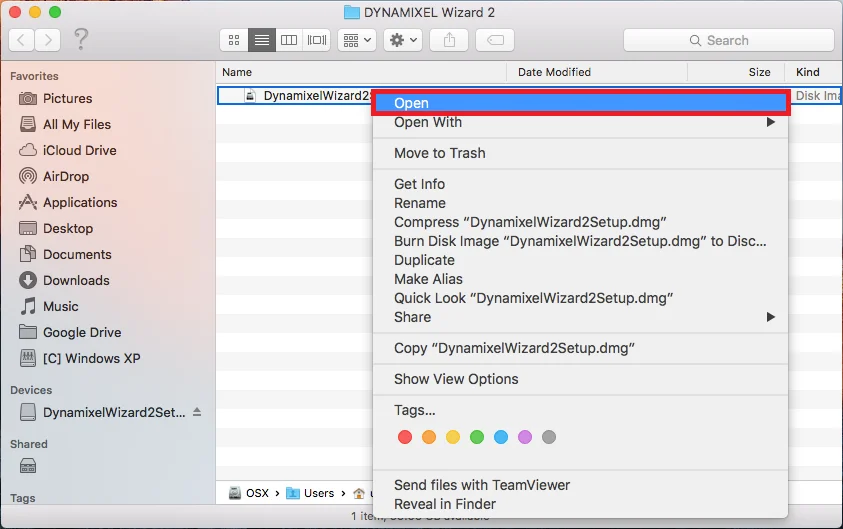
- Right click on the downloaded dmg file and select
Openfrom the mene.
- Launch the
DynamixelWizard2Setup_x64file.

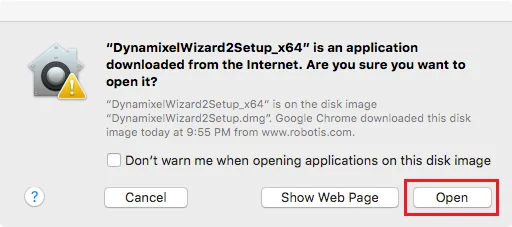
- If a warning message pops up, select
Opento proceed installation.
- Click
Nextto continue and follow the setup instruction.

Uninstall Software
Uninstall: Windows
-
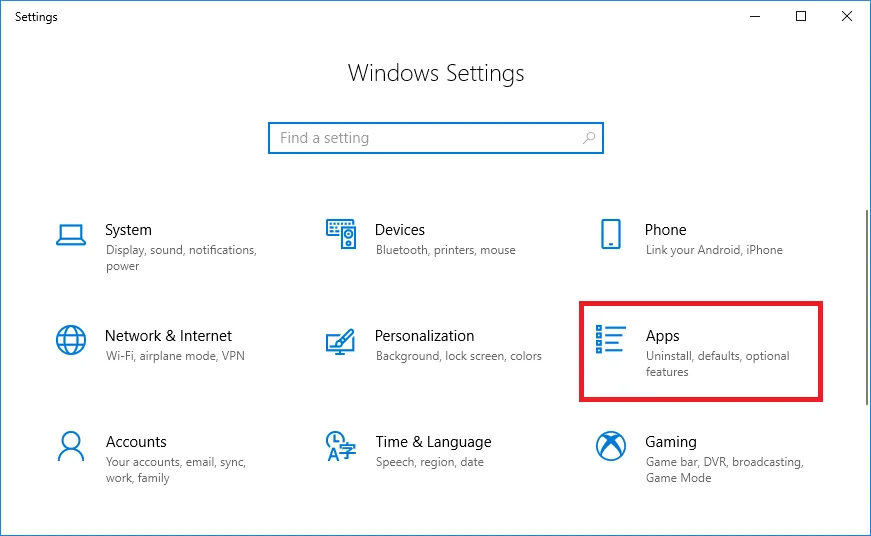
From Windows Settings, select Apps.
-
In the Apps & features tab, find
Dynamixel Wizard 2and selectUninstall.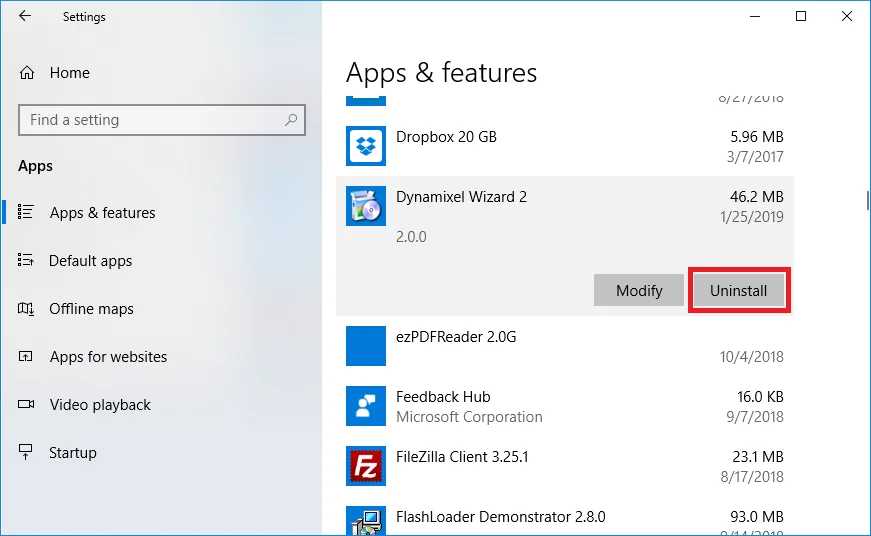
-
Select
Remove all componentsand proceed by clickingNextbutton.
Uninstall: Linux
-
From the folder where DYNAMIXEL Wizard is installed, execute
maintenancetool. -
Select
Remove all componentsand clickNextto proceed.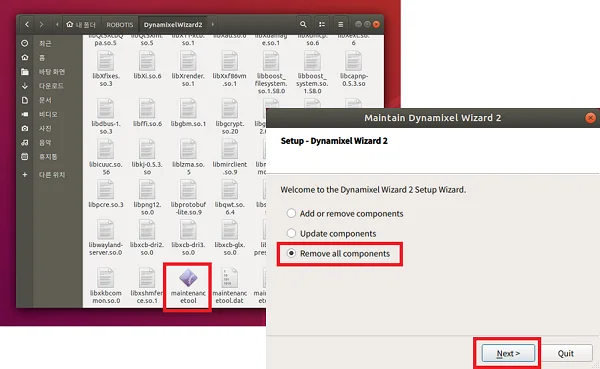
Uninstall: Mac
- Go to
DYNAMIXEL2WizardfromApplications. - Execute
maintenancetoolin DYNAMIXEL2Wizard folder. - Select
Remove all componentsand clickNextto proceed.