Record & Play
Record joint motion commands and replay them from Cyclo Manager. Use this feature to save a demonstrated motion and run it again, once or repeatedly.
Overview
Select Record & Play in the navigation. The page has two tabs:
- Playback: select a saved motion, configure playback, and monitor or stop a running job.
- New recording: name a recording and select the trajectory topics to capture.
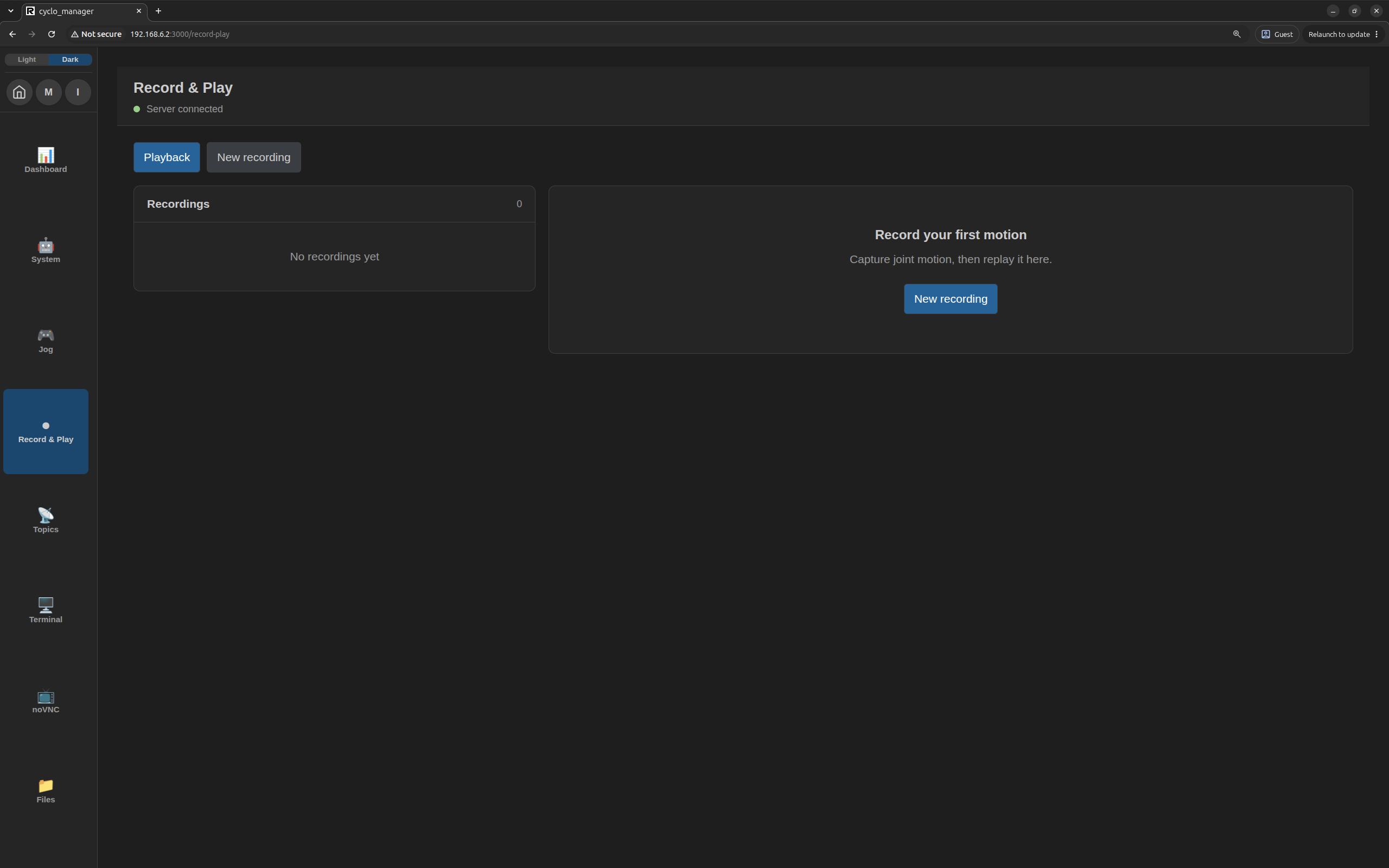
Record & Play saves received trajectory_msgs/msg/JointTrajectory messages in an MCAP rosbag. It records commands, not measured joint motion. Camera images, /joint_states, and mobile-base /cmd_vel commands are not recorded by this feature. For imitation-learning datasets, use Cyclo Intelligence's recording tools.
Before You Begin
Bring up the robot and make sure Cyclo Manager can discover its ROS 2 topics. For recording, prepare a command source such as a leader or Jog. For playback, the robot description, current joint feedback, and compatible receiving controllers must be available.
Playback moves the robot to the recorded start pose automatically. Keep the motion area clear and the emergency stop within reach. Stop leader publishing and other external motion-command sources before playback; Cyclo Manager does not arbitrate their commands. Automatic start and return movements do not include collision avoidance.
Only one recording or playback job can run at a time across browser clients. Recording can run while Jog supplies commands, but active Jog motion and playback cannot run together.
Recording and playback continue when you leave this page, switch tabs, close the browser, or lose the browser connection. Return to Record & Play to inspect the running job or stop it explicitly. Infinite playback also continues until stopped or an error occurs.
Record a Motion
1. Select the Topics
- Open New recording.
- Enter a Recording name, such as
pick-and-place-01. - Select the required Trajectory topics. Expand Topic on a card to check the actual ROS topic name.
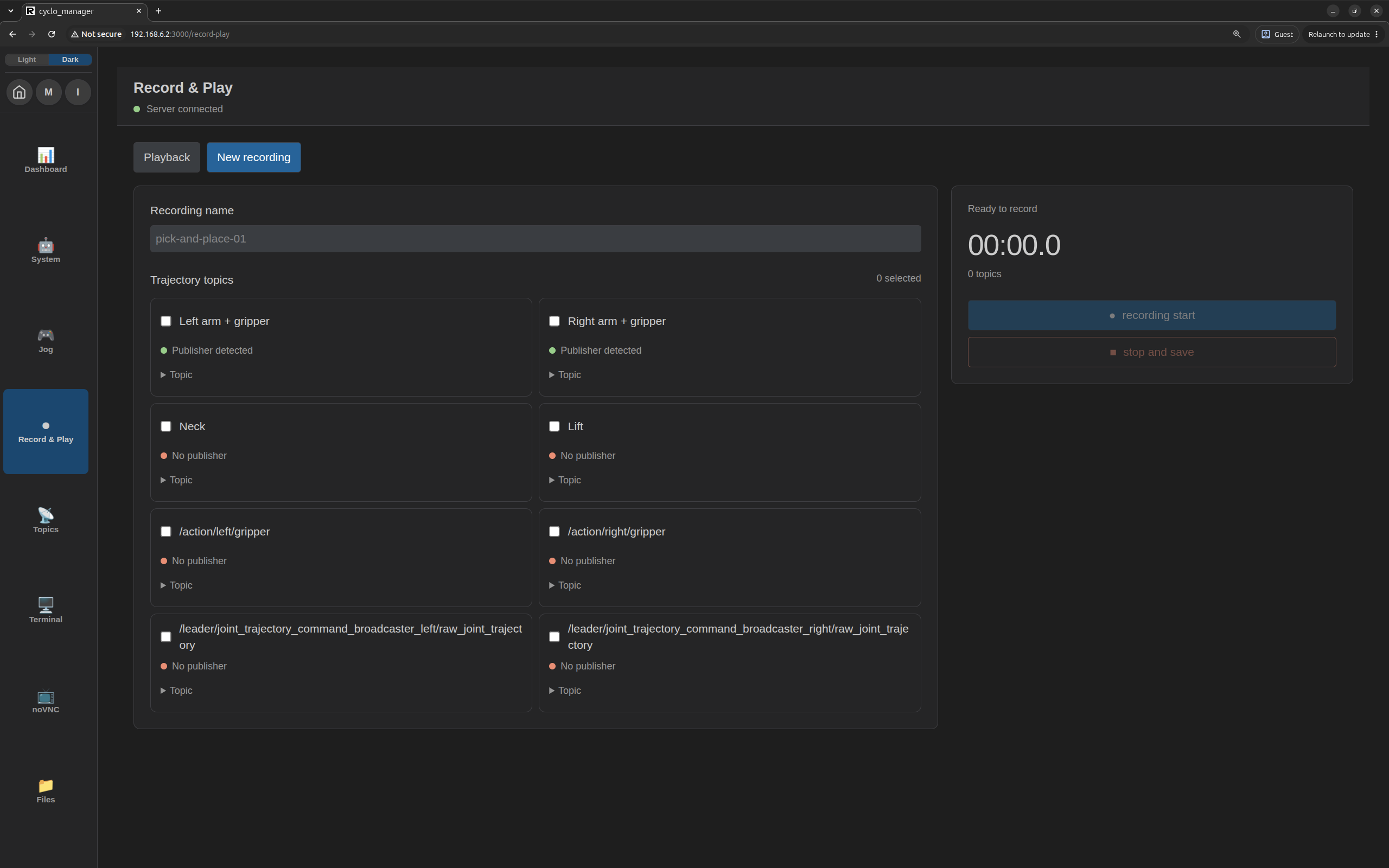
The list contains discovered JointTrajectory topics. Recognized topic names receive labels such as Left arm + gripper, Neck, or Lift; the available entries depend on the robot and running software.
- Publisher detected: A publisher exists on the topic, but it may not be sending messages.
- No publisher: The topic can still be selected, but it remains empty unless commands are sent during recording.
For automatic playback preparation, include at least one direct controller input topic: a trajectory topic received by a controller that also publishes JointTrajectoryControllerState. Recording only upstream or intermediate command topics may leave the recording without a usable start-pose target.
2. Start and Save
- Click recording start. A name and at least one selected topic are required.
- Move the robot using the leader, Jog, or another intended command source. Check that the message count increases.
- Click stop and save to finish writing the recording and add it to Playback.
- Only topics that received messages are included; empty selected topics are listed as excluded in the recording details.
- A capture with no messages cannot be replayed. Failed or incomplete captures do not appear in the playback library.
Play a Motion
1. Select a Recording and Settings
Open Playback and select a saved recording. Set the following options before clicking Play; settings are locked while a job is active.
| Setting | Options | Effect |
|---|---|---|
| Playback speed | 0.5×–1.5×, in 0.1× steps; default 1.0× | Changes the recorded motion's timing and scales recorded velocities and accelerations. |
| Playback | Once, Repeat, Infinite | Selects a single pass, a fixed number of passes, or continuous repetition. |
| Total plays | 1–10,000, in Repeat mode | Total number of passes, including the first. |
| Arrival tolerance | 3° (default) or 5° | Allowed angular error when checking arrival at a target pose. |
| Lift / linear tolerance | 1 cm (default), 2 cm, or 3 cm | Allowed position error for linear joints during arrival checks. |
2. Start Playback
Click Play. Cyclo Manager checks the recording, moves the recorded controller joints from their measured positions to the first recorded pose, and waits for arrival before replaying the messages. Unrecorded joints are not added to this movement.
The page shows the current stage as playback progresses:
Checking recording → Moving to start pose → Playing → Checking target arrival
After the final target is reached, the page shows Playback complete or the robot returns to the start pose for another pass.
Arrival tolerances apply to the initial pose, repeat returns, and final target checks. They do not change the recorded target positions. Some configured hand command topics are exempt from position-error arrival checks, but still require valid joint feedback.
3. Repeat Playback
Choose Repeat and set Total plays, or choose Infinite to keep repeating until stopped or an error occurs. Between passes, Cyclo Manager automatically returns to the recorded start pose and checks arrival before replaying the motion.
This return is a generated joint-space movement, not a replay of the recorded path in reverse. For grasping or contact tasks, include object release and a suitable return path in the recording so that the remaining automatic transition is appropriate for the workspace.
4. Stop & Status
Click Stop to cancel playback, including the initial movement or a repeat return. Cyclo Manager attempts to hold the current measured positions on the recorded direct controller inputs. To finish a recording, use stop and save.
If fresh joint feedback is unavailable or the hold command cannot be published, the controller may retain its last target and the page reports an error. Stop is a software control, not the hardware emergency stop. A stopped job does not automatically resume.
Limitations and Checks
Recording and Playback Checks
| Condition | What to check |
|---|---|
| No topics are listed, or the message count stays at zero | Confirm ROS communication and that the intended source is publishing to the selected trajectory topics. Publisher presence alone does not confirm data delivery. |
| Playback cannot identify controller inputs | Include a recorded trajectory topic subscribed to by a controller that publishes JointTrajectoryControllerState. Playback uses these direct inputs for automatic pose transitions and arrival checks. |
| Playback rejects the recording | Direct-input joint names must have usable URDF limits, and each direct input must keep a consistent joint list throughout the recording. Invalid message values or timing and effort trajectories are unsupported. |
| Missing joint feedback or robot description | Preparation, returns, arrival checks, and stop holds require current joint feedback (no older than 500 ms) and an unchanged robot description. |
| Target arrival times out | Check the reported joints and their target/actual positions, controller operation, and selected tolerances. Recorded positions are not automatically clamped to URDF limits. |
| Moving to the start pose would take too long | Automatic transitions are limited to 120 seconds. Move closer to the start pose with Jog, stop Jog, and try again. |
| Recording stops with a storage or queue error | Free disk space and check storage performance. Recording fails when its disk check finds less than 256 MiB free, the receive queue overflows, or writing fails. |
| Playback stops with a timing error | Check system load. Playback aborts when command delivery falls more than 500 ms behind schedule. |
Playback Communication
Playback republishes all recorded topics to their original names. Use compatible topic names, controllers, and joint configuration; the saved robot label does not establish compatibility. If a recording contains partial joint commands, the receiving controller must support them.
During message replay, Cyclo Manager does not continuously recheck joint feedback or the robot description; these checks occur at preparation, arrival, return, and stop stages. It also does not wait for matching subscribers before publishing. A missing receiver alone will not stop the replay clock, so monitor the actual robot motion as well as the page status.
Recording Storage
With the standard Docker Compose setup, recordings are saved on the Robot PC under ~/cyclo_manager_ros_bags, mounted at /cyclo_manager_ros_bags inside the Manager container. The configured location is shown under Recording details and may differ between installations.
Each recording has a generated directory containing recording.json and a bag directory with rosbag metadata and MCAP files. Completed recordings remain available after a Manager container recreation when the host storage mount is retained.
Delete a Recording
To remove a saved recording, click its Delete button and confirm. This permanently removes its metadata and rosbag files. Stop or save any active job before deleting recordings. Incomplete recordings may remain on disk for diagnosis but are not listed in the library.