Files
Use Files to browse, upload, and edit files on the Robot PC from your browser. The file explorer accesses the host PC through the host agent, within its configured workspace.
File Management
Browse and Search
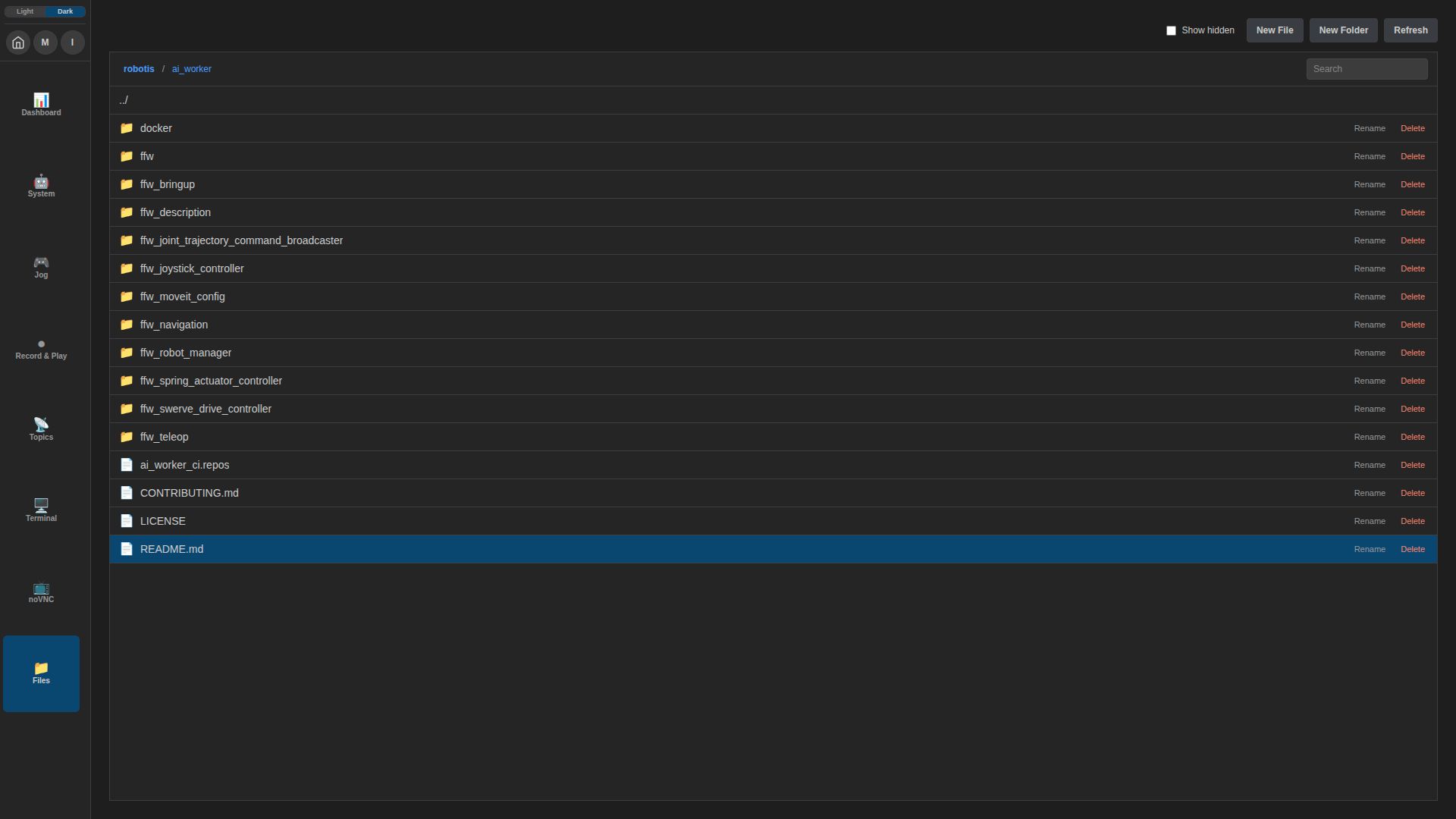
Open Files from the navigation. The breadcrumb at the top shows the current folder within the configured workspace.
| Control | Description |
|---|---|
| Folder or file | Double-click to open it. On mobile or touch devices, tap it once. |
Breadcrumb / ../ | Open a parent folder or return to the workspace root. |
| Search | Find files and folders by name in the current folder and its subfolders. |
| Show hidden | Include hidden files and folders, such as .bashrc. |
| Refresh | Reload the current file listing. |
Create, Upload, and Manage Files
Open the destination folder before creating or uploading files.
- New File / New Folder: Enter a name to create an item in the current folder.
- Upload: Drag files from your PC into the Files page. Each file can be up to 20 MiB. If a file with the same name already exists, confirm whether to overwrite it.
- Rename: Use the button beside an entry to change its name.
- Delete: Use the button beside an entry and confirm deletion. Deleting a folder also deletes its contents; deleted items are not moved to a trash folder.
View and Edit Text Files
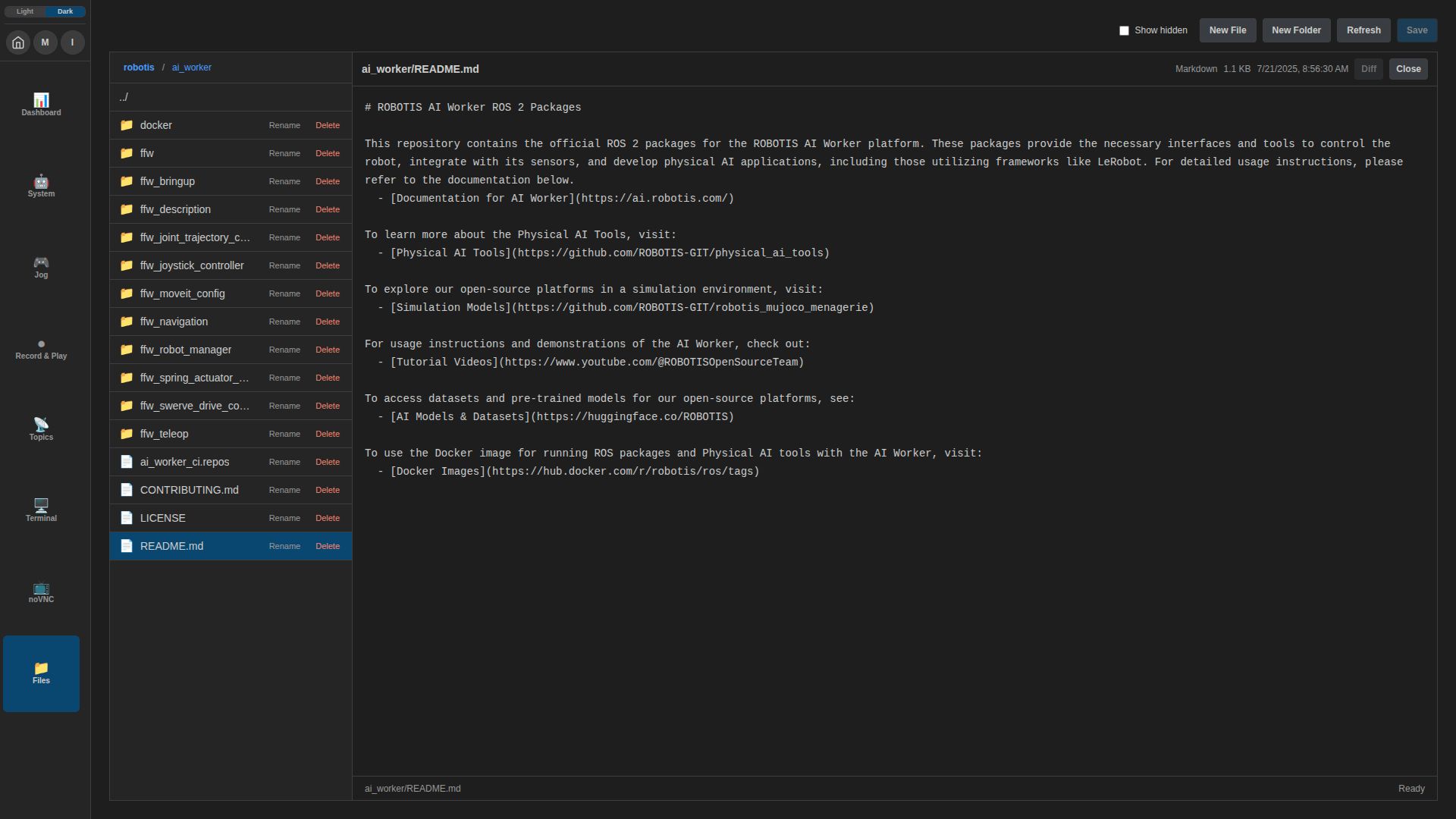
- Open a text file to display it in the editor.
- Edit its contents. An asterisk (
*) beside the file path indicates unsaved changes. - Click Save in the top toolbar to write the changes to the Robot PC.
- Click Close to return to the file explorer. If you have unsaved changes, a confirmation appears before closing.
The editor supports UTF-8 text files up to 2 MiB when opening them. Files marked RO or Read only can be viewed but cannot be edited.
Review Changes
For modified or untracked files in a Git repository, click Diff to review changes. Use Edit to return to the editor.
The comparison uses the file saved on disk and the repository's latest commit (HEAD). Save your edits first if you want them included in the comparison. Diff is disabled when no supported Git changes are available.