Dashboard
Use Dashboard to monitor the Robot PC and manage containers, images, and software versions.
Dashboard Overview
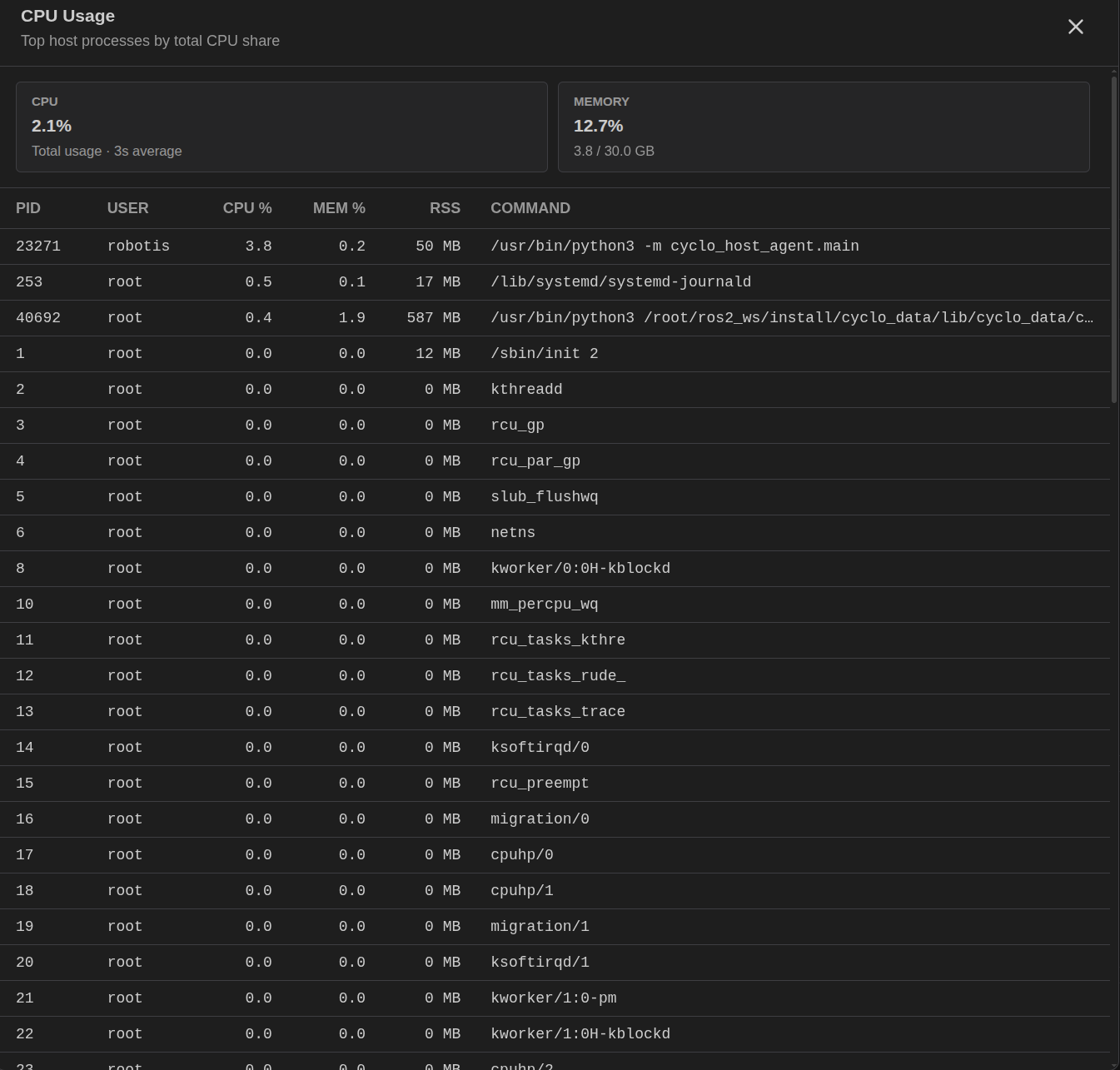
Dashboard brings system status, container management, and version management together on one page.
System Status
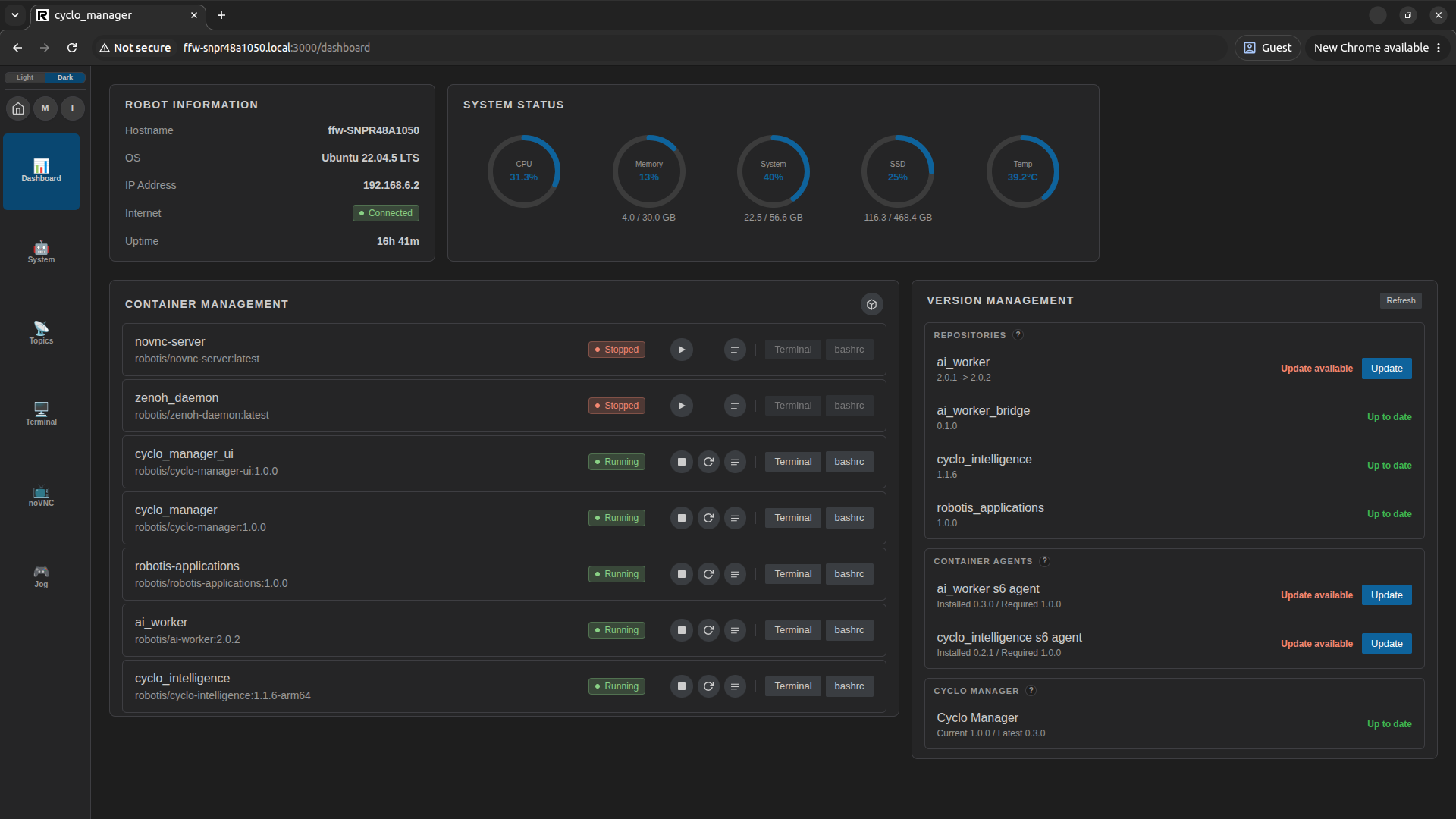
The System Status panel shows the Robot PC's CPU and memory usage, system and SSD storage usage, and temperature when available.
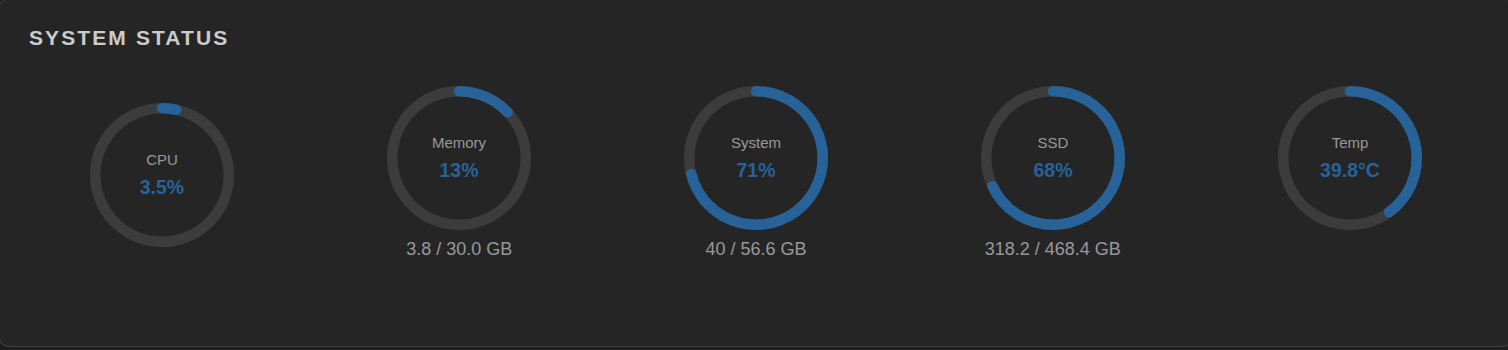
Click CPU to open CPU Usage and inspect the host processes using CPU resources. The panel shows overall CPU and memory usage, followed by each process's PID, user, CPU and memory usage, resident memory (RSS), and command.
Container Management
Manage Containers
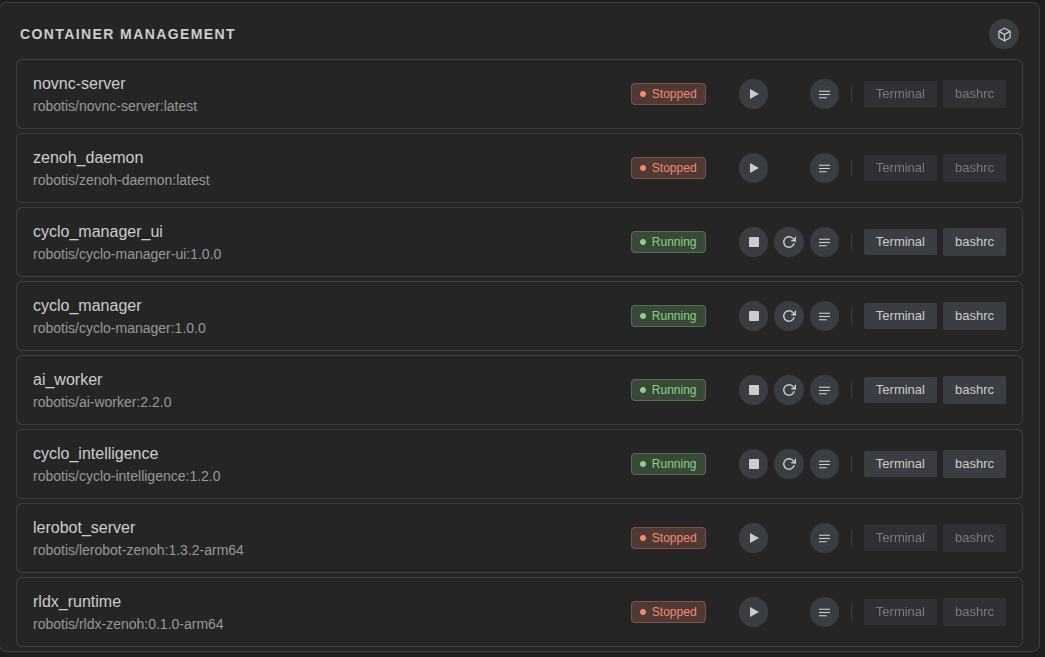
The Container Management panel lists Docker containers and their status. For each container, you can:
- Start, stop, or restart the container.
- View the container's logs.
- Open a terminal inside the container.
- View and edit the container's
.bashrcconfiguration.
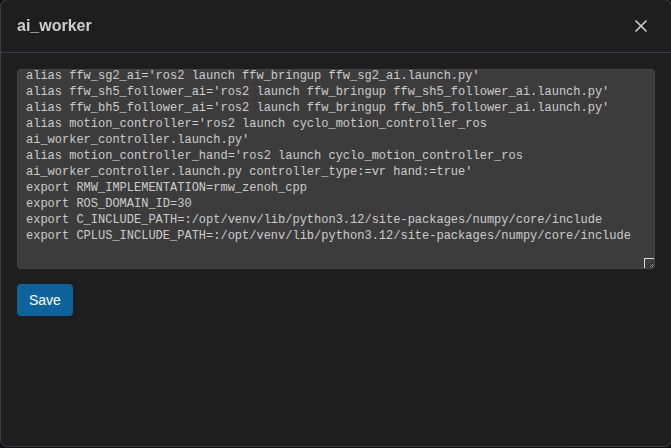
Use the .bashrc control for a container to inspect and edit its shell configuration. Changes do not alter the environment of already-running processes; restart the affected services or container when required.
Manage Docker Images
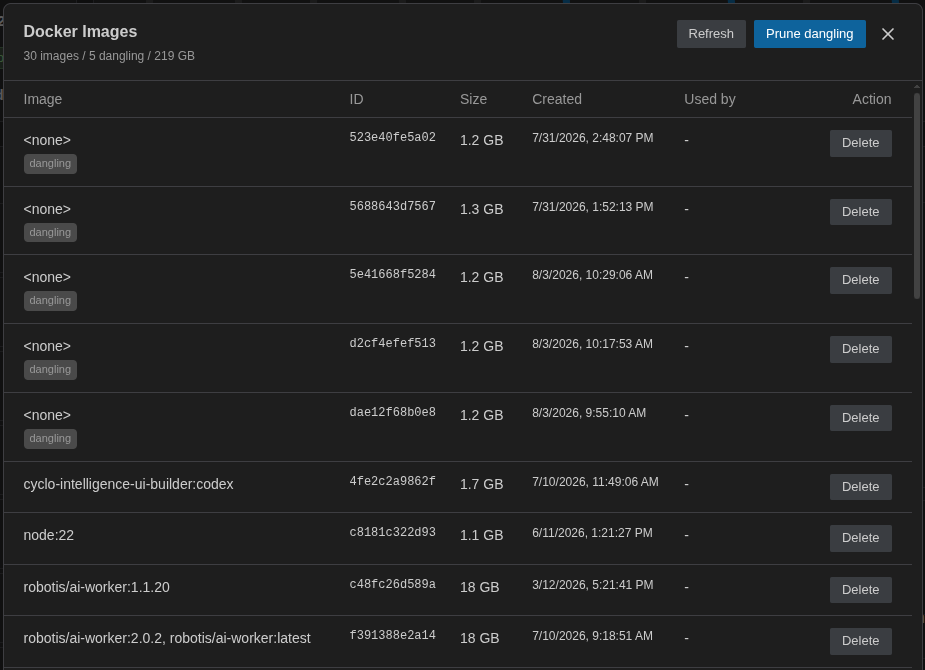
Open Docker image management from the container management area to review image tags, size, and container usage. Delete an unused image or prune dangling images when needed. Images used by a container cannot be removed from this screen.
Version Management
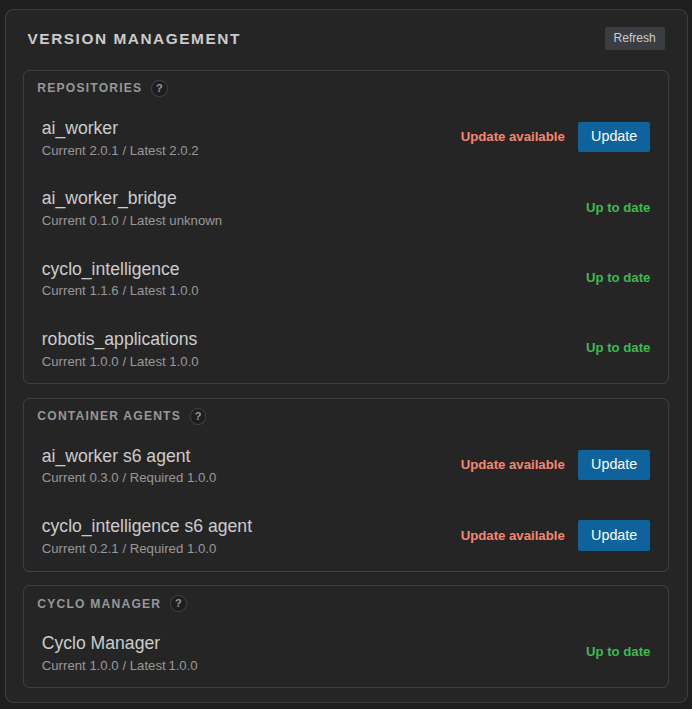
Use Version Management to inspect and update supported software packages, Cyclo Manager, and container agents.
Package Update
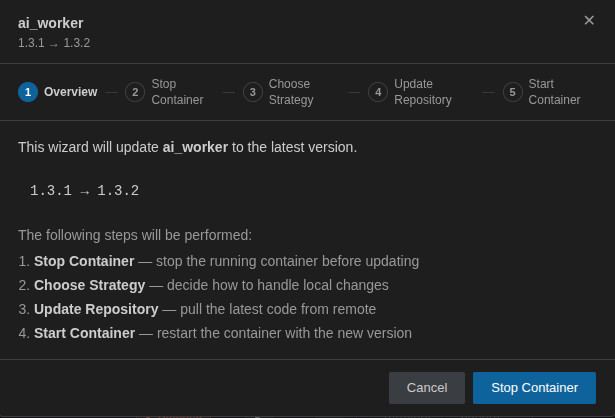
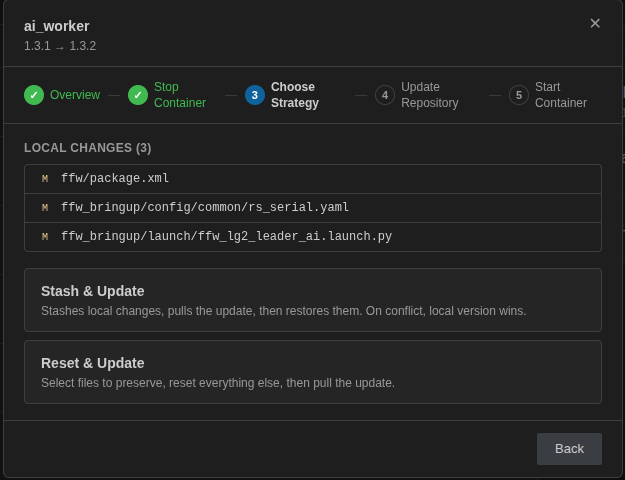
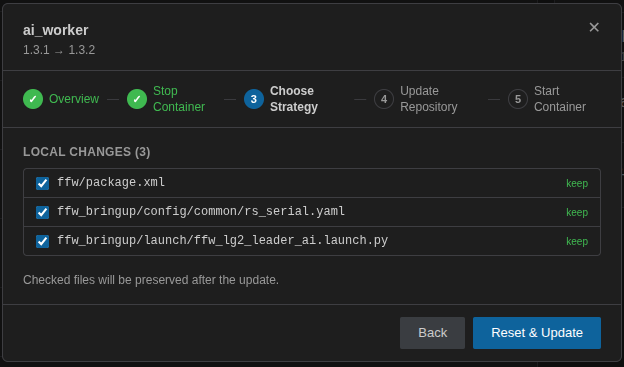
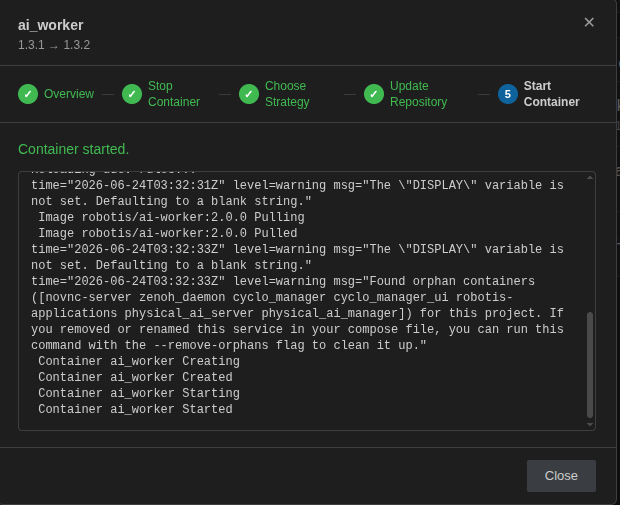
Use Package Update to update a supported robot software repository and recreate its container. Click Update when an update is available. Stop the running container when prompted. Choose how to handle local changes. Updates are supported on the Select files to preserve as needed, including any robot-specific configuration. Continue the update. Cyclo Manager updates the repository and recreates the container. Downloading an image may take several minutes.Package update procedure
main and jazzy branches.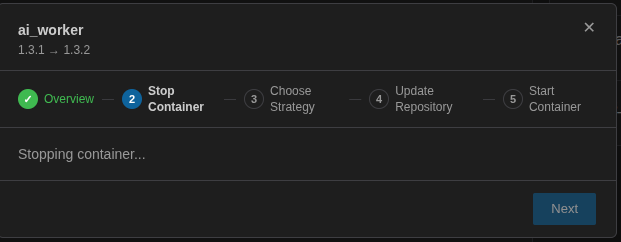
Cyclo Manager Update
Use Cyclo Manager Update to update the CLI package and restart the Manager stack with matching API and web UI images. Click Update when a new version is available, then reopen the web UI after the update. The update also restarts the host agent. If the web update fails, connect to the Robot PC and run: You can also update manually from a terminal on the Robot PC: The Cyclo Manager update details

--pull option downloads the configured images before starting the updated stack. The down command stops and removes the Manager stack and its host-agent service; up sets them up again. Both cyclo-manager and cyclo_manager are supported command names.
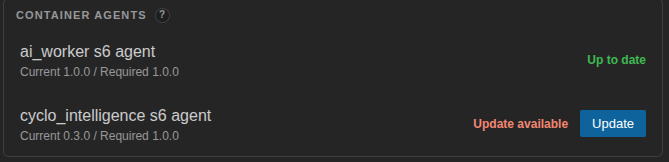
Agent Update
Use Agent Update when the s6 agent inside a managed container is incompatible with the installed Cyclo Manager version. In Container Agents, click Update for the affected container. The container may restart during the update.Agent update screen